
In Job Setup, you create a list of Jobs that are to be made available to STAGE operators.
Each Job defines the resources and configuration required for a production or live event.
-
Production personnel involved in the event (for example, audio engineers, producers, directors): the Members
-
The audio inputs, outputs, and connected devices: the Devices.
-
The processing resources such as DSP functions or audio mixing applications: the Applications.
Configured Jobs can then be activated from the Activation tab for STAGE users to use.
Overview
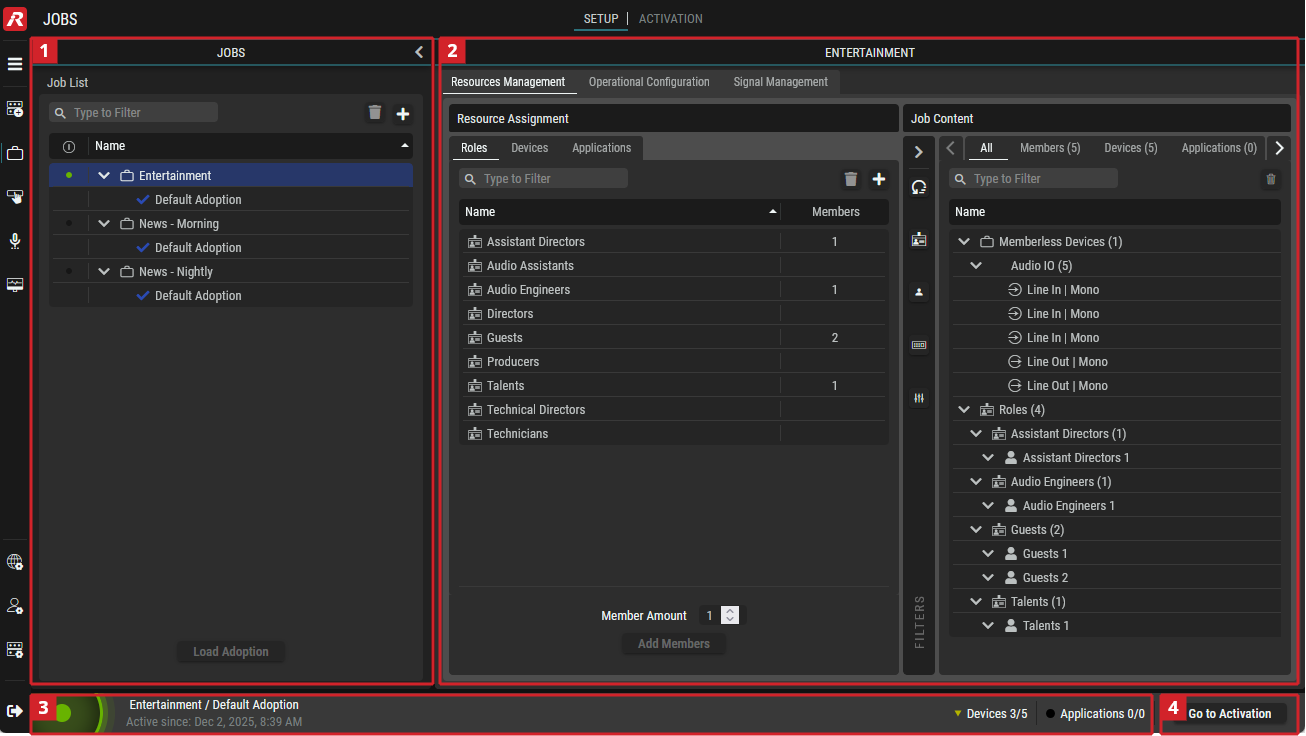

Jobs
Create Jobs and their associated Adoptions. A Job can have one or more Adoptions.
-
Job: This groups which system resources STAGE will use.
-
Adoption: This defines which system resources STAGE will use when the Job is activated.
The content in the “Job/Adoption Setup” section changes according to whether a Job or an Adoption is selected in this “Jobs” section.
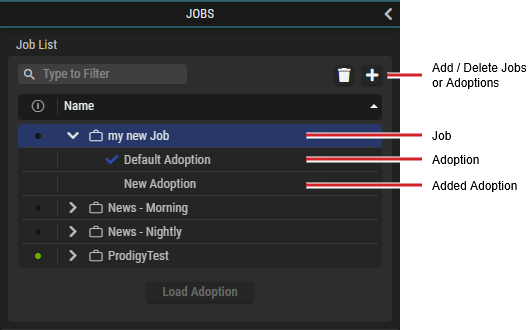
Typical Job List showing Jobs and Adoptions (shown with a Job selected )

|
Set a filter to display only content whose search text is found in the name. |

|
Click to delete the selected Job or Adoption.
|

|
Click to add a Job or Adoption.
|

|
Indicates if the Job is active. |
|
Name |
The name of a Job or Adoption. In the tree, double-click the name of a Job or Adoption to rename it. |

|
Loads the selected Adoption into the active Job. |

Job Setup / Adoption Setup
Depending on the selection in the Jobs section (a Job or an Adoption), the following configuration tabs will be displayed, which are described in the subchapters.

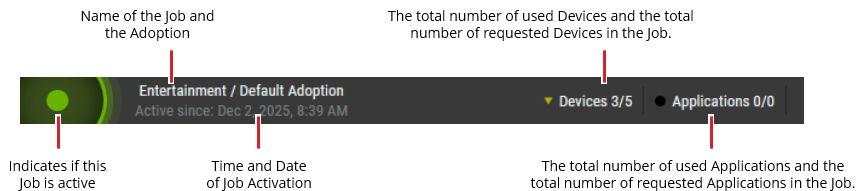
Information Bar

Go to Activation
Once you have configured a Job, you need to activate it to make it run.
This is done in the Activation Tab. Click to go to the Job Activation tab.