
All of the keyboard shortcuts to assist with operations in Clip Companion can be found within the application.
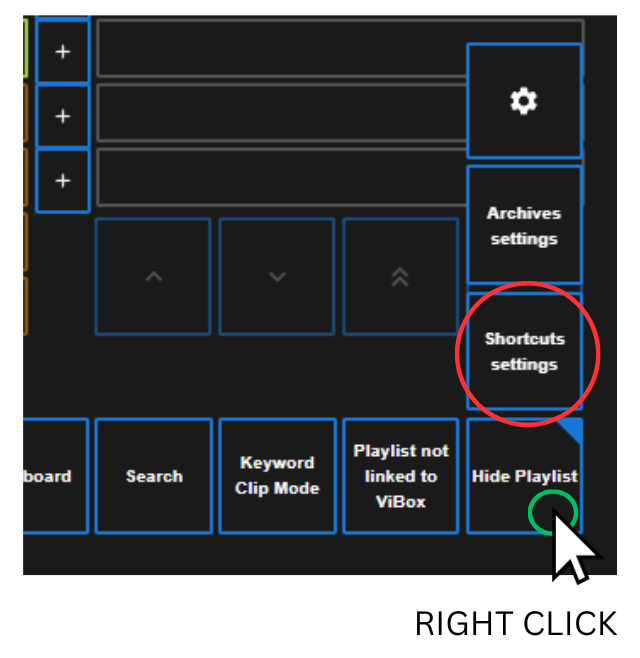
Right click the “Show / Hide Playlist” button and select “Shortcut Settings”.
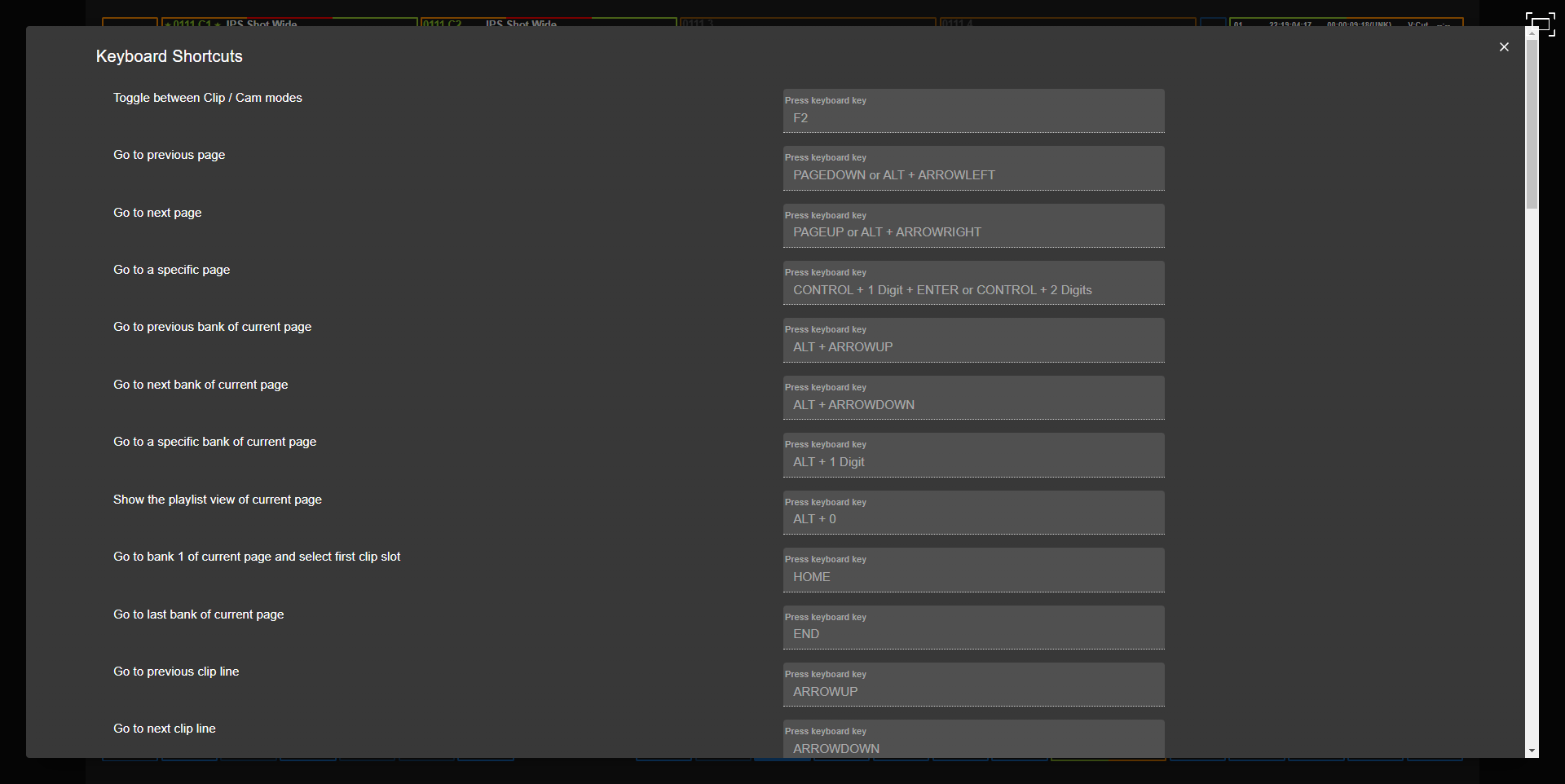
Here you can scroll through the list of shortcuts.
Keyboard Shortcut List
For reference here, please find a list of all keyboard shortcuts and their action below.
You can search and view different filters to narrow down your search for a specific shortcut.
|
Actions |
Shortcut |
|---|---|
|
Toggle between Clip / Cam modes |
F2 |
|
Go to previous page |
PAGEDOWN or ALT + ARROWLEFT |
|
Go to next page |
PAGEUP or ALT + ARROWRIGHT |
|
Go to a specific page |
CONTROL + 1 Digit + ENTER or CONTROL + 2 Digits |
|
Go to previous bank of current page |
ALT + ARROWUP |
|
Go to next bank of current page |
ALT + ARROWDOWN |
|
Go to a specific bank of current page |
ALT + 1 Digit |
|
Show the playlist view of current page |
ALT + 0 |
|
Go to bank 1 of current page and select first clip slot |
HOME |
|
Go to last bank of current page |
END |
|
Go to previous clip line |
ARROWUP |
|
Go to next clip line |
ARROWDOWN |
|
Go to previous cam |
ARROWLEFT |
|
Go to next cam |
ARROWRIGHT |
|
Go to previous 4 cams |
CONTROL + ARROWLEFT |
|
Go to next 4 cam |
CONTROL + ARROWRIGHT |
|
Go to the first cam |
CONTROL + HOME |
|
Go to the last cam |
CONTROL + END |
|
Go to the previously displayed cams |
CONTROL + P |
|
Display the Search window |
F8 |
|
Open / close the playlist pane |
F10 |
|
Toggle focus between panes |
CONTROL + TAB |
|
Clear the Name field at the bottom of the screen |
ESCAPE |
|
Clear the selection of clips, playlists and elements |
CONTROL + D |
|
Select / deselect clips / cams / playlist / playlist item |
CONTROL + ENTER |
|
Select / deselect a range of clips / cams |
SHIFT + ENTER |
|
Delete selected clips / cams / playlists / playlist items |
CONTROL + DELETE or ALT + DELETE |
|
Copy selected clips / cams |
CONTROL + C |
|
Cut selected clips / cams |
CONTROL + X |
|
Paste selected clips / cams |
CONTROL + V |
|
Restripe clip timecode |
ALT + T |
|
Load the selected clip / cam / playlist / playlist item on the main controlled channel |
ENTER |
|
Name the selected clip / playlist / playlist item |
F1 |
|
Load media (clip or playlist) by ID on the main controlled channel |
F3 |
|
Play / pause on the controlled channels |
ALT + P |
|
Turn the loop mode on or off on the controlled channels |
ALT + Y |
|
Recue the media on the controlled channels |
ALT + R |
|
Add / remove archive flag |
ALT + Z |
|
Edit (open Clip or Playlist or Playlist Item Properties window) |
CONTROL + E |
|
Insert selection before the current playlist item |
CONTROL + I |
|
Insert selection after the current playlist item |
CONTROL + J |
|
Add selection at the end of the current playlist |
CONTROL + A |
|
Change tracked PGM |
SHIFT + F4 |
|
Set as Pref Cam |
F4 |
|
Put the focus on name field in search panel and toggle on/off |
CONTROL + S |
|
Put the focus on time field in search panel and toggle on/off |
CONTROL + T |
|
Put the focus on date field in search panel and toggle on/off |
CONTROL + Q |
|
Display Pref Bin |
CONTROL + SHIFT + P |
|
Display Bin |
CONTROL + SHIFT + F1 (F2, F3,...) |
|
Send to Pref Bin |
CONTROL + ALT + P |
|
Send to Bin |
CONTROL + ALT + F1 (F2, F3,...) |