To access the STAGE user interface, open a web browser and enter the name of the server on which the STAGE Suite is installed, e.g. “https://my-stage-setup.myfacility.local”.
Login
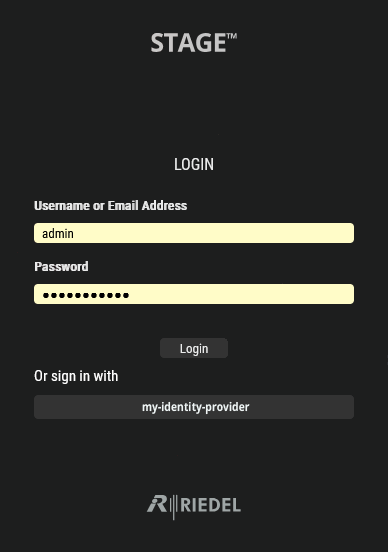
At first the Login screen is displayed.
-
For the very first login after installing the STAGE Suite, use the login credentials and login method specified by your administrator during the installation process. See chapter Installation.
-
Depending on the STAGE configuration, it is possible to log in either as a Local User, via an User Directory or via an Identity Provider.
-
Local User: You will be asked to change the password immediately after the first login for security reasons.
-
User Directory or Identity Provider: You do not need to change the password.
-
The password must meet the following criteria:
10 characters long, 1 lowercase letter, 1 uppercase letter, 1 number and 1 special character.
Login as a Local User or with an User Directory
When a User Directory (e.g. Active Directory) has been configured, the same fields are used for the login as for a local user. Use your credentials provided by your system adminstrator; this is usually your standard network login, that you use for your PC. To configure a User Directory, see chapter User Directories.
Login with an Identity Provider
When an Identity Provider has been configured, it is shown under Or sign in with. Click the name of the Identity Provider to login using your credentials provided by your system administrator; this is usually your standard network login, that you use for your PC. To configure an Identity Provider, see chapter Identity Providers.
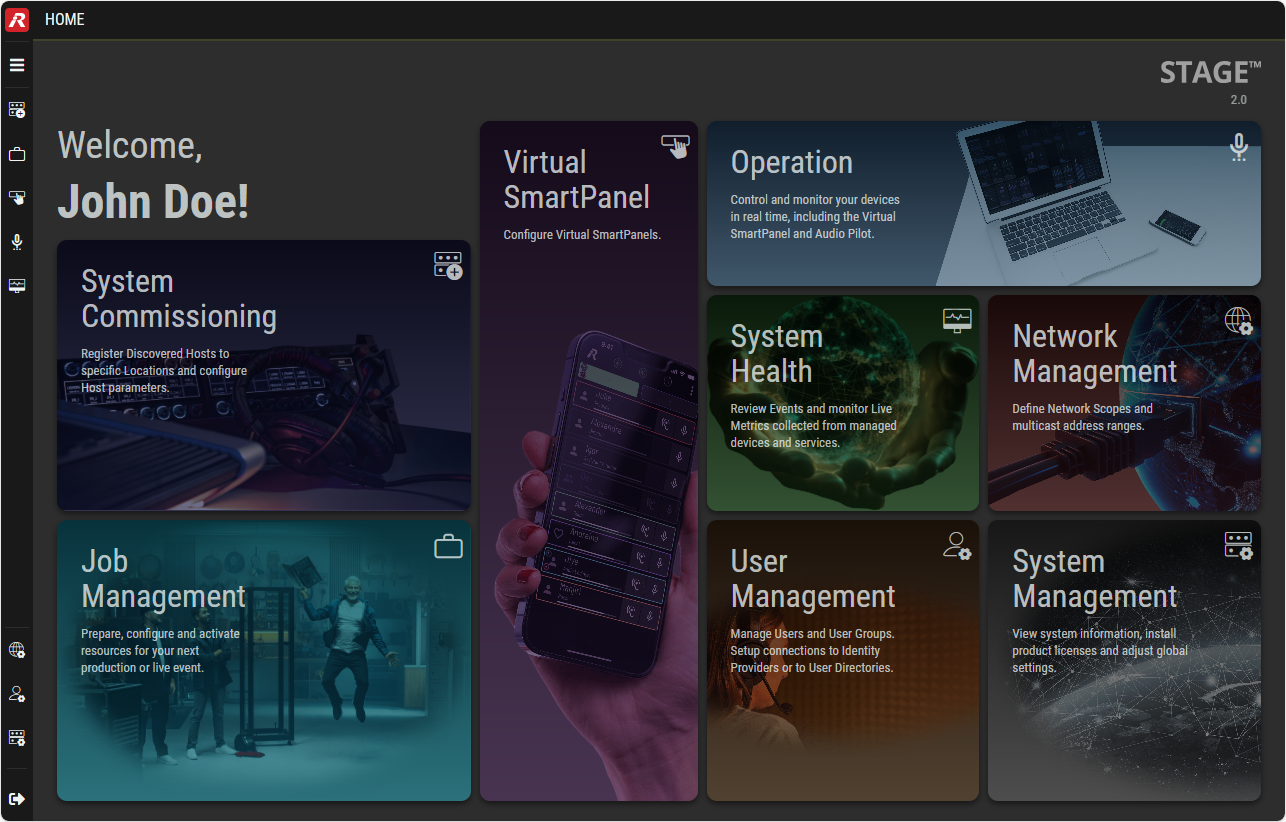
After successful login, the landing page ‘Home’ is displayed.
Not all features shown in this landing page are available to all users. The access permissions that have been assigned to you were set by a user that has administrator permissions. Further information about access permissions and the STAGE features to which they grant access can be found in the chapter Users #Permissions-Tab.