
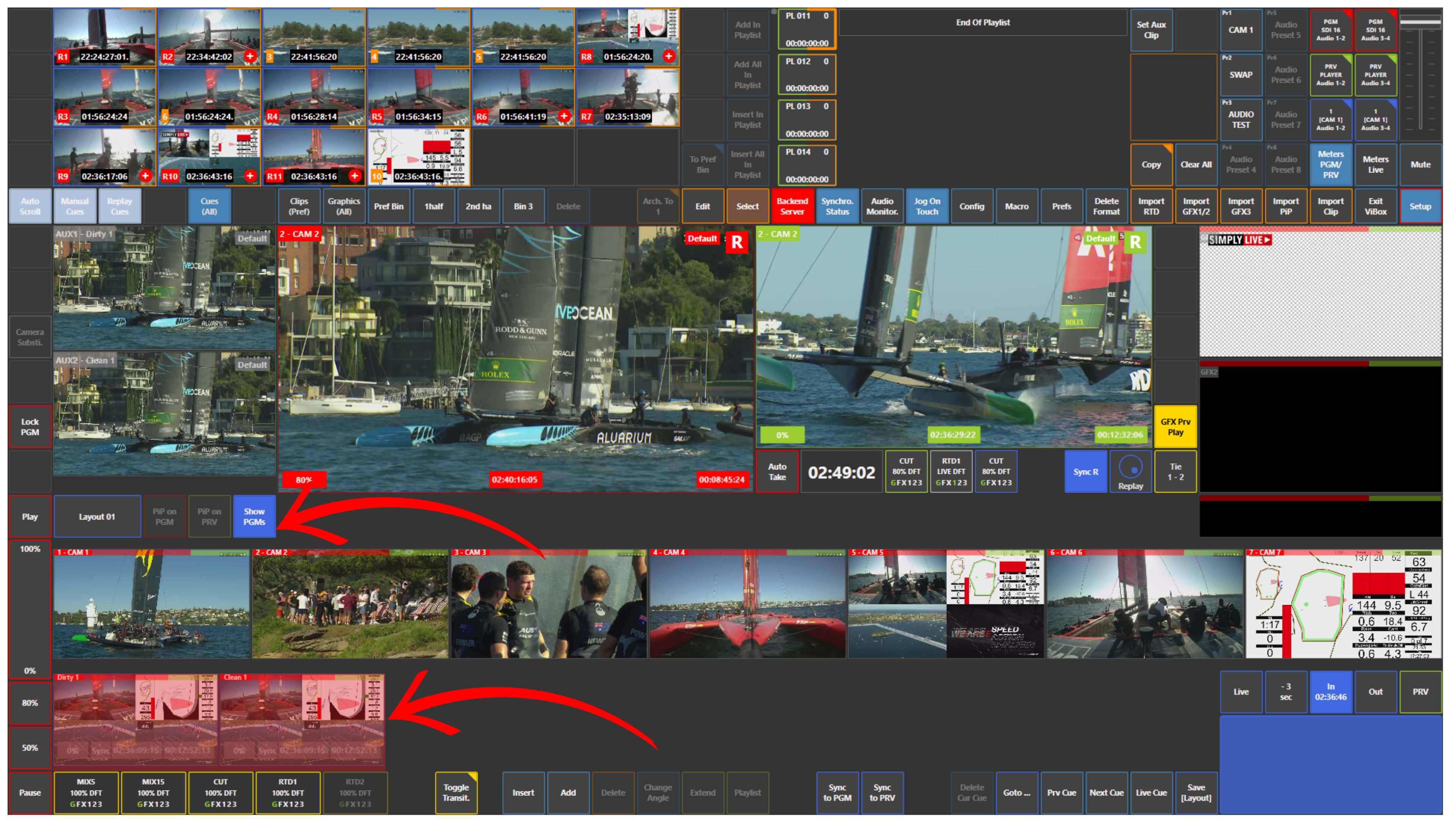
If you want to see your PGM Dirty and PGM Clean outputs in Production, activate Show PGMs.
This displays your program outputs on the interface:
-
PGM Dirty shows the program output with graphics
-
PGM Clean shows the program output without graphics
This is useful when you need to monitor both versions of the output during production.
Configuring PGM Dirty and PGM Clean Outputs
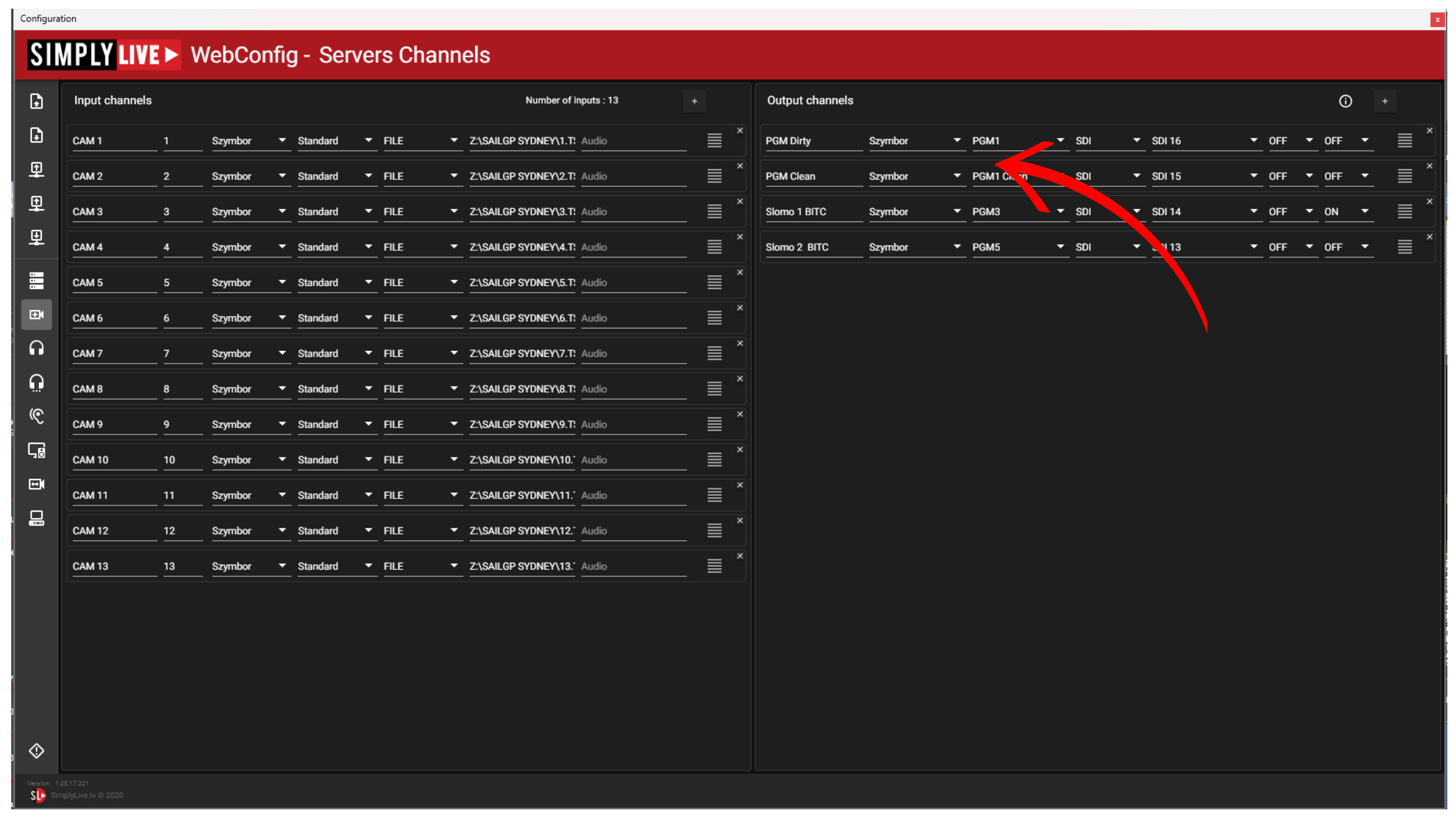
You can assign these outputs to the required output channels in:
Setup → Config → Servers Channels
In Servers Channels, you can configure the output type and channel for each output.
Available output types include:
-
SDI
-
NDI
-
RTP
-
SRT
-
UDP
This allows you to route PGM Dirty and PGM Clean to the correct destination depending on your workflow.
Use Case – Live Production Scenario
You are producing a live show and need to send:
-
a dirty output with graphics to one destination
-
a clean output without graphics to another destination
Activate Show PGMs to monitor both outputs in Production.
Then go to Setup → Config → Servers Channels and assign PGM Dirty and PGM Clean to the required output type and channel.
This is especially useful when sending outputs to transmission, LED walls, multiviewers, or external systems.
Pro Tip
Use PGM Dirty when you need the final on-air version with graphics.
Use PGM Clean when another destination needs the same programme feed without graphics.