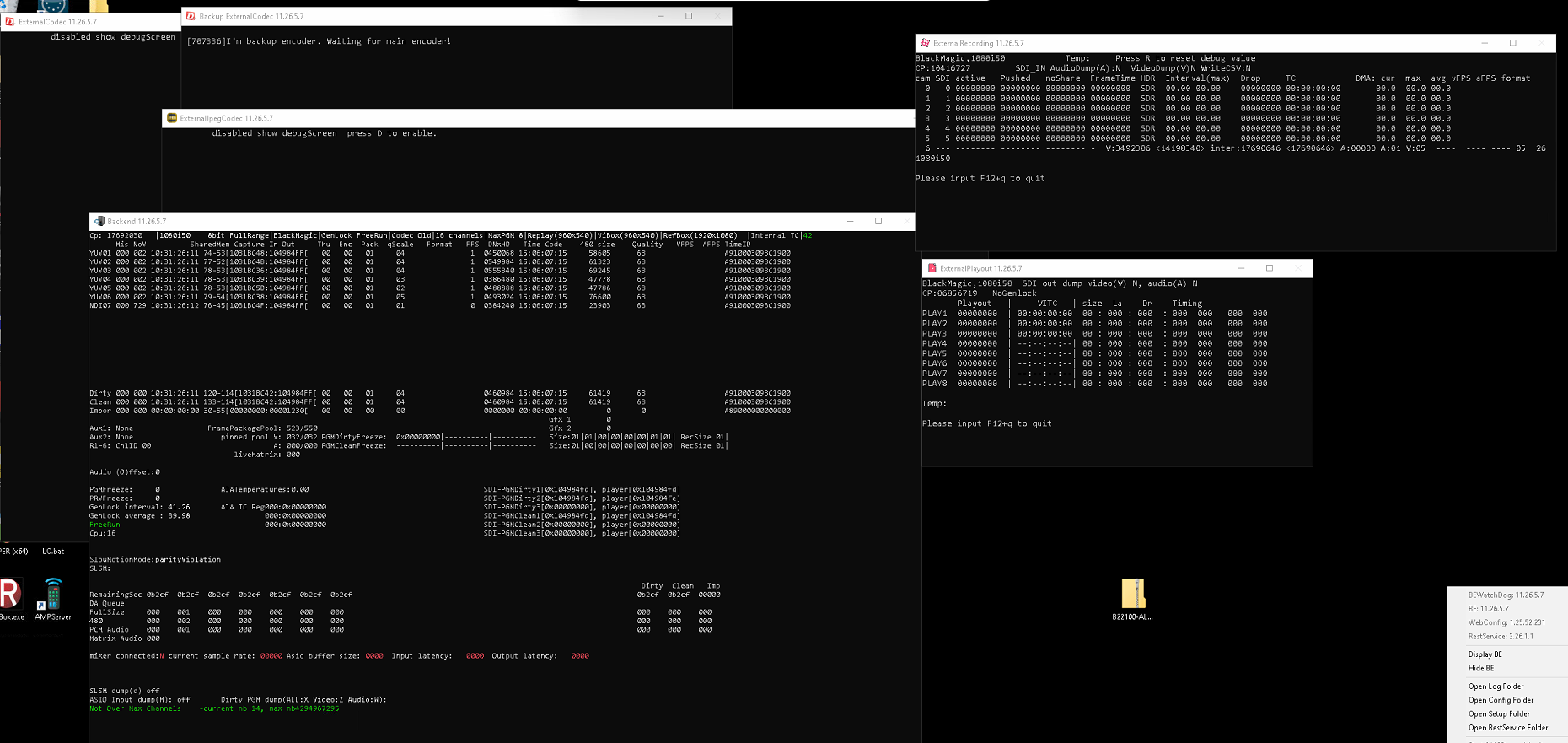
SimplyLive Backend 11 is the server-side application that manages the COTS hardware platform (On Premise or Cloud) and initiates the decoding of inputs and recording to the loop recording trains on the SimplyLive managed RAID storage.
The Backend software is mandatory for any SimplyLive solution to run, as such comes installed as standard in RiMotion, RiCapture and RiView. For SimplyLive Production Suite Flex it can be licensed separately and sized to offer the number of HD or UHD channels required, in both SDR and HDR.
Backend 11 Information and Applications
Key Information
-
The Backend 11 software has no UI per-se,
-
It must be installed on a Windows Operating System.
-
Backend 11 services, which deployed when the application is installed are all kept alive by the Watchdog service, that can be found in the system tray.
-
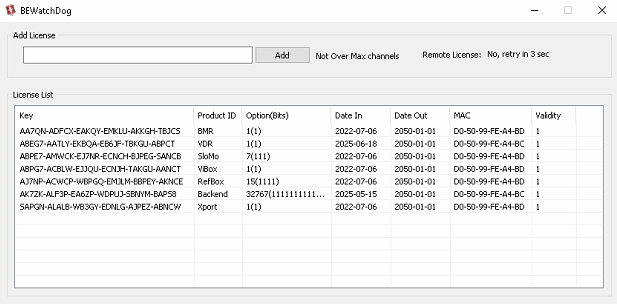
The Watchdog service also displays the current licenses installed on the Backend.
-
There are also a number of Debug screens available for checking system health, performance and fault finding.
Watchdog
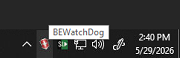
The watchdog application runs in the system tray and will usually be pinned and therefore visible in the bottom right-hand side of the Task Bar.
You can left click to open the Watch Dog UI, which will display the currently installed and active licenses, that enable functionality for the Backend 11 software in addition to all client software on and connecting to this specific server.
By using the mouse and right-clicking on the Watchdog icon in the system tray you can see an extended list of options for the application.
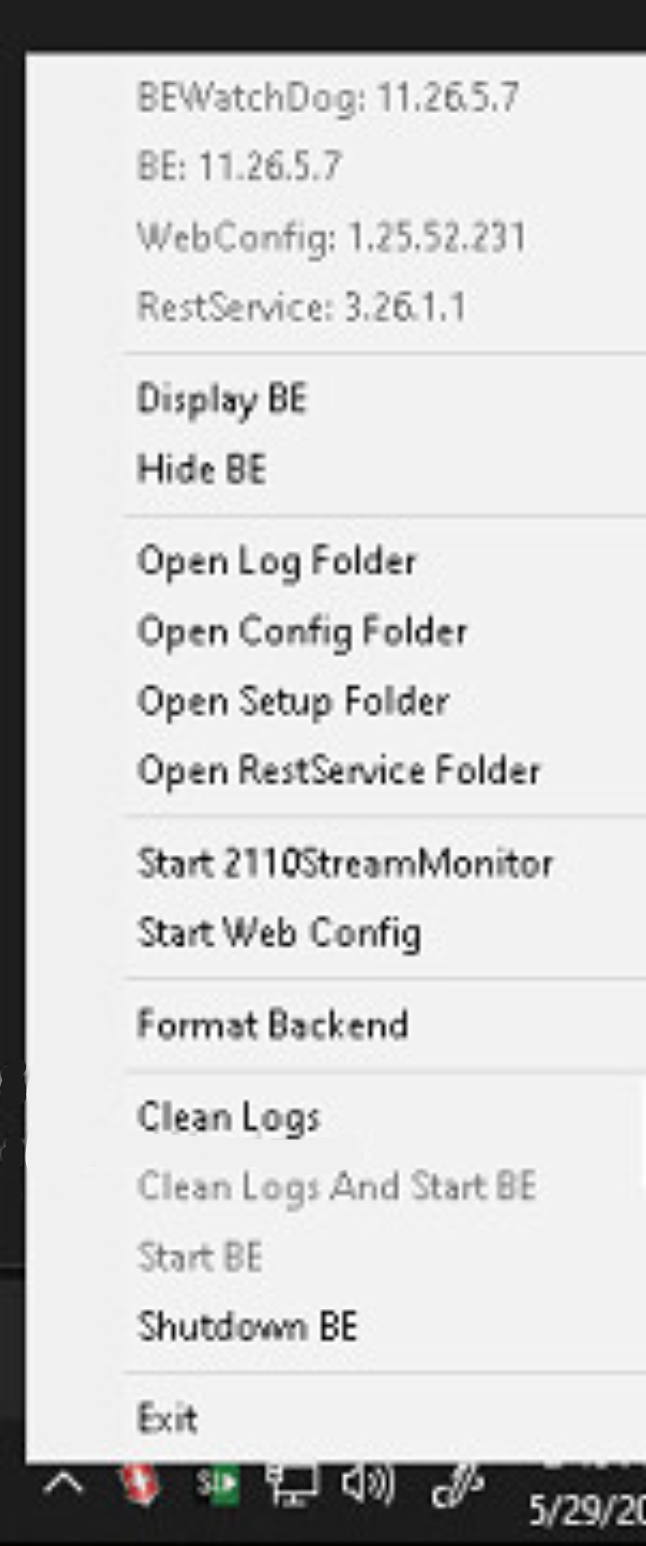
From here it is possible to open system folders containing useful logs and configuration files in Windows Explorer, perform maintenance tasks such as formatting and cleaning logs, start the Web Config and display the Backend Application Console windows.
Accessing Web Config
The Backend 11 software can be configured using the Web Config tool, along with a series of configuration files on the server, the details of which can be shared with customers that wish to learn more about them on request, in the majority of cases these files will be configured during the factory build or upgrade process and not require any modification.
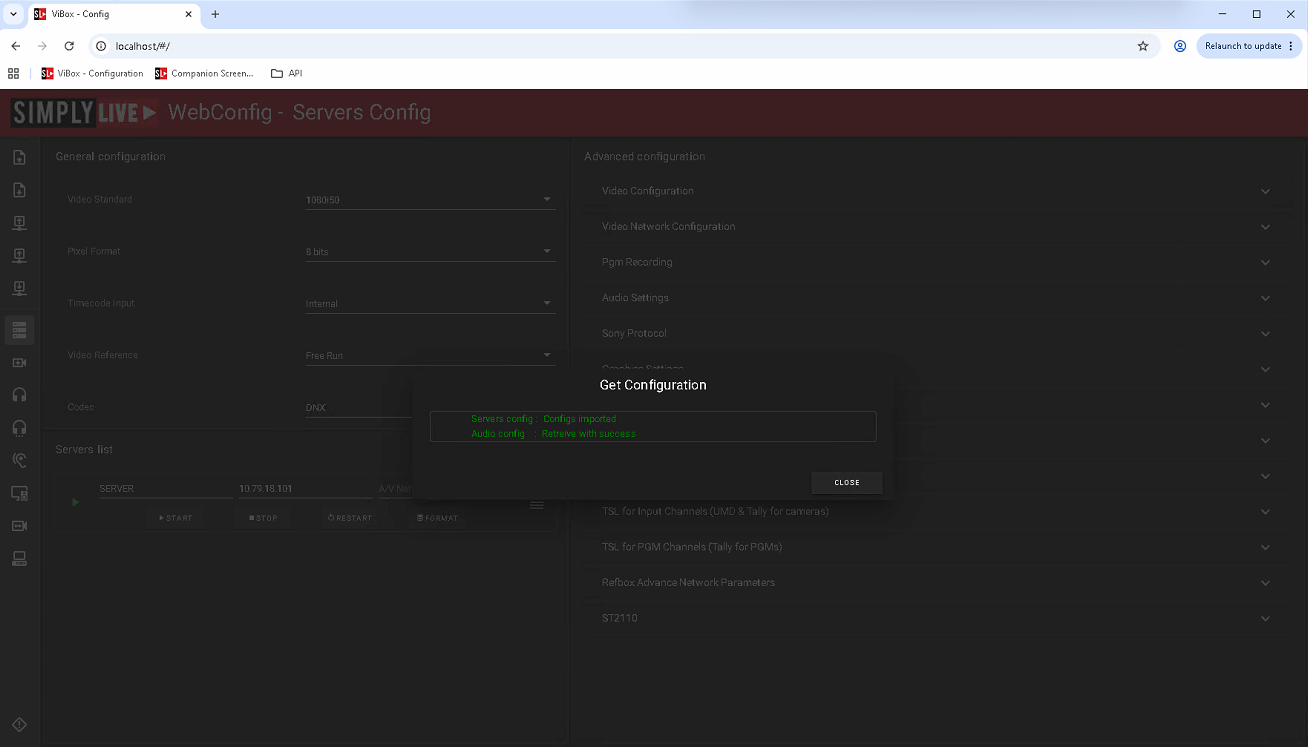
Web Config is a browserbased application that can be opened via a web browser
https//<SERVER IP>/#
It can also be reached by using the Watchdog system tray menu.
In ViBox the Web Config can also be opened by pressing the Setup button and then the Config button.

Once opened the Web Config will always fetch the current configuration settings from the Backend Server.
Backend Application Console Windows
Using the Watchdog System Tray menu, you can display the backend application windows or hide them.
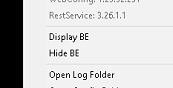
Displaying them will open the following application console windows:
-
Backend Debug Screen
-
ExternalCodec
-
Backup ExternalCodec
-
ExternalJPEGCodec
-
ExternalRecording
-
ExternalPlayback
Pressing Display BE will open all consoles at once as shown below