The new SimplyLive Mode Selector application is released as part of SimplyLive 2.1 and provides new functionality with a new Venue Gateway license for SimplyLive Production Suite Flex to provide additional functionality for customers purchasing the SimplyLive Production Suite Flex package.
Providing a customer has the optional backend add-on license installed their SLPS Flex server can be transformed from not only a powerful Live Video Production server running the Backend software to power ViBox Production, ViBox Live, ViBox Replay and RefBox workflows (and more), but it can now also become a Venue Gateway providing contribution encoding functionality.
Venue Gateway Channel Density
The flex licenses for Venue Gateway will enable the Venue Gateway functionality only, with the number of supported inputs matching the channels included in the Backend license installed on the SimplyLive server, providing up to 12 encoding inputs.
It is mandatory that the Backend license is also installed on a system, and the Venue Gateway cannot be installed on a Flex server that does not already have Backend software installed.
Mode Selector Running & Operation
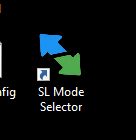
Providing you have installed the Mode Selector software as part of the release package, you’ll see the SL Mode Selector icon on the Desktop of the SimplyLive server.
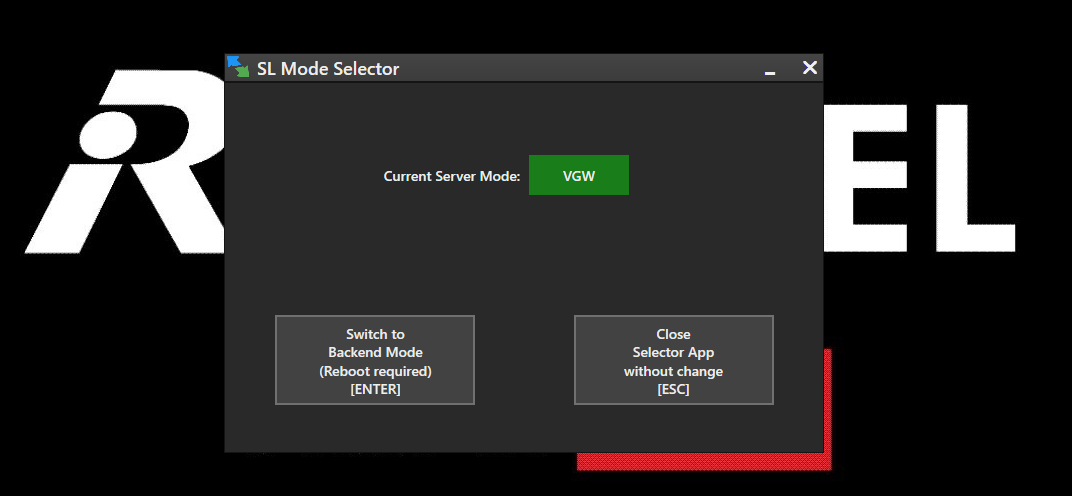
Opening the software will present you with a simple UI that informs you what mode the server is currently running in with options to exit without making changes or an option to select a different mode, requiring a server restart.
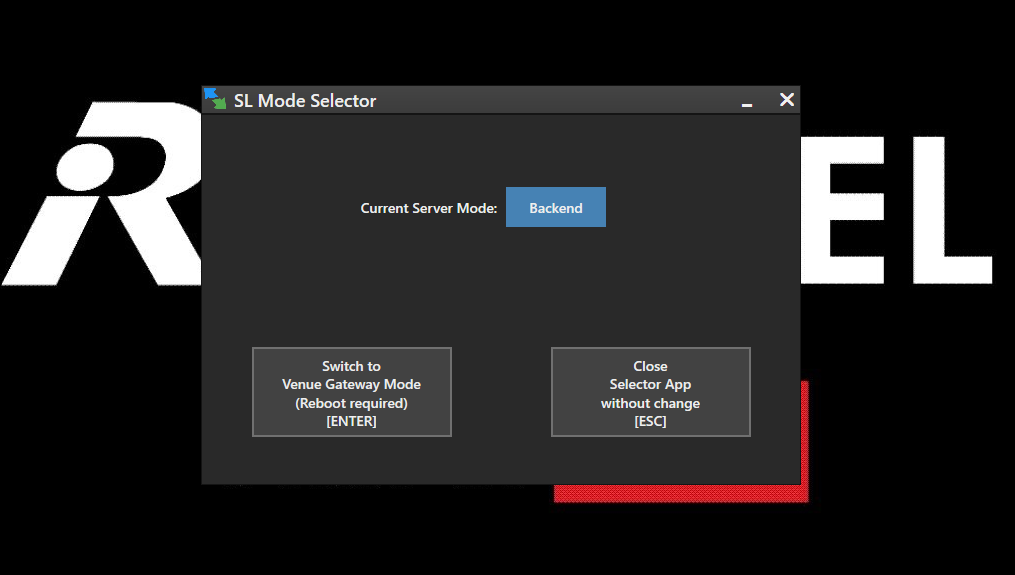
In this example the Backend is running, and we will switch the server to run in Venue Gateway Mode, and this will require a system restart.
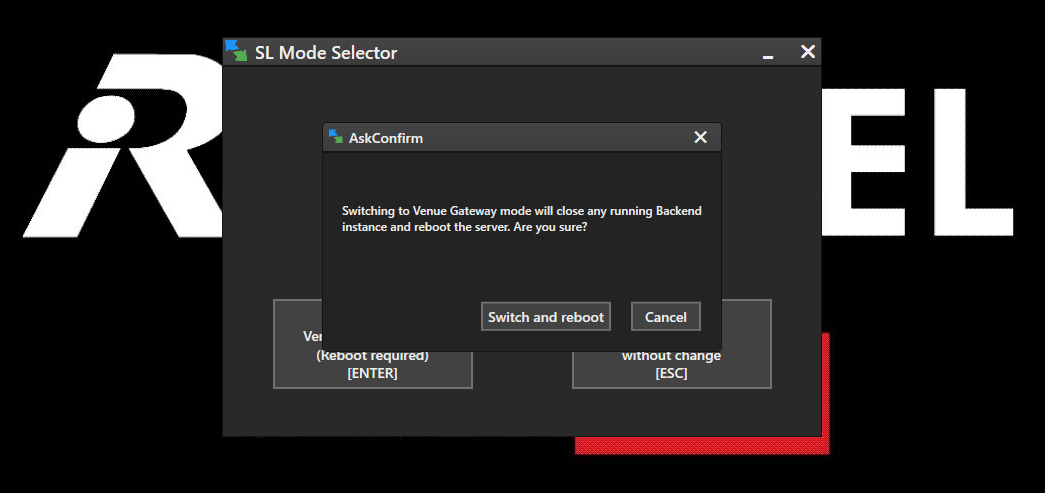
Venue Gateway Mode
After the restart you can open the Mode Selector application again and see that it is now running VGW mode.
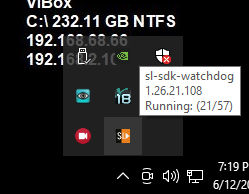
Note in the system tray, that the Watchdog application is not running. Instead click on the SDK watchdog and open the menu.
Here you will see services start running, and you can select the option to start the Venue Gateway “Start VGW” this will take some moments.
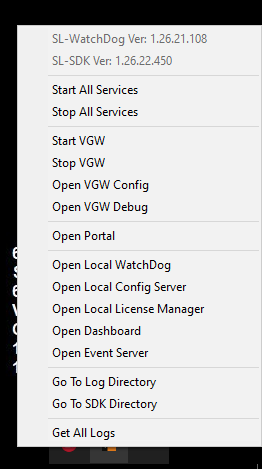
To check the progress, you can select “Open VGW Debug” which will open your default browser and show the status of the Venue Gateway services.
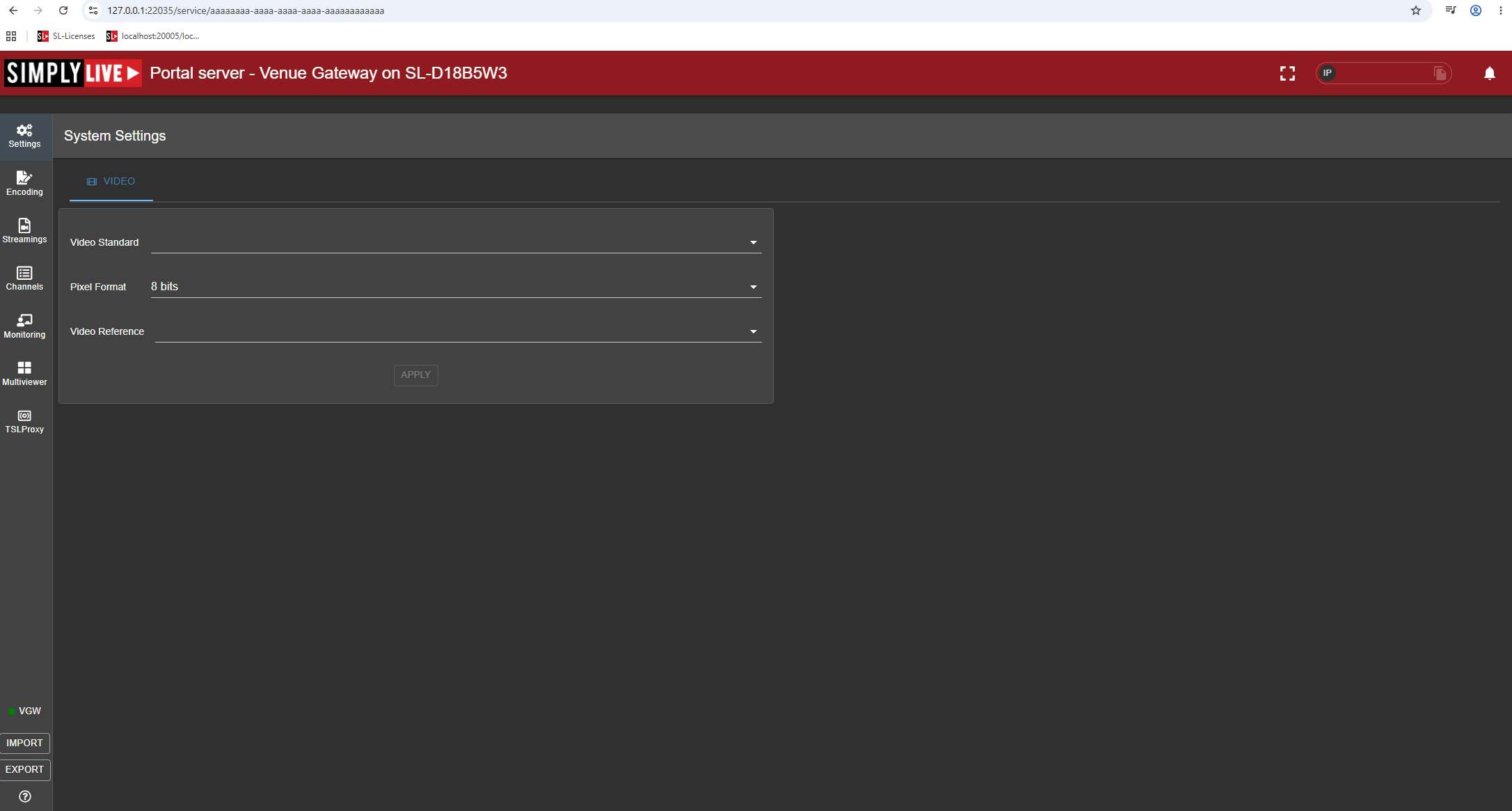
When the VGW is running, from the SDK Watchdog menu in the system tray you can select “Open VGW Config” and see the Venue Gateway UI is running and your SimplyLive Production Suite Flex server is now ready to provide the contribution encoding services.
Backend Mode
After selecting the Backend mode the system will again restart, and using the Mode Selector application you can again check the system has booted in the correct mode.
In the system tray you will note that the Backend Watchdog service is now running and if you “Start BE” and then “Display BE” you should see the status of the backend applications and the Debug screen.