
In the Live module of SimplyLive Production Suite Flex, the Graphics panel allows you to load, preview, and manage all graphic elements.
Graphics Layers
GFX1, GFX2 and GFX3 are the three graphics layers available for your production.
To access your graphics:
-
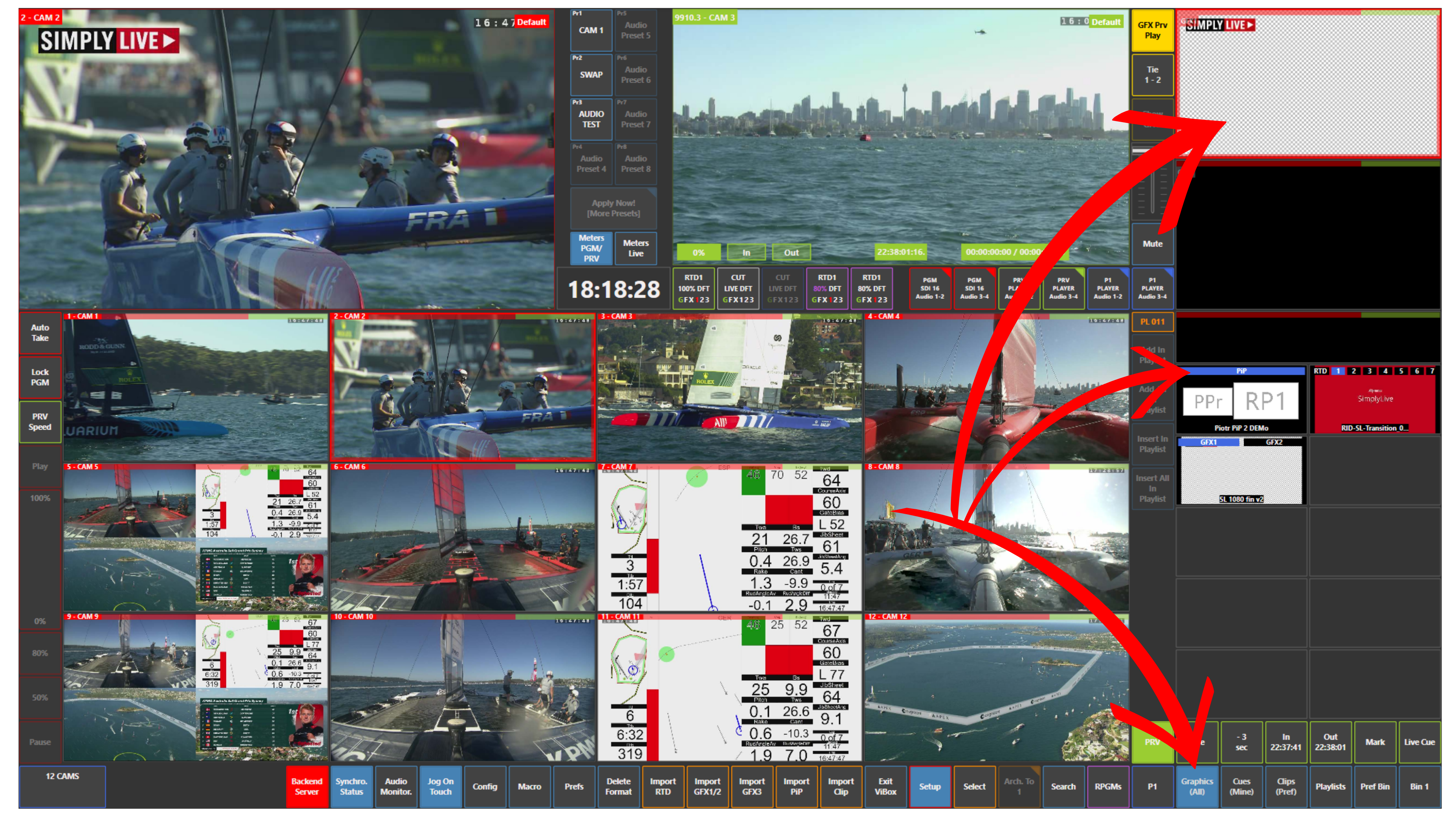
Open the Graphics (All) panel
From here, you can activate different types of graphic elements.
Activating Graphics Elements
To use graphics, you first need to activate the desired category:
-
GFX1 / GFX2 → standard graphics
-
PiP → picture-in-picture elements
-
RTD → replay transitions
To activate:
-
Tap the desired element
-
The selected tile will turn blue, confirming it is active
Info – GFX Prv Play
GFX Prv Play lets you preview imported animated graphics on PRV before taking them on air. This function is specifically for imported animations, rather than standard graphics preview.
Monitoring Graphics
Once activated:
-
All graphics will appear in the top right of the user interface
-
From there, you can preview and control them before taking them on air
External Graphics
You can bring two separate NDI graphics feeds into ViBox, allowing you to use your existing graphics solution or display graphics driven by live data.
Configure the feeds in WebConfig, then assign External GFX to the desired channel in ViBox.
SimplyLive accepts external graphics via NDI. HTML or SDI graphics must first be converted to NDI before they can be used.
Info
GFX Prv Play allows you to preview graphics in Preview before taking them to Program.
Pro Tip
Always activate and check your graphics before using them on Program to ensure everything is correctly prepared.