This view is used to create and manage the software applications that are to be installed on a Cluster Setup.
Once a configuration has been created, it can be saved as a template to later be reused as needed to create:
-
A cluster instance in the Clusters View. This Configuration template defines the application-specific parameters while remaining independent of the specific details required for the Cluster’s Network and Host Layout. It is later used by the Riedel Software Manager to deploy the selected applications on the Hosts.
-
Another Configuration template.
Overview
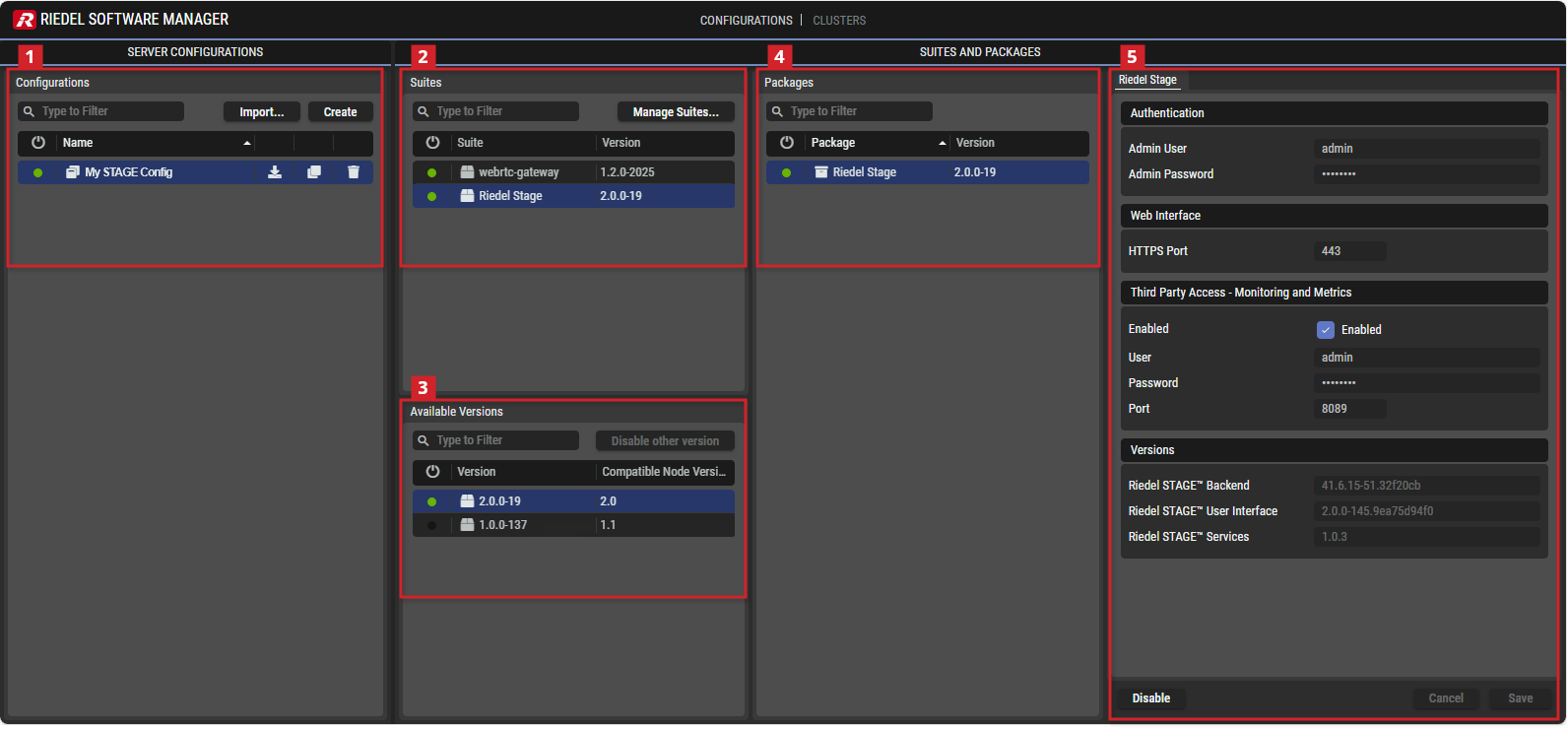
Riedel Software Manager - Configurations

Configurations
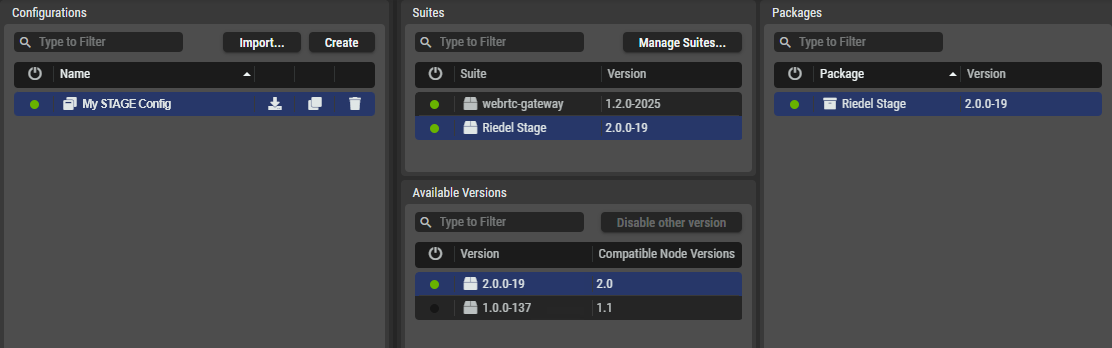
This shows all the Server Configurations created in this view. These Server Configurations can be installed on a Cluster Setup created in the Clusters view.

|
Set a filter to display only content whose search text is found in the name.
|
|---|---|

|
Click to import a previously stored Server Configuration from your computer and select the desired Review your Configuration after importing. For security reasons, sensitive configuration parameters such as passwords are not included in |

|
Click to create the first Server Configuration or to add another one. |

|
Indicates whether the Server Configuration is valid ( |
|
Name |
Click on a name to select the Server Configuration.
|

|
Click to export the corresponding Server Configuration. The server configuration will be stored with the extension For security reasons, sensitive configuration parameters such as passwords will be removed in the export process. |

|
Click to clone the corresponding Server Configuration. Cloning a Configuration can be helpful to re-use the same parameters with slight variations. In the dialog box that opens, enter a name for the new Configuration. |

|
Click to delete the corresponding Server Configuration. |
Creating a Server Configuration
-
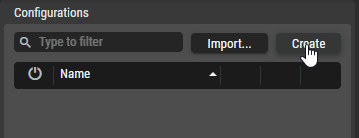
In the Configurations section, click Create.
-
Enter a name for the Server Configuration, for example,
My STAGE Config.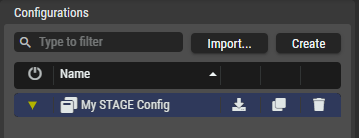

Suites
This shows the Suites included in the selected Server Configuration. The Suite file contains Riedel application images with corresponding functions. Depending on the Suite, different intercom, audio, or video functions are included.
|
|
Set a filter to display only content whose search text is found in the name.
|
|---|---|

|
Click to manage (import and delete) Suite files. |
|
|
Indicates whether the Suite is valid ( |
|
Suite |
Shows the Suite name. |
|
Version |
Shows the version number of the corresponding Suite file. |


Managing Suite Files
-
In the Suites section, click on Manage Suites… .
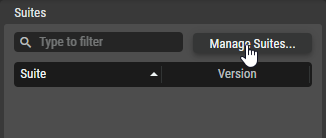
-
In the Manage Suites dialog, click Import Suite, then find the
*.suitefile on your local computer and upload it to the Riedel Software Manager, e.g. 'stage-1.0.0.suite'.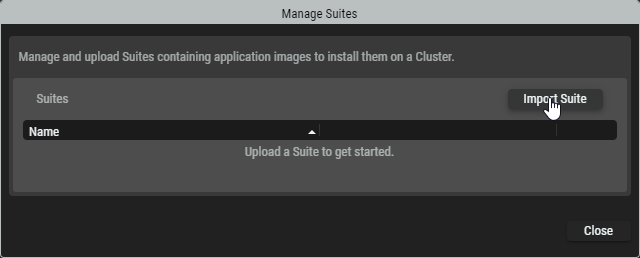
-
When the upload is completed, click Close to return to the Suite Configuration.
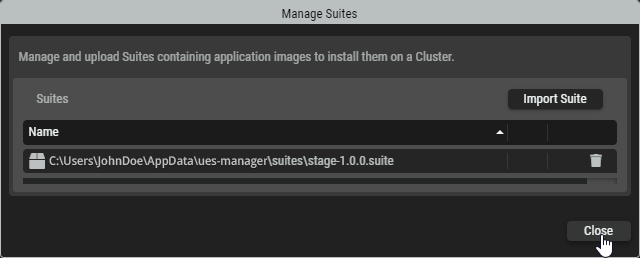

Available Versions
This shows the Versions of the selected Suite that are available on the client computer running RSM.
|
|
Set a filter to display only content whose search text is found in the name.
|
|---|---|

|
When a disabled version is selected, click this button to switch the used version in the Configuration. This needs to be confirmed in a dialog box that opens. Only one version can be enabled for a Suite at the same time. |
|
|
Indicates whether a Version is enabled ( |
|
Version |
Shows the available version number(s) of the selected Suite. |
|
Compatible Node Versions |
Shows the compatible version(s) of the Node file on which the selected Suite can be deployed. |

Packages
This shows the Packages that are included in the Suite file. The Packages are the individual Riedel applications with their corresponding functions. Depending on the selected Package, different settings are available in the Package Settings to the right.
|
|
Set a filter to display only content whose search text is found in the name.
|
|---|---|
|
|
Indicates whether the Settings are valid and the Package is enabled ( |
|
Package |
Shows the Package name included in this Suite. |
|
Version |
Shows the version number of the corresponding Package. |
Configuring and Enabling Packages in a Suite
-
Click a Suite to select it and to see available packages that will appear in the Package Settings on the right side. Packages with a

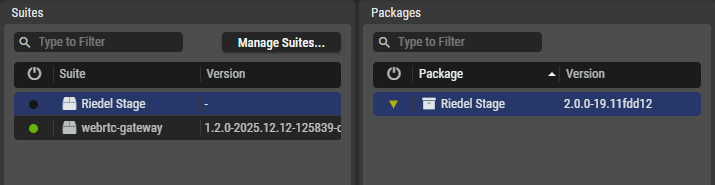
-
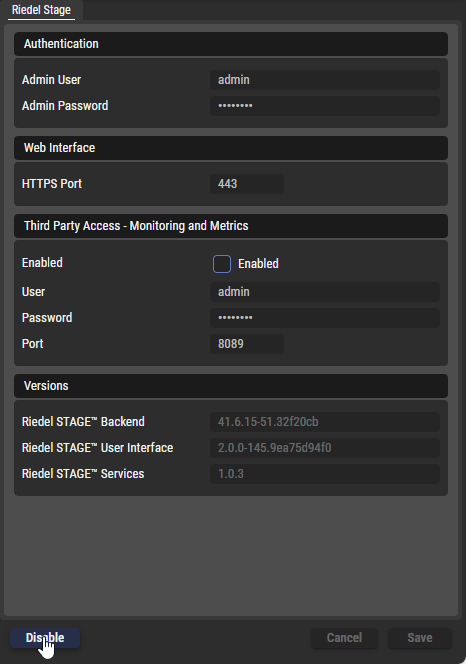
This shows the Settings of the Package selected on the left. Enter required package settings. The available settings vary from package to package and depend on the application you are installing (see below).
-
Click Save and Enable.

Package Settings

|
Click to deactivate the Server Configuration. |
|---|---|

|
Click to discard changes in the Server Configuration. |

|
Click to confirm changes in the Server Configuration. |

|
Click to confirm the settings and activate the Server Configuration. |
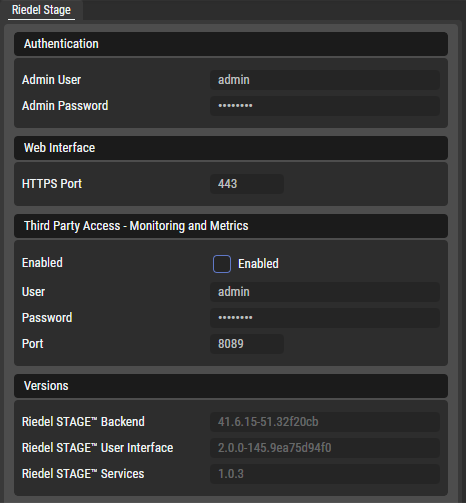
Package Settings of a STAGE suite:
|
Authentication |
Admin User |
Set the credentials that are to be used when the administrator logs into the STAGE Web Interface for the first time. |
|---|---|---|
|
Admin Password |
||
|
Web Interface |
HTTPS Port |
Set the HTTPS port to be used to connect to the user interface, which can be accessed through a web browser (e.g. Google Chrome or Microsoft Edge). Default: 443 |
|
Third Party Access Monitoring and Metrics |
Enabled |
Set third party access.
|
|
User / Password |
Set the credentials for third party access. |
|
|
Port |
Set the Port to be used for third party access. Default: 8089 |
|
|
Versions |
Riedel STAGE
|
Shows the version numbers of internal software modules in STAGE. |
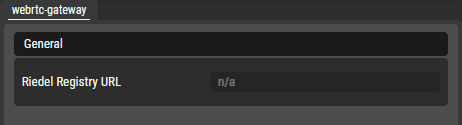
Package Settings of a WebRTC suite:
|
General |
Riedel Registry URL |
Set the registry URL, e.g. |
|---|
Checking the Configuration’s Validity
Riedel Software Manager will check whether a Server Configuration and the contained elements are valid and indicates this with a 
Disabling Configurations
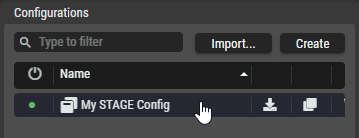
Disabling resets the Server Configuration parameters entered to their default settings. In addition, the Server Configuration is no longer available for deployment in the Clusters view.
-
In the Configurations section, click the desired Server Configuration.
-
In the Server Configuration Parameters section, click Disable.