
The following Registration details apply to Virtual SmartPanel only.
Automatic Device Discovery
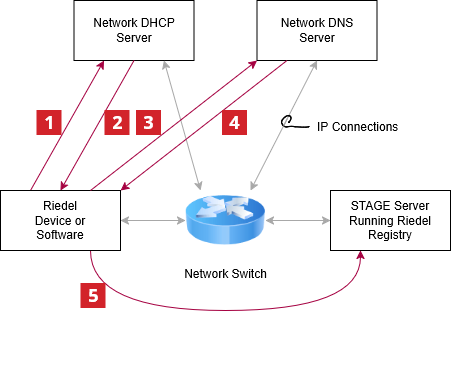
Here are the typical sequence of events for automatic host discovery.
|
1 |
The device boots and tries to connect to a DHCP server. |
|
2 |
The device retrieves the DNS server address. |
|
3 |
The device connects to the DNS server to resolve the |
|
4 |
The DNS server replies with the Service description for the STAGE Riedel Registration service endpoint. |
|
5 |
The device connects to STAGE and is added as an entry in the Riedel Registry. Once a device or software service has been added to the Riedel Registry, it appears as a discovered host in System Commissioning. |
If the device is unable to resolve the Riedel Registration Service through the DNS server, or the DNS server is unavailable, the device may fallback to using mDNS to attempt to connect with the STAGE Riedel Registration service.
Manual Mode
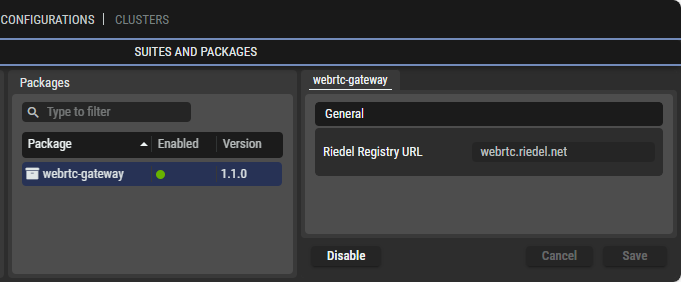
When installing a product such as the WebRTC Gateway through the Riedel Software Manager (RSM), you configure where it is to find the Riedel Registry.
Artist-1024 Setup
In order for an Artist-1024 to be recognized as a Discovered Host and Artist-1024 ports to be used in STAGE, the following configurations must first be set up in the Director.
Proceed as follows:
Editing the Web Properties
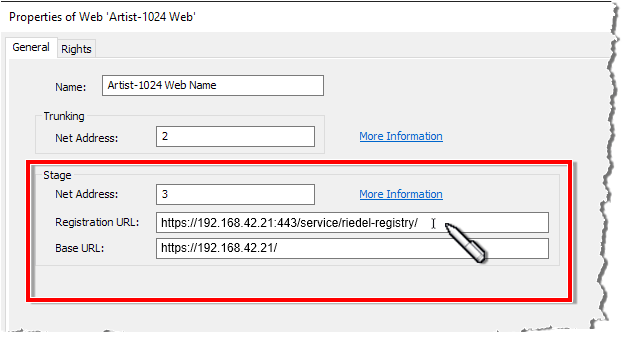
Open the web properties. See chapter 'Web' Properties in the Director manual.
-
Assign a Net address.
-
Enter the Registration URL of the STAGE installation.
-
Enter the Base URL of the STAGE installation.
-
Click the OK button to confirm.
Creation of the STAGE ports
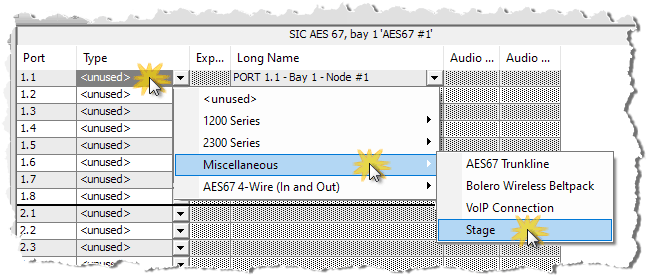
Open the workspace of an AES67-UIC of an Artist-1024 by double-clicking on the corresponding AES67-UIC in the ‘Networks’ navigation bar.
Create the desired number of STAGE ports (Miscellaneous > STAGE) on the Media Interface 1 of the AES67 UIC.
See chapter ‘Adding a New Port’ in the Director manual.
The Media Interface 2 and the redundant SMPTE 2022-7 operation will be available in a later version.
Editing names in the properties window
The names can be customized in the properties window of the STAGE port.
Open the properties window of a STAGE port by right-clicking on the desired port and selecting “Properties”.
Customize the names (Long Name, Local and 16-char Subtitle) according to your requirements.
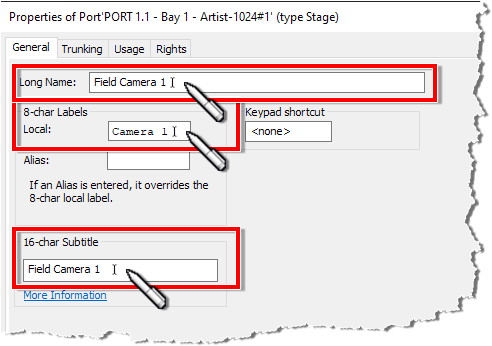
The ports are displayed in Stage as Intercom Resources with the names defined here.
This completes the configuration of the STAGE ports on the Director side.