
This view allows registering hosts such as WebRTC Gateway servers, SAME DSP Engines, NMOS, and Artist-1024 devices that have been discovered on the network to make the device’s resources available for use within STAGE.
This workflow includes:
-
Creation of main and sub-locations that represents where equipment is physically located.
-
Assignment of Discovered Hosts to their locations.
Registered hosts are used as follows:
-
Artist-1024 hosts are used with Virtual SmartPanels through WebRTC Gateways.
-
NMOS devices are used with SAME DSP-Engine processing servers.
-
Unmanaged hosts (non-NMOS devices that STAGE is unable to configure or control) are used with SAME DSP-Engine processing servers with the help of the device’s SDP file.
Hosts to be registered in STAGE must be powered on, configured, network connected, and be ready to be deployed.
Prerequisite: To discover and Register NMOS devices in STAGE, NMOS Discovery must be configured and enabled in STAGE. See System Configuration. STAGE relies on an external NMOS Registry that is available on the network.
Overview
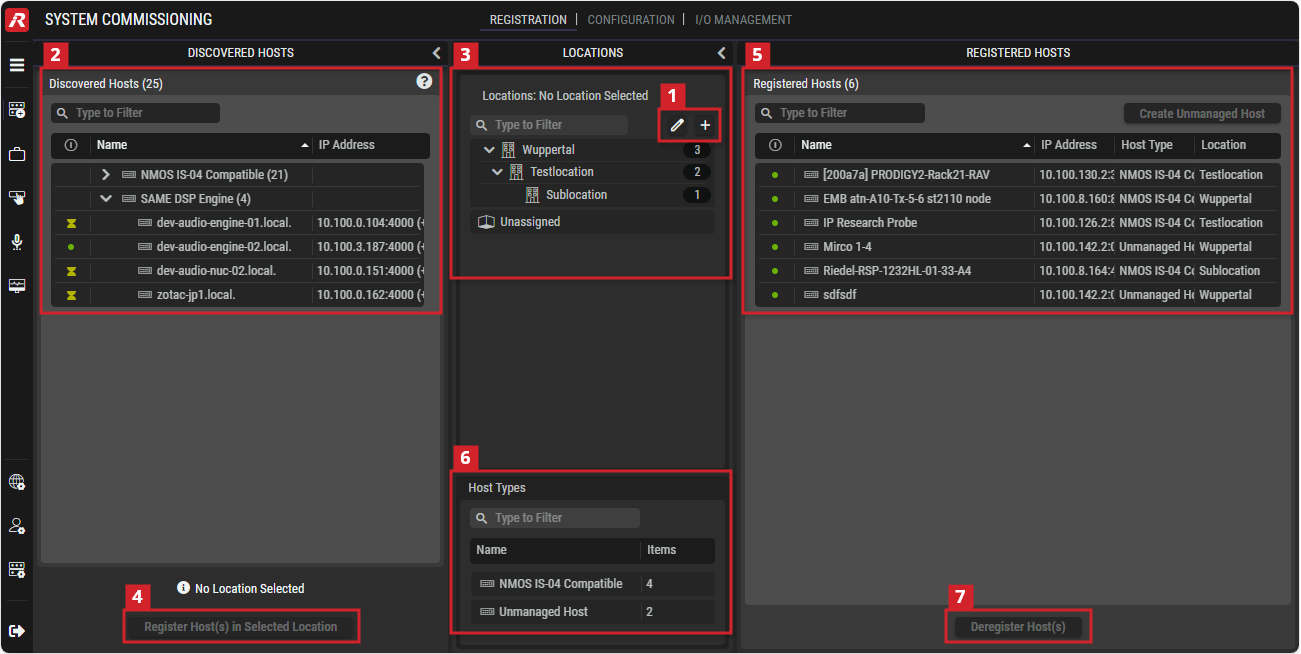
System Commissioning - Registration
Filters allow you to quickly narrow-down a list to find a device.
See chapter Getting Familiar with the User Interface | Filtering for more information.
Quicksteps for Registration of Hosts
Host registration adds hosts to STAGE to allow them to be controlled and monitored. By assigning hosts to locations, STAGE is able to represent how the system is physically organized in the real world.
Proceed as follows.
-
Optional: Create one or more locations that represent where the equipment is physically located. See section Edit / Add Locations below.
-
Your hosts should automatically be discovered. Select one or more hosts to be assigned to a location. See section Discovered Hosts below.
-
Select a Location in which the selected hosts will be registered. By assigning a host to a geographic location, STAGE’s users have a view of where hosts are physically located. You can then focus your attention on the hosts situated at a specific location. See section Locations below.
-
Click Register Host(s) in Selected Location.
-
Once a host is registered to a location, it is removed from Discovered Hosts to be now listed in Registered Hosts. See section Registered Hosts below.
-
You can filter the Registered Hosts by host type. See section Host Types below.

Edit/Add Locations
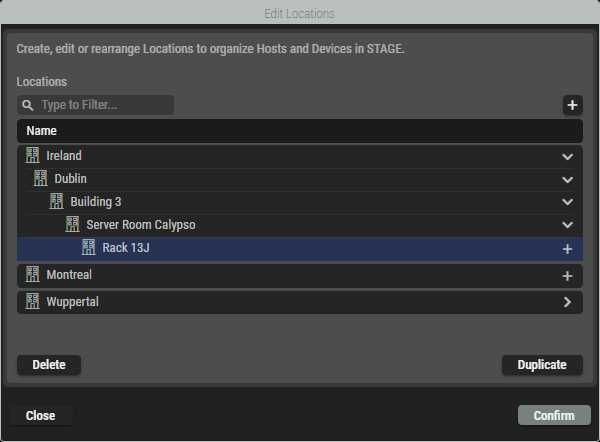
To assign a host to a location, you must first create the location. Proceed as follows. See also section Locations below.
-
Click
or -
Click

-
Click

-
Click Duplicate to duplicate the selected location.
-
Click Delete to delete the selected location.
-
Double-click on a location to edit its name.
-
Close the window:
-
Click Confirm to apply all changes
or -
Click Close to discard all changes.
-
-

Discovered Hosts
This section displays all hosts that can be found in the STAGE network through the use of the Discovery protocol. STAGE can discover the following host types:
-
A SAME DSP Engine
-
NMOS IS-04 compatible devices.
-
Unmanaged hosts; this is usually imported using an SDP file for the device.
|
|
Indicates whether the host is online ( |
|---|---|
|
Name |
Shows the host name that comes from the host. This name is configured on the host. |
|
IP Address |
Shows the IP address of the hosts. |
|
Click to register the selected Host(s) in the selected location. Hosts that have been assigned for use by other STAGE instances are also shown. Normally, you have enough hosts available to meet the needs for all productions. However, you can take the host from the other STAGE instance by accepting the following warning: 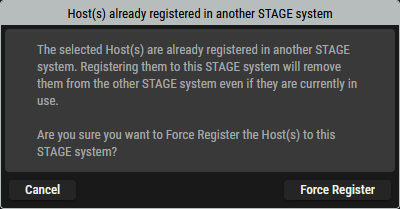
Cancel: Leave the host to run with the other STAGE instance. Force Register: Force the host from being used by the other STAGE instance, for it to be used with this STAGE instance.
|


Prerequisites:
-
Hosts being registered must have network connectivity with STAGE.
See chapter Network Architecture Requirements and Host Discovery below. -
Artist-1024 devices that are to be used with STAGE must have been previously configured in Director to have one or more STAGE Ports. See section Further VSP Registration Details. Stage Ports are required by the Virtual SmartPanel for use as intercom ports, to allow inter-operability with the Artist system.
-
WebRTC Gateway devices must have been previously configured.
See Installation of WebRTC. -
SAME devices must have been previously configured.
See Installation of SAME.

Locations
This section specifies the location/sub-location to which the discovered hosts are assigned.
A location is metadata that gives an indication where the registered hosts are located. For example, a location can represent a country, a city or a building, while a sub-location can be more specific and represent a building, a floor or an equipment room. Users can use the locations in the way that suits them best.
By default, STAGE uses the Unassigned Location option, which allows users to register a host if they do not want to register it at a specific location.
|
|
Click to open a window for editing (adding, renaming, duplicating or deleting) top-level and sub-locations. See section Edit Locations Dialog below. |
|---|---|
|
|
Click to add a top-level location. |
|
Locations |
If a location is selected, the Registered Hosts list only shows hosts that are assigned to that location. Sub-locations can be displayed/hidden by clicking on the right |


Edit Locations Dialog
This Edit Locations dialog can be opened by clicking the
|
|
Set a filter to display only content whose search text is found in the name. |
|---|---|
|
|
Click to add locations and sub-locations. |
|
Delete |
Click to delete the selected location. |
|
Duplicate |
Click to duplicate the selected location. |
|
Double-click |
Double-click on a location to edit its name. |
|
Confirm |
Click to exit this dialog and apply all changes. |
|
Close |
Click to exit this dialog and discard all changes. |


Register Host(s) in Selected Location
Proceed as follows to register hosts in a location.
-
Optional: Focus the list of Discovered Hosts to hosts found in the system by selecting the search and All/Online/Offline filters. See also section Discovered Hosts above.
-
Optional: Focus the list of Locations to a location by selecting a location in Locations. See also section Locations above.
-
In Discovered Hosts, select one of more registered Hosts. See also section Discovered Hosts above.
-
In Locations, select one location. See also section Locations above.
-
Click Register Host(s) in Selected Location.
-
On the left, the discovered Host will disappear in the section Discovered Hosts.
-
On the right, the registered Host will appear in the section Registered Hosts.

Registered Hosts
This section lists all hosts that are currently registered at the selected location.
|
|
Set a filter to display only content whose search text is found in the name. |
|---|---|
|
Create Unmanaged Host |
Click to add a host that STAGE is unable to configure or control, but this host’s AES67 audio stream(s) can be used by STAGE. See Unmanaged Host Configuration. |
|
|
Indicates whether the host is online ( |
|
Name |
Shows the name of the registered host. |
|
IP Address |
Displays the IP address of the registered host. |
|
Host Type |
Shows the type of the registered host. |
|
Location |
Shows the assigned location for this host. |
|
|
Click to deregister the selected host(s) from the selected location. |



Host Types
Focus the list of Registered Hosts to a host type (for example, Artist-1024, or WebRTC Gateway) by selecting a host in Host Types.
This section lists all host types that are available in the STAGE system.
|
|
Set a filter to display only content whose search text is found in the name. |
|---|---|
|
Host Types |
If a Host Type selected, the Registered Hosts list only shows that host type. |

Deregister Host(s)
Proceed as follows to deregister hosts from a location.
-
Optional: Focus the list of Registered Hosts to hosts found in a location by selecting a location in Locations. See also section Locations above.
-
Optional: Focus the list of Registered Hosts to a host type (for example, Artist-1024, or WebRTC Gateway) by selecting a host in Host Types. See also section Host Types above.
-
In Registered Hosts, select one of more registered Hosts. See also section Registered Hosts above.
-
Click Deregister Host(s).
-
Click Deregister.
-
On the right, the deregistered Host will disappear in the section Registered Hosts.
-
On the left, the deregistered Host will appear in the section Discovered Hosts.
Host Discovery
This is an overview of how STAGE typically discovers network-connected host instances, to add them to the Riedel Registry. This makes the host available for use in STAGE.
Riedel hosts use common network services such as DHCP and DNS to find STAGE in an automatic fashion resulting in STAGE being able to register them.
For certain hosts, you will have to manually configure them with STAGE’s IP address so that they appear in the section Discovered Hosts.
Prerequisites
The host to be discovered must have IP connectivity with:
-
For automatic discovery: the following network servers:
-
DHCP server.
-
DNS server.
-
STAGE server.
-
-
For a manually configured connection: the STAGE server.
Further Registration Configuration Details
See: