
-
Open the Secondary Functions Drawer of a key.
-
Select the

Access to a Scroll-List must be enabled in the Director software.
It is possible to assign up to five individual Scroll-Lists to a SmartPanel.
-
Right-click on the respective SmartPanel:
Properties > General tab > Scroll-List slot 1...5
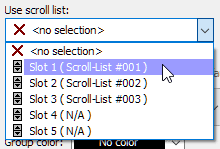
On each key of this SmartPanel, the use of the assigned Scroll-Lists can then be activated.
-
Right-click on the respective key:
Properties > General tab > Use scroll list

RSP-1216HL (Scroll-List)
The list selection appears on the info display.
The 
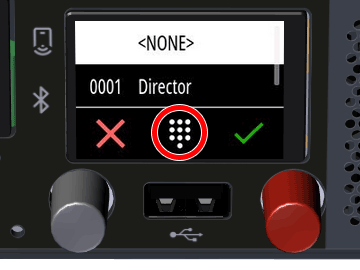
Operation of the List Selection
-
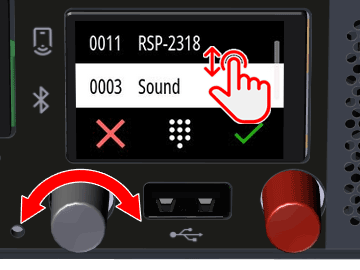
Select a function from the Scroll-List:
-
Vertical swipe and tap on an entry
or -
Turn the gray rotary knob
-
-
Confirm the selection:
-
Tap the green

or -
Press the gray rotary knob
-
or
-
Cancel the operation:
-
Tap the red

-


Operation of the Numerical Selection
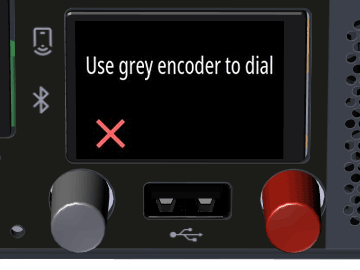
The Info Display shows the prompt:
Use grey encoder to dial.
-
Enter the first three digits of the desired keypad shortcut one after the other by selecting the corresponding digit (0-9).
-
Turn the gray rotary knob to select the digit.
-
Press the gray rotary knob to confirm the set digit and move to the next digit.
-
Unavailable digits are not displayed and skipped.

-
Tap the

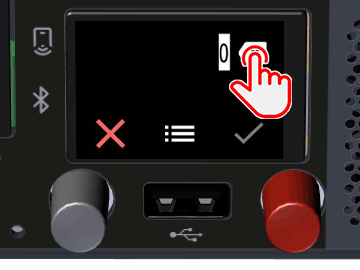
When the last digit is selected, the existing function is shown directly in the display.

-
Confirm the selection:
-
Tap the green

or -
Press the gray rotary knob
-
or
-
Cancel the operation:
-
Tap the red

-

RSP-1232HL (Scroll-List)
The list selection appears on the info display.
The
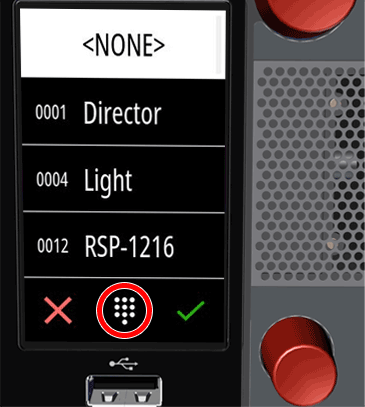
Operation of the List Selection
-
Select a function from the Scroll-List:
-
Vertical swipe and tap on an entry
or -
Turn the lower rotary knob
-
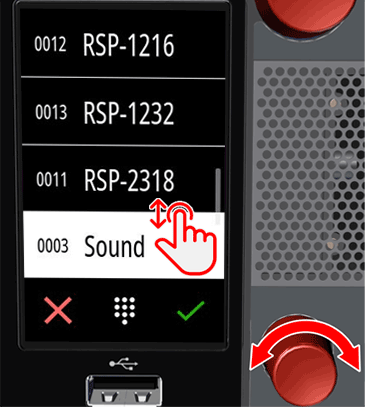
-
Confirm the selection:
-
Tap the green
or -
Press the lower rotary knob
-
or
-
Cancel the operation:
-
Tap the red
-

Operation of the Numerical Selection
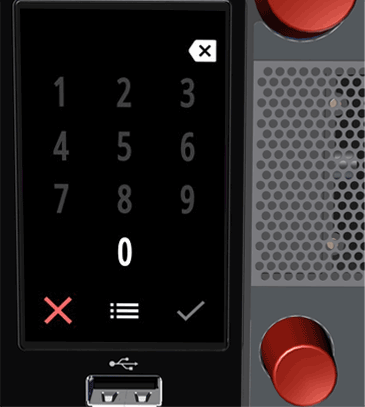
The numeric keypad appears on the info display.
-
Enter the first three digits of the desired keypad shortcut one after the other by tapping the corresponding digit (0-9).
Available digits are displayed brightly, unavailable digits are grayed out.

-
Tap the

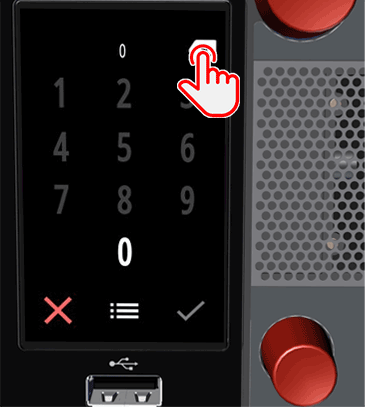
After selecting the second last digit, the available functions are shown directly in the display under the respective digit.

-
Confirm the selection:
-
Tap the green
or
-
-
Cancel the operation:
-
Tap the red
-
