
Click Select Devices to open a section to the right that lists all available SmartPanels.
In this section, you can…
-
enable AMA on other SmartPanels in the network.
-
edit the AMA settings for the selected SmartPanel.
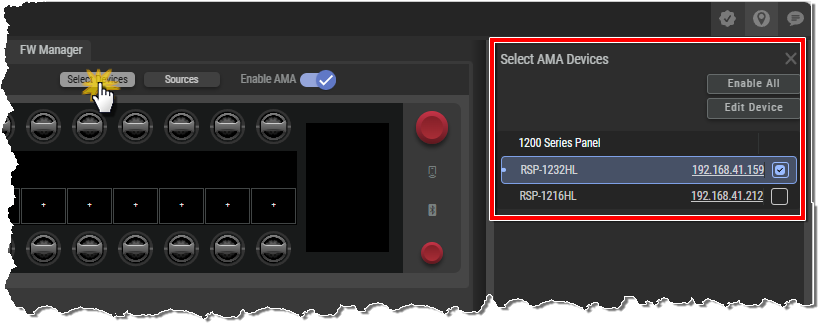
Enable AMA on other SmartPanels
Enable (or disable) AMA for the desired SmartPanel(s) by simply clicking the Checkbox to the right of each one, or click Enable All or Disable All above to set the feature for all SmartPanels on the network.
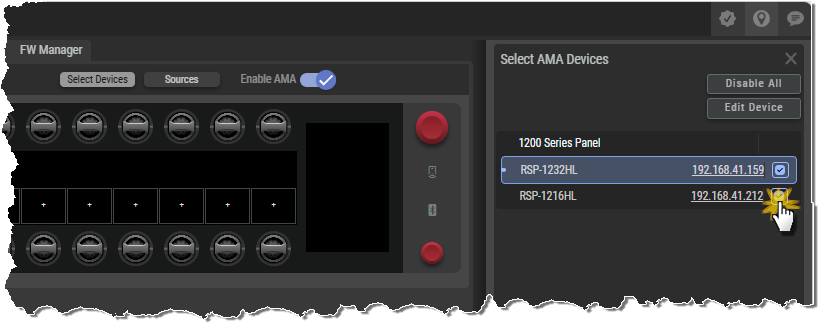
Switch AMA Preview
The highlighted item indicates which AMA preview is currently being displayed.
Click on another SmartPanel to switch to the AMA preview of the corresponding SmartPanel.
Clicking on another SmartPanel switches just the AMA preview – the connection to the SmartPanels web interface is not changed. The blue dot to the left of a SmartPanel’s name indicates which SmartPanel the browser is connected to.
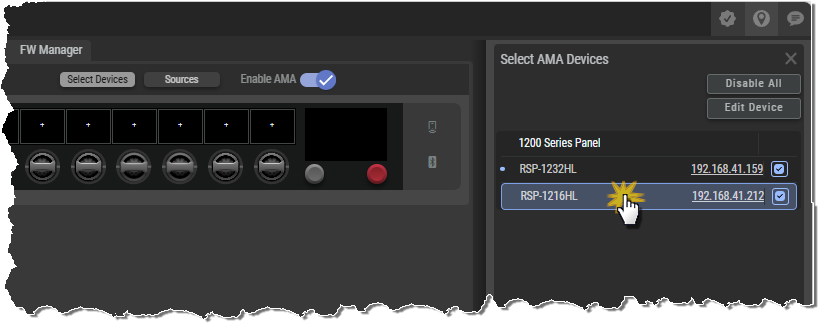
Edit Device
Click Edit Device to open a section below where you can edit the AMA settings for the selected SmartPanel. To edit the settings for a different SmartPanel, simply click the desired SmartPanel at the top.
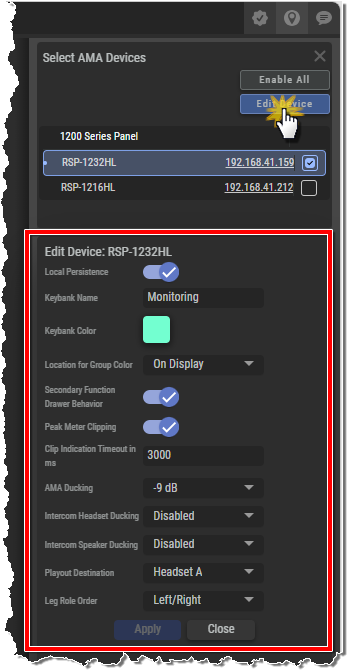
|
Local Persistence |
Enables/disables local persistence. If this function is deactivated, the audio sources currently configured on the keys are not restored after a restart of the SmartPanel. (Default setting: enabled) |
|
Keybank Name |
Enter the name of the Audio Monitoring Keybank that is shown in the info display. (Default setting: Monitoring) |
|
Keybank Color |
Selection of the color with which the Audio Monitoring Keybank appears in the info display. (Default setting: Aquamarine) |
|
Location for Group Color |
(Default setting: None) |
|
Secondary Function Drawer Behavior |
Enables/disables the Key Display Functions (Secondary Function Drawer) of the SmartPanel. (Default setting: enabled) |
|
Peak Meter Clipping |
Enables/disables the warning in case of a clipping audio source. (Default setting: disabled) |
|
Clip Indication Timeout in ms |
Sets the time how long a clipping audio signal is signaled. (1000 ... 10000 ms / default setting: 3000) |
|
AMA Ducking |
(Default setting: Mute) |
|
Intercom Headset Ducking |
(Default setting: -9) |
|
Intercom Speaker Ducking |
(Default setting: -9) |
|
Playout Destination |
Selecting the output for the audio monitoring signal:
(Default setting: Headset A) |
|
Leg Role Order |
Sets the order (top/bottom) of the left and right audio channels. (Left|Right, Right|Left / default setting: Left|Right) |