
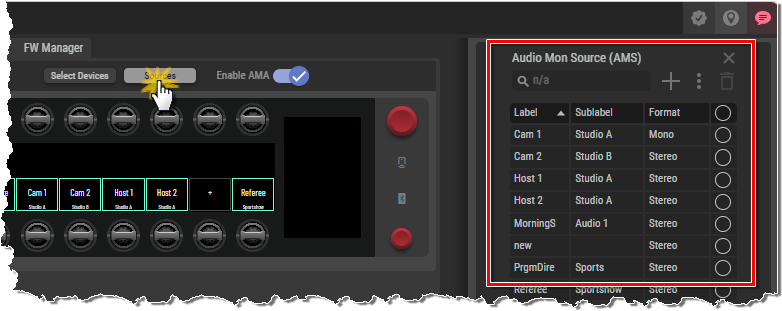
The Audio Monitor Sources (AMS) can be opend by clicking on the Sources button; AMA needs to be enabled for this.
All created audio sources are listed in this area.

|
Filter Enter a text in this search field to filter the items. The filtering starts while filling this field; it is not necessary to press the enter key to start filtering. |
|

|
Add AMS Clicking the plus symbol opens the AMS Settings below, where a new audio source can be added to the list. |
|

|
Three-Point Menu Clicking the three-point menu opens a dialog with following options: |
|
|
Export the selected AMS |
Saves the selected audio source(s) with all parameters as an “.ama” file in the browser's default download folder. Only data from the connected SmartPanel is saved in each file. The export function must be executed separately for each SmartPanel. |
|
|
Import |
Loads audio sources that were previously saved as an ".ama" file. A dialog opens where the corresponding file can be selected. After pressing the Open button, all the audio sources present in the file are displayed in the list of audio sources. Audio sources that are already present in the list of the connected SmartPanel are ignored during import. The import function must be executed separately for each SmartPanel. |
|
|
Send selected AMS |
Opens a dialog to select one or more SmartPanels to which the selected audio source(s) will be copied. |
|
|
Send AMA Keys |
Opens a dialog to select one or more SmartPanels to which the assigned keys of the selected audio source(s) will be copied. |
|
|
Reset all Keys |
Deletes all assigned audio sources on all keys without confirmation. |
|

|
Trash Can Deletes the selected AMA sources without confirmation. |
|
|
Header |
Clicking a column header sorts all items by that column or selects/deselects all items. |
|
|
Label |
Title of the audio source shown in the center of the display. |
|
|
Subtitle |
Subtitle of the audio source shown at the bottom of the display. |
|
|
Format |
Audio format (Mono/Stereo) of the audio source. |
|
|
Source Selection |
Click to select or deselect individual items. |
|
AMS Settings
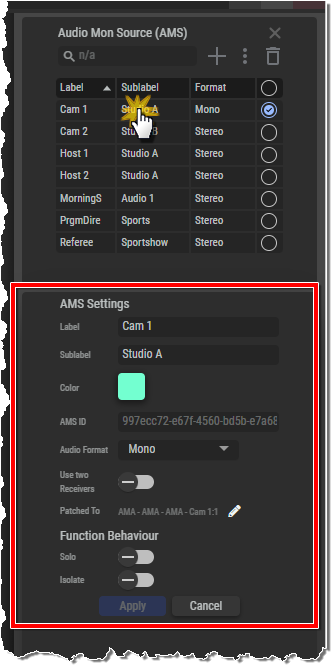
Click an entry to open a section below where you can edit the settings for the respective Audio Monitor Sources.
Clicking the plus icon (Add AMS) at the top opens the same AMS Settings section, but with empty fields for ‘Label’ and ‘Subtitle’.
Enter your information or make your changes, then click Apply to confirm your entries.
If the AMS settings were opened using the Add AMS icon, a new entry with these settings will be added.
|
Label |
Title of the audio source shown in the center of the display. (max. 8 chars) |
|
Subtitle |
Subtitle of the audio source shown at the bottom of the display. (max. 16 chars) |
|
Color |
Selection of the group color for this audio source. |
|
AMS ID |
Unique ID of this receiver for identification via NMOS. |
|
Audio Format |
Defines whether the audio source is 'Stereo' or 'Mono'. (Default setting: Mono) |
|
Use two Receivers |
Only one NMOS receiver is generated for both channels.
(Default setting: disabled) |
|
Patched to |
Displays the source of the audio channel (Leg). Click the pencil icon |
|
Solo |
Enables/disables the solo function for this audio source. Soloing is done by pressing and holding the lever down. (Default setting: enabled) |
|
Isolate |
Enables/disables the left/right audio channel to be isolated for stereo audio sources. Isolation is done via the key display/secondary functions. (Default setting: enabled) |
AMS Patch points and Receivers Configuration
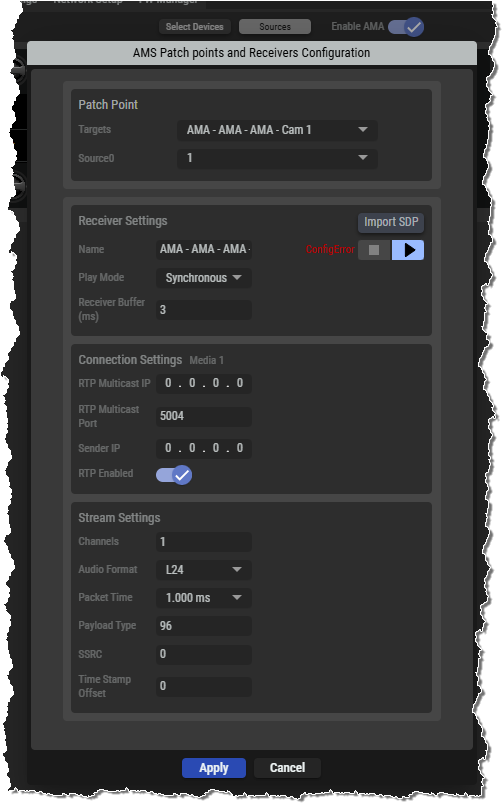
Click the pencil icon 
Patch Point
|
Targets |
Specifies the interface of this SmartPanel that receives the audio source to be monitored. (Unpatched, Receiver 1 … 4, Analog A/B in, From Artist Patch, AMA - NMOS) The configuration of the individual interfaces (setting up the NMOS streams and patching) is handled in the I/O matrix. When “AMA - x” is selected, an NMOS stream can be defined. The parameters can be entered manually or imported from an SDP file. The procedure is the same as that described in the I/O matrix chapter. |
|
Source |
Specifies the channel of the audio source selected under ‘Targets’ that is to be monitored. (1 … 10, M; depending on the audio source) |
Receiver Settings
|
Name |
Name of the audio stream. |
|
Play Mode |
Synchronous: Audio packets that have no or an invalid PTP timestamp are discarded. This means that only audio signals that are transmitted in a PTP-synchronous network are received. Syntonous: Audio packets with no or an invalid PTP timestamp are received and processed. This can lead to increased delay and jitter. (Default setting: Synchron) |
|
Receiver Buffer (ms) |
Selection of the size of the receive buffer to compensate for runtime differences of the streams. (0 ... 150 / default setting: 3) |
Connection Settings
|
RTP Multicast IP |
Source address of the Audio Monitor Source. (224.0.0.0 ... 239.255.255.254) |
|
RTP Multicast Port |
Source port of the Audio Monitor Source. (1024 ... 65535 / default setting: 5004) |
|
Sender IP |
IP address of the audio source. |
|
RTP Enabled |
Activates automatic negotiation of the stream parameters. To do this, the IP address of the RTP sender must be entered in the upper field. |
Stream Settings
|
Channels |
Amount of used audio channels in the stream. (1 ... n / default setting: 1) |
|
Audio Format |
Selection of the resolution. (L16, L24 / default setting: L24) |
|
Packet Time |
Packet time is the real-time duration of media data in a packet. Samples per packet are calculated from packet time and sampling rate. Short packet time allows for lower latency but requires more bandwidth due to overhead. Implemented for interoperability reasons. Depending on selected amount of audio channels and the bit depth, shorter packet times are available. (0.125, 0.25, 0.333, 0.5, 1, 1.333 or 4 ms / default setting: 1) |
|
Payload Type |
Selection of the Payload type. (96 ... 127 / default setting: 96) |
|
SSRC |
Selection of the synchronization source. (0 ... 32) |
|
Time Stamp Offset |
Selection of the Time Stamp Offset. (0 ... 32) |