
This chapter describes how to Backup and Restore a full configuration of the STAGE system.
A full configuration of the STAGE system can be backed up and restored via the Riedel Software Manager.
In the RSM the Backup can be created and downloaded to the local computer.
Restoring a backup is also necessay after a STAGE software update.
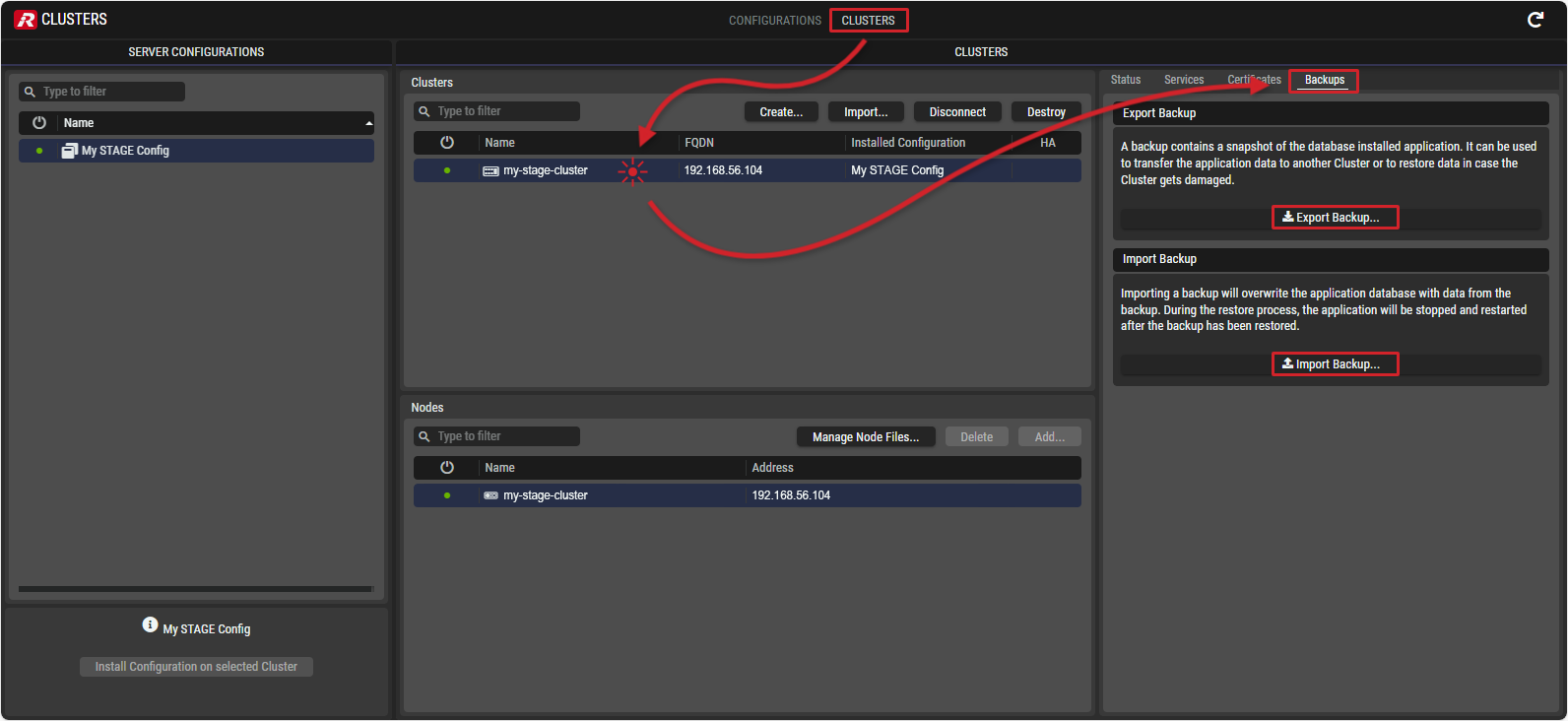
Riedel Software Manager - Clusters View
Creating a STAGE configuration backup
-
Start the Riedel Software Manager on your computer if it is not already started.
-
Open the RSM user interface by opening a web browser with the addesss http://localhost:8900.
-
In the CLUSTERS view, select the cluster setup with the corresponding software installation whose configuration is to be backed up.
-
On the right-hand side, select the Backups tab.
-
Click on the

The .backup file will be downloaded and stored in the default download folder of your computer.
Restoring a STAGE configuration backup
-
Start the Riedel Software Manager on your computer if it is not already started.
-
Open the RSM user interface by opening a web browser with the addesss http://localhost:8900.
-
In the CLUSTERS section, select the cluster setup whose configuration is to be restored.
-
On the right-hand side, select the Backups tab.
-
Click on the

-
Click on the

.backupfile. -
Click on the

Restoring a backup will …
-
terminate all current connections to the installed system
-
stop the system
-
restore the database from the backup file
-
start the installed system
This process will cause an interruption of all services provided by the system.