This chapter describes how to Update a Configuration of a Cluster Setup.
The update wizard will:
-
get the current configuration from a cluster
-
prompt the user to upload new suite files
-
give the user a selection on versions to update for his configuration
-
create an updated configuration with new versions
-
ask for additionally required configuration parameters from the user
-
let user review release notes and ask him to make a backup first
-
upload updated artifacts to cluster
-
finally apply the update to the new version migrating configuration data
-
and preserve the previously installed licenses
Update a Configuration of a Cluster Setup
-
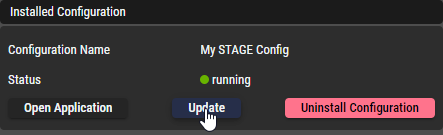
Click Update on the right of a Cluster Setup.
-
A wizard opens and explains the next steps.
Click Next to proceed.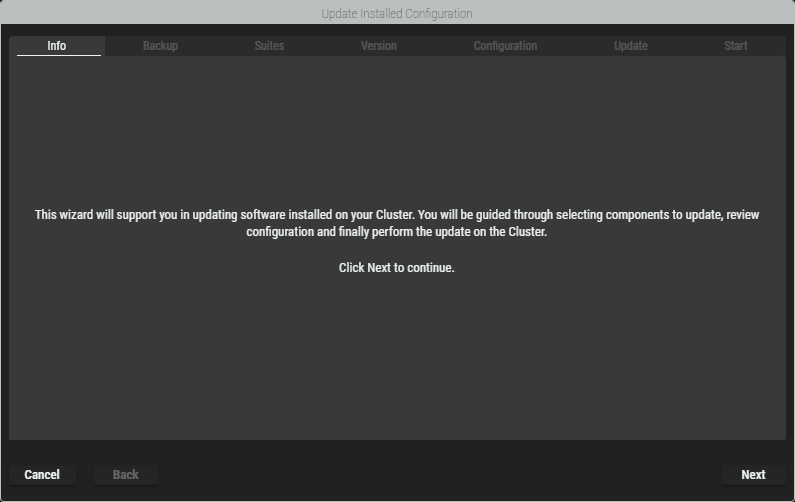
-
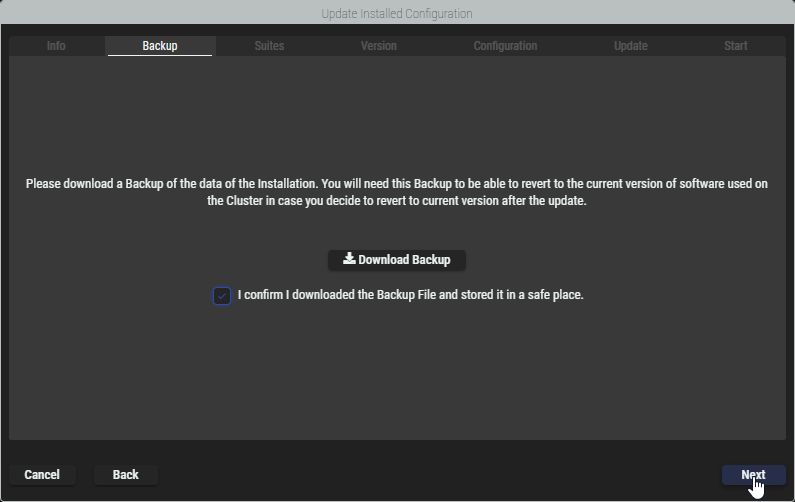
In order to continue, a backup copy of the affected cluster must first be downloaded. This must be confirmed by ticking the checkbox before you can click Next to continue.
-
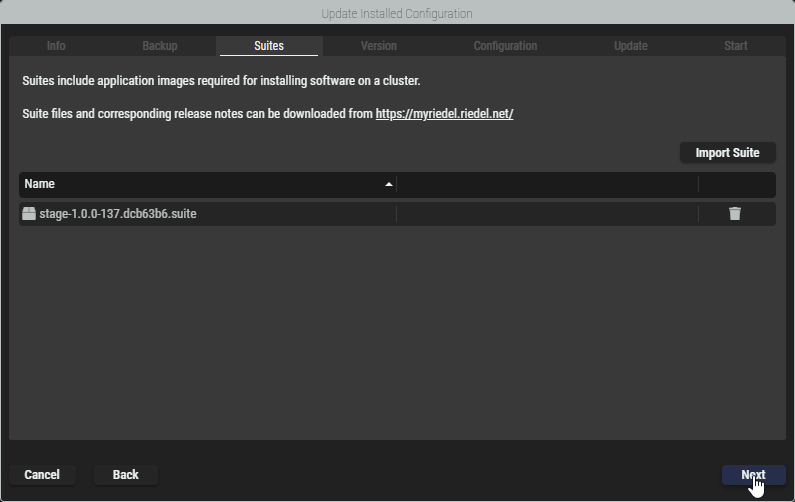
The currently available Suite files are displayed with their versions. New Suite files can be imported by clicking on the Import Suite button. Click Next to proceed.
-
The currently installed Suite files and the new Suite files to be installed are displayed with their versions. By default, the latest versions to be installed are displayed if several Suite files are available for an update. A different version can be selected in the dropdown.
Click Next to continue updating the Suite to the version displayed.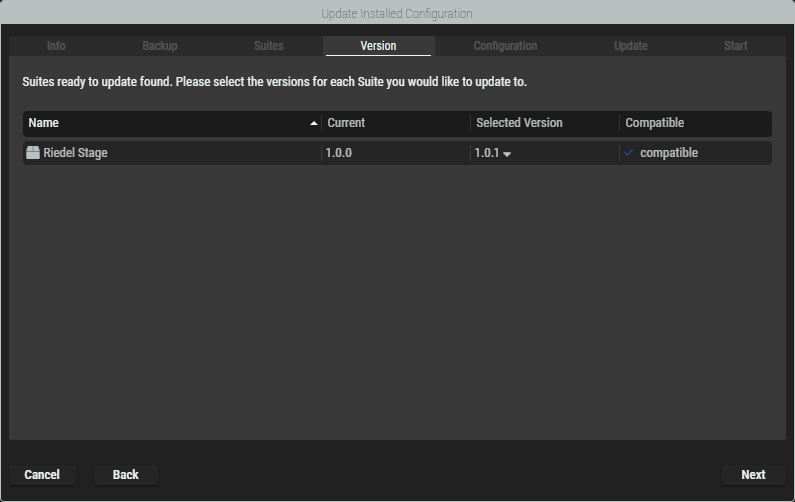
-
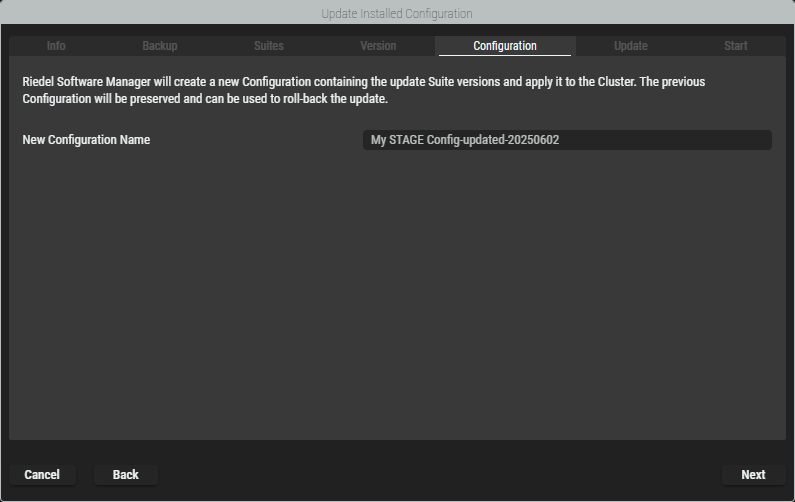
Enter a name for the updated configuration. By default, the name of the currently installed configuration is given the suffix “update” and the current date. Click Next to proceed.
-
Depending on the changes between the currently installed versions and the new versions, the newly created suite may be invalid if there are new mandatory parameters. The suites and the packages they contain are therefore displayed here and the corresponding settings can be made.
The contents in this example are based on the STAGE Suite and may differ for other suites. The Next button is only activated if the configuration is valid.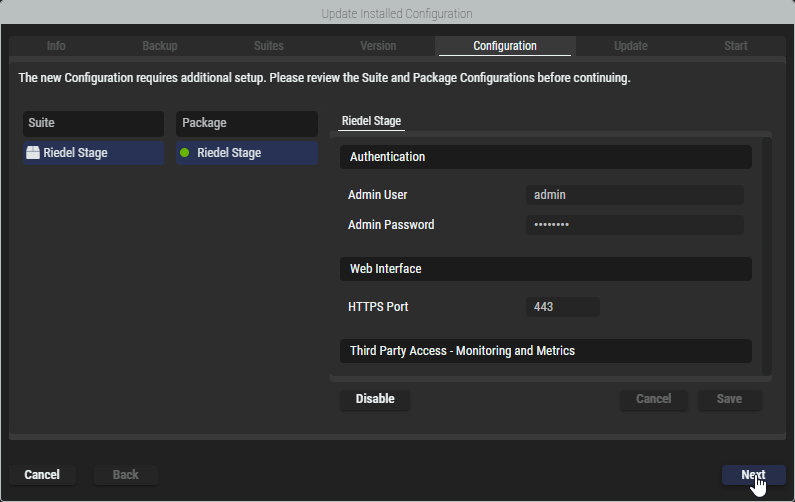
-
The preparation of the updated configuration is now complete and the next steps are explained.
Click Next to start the upload process.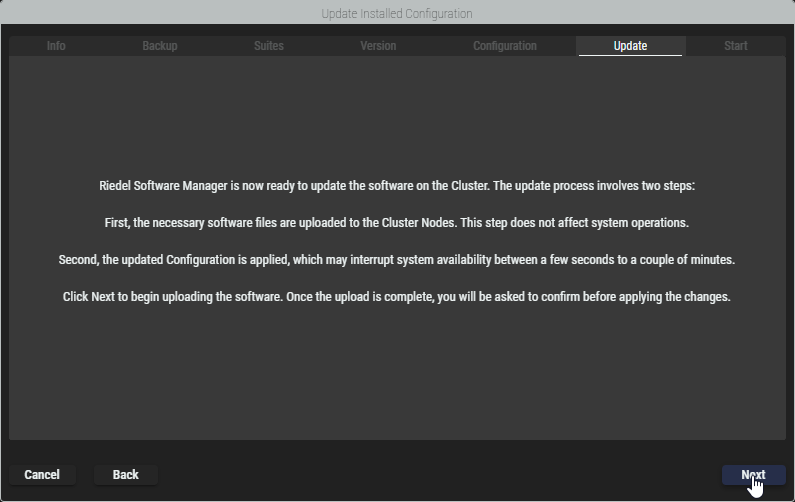
-
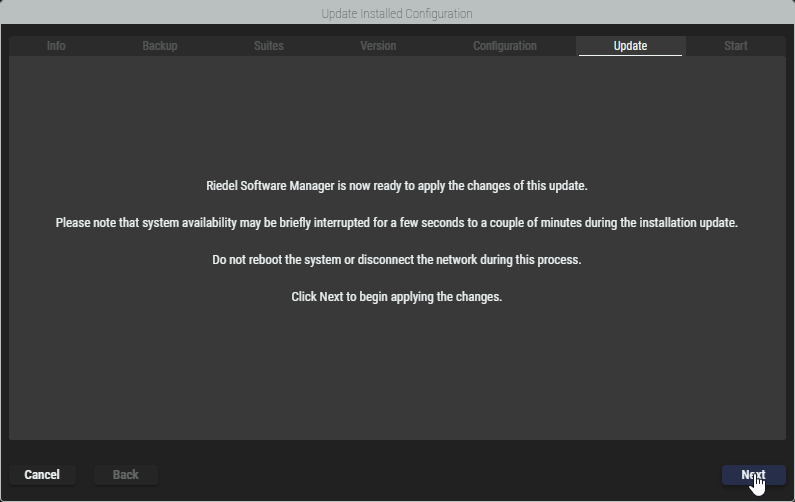
Once the upload is completed, the system is ready to update the configuration. Click Next to start the update process. Please note that system availability may be briefly interrupted while the update is applied.
-
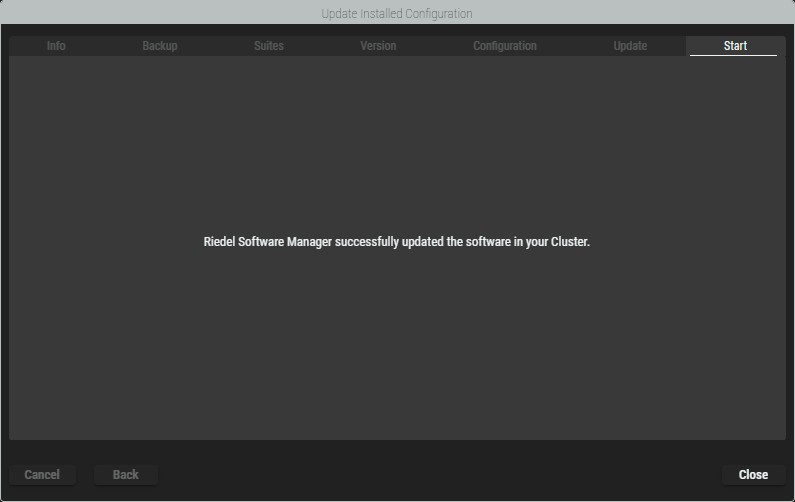
Once the update is completed, click Close to exit the wizard.