
This chapter describes how to install and start the Virtual SmartPanel app on your smartphone or tablet.
The Virtual SmartPanel app runs on iOS and Android devices.
To configure the key configuration of the Virtual SmartPanel in STAGE, see chapter Virtual SmartPanel.
First Time Use
To install the Virtual SmartPanel app on your smartphone or tablet and to connect to STAGE, proceed as follows:
-
In the app store of your smartphone or tablet, search for Riedel Virtual SmartPanel and install it.
-
Open the Virtual SmartPanel app.
-
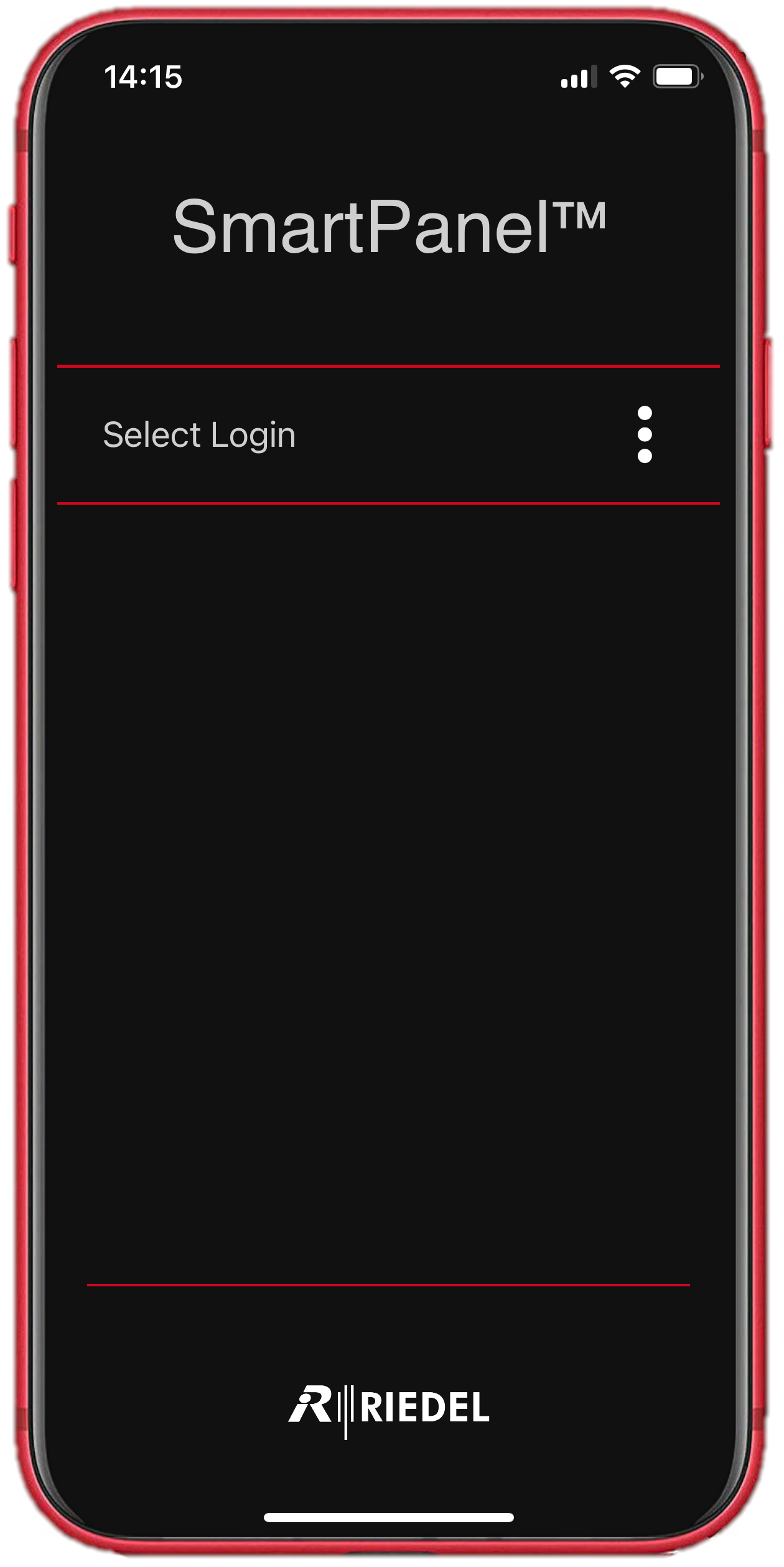
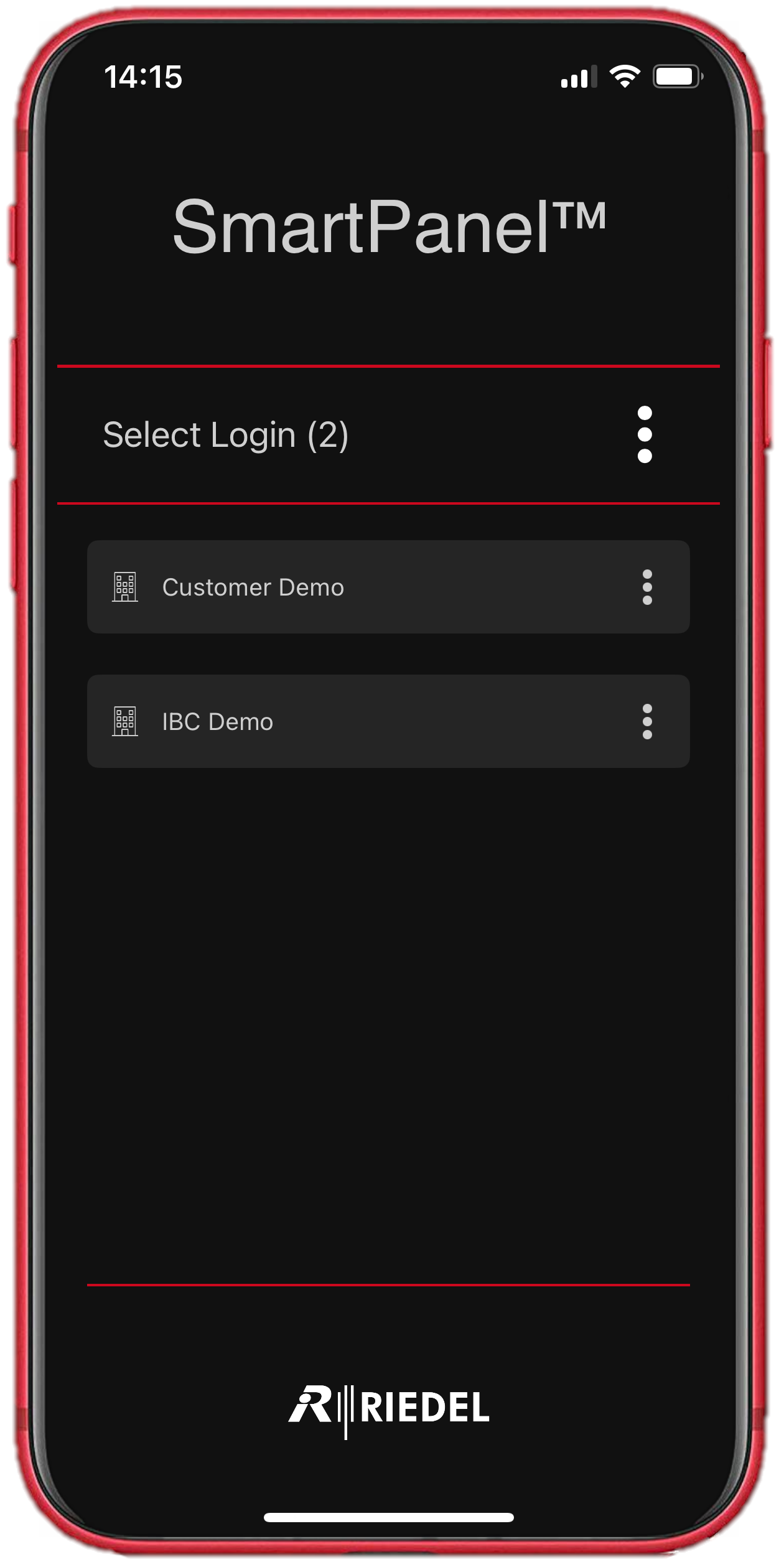
Tap on Select Login to add a new organization profile.
-
Create an organization profile by entering a name and connection URL to STAGE.
|
Name |
Set a name for this connection profile. |
|
URL |
Set the connection URL to STAGE, provided by your intercom administrator. |
Subsequent Virtual SmartPanel Connections to STAGE
After the first time connection with STAGE, there will be one or more oragnization profiles that you can use to connect to STAGE. Proceed as follows:
-
Open the Virtual SmartPanel app.
-
If several organization profiles are available, tab on the organization profile to which you want to connect. If only one organization profile is available, the selection dialog is skipped.
-
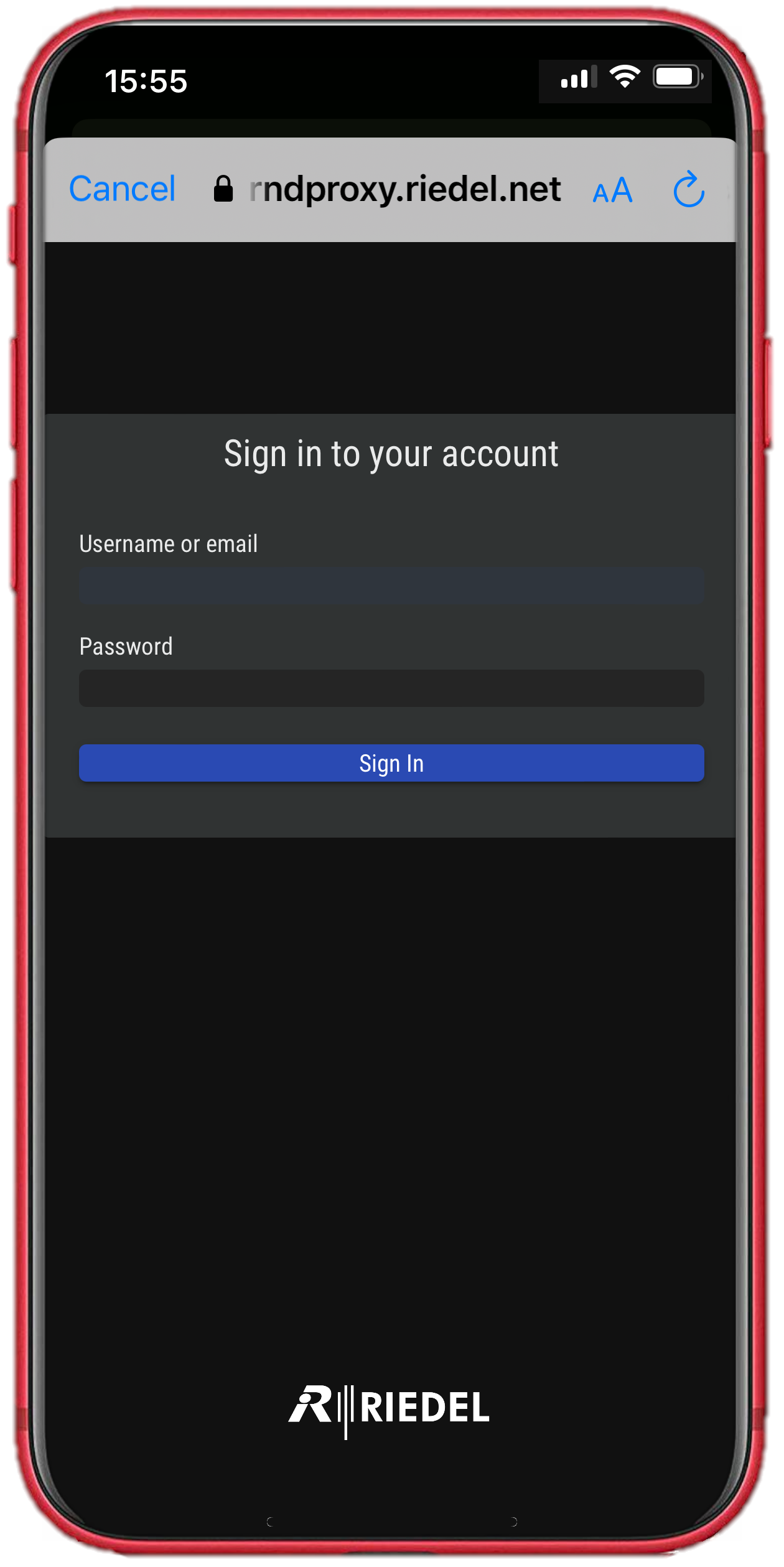
Login with the Username and Password provided by your intercom administrator.
-
If several configurations are assigned to the user, select the configuration to which you want to connect. If only one configuration is assigned to the user, the selection dialog is skipped.
-
The keys that have been previously configured for this configuration in the STAGE Function Builder are displayed in the app.
-
Use the app. The Virtual SmartPanel app works in the same way as the Virtual SmartPanel Browser on your PC, but has a fixed key matrix per keybank of 1×8 keys for smartphones and 3×8 keys for tablets.
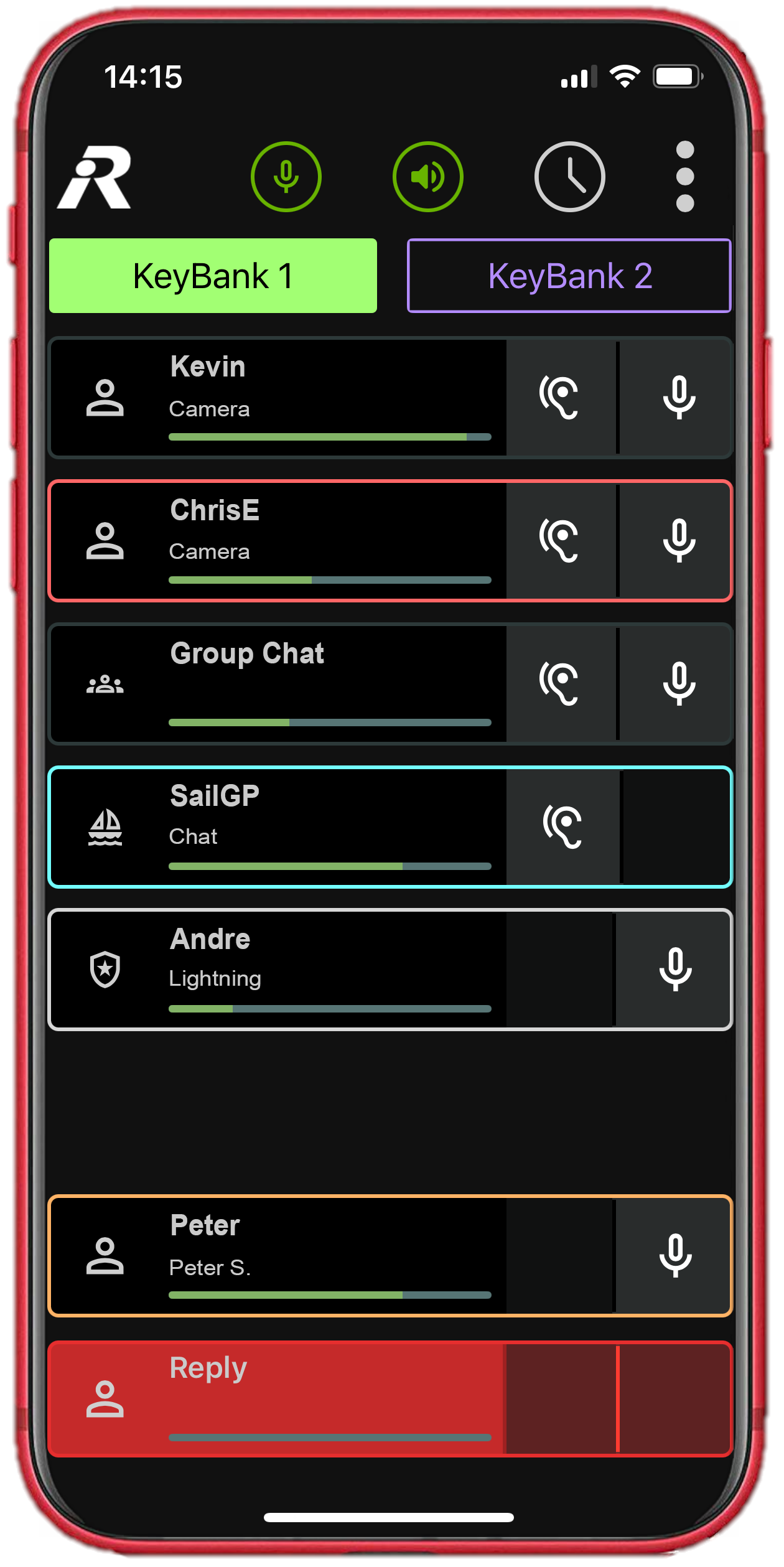
The Virtual SmartPanel uses colors, symbols, and tones to alert you to Intercom activity. See Virtual SmartPanel Browser #Overview for more information.
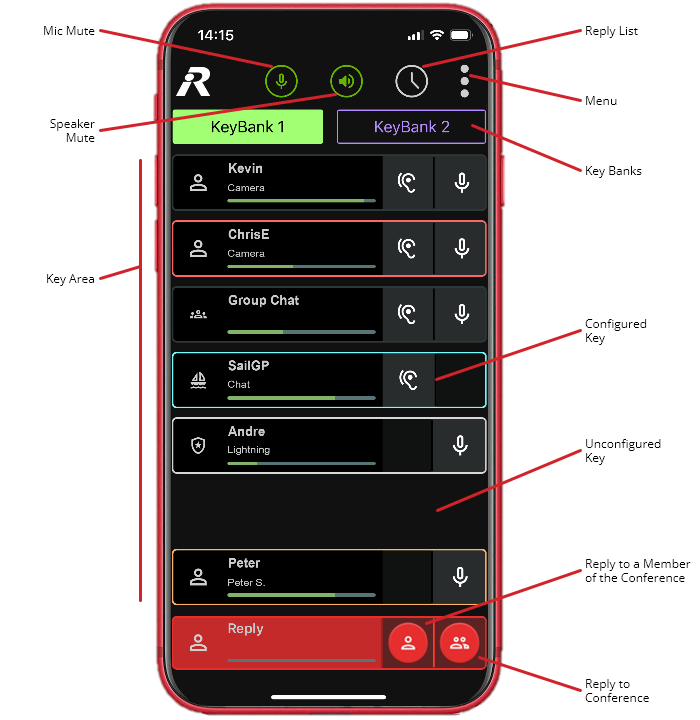
Overview of the VSP App
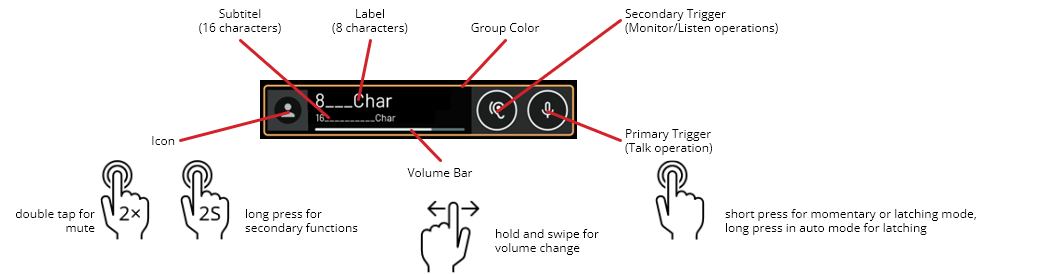
Overview of a VSP Key
Possible events during App use
The following table lists the reaction of the app to events which might occur either triggered from external factors or by the users.
|
Event |
OS |
Current / Default Reaction of VSP App |
|---|---|---|
|
External earphones are getting connected via bluetooth to the device / app which is currently connected |
Android |
Audio switches to the device that was just connected (no matter which audio device was previously selected) |
|
iOS |
Audio switches to the device that was just connected |
|
|
External earphones (bluetooth) are getting disconnected from the device / app which is currently connected |
Android |
Audio switches to phone speakers (no matter which audio device was previously selected) |
|
iOS |
Audio switches to phone speakers |
|
|
External earphones are getting connected via cable to the device / app which is currently connected |
Android |
Audio switches to device that was plugged in (no matter which audio device was previously selected) |
|
iOS |
Audio switches to device that was plugged in (with original Apple Lightning to 3,5 adapter or wired earpods) |
|
|
External earphones (cable) are getting disconnected from the device / app which is currently connected |
Android |
Audio switches to phone speakers (no matter which audio device was previously selected) |
|
iOS |
Audio switches to phone speakers |
|
|
An incoming call is received, the phone is ringing
|
Android |
Audio keeps playing uninterrupted |
|
iOS |
Audio will get interrupted, app will disconnect. App will reconnect and re-establish audio when getting moved to foreground again. If it was running in foreground before, this will happen immediately after call rejection, otherwise user will have to open it |
|
|
An incoming call is received and answered |
Android |
Audio keeps playing uninterrupted and gets recorded |
|
iOS |
Same behaviour as when just receiving a call |
|
|
An incoming call is received and declined |
Android |
Audio keeps playing uninterrupted and gets recorded |
|
iOS |
Same behaviour as when just receiving a call |
|
|
The app is minimized / put into background |
Android |
Audio keeps playing uninterrupted and gets recorded |
|
iOS |
Audio keeps playing uninterrupted and gets recorded |
|
|
the app is forced closed from the task manager triggered by the user |
Android |
Connection gets shut down, no more audio is played |
|
iOS |
Connection gets shut down, no more audio is played |
|
|
The device gets locked (by user via button or screen timeout) |
Android |
Audio keeps playing uninterrupted and gets recorded |
|
iOS |
Audio keeps playing uninterrupted and gets recorded |
|
|
User initiates other audio playback on device (e.g. starts playing music), while app is running |
Android |
|
|
iOS |
Audio will get interrupted, app will disconnect. App will reconnect and re-establish audio when user opens it again. If music is still running, when app gets reopened, it will get paused |
|
|
The device is locked but the app is logged in. Can I reply to calls from the lock screen? |
Android |
This should be possible with lock screen widget / custom notification shown on the lockscreen, but is currently not implemented |
|
iOS |
This should be possible with lock screen widgets on iOS 17+, would need further investigation / implementation |
|
|
The device is locked but the app is logged in. If a key is latched with the device locked, do I still continue to talk? |
Android |
Yes, talking should still be possible |
|
iOS |
Yes, talking should still be possible |