
These plug-ins are only Producers and are connected as the source for Consumers (for example, a Mixer Input). Generators and players are used for:
-
Troubleshooting: use as a signal source to:
-
verify that a signal path works in practice.
-
see the effect that another plugin has on the signal’s quality.
-
-
Testing: use to calibrate levels or to test monitoring availability.
-
Identification: to ensure that channels are properly assigned. For example, that the left and right assignment in a stereo pair is correct.
Line Identification Generator
Variants are available to support the following audio leg group types:
|
Mono |
Stereo |
5.1 |
|---|---|---|
|
|
|
|
This plugin generates line identification tone bursts, according to
-
EBU R49 (Two channel audio identification).
-
BLITS (Black and Lanes’ Ident Tones for Surround).
-
EBU multichannel identification signal.
-
GLITS (Graham's Line Identification Tone System).
This plugin is intended to be used with the Line Identification Analyser / Shuffler. See Meters & Analyzers.
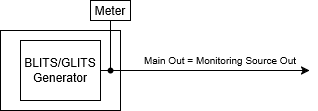
This plugin can be inserted into a signal path. In bypass mode, the input is just routed to the output. Otherwise, the generated sequence is inserted (overwriting the input).
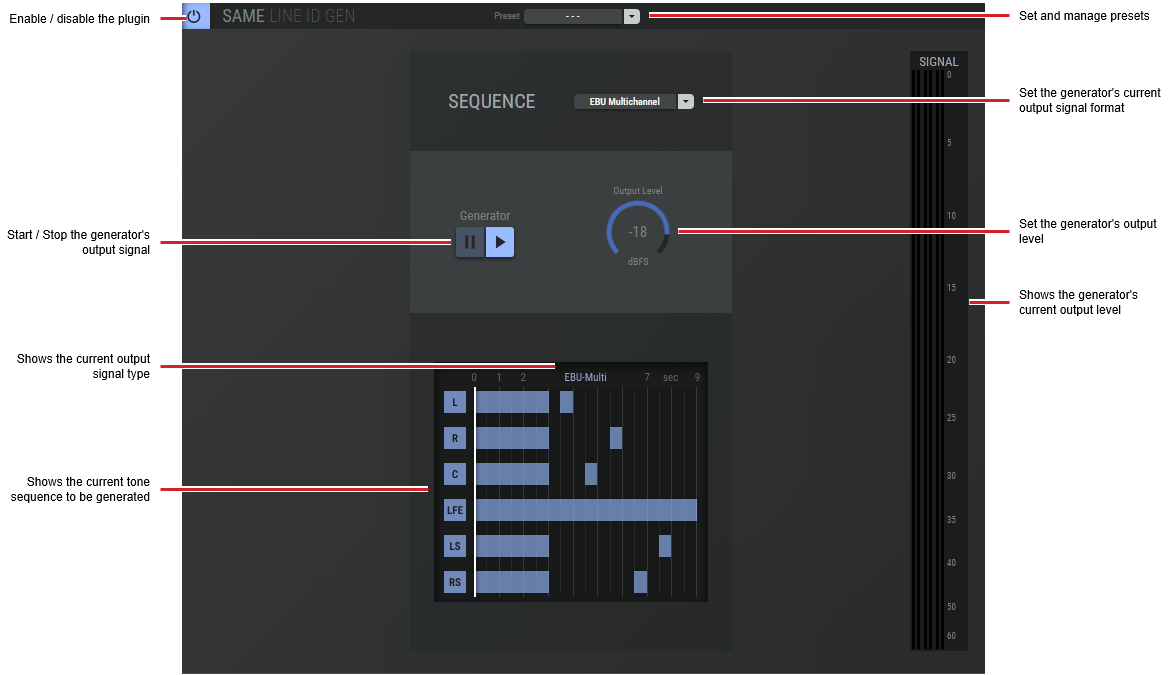
|
Preset |
The configuration of a SAME Application can be memorized as a preset for instant recall. See SAME Application Preset Configuration. |
|
Sequence |
Set the line identification generator’s output signal type.
|
|
Generator |
Start / Stop the generator's output signal. |
|
Output Level |
Click the rotary fader and drag your mouse left to right to set the level. |
|
Sequence Graph |
Shows the current tone sequence to be generated. |
|
Signal |
Shows the generator’s current signal output level. |
Signal/Noise Generator
Variants are available to support the following audio leg group types:
|
Mono |
Stereo |
5.1 |
|---|---|---|
|
|
|
|
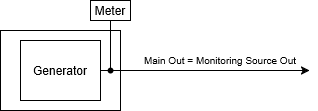
This plugin generates a sine tone, white noise, or pink noise.
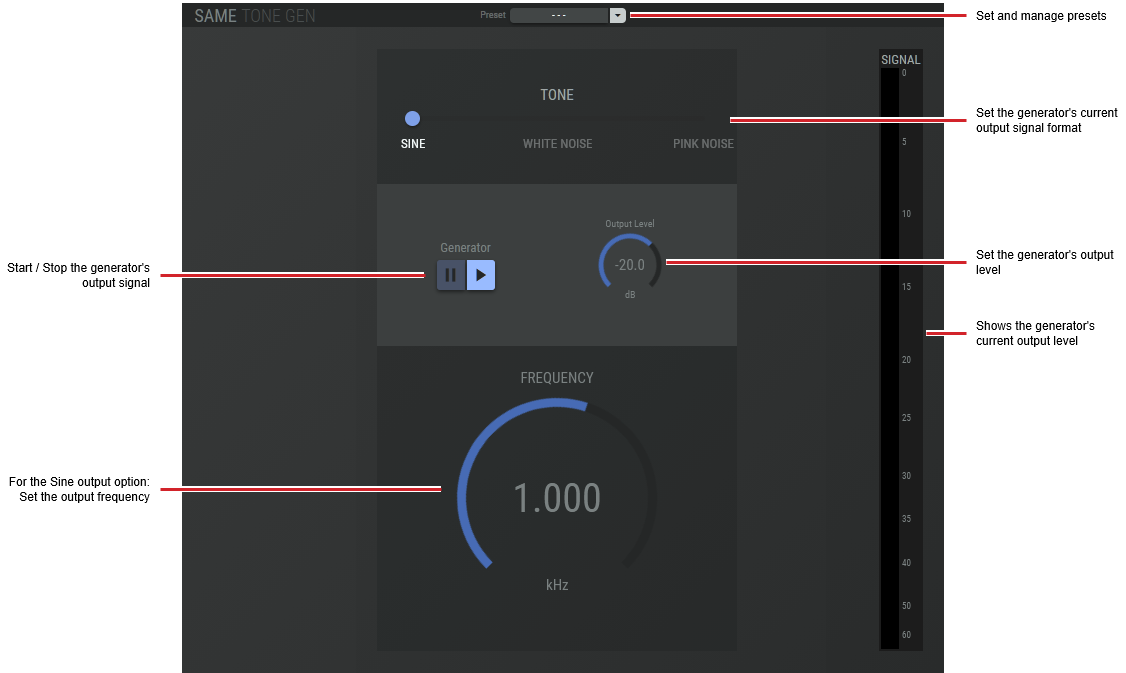
|
Preset |
The configuration of a SAME Application can be memorized as a preset for instant recall. See SAME Application Preset Configuration. |
|
Tone |
Set the generator’s output signal type.
|
|
Generator |
Start / Stop the generator's output signal. |
|
Output Level |
Click the rotary fader and drag your mouse left to right to set the level. |
|
Frequency |
For the Sine output option: Set the output frequency. |
|
Signal |
Shows the generator’s current signal output level. |