
Auto Voice-Over 4 Commentators Super Tool
Variants are available to support the following audio leg group types:
|
Mono |
Stereo |
5.1 |
|---|---|---|
|
|
|
|
The Voice-Over Processor is used to automatically control the mix levels of Commentary and Effects / Program-Beds according to loudness measurements. It can be used as a pre-processing tool in front of a traditional mixing console as well as a standalone mini-mixer, feeding the mix directly to broadcast output.
The Voice Over tool has the following characteristics:
4 × Mono Input
1 × Stereo or Stereo and 5.1 Input effects
1 × Automix
1 × 4 Mono
1 × Stereo or Stereo and 5.1 Output
3 × 5.1 - Listening & Mon Source
3 × Mono - Talkback
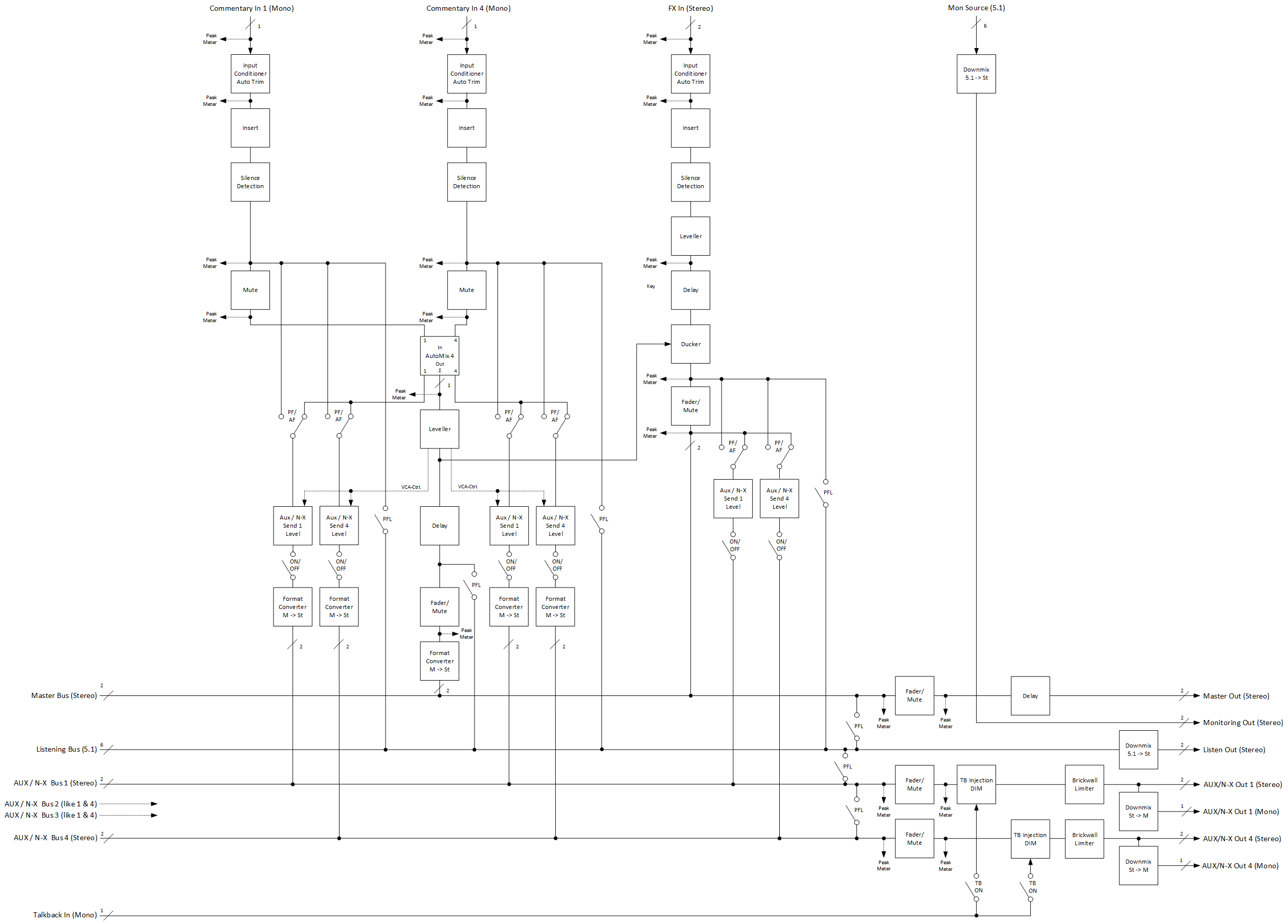
Stereo Voice-Over Process
The Stereo version of the Voice-Over Process is intended for broadcasters working only in Stereo.
It processes/mixes up to 4 mono Commentary voices with a stereo FX signal and mixes into a stereo Program-Out respectively a Stereo-Mix.
Each Commentator has its own N-X/AUX Master-Send, which can be used as an individual monitoring/IFB return channel.
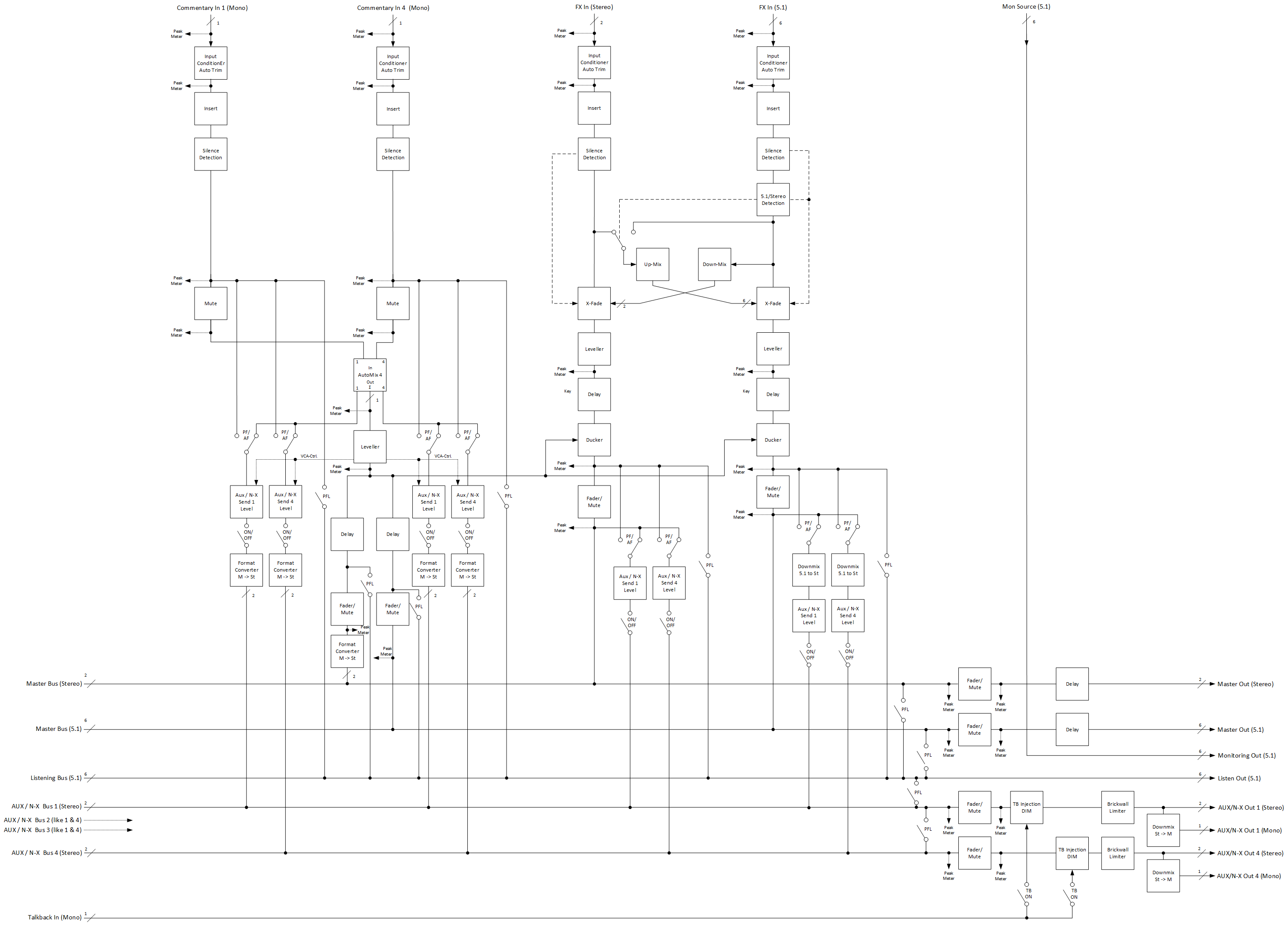
Stereo & 5.1 Voice-Over Process
The 5.1 version of the Voice-Over Process is intended for broadcasters working typically in 5.1 but alternatively also in Stereo or even both together (Simul-Cast).
It processes/mixes up to 4 mono Commentary voices, a stereo and/or a 5.1 FX signal and mixes into a stereo and/or a 5.1 Program-Out.
Each Commentator has its own N-X/AUX Master-Send, which can be used as an individual monitoring/IFB return channel.
Configuring the Voice Over Tool
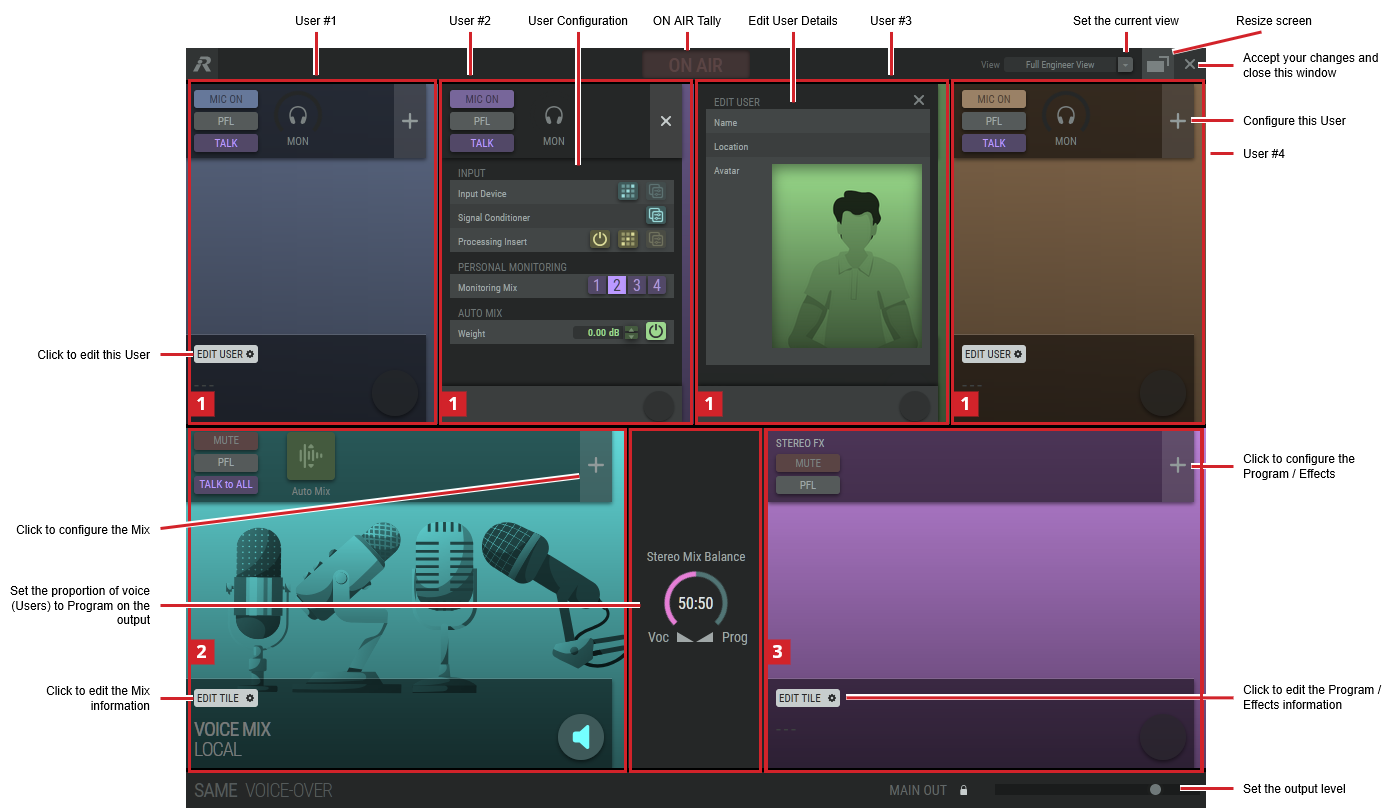
Typical Voice Over Tool Overview
|
ON AIR |
Shows when this plugin is live on air. This activates for example, when a talent enables their microphone (clicks Mic On). |
|
View |
Set the user / talent / engineering view to show. This selection allows you to see how this screen will look from another user’s point of view. |
|
[Move] |
Click to move the screen. |
|
Monitoring Source |
Set your monitoring source for this tool, for the Stereo & 5.1 tool only. Stereo: Listen to the tool’s Stereo monitor output. 5.1: Listen to the tool’s 5.1 monitor output. |
|
Stereo Mix 5.1 Mix Balance |
Set the proportion of voice (User content) versus Program on the output. |
|
Main Out Stereo 5.1 |
Set the plug-in’s output level. For the Stereo & 5.1 tool, separate output level controls are available for the Stereo and 5.1 signals. |


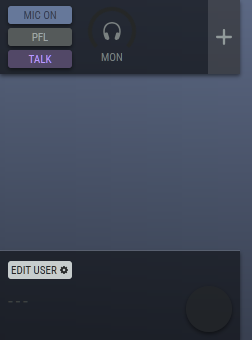
User / Talent Configuration
|
Mic On |
Click to activate the user’s microphone. |
|
PFL |
Click to activate the pre-fader listen for this input channel. |
|
Talk |
Click to hear the incoming talk back signal. |
|
Mon |
Set the monitor level. Click the rotary fader and drag your mouse left to right to set the level. |
|
+ |
Click to configure this user. |
|
× |
Click to close user configuration. |
|
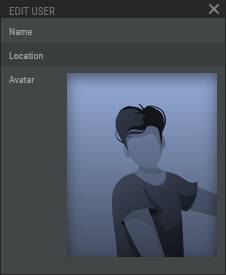
Edit User |
Click to edit this user’s name, location, and avatar. |
To edit a user, hover over a user’s tile and click Edit User.
|
× |
Click to accept your changes and close the settings. |
|
Name |
Set the user’s name. |
|
Location |
Set the user’s location. |
|
Avatar |
Click the current avatar to select another avatar. |
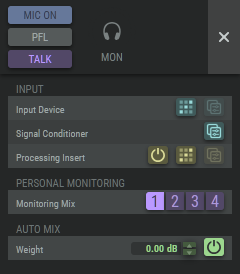
To configure a user, click +. Click × to save your changes and close the configuration window.
|
Input: Input Devices |
Set the Talent / User’s input signal source.
|
|
Input: Signal Conditioner |
Click |
|
Input: Processing Insert |
Set a processing insert for this Talent / User.
|
|
Personal Monitoring: Monitoring Mix |
Listen to your monitor, or to the monitor of another Talent / User. |
|
Auto Mix: Weight |
Set your level or presence in the mix. Talent with a softer voice may need more gain. Click the up / down buttons and drag your mouse up or down to set the level. Click |


Voice Mix Configuration
Set the Talents / Users mixer levels.
|
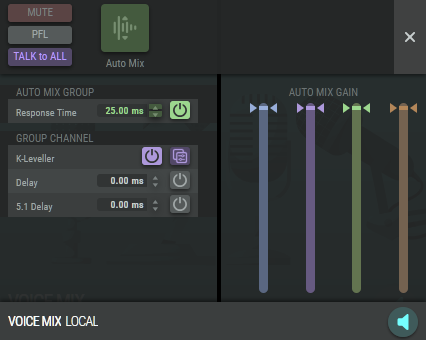
Mute |
Click to mute all Users / Talents inputs. |
|
PFL |
Click to listen to the pre-fader signal. |
|
Talk to All |
Click to talk on the Interruptible Foldback (IFB) channel of all Users / Talents. |
|
Auto Mix |
Set the Auto Mix levels: OFF: All Users / Talents are mixed to the Auto Mix Sum with unity gain. ON: Set the weighting for each individual User / Talent to be used for the Auto Mix Sum. This is set below in Auto Mix Gain. |
|
Auto Mix Group: Response Time |
Response Time setting for the Automix reaction speed (global parameter for all 4 channels). Click the up / down buttons and drag your mouse up or down to set the level. Click |
|
Group Channel: K-Leveller |
Set the K-Leveller configuration for the Voice Mix, for all Talent / Users.
|
|
Group Channel: Delay 5.1 Delay |
Set a delay. Click the up / down buttons and drag your mouse up or down to set the level. Click |
|
Auto Mix Gain |
Set the weighting for each individual User / Talent to be used for the Auto Mix Sum, when Auto Mix is set to On. |

|
Click to monitor the mix. |


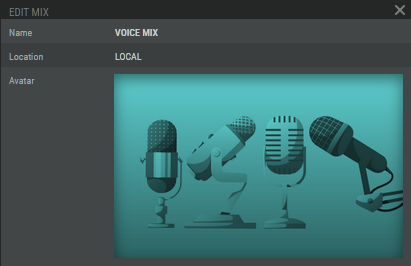
To edit the Voice Mix tile, hover over the tile and click Edit Tile.
|
× |
Click to accept your changes and close the settings. |
|
Name |
Set the name for this Voice Mix tile. |
|
Location |
Set the location for this Voice Mix tile. |
|
Avatar |
Click the current avatar to select another avatar. |

Effects / Program Configuration
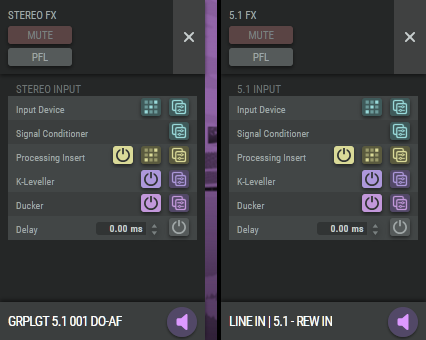
|
Mute |
Click to mute the effects / program input. |
|
PFL |
Click to listen to the effects / program pre-fader signal. |
|
Stereo / 5.1 Input: Input Device |
Set the Effect input signal source.
|
|
Stereo / 5.1 Input: Signal Conditioner |
Click |
|
Stereo / 5.1 Input: Processing Insert |
Set a processing insert for this Talent / User.
|
|
Stereo / 5.1 Input: Silence Detection |
Set the silence detection for the voice-over tool.
|
|
Stereo / 5.1 Input: K-Leveller |
Set the K-Leveller configuration for the Voice Mix, for all Talent / Users.
|
|
Stereo / 5.1 Input: Ducker |
Set the amount of attenuation to apply to the effects program when there is Voice Mix content. This is used to prioritize the talent’s voices over the opening billboard (OBB), for example.
|
|
Stereo / 5.1 Input: Delay |
Set a delay for voice mix in relation to the effects/program for the production mix. Click the up / down buttons and drag your mouse up or down to set the level. Click |

|
Click to monitor the mix. |


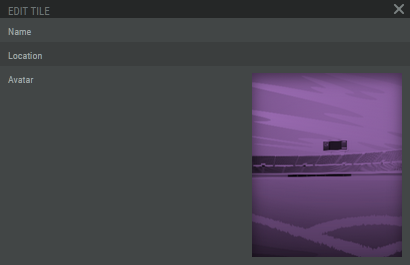
To edit the Effects tile, hover over the tile and click Edit Tile.
|
× |
Click to accept your changes and close the settings. |
|
Name |
Set the name for this Effects tile. |
|
Location |
Set the location for this Effects tile. |
|
Avatar |
Click the current avatar to select another avatar. |