
Network Plug-ins are for the most part basic processing tools; for example, a Parametric EQ with direct processing Inputs and Outputs.
These DSP-Configs can be inserted into a media stream by Drag & Drop through the routing User Interface, since there are only very basic routing rules to be applied. An "off-rule" leg (for example, a Compressor's side chain input) will be ignored by the automatic routing routine.
Brickwall Limiter Plug-in Effect Configuration
Variants are available to support the following audio leg group types:
|
Mono |
Stereo |
5.1 |
|---|---|---|
|
|
|
|
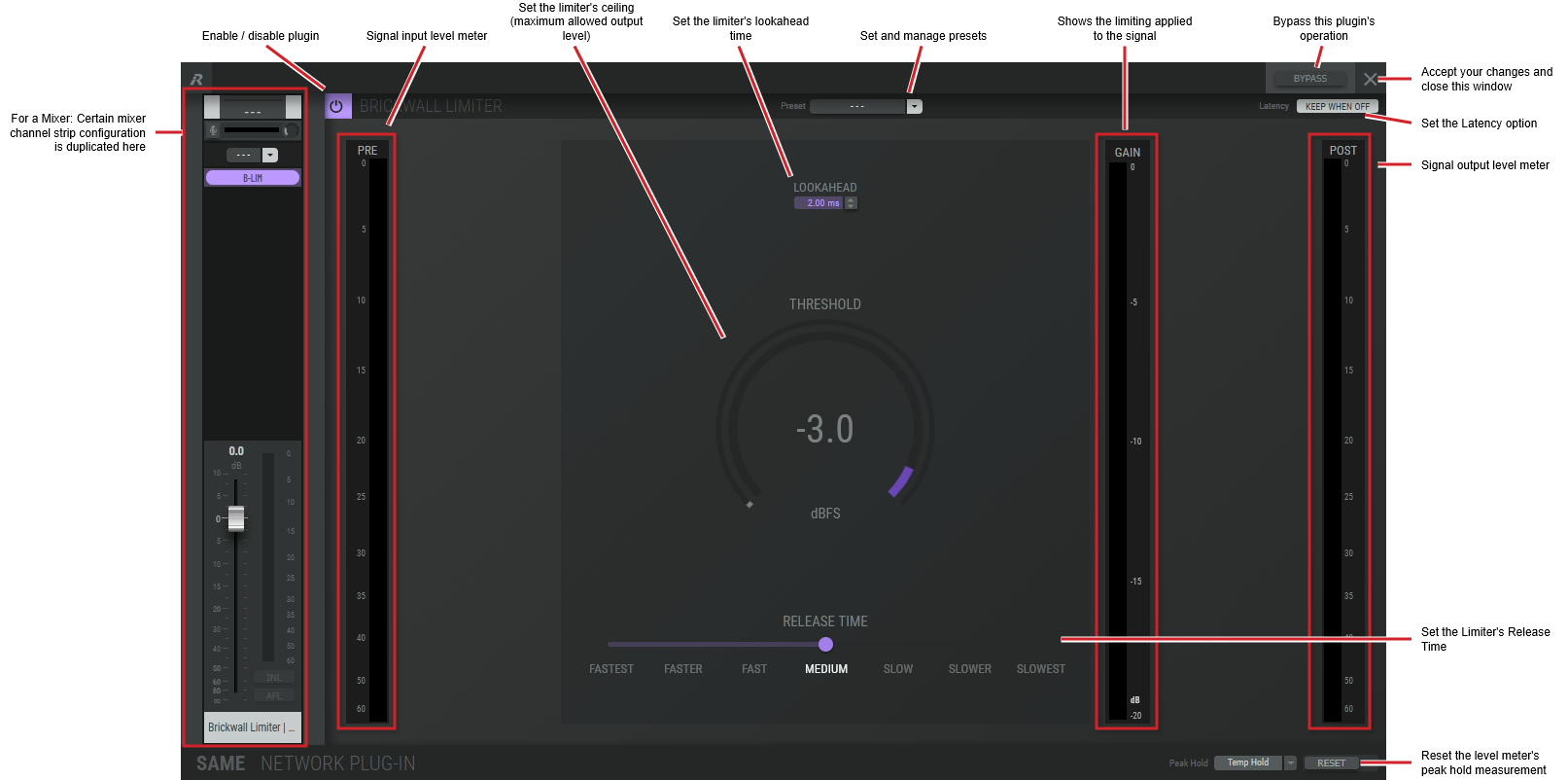
The brickwall limiter plugin performs dynamic range compression to stop a signal from exceeding a certain level. This is achieved with a lookahead delay, that gives the sidechain some time to gracefully adjust the gain reduction such that, after the delay, the output eventually does not exceed the set threshold.
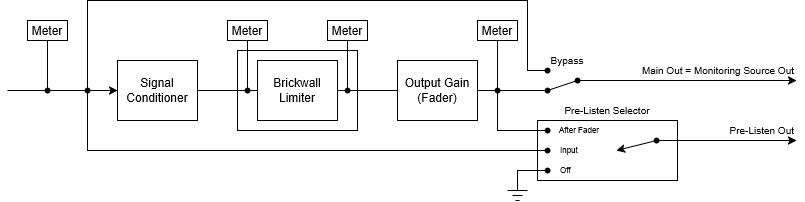
|
Preset |
The configuration of a SAME Application can be memorized as a preset for instant recall. See SAME Application Preset Configuration. |
|
Bypass |
Set to bypass this plugin's operation. |
|
Latency KEEP WHEN OFF |
The lookahead setting creates a processing delay with this plugin. KEEP WHEN OFF Enabled: When the plugin is bypassed / re-engaged, the processing delay is maintained so that there is no glitch at the output. KEEP WHEN OFF Disabled: When the plugin is bypassed, the lookahead buffer is dumped, causing a glitch at the output at the moment of transition. |
|
Lookahead |
Set the amount of time the limiter is to track an audio signal for analysis ahead of time before applying gain correction to allow the limiter to respond to peaks precisely. This setting adds a corresponding processing delay. |
|
Threshold |
Set the limiter's ceiling or maximum allowed output level. Click the rotary fader and drag your mouse left to right to set the level. |
|
Release Time |
Set the time it takes for gain reduction to stop once the level returns below the threshold. |
|
Gain |
Shows the amount of gain reduction applied to the signal as a result of the limiter’s action. |
|
Peak Hold |
Click No hold: Shows sound levels. Transient peaks are not frozen. Temp hold: Shows sound levels while also freezing the display of the highest instantaneous peaks for a short period. Cont. hold: Shows sound levels while also freezing the display of the highest instantaneous peaks. Click RESET ALL to clear the peak signal display on all level meters. |
|
Reset |
Reset the level meter's peak hold measurement. |
Brickwall Limiter - True Peak Plug-in Effect Configuration
Variants are available to support the following audio leg group types:
|
Mono |
Stereo |
5.1 |
|---|---|---|
|
|
|
|
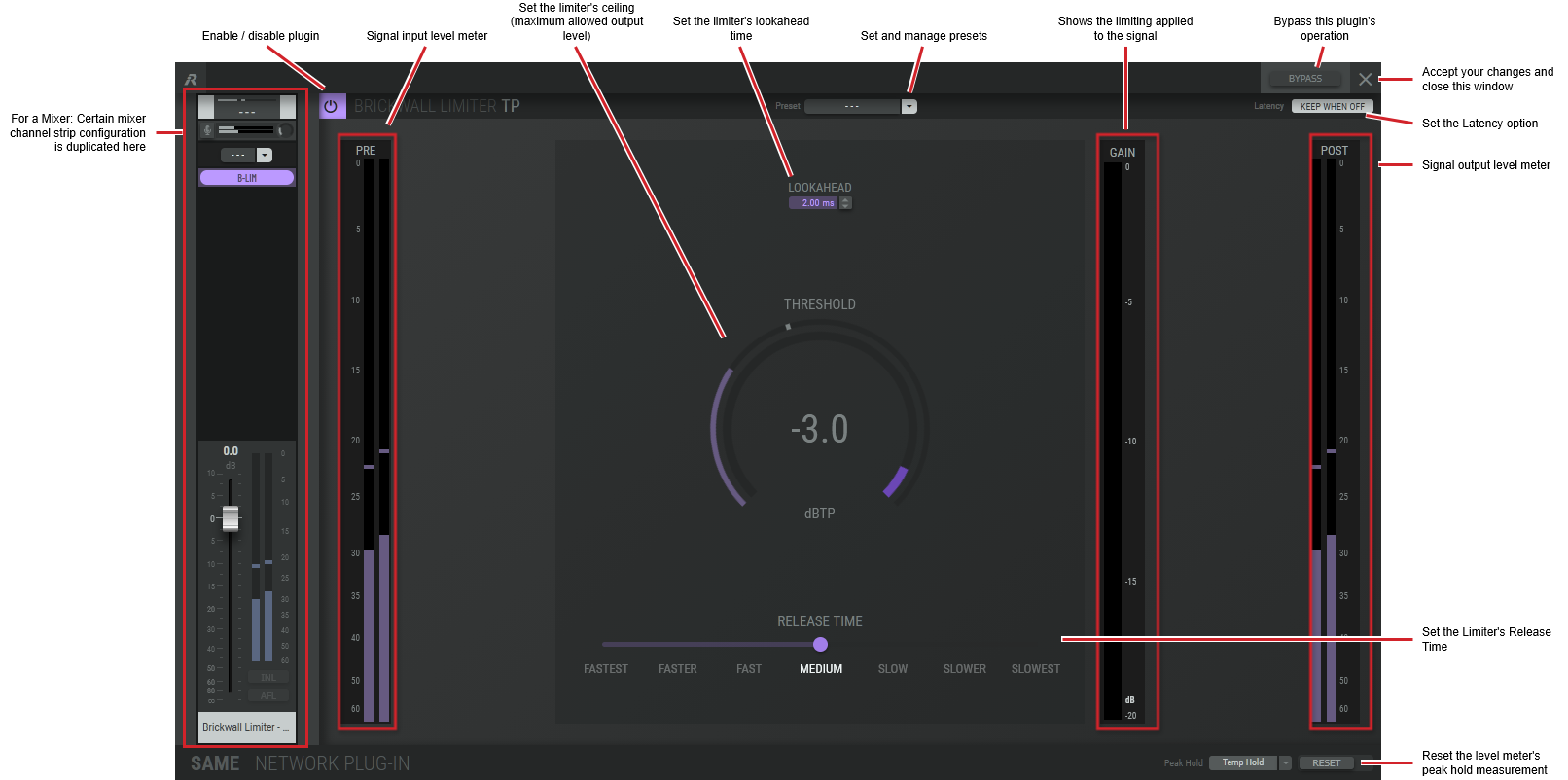
The brickwall limiter plugin performs dynamic range compression to stop a signal from exceeding a certain level. This is achieved with a lookahead delay, that gives the sidechain some time to gracefully adjust the gain reduction such that, after the delay, the output eventually does not exceed the set threshold.
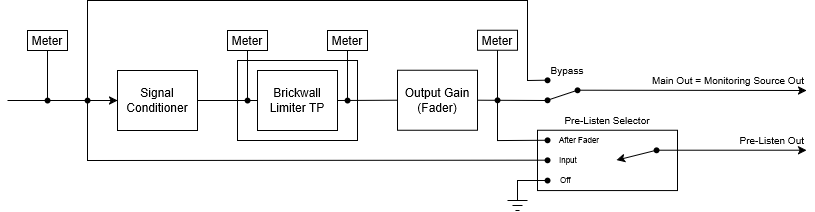
The true peak measurement is compliant with ITU-R BS.1770-4.
|
Preset |
The configuration of a SAME Application can be memorized as a preset for instant recall. See SAME Application Preset Configuration. |
|
Bypass |
Set to bypass this plugin's operation. |
|
Latency KEEP WHEN OFF |
The lookahead setting creates a processing delay with this plugin. KEEP WHEN OFF Enabled: When the plugin is bypassed / re-engaged, the processing delay is maintained so that there is no glitch at the output. KEEP WHEN OFF Disabled: When the plugin is bypassed, the lookahead buffer is dumped, causing a glitch at the output at the moment of transition. |
|
Lookahead |
Set the amount of time the limiter is to track an audio signal for analysis ahead of time before applying gain correction to allow the limiter to respond to peaks precisely. This setting adds a corresponding processing delay. |
|
Threshold |
Set the limiter's ceiling or maximum allowed output level. Click the rotary fader and drag your mouse left to right to set the level. |
|
Release Time |
Set the time it takes for gain reduction to stop once the level returns below the threshold. |
|
Gain |
Shows the amount of gain reduction applied to the signal as a result of the limiter’s action. |
|
Peak Hold |
Click No hold: Shows sound levels. Transient peaks are not frozen. Temp hold: Shows sound levels while also freezing the display of the highest instantaneous peaks for a short period. Cont. hold: Shows sound levels while also freezing the display of the highest instantaneous peaks. Click RESET ALL to clear the peak signal display on all level meters. |
|
Reset |
Reset the level meter's peak hold measurement. |
Ducker Plug-in Effect Configuration
Variants are available to support the following audio leg group types:
|
Mono |
Stereo |
5.1 |
|---|---|---|
|
|
|
|
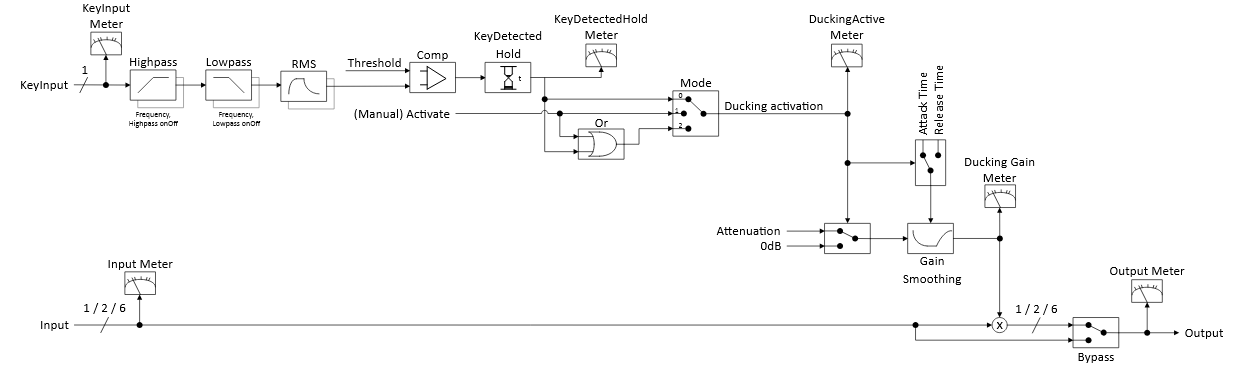
The plugin performs automatically or manually controlled attenuation of the main channel to a predefined depth value. In automatic (or mixed) mode the ducking can be activated by a key detection, for example, the detection of a voice in a commentary channel.
|
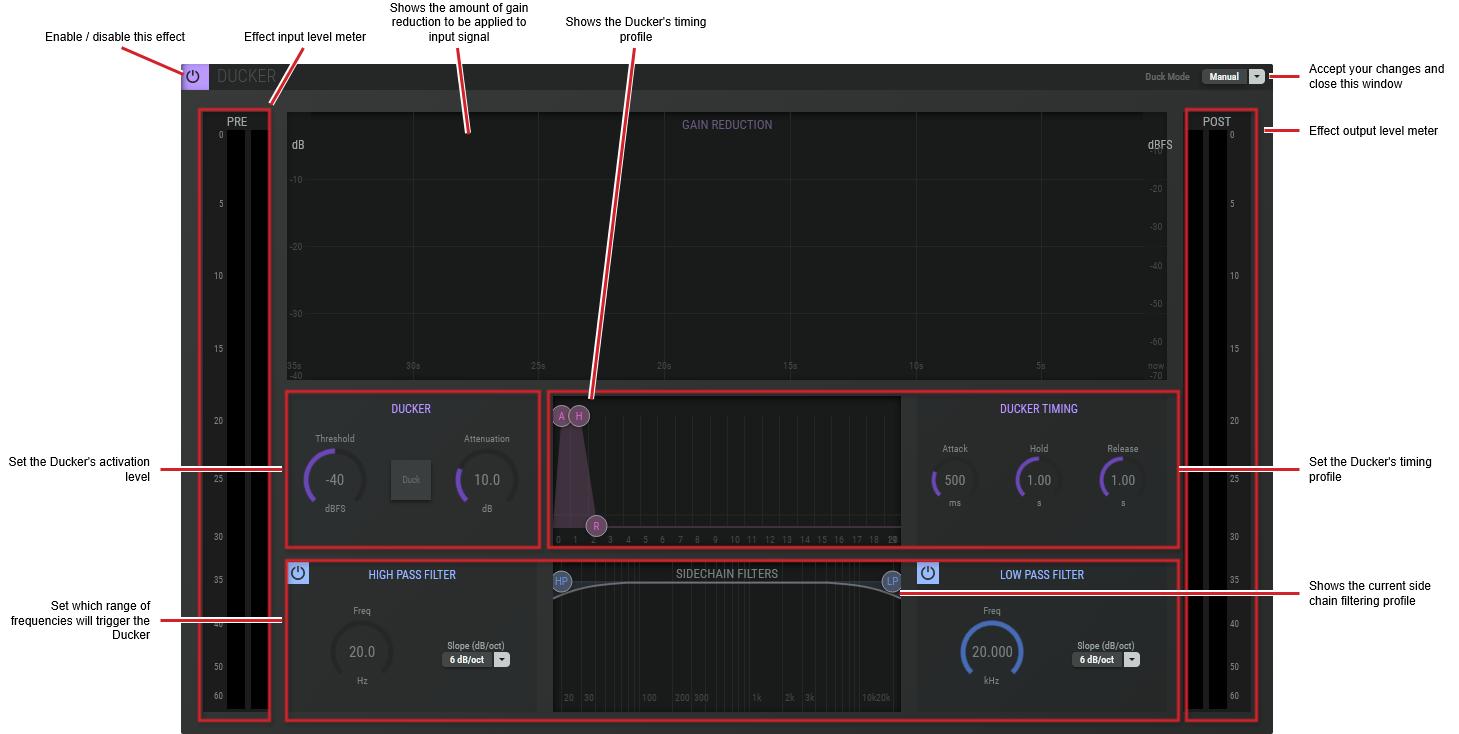
Duck Mode |
Set the Key detection algorithm to: Auto: The Ducker is activated according to the key detection threshold. Manual: The Ducker is manually controlled. Mixed: The Ducker is both automatically activated, according to the key detection threshold, and manually controlled. |
|
Gain Reduction |
Shows the amount of gain reduction to be applied to input signal (the Ducker’s operating profile). |
|
Ducker: Threshold |
Set the Key detection threshold. |
|
Ducker: Duck |
Shows that the Ducker has been activated. |
|
Ducker: Attenuation |
Set the amount of attenuation to be applied to the input channels to be Ducked. |
|
Ducker Timing: Attack |
Set the time between the trigger event and reaching of 63% of the attenuation value. This parameter smooths the Ducker’s response profile, making the transition less abrupt. |
|
Ducker Timing: Hold |
Set the time the Key Detected state (attenuation) is to be held before the Ducker’s attenuation is removed. This is to prevent the Ducker from restoring signal due to the short pauses between the back and forth of two announcers for example. |
|
Ducker Timing: Release |
Set the time needed to return from Attenuation value back to 63% of unity gain (no attenuation). This parameter smooths the Ducker’s response profile, making the transition less abrupt. |
|
Side Chain: High Pass Filter Frequency Low Pass Filter Frequency |
Set the frequency range used to detect sound energy levels that are used to control the Ducker’s operation. Note that this effect does not modify the tonal balance of the input to output signal. Click the knob and drag your mouse left to right to set the frequency. |
|
Side Chain: High Pass Filter Slope Low Pass Filter Slope |
Set the filter's cut-off slope. |
Shuffler Plug-in Configuration
Variants are available to support the following audio leg group types:
|
Mono |
Stereo |
5.1 |
8-Channel |
16-Channel |
|---|---|---|---|---|
|
|
|
|
|
|
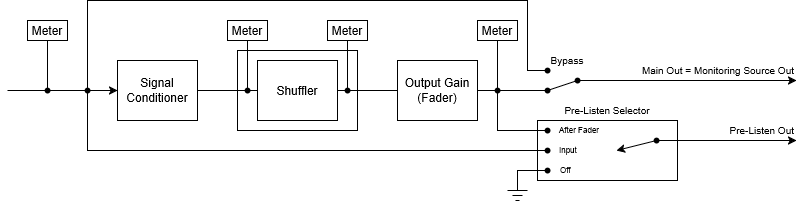
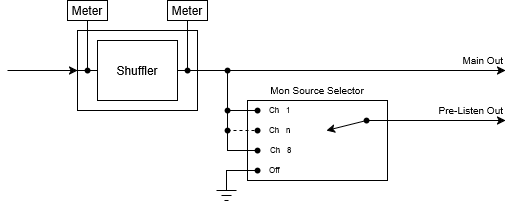
The shuffler plugin permutes (reorders) the legs of a multichannel audio signals.
Stereo and 5.1 shuffler
8-channel shuffler
16-channel shuffler
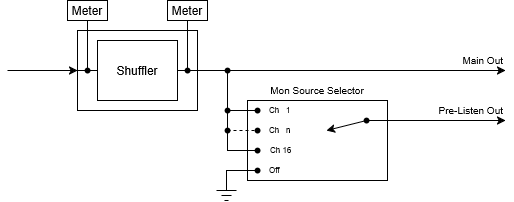
This is an example of an 8 channel shuffler
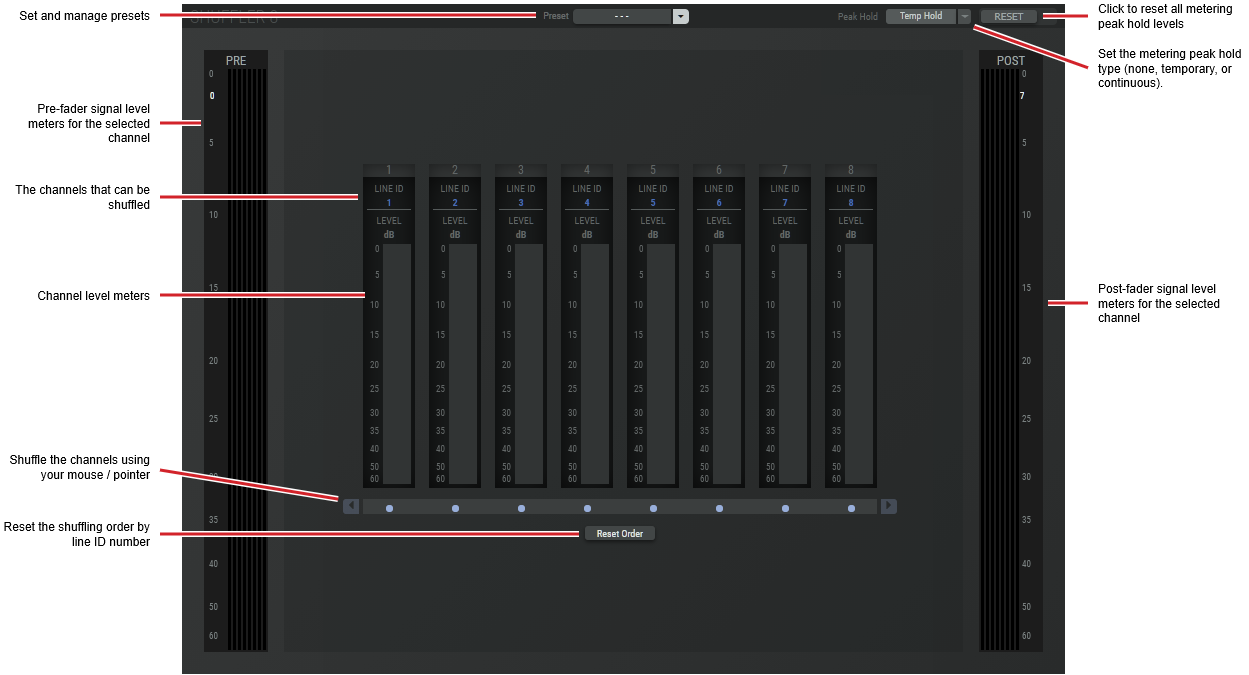
The example shown below is for an 8 channel shuffler. This is used as an example of the features that can be generalized to any shuffler.
|
Preset |
The configuration of a SAME Application can be memorized as a preset for instant recall. See SAME Application Preset Configuration. |
|
Peak Hold |
Click No hold: Shows sound levels. Transient peaks are not frozen. Temp hold: Shows sound levels while also freezing the display of the highest instantaneous peaks for a short period. Cont. hold: Shows sound levels while also freezing the display of the highest instantaneous peaks. Click RESET ALL to clear the peak signal display on all level meters. |
|
RESET |
Click to clear the peak signal display on all level meters when the level meters are set to peak hold mode. |
|
PRE |
The metering source is pre-fader. |
|
POST |
The metering source is post-fader. |
|
Reset Order |
Click to reset the shuffling order by line ID number. |
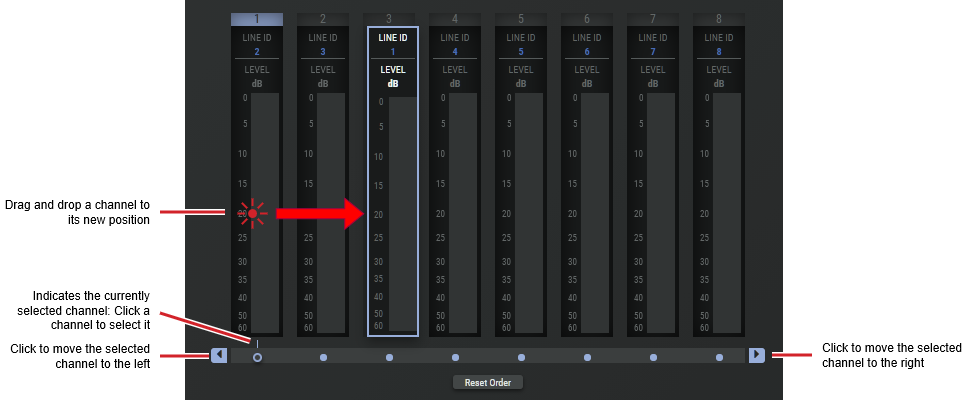
There are two ways to shuffle the channels by:
-
Dragging and dropping the channel to its new position.
-
By using your mouse / pointer to move a channel left or right.
Delay 10 Seconds Plug-in Configuration
Variants are available to support the following audio leg group types:
|
Mono |
Stereo |
5.1 |
|---|---|---|
|
|
|
|
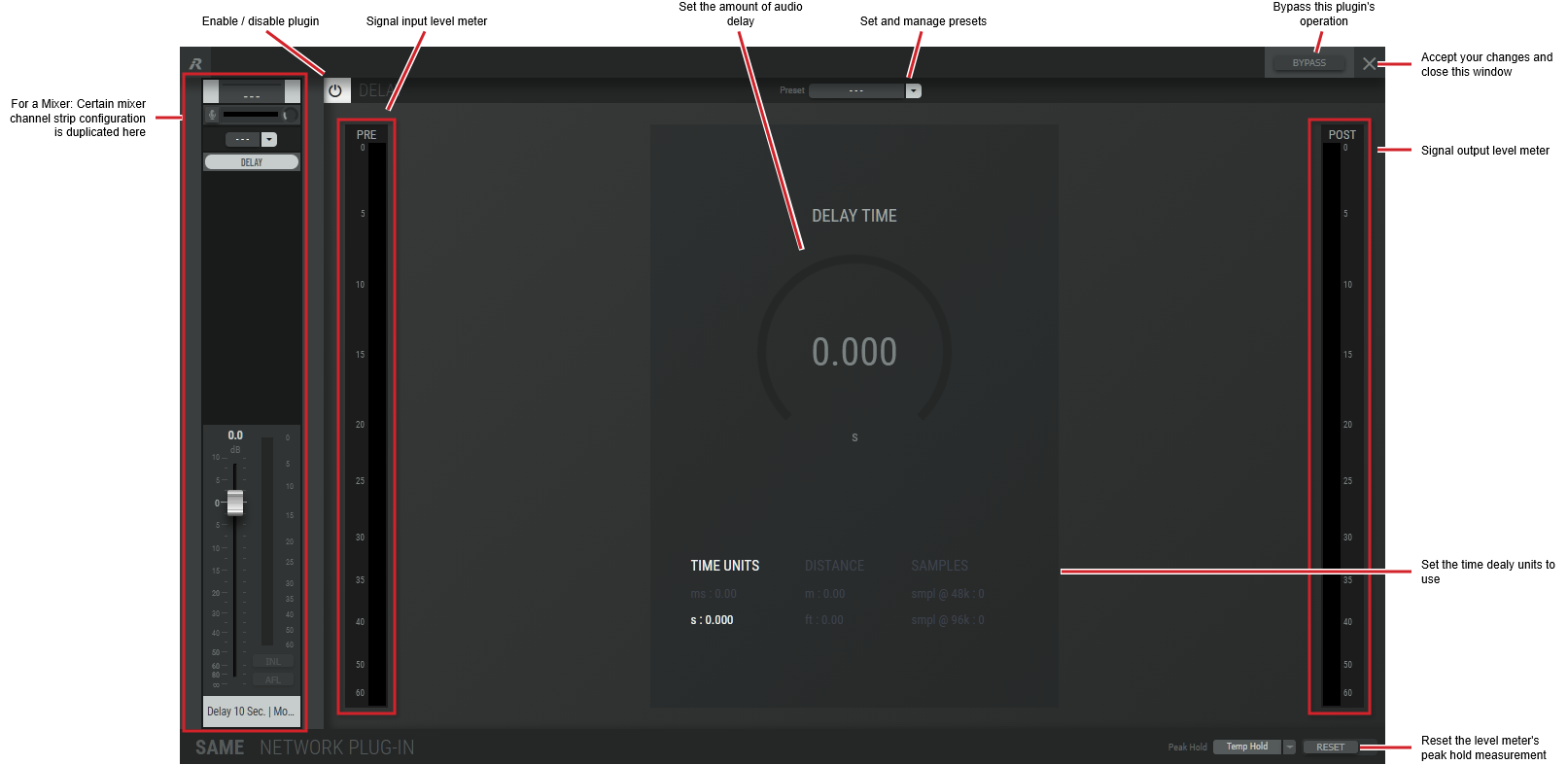
The delay plugin applies a time delay to the input signal of up to 10 seconds.
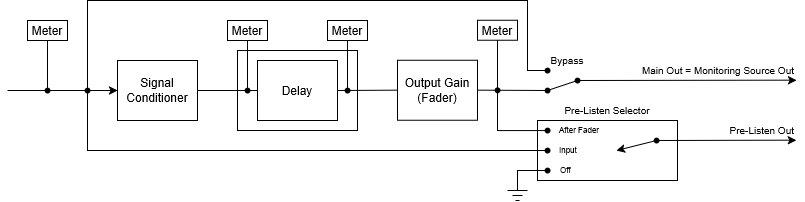
Delay times can only be an integer number of the sampling period.
|
Preset |
The configuration of a SAME Application can be memorized as a preset for instant recall. See SAME Application Preset Configuration. |
|
Bypass |
Set to bypass this plugin's operation. |
|
Delay Time |
Set the delay time to be applied to the audio signal. Click the knob and drag your mouse left to right to set the level. |
|
Time Units |
Set the amount of delay by units of time in milliseconds or seconds. |
|
Distance |
Set the amount of delay by units distance in feet or meters. |
|
Samples |
Set the amount of delay by samples at a given sample rate. |
|
Peak Hold |
Click No hold: Shows sound levels. Transient peaks are not frozen. Temp hold: Shows sound levels while also freezing the display of the highest instantaneous peaks for a short period. Cont. hold: Shows sound levels while also freezing the display of the highest instantaneous peaks. Click RESET ALL to clear the peak signal display on all level meters. |
|
Reset |
Reset the level meter's peak hold measurement. |
Format Converter Mono to Stereo
Variants are available to support the following audio leg group types:
|
Mono |
Stereo |
5.1 |
|---|---|---|
|
|
|
|
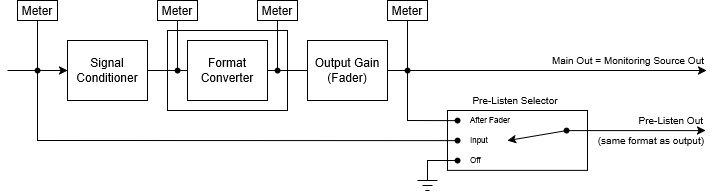
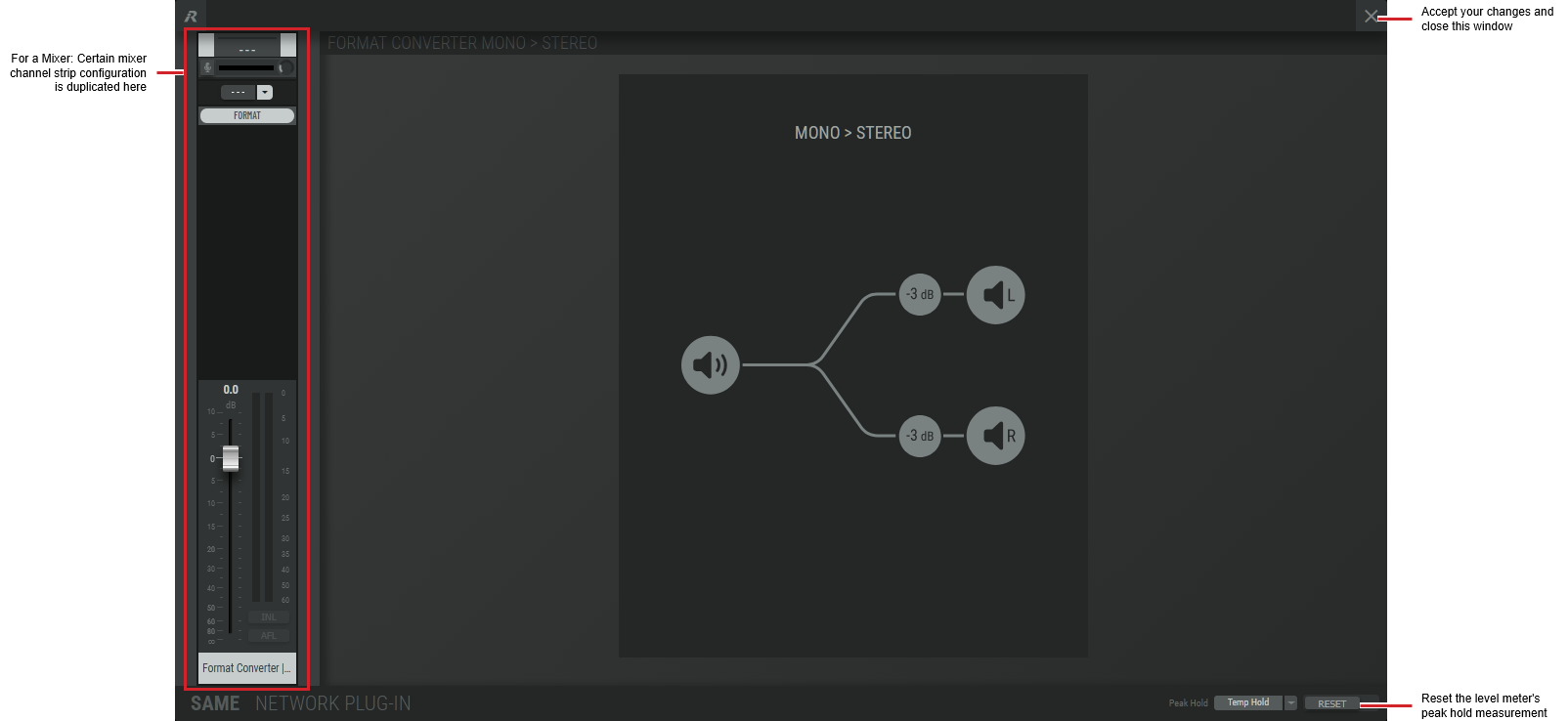
The format converter is Mono to Stereo (mono signal is routed with -3dB to the two stereo channels).
|
Peak Hold |
Click No hold: Shows sound levels. Transient peaks are not frozen. Temp hold: Shows sound levels while also freezing the display of the highest instantaneous peaks for a short period. Cont. hold: Shows sound levels while also freezing the display of the highest instantaneous peaks. Click RESET ALL to clear the peak signal display on all level meters. |
|
Reset |
Reset the level meter's peak hold measurement. |
Downmix
Variants are available to support the following audio leg group types:
|
Downmix Mode |
Mono |
Stereo |
Left - Right - Center |
5.1 |
|---|---|---|---|---|
|
5.1 to LRC |
|
|
|
|
|
5.1 to Stereo |
|
|
|
|
|
5.1 to Mono |
|
|
|
|
|
Stereo to Mono |
|
|
|
|
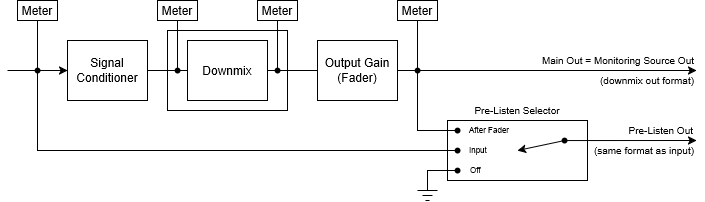
The downmix plugins perform downward mixing of multichannel audio signals.
There are two types of downmix plugins: the format converter and the inline downmix. The format converter plugins have different input and output format (for example, surround 5.1 input and stereo output). The inline plugins however have identical input and output format, and can be configured to output a downmix on a subset of the output channels.
The format converters are
-
Surround 5.1 to LRC
-
Surround 5.1 to Stereo
-
Surround 5.1 to Mono
-
Stereo to Mono
The inline downmixes are
-
Surround 5.1 inline
-
Stereo inline
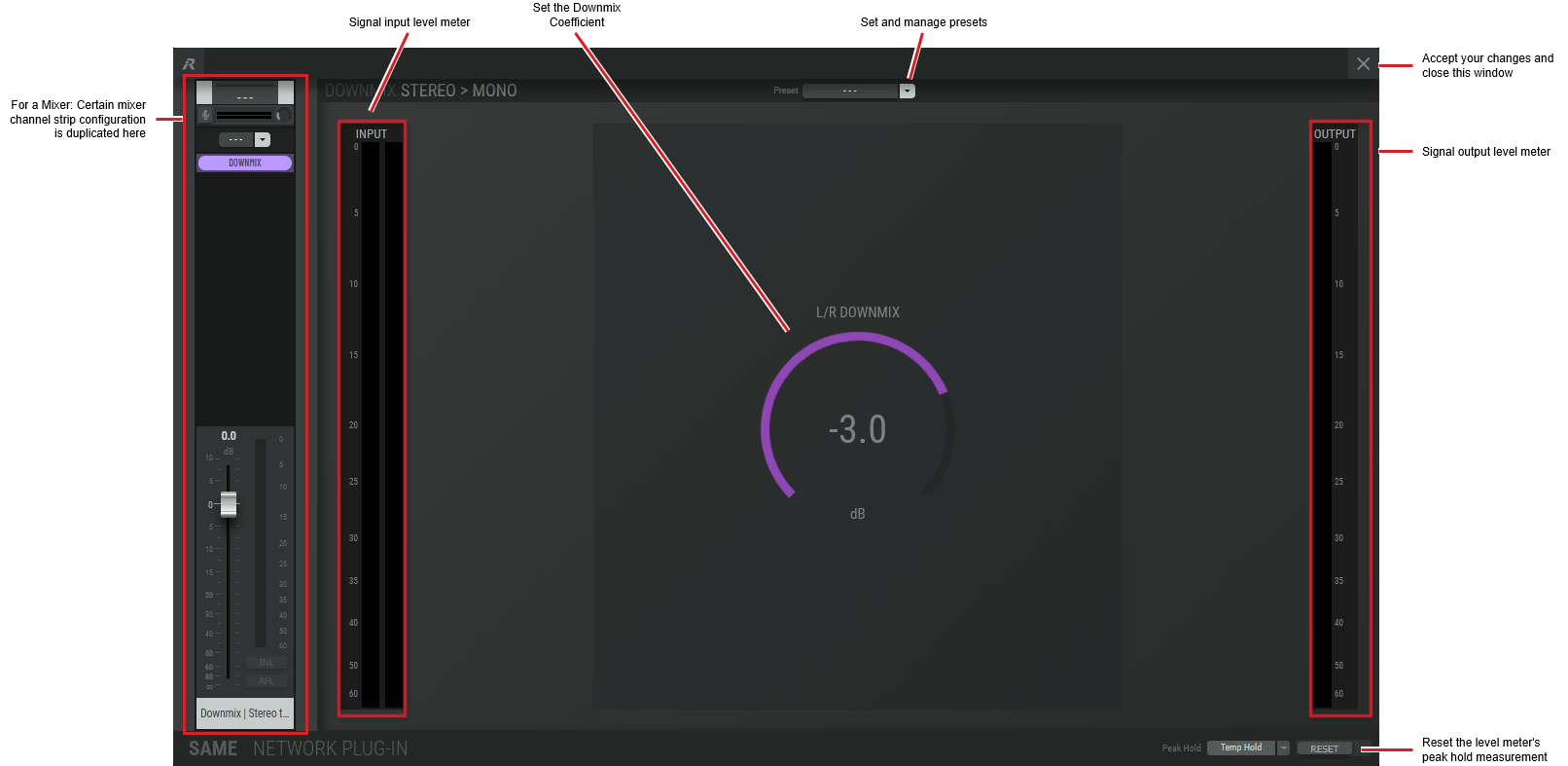
|
Preset |
The configuration of a SAME Application can be memorized as a preset for instant recall. See SAME Application Preset Configuration. |
|
Bypass |
Set to bypass this plugin's operation. |
|
Center Downmix (5.1 to Stereo) |
Set the Center Downmix Coefficient. The default is -3 dB. |
|
Surround Downmix (5.1 to Stereo) |
Set the Ls/Rs Downmix Coefficient. The default is -3 dB. |
|
L/R Downmix (5.1 to Mono) |
Set the L/R Downmix Coefficient. The default is -3 dB. |
|
Center Downmix (5.1 to Mono) |
Set the Center Downmix Coefficient. The default is -3 dB. |
|
Surround Downmix (5.1 to Mono) |
Set the Ls/Rs Downmix Coefficient. The default is -3 dB. |
|
L/R Downmix (Stereo to Mono) |
Set the Downmix Coefficient. The default is -3 dB. |
|
Peak Hold |
Click No hold: Shows sound levels. Transient peaks are not frozen. Temp hold: Shows sound levels while also freezing the display of the highest instantaneous peaks for a short period. Cont. hold: Shows sound levels while also freezing the display of the highest instantaneous peaks. Click RESET ALL to clear the peak signal display on all level meters. |
|
Reset |
Reset the level meter's peak hold measurement. |
Upmix
Variants are available to support the following audio leg group types:
|
Mono |
Stereo |
5.1 |
|---|---|---|
|
|
|
|
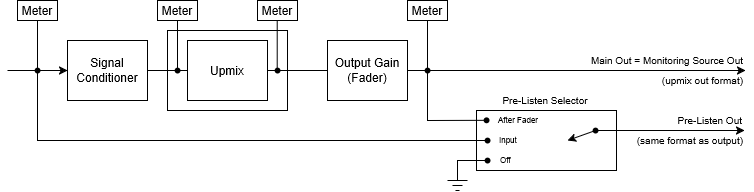
This plugin performs upward mixing to create multichannel audio signals.
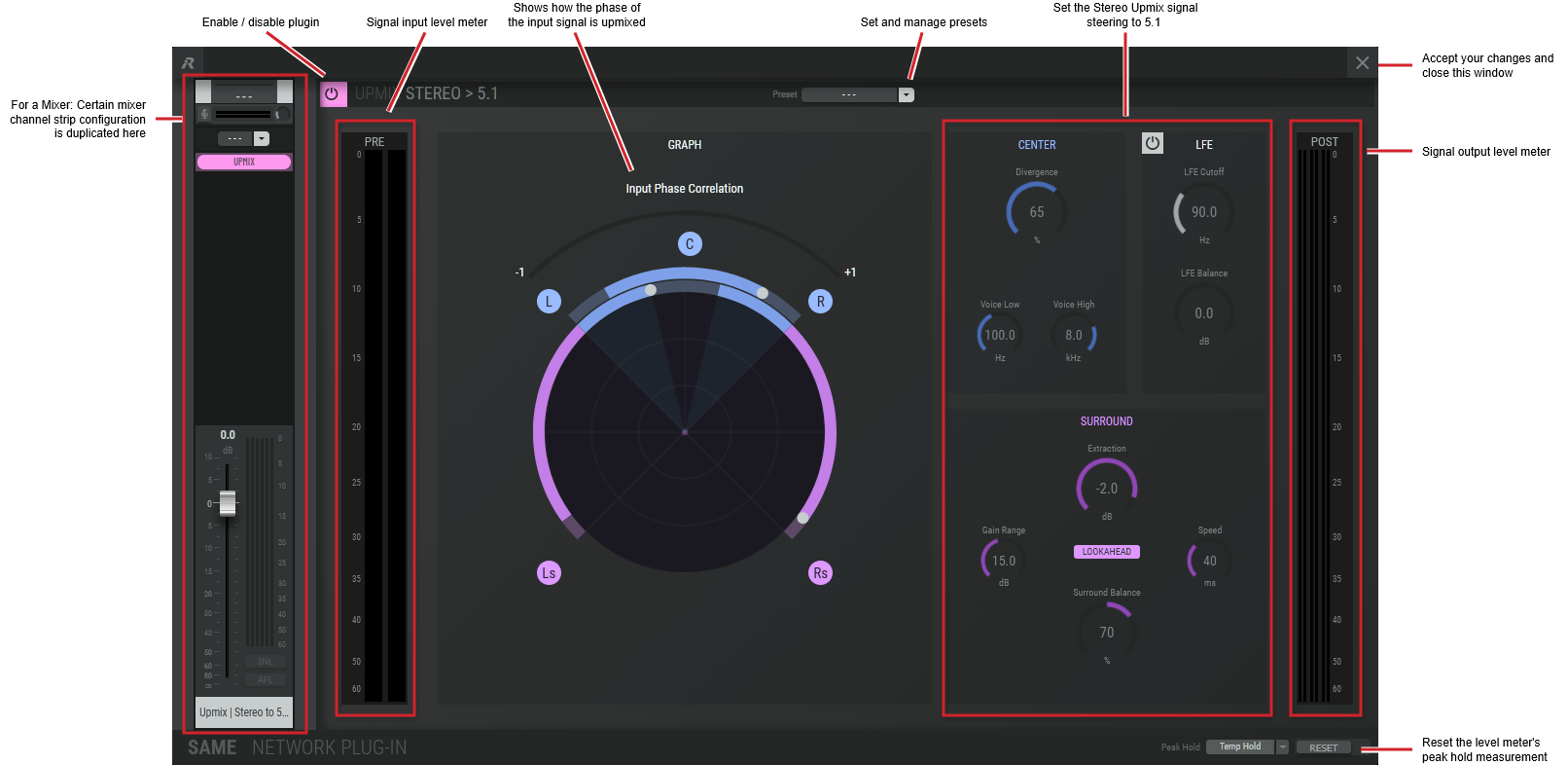
When supplied with a stereo signal, this plugin dynamically distributes the content to all the channels of a surround 5.1 setup.
|
Preset |
The configuration of a SAME Application can be memorized as a preset for instant recall. See SAME Application Preset Configuration. |
|
Bypass |
Set to bypass this plugin's operation. |
|
Center: Divergence |
Set the width of the stereo image to use to generate the center channel. The upmix process assembles a center signal from the input stereo signal. This signal may either be fed to the center channel only (0%) or spread between L/R (100%). The effect will be a wider presentation of center signals in a surround sound image. Note that the signal does not completely disappear from one source (L/R or C) depending on the selected profile. |
|
Center: Voice Low |
Set the lowest center extraction frequency. |
|
Center: Voice High |
Set the highest center extraction frequency. |
|
Surround: Extraction |
Set the amount of direct sound mixed into the surround channels. 0.0 provides pure ambient sound while -0.1 to -20.0 will increase the amount of direct sound. |
|
Surround: Gain Range |
Set the dynamic surround gain range: the amount of gain which can be dynamically applied on the rear surround channels depending on the ambience analysis. |
|
Surround: Lookahead |
Set to enable the lookahead delay. This optional delay can be applied for smother and more precise surround field generation. In this case, the internally generated intermediate spectra will be delayed for up to 100ms. |
|
Surround: Speed |
Set the ambience detection time constant. |
|
Surround: Surround Balance |
Set the level of Ls/Rs channels. |
|
LFE: LFE Cutoff |
Set the cutoff frequency for the generated LFE signal. |
|
LFE: LFE Balance |
Set the LFE Gain level. |
|
Peak Hold |
ClickUnknown Attachmentto set the level meter peak hold mode. No hold: Shows sound levels. Transient peaks are not frozen. Temp hold: Shows sound levels while also freezing the display of the highest instantaneous peaks for a short period. Cont. hold: Shows sound levels while also freezing the display of the highest instantaneous peaks. Click RESET ALL to clear the peak signal display on all level meters. |
|
Reset |
Reset the level meter's peak hold measurement. |
Channel Strip Effects Processing
In SAME, the Channel Strip is the virtual equivalent of a channel strip on a conventional mixer. This Channel Strip supports a number of effect processing plug-ins that vary according to the channel strip types that a given mixer model supports.
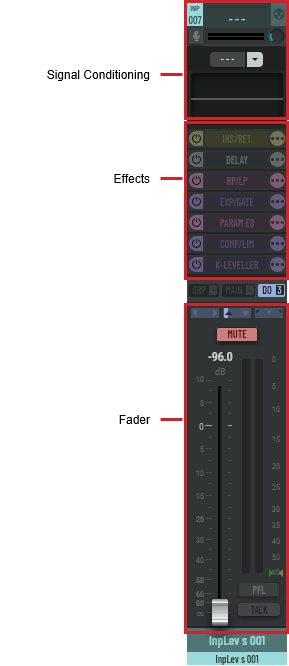
Typical Channel Strip Showing the Signal Conditioner, Effects, and Fader
For more information about how to use a Channel Strip, see Typical SAME Mixer Configuration.
Channel Strip Leveller
Variants are available to support the following audio leg group types:
|
Mono |
Stereo |
5.1 |
|---|---|---|
|
|
|
|
The Channel Strip Leveller has the following processing effects chain: Signal Conditioner, Insert, Delay, High Pass /Low Pass, Expander / Gate, Parametric Equalizer, Compressor / Limiter, K-Leveller, and Fader.

For this plugin, you need to set the LUFS/LKFS units to use in the Network-Plug-in’s Mixer settings.
|
Signal Conditioner |
|
|
Insert |
|
|
Delay |
|
|
High Pass /Low Pass |
|
|
Expander / Gate |
|
|
Parametric Equalizer |
|
|
Compressor / Limiter |
|
|
K-Leveller |
|
|
Fader |
See Typical SAME Mixer Configuration | Channel Strip Configuration. |
Channel Strip Leveller Plus
Variants are available to support the following audio leg group types:
|
Mono |
Stereo |
5.1 |
|---|---|---|
|
|
|
|
The Channel Strip Leveller Plus has the following processing effects chain: Signal Conditioner, Insert, Delay, High Pass /Low Pass, De-Esser, Expander / Gate, Parametric Equalizer, Compressor / Limiter, K-Leveller, and Fader.

For this plugin, you need to set the LUFS/LKFS units to use in the Network-Plug-in’s Mixer settings.
|
Signal Conditioner |
|
|
Insert |
|
|
Delay |
|
|
High Pass /Low Pass |
|
|
De-Esser |
|
|
Expander / Gate |
|
|
Parametric Equalizer |
|
|
Compressor / Limiter |
|
|
K-Leveller |
|
|
Fader |
See Typical SAME Mixer Configuration | Channel Strip Configuration. |
Channel Strip Standard
Variants are available to support the following audio leg group types:
|
Mono |
Stereo |
5.1 |
|---|---|---|
|
|
|
|
The Channel Strip Standard has the following processing effects chain: Signal Conditioner, Insert, Delay, High Pass /Low Pass, Expander / Gate, Parametric Equalizer, Compressor / Limiter, and Fader.

|
Signal Conditioner |
|
|
Insert |
|
|
Delay |
|
|
High Pass /Low Pass |
|
|
Expander / Gate |
|
|
Parametric Equalizer |
|
|
Compressor / Limiter |
|
|
Fader |
See Typical SAME Mixer Configuration | Channel Strip Configuration. |
Channel Strip Standard Plus
Variants are available to support the following audio leg group types:
|
Mono |
Stereo |
5.1 |
|---|---|---|
|
|
|
|
The Channel Strip Standard Plus has the following processing effects chain: Signal Conditioner, Insert, Delay, High Pass /Low Pass, De-Esser, Expander / Gate, Parametric Equalizer, Compressor / Limiter, and Fader.

|
Signal Conditioner |
|
|
Insert |
|
|
Delay |
|
|
High Pass /Low Pass |
|
|
De-Esser |
|
|
Expander / Gate |
|
|
Parametric Equalizer |
|
|
Compressor / Limiter |
|
|
Fader |
See Typical SAME Mixer Configuration | Channel Strip Configuration. |
Channel Strip Voice
Variants are available to support the following audio leg group types:
|
Mono |
Stereo |
5.1 |
|---|---|---|
|
|
|
|
The Channel Strip Voice has the following processing effects chain: Signal Conditioner, Insert, Delay, High Pass /Low Pass, De-Esser, Expander / Gate, Parametric Equalizer, Spectra-Match, Compressor / Limiter, and Fader.

Typical Channel Strip Voice showing the Compressor / Limiter Plugin
|
Signal Conditioner |
|
|
Insert |
|
|
Delay |
|
|
High Pass /Low Pass |
|
|
De-Esser |
|
|
Expander / Gate |
|
|
Parametric Equalizer |
|
|
Spectra-Match |
|
|
Compressor / Limiter |
|
|
Fader |
See Typical SAME Mixer Configuration | Channel Strip Configuration. |
Channel Strip Voice Leveller
Variants are available to support the following audio leg group types:
|
Mono |
Stereo |
5.1 |
|---|---|---|
|
|
|
|
The Channel Strip Voice Leveller has the following processing effects chain: Signal Conditioner, Insert, Delay, High Pass /Low Pass, De-Esser, Expander / Gate, Parametric Equalizer, Spectra-Match, Compressor / Limiter, K-Leveller, and Fader.

For this plugin, you need to set the LUFS/LKFS units to use in the Network-Plug-in’s Mixer settings.
|
Signal Conditioner |
|
|
Insert |
|
|
Delay |
|
|
High Pass /Low Pass |
|
|
De-Esser |
|
|
Expander / Gate |
|
|
Parametric Equalizer |
|
|
Spectra-Match |
|
|
Compressor / Limiter |
|
|
K-Leveller |
|
|
Fader |
See Typical SAME Mixer Configuration | Channel Strip Configuration. |