
Running the chain
-
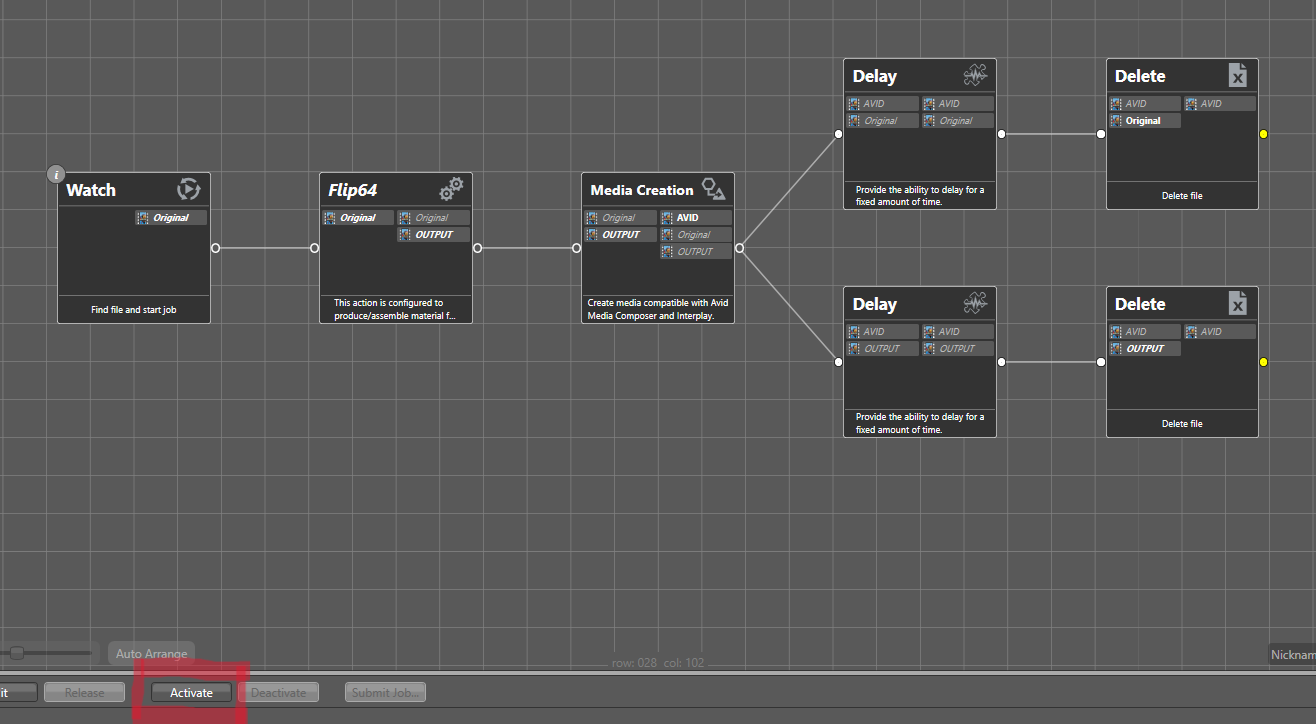
Activate the workflow in Vantage Workflow Designer.
-
Start the recording on SimplyLive BMR. The file is written directly into the watch folder.
-
Open the domain Job Status view. A job should appear within seconds of the recording starting.
-
Confirm that Flip64 and Media Creation are both In Process while the recording continues.
-
Open the asset in Media Composer before the recording ends to confirm frame chase editing.
Monitoring the workflow
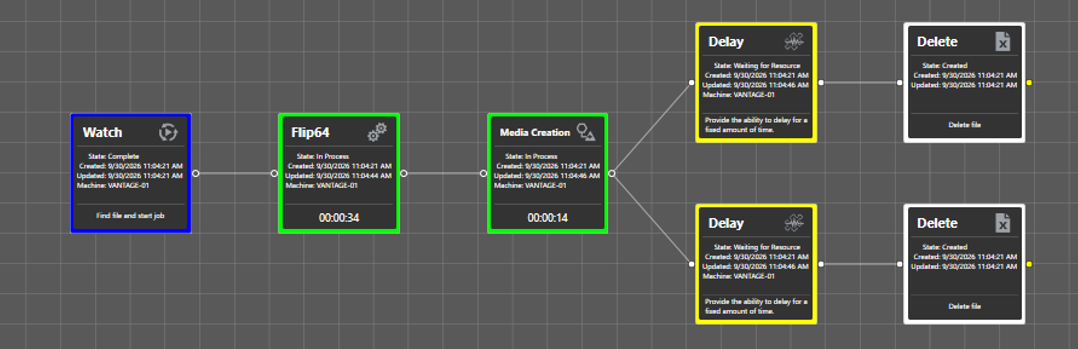
The screenshot below shows nominal operation. The Watch is Complete, Flip64 has been running for 17 seconds and Media Creation for 4 seconds, while SimplyLive BMR recording is still in progress. Both actions are working in parallel on a file that is still being written.
✋Delay Actions✋
The Delay actions sit in Waiting for Resource and the Delete actions in Created: they are waiting for Media Creation to actually complete, which is the intended behaviour for a purge branch.
|
Colour |
State |
Meaning |
|---|---|---|
|
Blue |
Complete |
Action finished successfully. |
|
Green |
In Process |
Action running, with an elapsed-time counter. |
|
Yellow |
Waiting for Resource |
Action triggered but unable to obtain a resource. |
|
White |
Created |
Action instantiated, not yet triggered. |
|
Red |
Failed |
Action failed. Check the job detail, then the Error Log. |
✋Service counters✋

|
Column |
Interpretation |
|---|---|
|
State |
Online in green = operational. Maintenance in yellow = no job accepted. |
|
Active Sessions |
Actions actually running. |
|
Queued Sessions |
Actions submitted but waiting for a free session. |
|
Failed Sessions |
Historical failure count. Cross-check against the Error Log. |
|
Session Limit |
Configured ceiling of concurrent sessions. |
|
Average Wait Time |
Below one second, saturation can be ruled out. |
|
License Failures |
Refusals due to licence unavailability. |
✋Diagnostic Key✋
If Active and Queued are both zero while an action is waiting, the job was never submitted to the service. The blockage then lies in the workflow logic, and no service setting will resolve it.
Symptom: If the chain runs sequentially
The characteristic symptom is that a downstream action only moves to In Process at the moment the upstream action moves to Complete. The chain is running in closed mode and the benefit of the open workflow is lost.
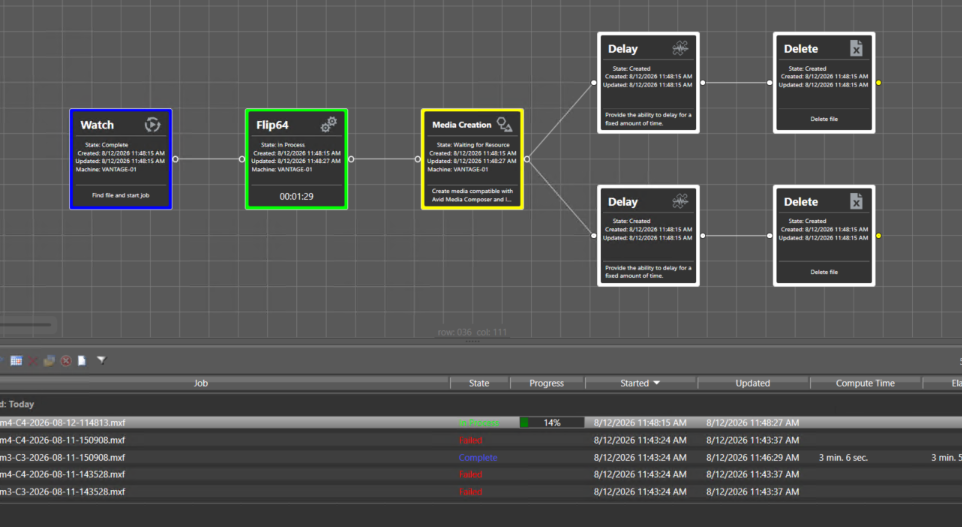
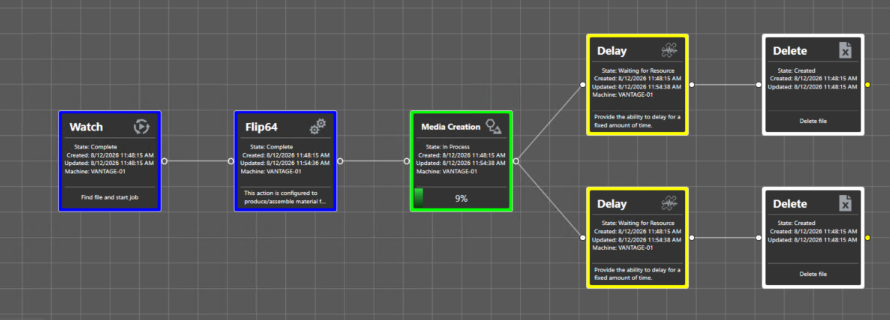
Correlate the symptom with the machine load before investigating further. An idle machine points to a configuration lock rather than a hardware limit.
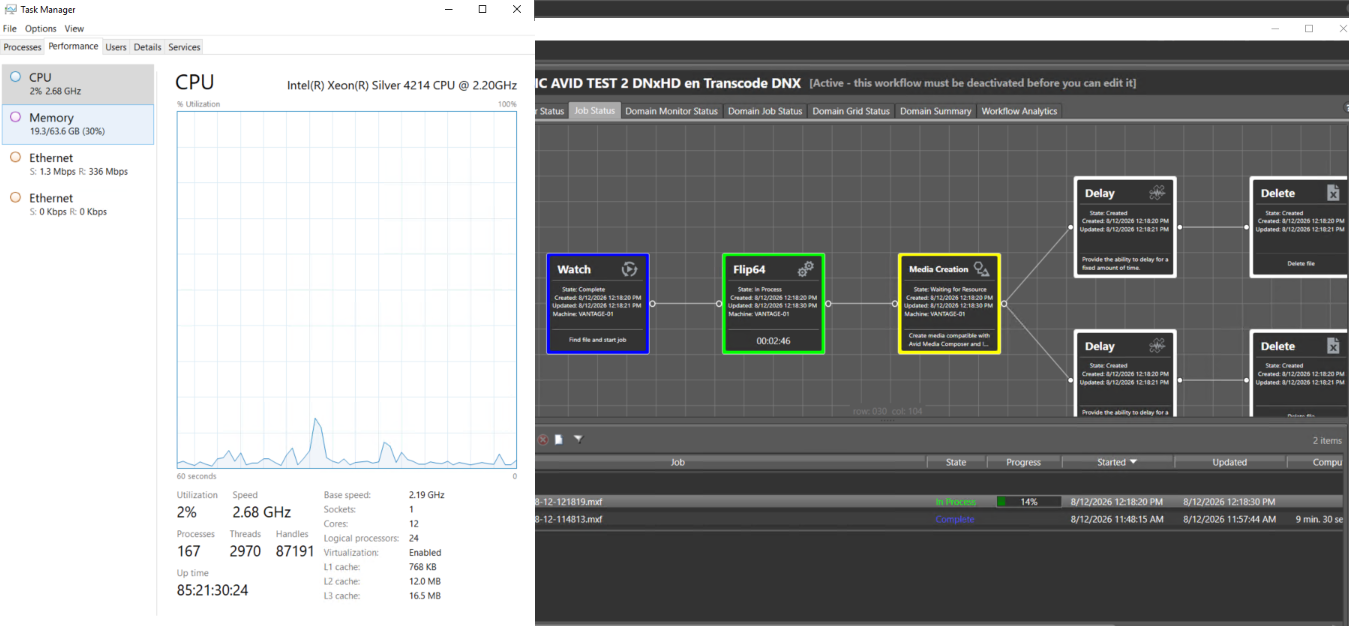
Rule out the causes in this order, from cheapest to most expensive to check.
-
Service state. Does the State column show Online in green? A service left in Maintenance blocks everything.
-
Session Limit. Does the column — not the Setup panel — show the expected value? A value of zero prevents any execution.
-
Active and Queued counters. If both are zero, the job is not reaching the service and the problem lies upstream.
-
Average Wait Time. Below one second, saturation can be ruled out.
-
License Failures. A zero value rules out an unavailable licence.
-
Machine load. An idle machine rules out insufficient sizing.
-
Run On Rules. A rule that is never satisfied produces a silent wait, with no error and no job failure. The Fallback Rules entry is only active when at least one rule exists; if it is greyed out, no rule is defined.
-
Workflow Mode. Are all pointers actually set to Open?
-
Input format compatibility in open mode. See the section below.
Error catalogue
The Error Log is the most productive diagnostic tool in the domain. It is filtered per service and per time range. The initialisation lines emitted when a service starts declare its capabilities and immediately reveal configuration faults.

Two lines confirm that the Avid service is open-capable and licensed:
Service: Avid is running in the open capable workflow mode.
Service: Avid was able to acquire an OpenWorkflow license.
The service may accept Actions which utilize OpenWorkflow technology.
Their absence indicates that the service cannot operate in open mode, which makes any investigation on the workflow side pointless.
|
Message |
Cause |
Fix |
|---|---|---|
|
|
The audio essence carries several channels within a single track. |
Declare one Track per audio channel in Flip64, or configure the ViBOX to write that structure directly. |
|
|
Interplay Asset Metadata is set to Enable but no XML sidecar is produced. |
Set Interplay Asset Metadata to Disable. |
|
|
Vantage cannot reach the Avid Media Indexer. An empty Details field suggests no response at all. |
Check that the Media Indexer is running and reachable, verify hostname and workgroup, correct the Avid credentials. |
|
|
Invalid drive mapping entry when the service starts. |
Correct the entry in Settings & Options. |
|
|
Access credentials left at a placeholder value. |
Enter a real service account with write permissions on the NEXIS workspace and Interplay check-in rights. |
|
|
Write or finalisation failure on the Avid storage, usually a consequence of the two entries above. |
Restore storage access, then check available space and account permissions. |
|
|
The Avid service fails to shut its sub-processes down cleanly, leaving orphaned processes. |
Check for leftover processes in Task Manager, then restart the Avid service. |
Commissioning checklist
-
Open Workflows licence present.
-
All pointers set to Open on Watch, Flip64 and Media Creation; Delay and Delete left Closed.
-
Submit Immediately ticked on the Watch, with a
*.mxfaccept pattern. -
Flip64 in Direct Convert on video and audio, one Track per audio channel, software Video Processor.
-
Media Creation input set to the MXF OP1a produced by Flip64.
-
Frame Chase Editing enabled, Interplay Asset Metadata disabled.
-
Target Interplay folder present, NEXIS credentials valid, Media Indexer reachable.
-
Session Limits sized for the number of simultaneous streams.
-
Purge branches conditioned on Success, with a Delay long enough to cover completion.
-
Recording volume capacity checked against the duration of the event.