
Telestream Vantage setup
Building the workflow
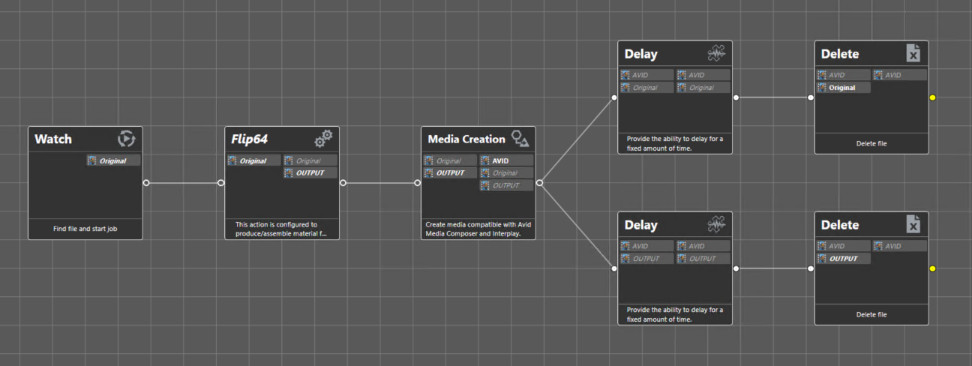
Create a workflow with the following modules: Watch, Flip64, Media Creation, Delay, Delete.
|
Module |
Role |
|---|---|
|
Watch |
Monitors the drop folder and starts a job as soon as a file appears. |
|
Flip64 |
Rewraps the media in Direct Convert, with no video re-encoding. |
|
Media Creation |
Produces the OP-Atom media and the AAF, and performs the Interplay check-in. |
|
Delay |
Waits before purging, so that Media Creation has finished. |
|
Delete |
Removes the transit files. |
Two parallel branches follow Media Creation, each pairing a Delay with a Delete: one for the Original file, one for the OUTPUT transit file.
Deleting the master
Deleting the ViBOX master immediately after a rewrap removes every safety net. If the OP-Atom media is incomplete or the Interplay check-in failed, the source is permanently lost and the event is unrecoverable. The recommendation is to purge the transit file only and to leave master retention to the ViBOX's own policy.
Enabling Open Workflow
Open Workflow is set per action on the Workflow Designer canvas, not in the action configuration window. The workflow must be deactivated before it can be edited.
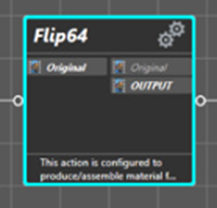
Right-click the blue pointer on the edge of the action tile.
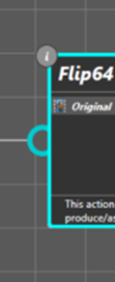
Select Workflow Mode → Open.
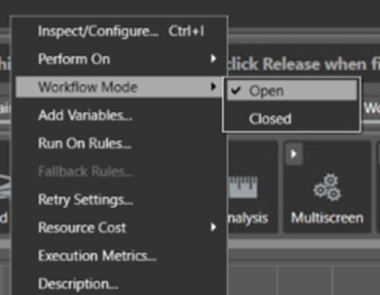
✋Repeat this on every pointer✋
|
Value |
Effect |
Apply to |
|---|---|---|
|
Open |
The action starts while the upstream action is still working. |
Watch, Flip64, Media Creation |
|
Closed |
The action waits for the upstream action to actually complete. |
Delay and Delete — mandatory |
✋Leave the purge branches closed✋
If Delay and Delete are left in Open mode they are triggered while Media Creation is still writing. The Delay timer is not a guarantee. Set both to Closed, and set their links to Perform On → Success so that a failed Media Creation cannot trigger a deletion.
Watch action
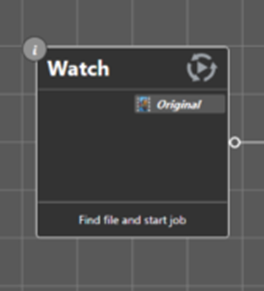
Select the detector: Watch for → Media files, then Any Media.
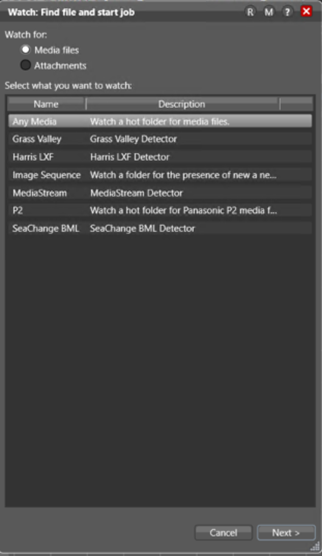
Select the file system: Windows — Windows File System.
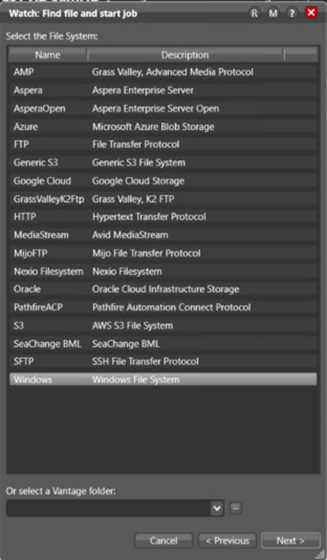
Enter the path of the watch folder.
exemple:\\nexise4\Test-Riedel\WATCHVANTAGE\
Configure the detector settings.
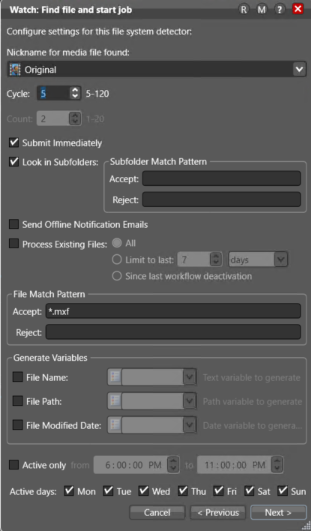
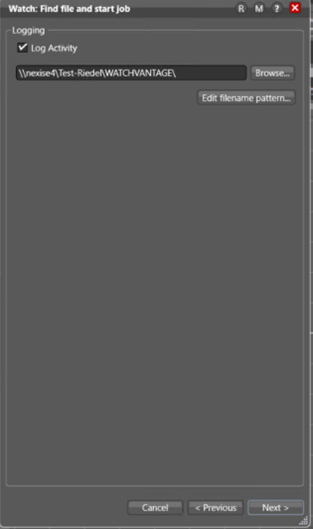
Set the logging location, then finish the wizard.
|
Field |
Value |
Comment |
|---|---|---|
|
Nickname for media file found |
Original |
Label of the detected media, reused by every downstream action. |
|
Cycle |
5 |
Folder polling interval in seconds. Permitted range 5 to 120. |
|
Count |
2 (greyed out) |
Inactive once Submit Immediately is ticked. |
|
Submit Immediately |
Ticked |
Essential. Submits the job on detection instead of waiting for the file to be stable. |
|
Look in Subfolders |
Ticked |
Accept and Reject patterns left empty. |
|
Send Offline Notification Emails |
Unticked |
No email notification. |
|
Process Existing Files |
Unticked |
Only new drops start a job. |
|
File Match Pattern — Accept |
|
Prevents the H264 MP4 from starting a spurious job. |
|
Generate Variables |
None |
Neither name, path nor date is exposed as a variable. |
|
Active only / Active days |
Unticked / all days |
Continuous monitoring. |
✋Submit Immediately✋
Without this option the Watch waits for the file to stop growing before triggering. The job would then only start at the end of the recording, and all the benefit of open mode would be lost. It is the single most important setting in the chain.
Flip64 action
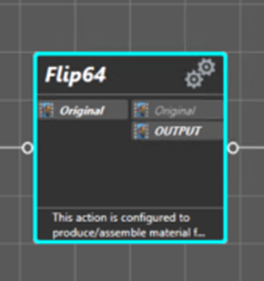
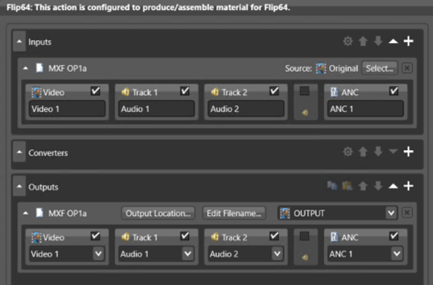
Flip64 rewraps the media without re-encoding it. Declare the same streams on the input and on the output.
|
Area |
Value |
Comment |
|---|---|---|
|
Inputs — container |
MXF OP1a |
Container of the ViBOX source file. |
|
Inputs — streams |
Video 1 · Track 1 / Audio 1 · Track 2 / Audio 2 · ANC 1 |
Each audio channel on its own Track. This is the structure Avid OP-Atom expects. |
|
Source |
Original |
Nickname supplied by the Watch. |
|
Outputs — container |
MXF OP1a |
Same container on output. This is what lets Media Creation work in open mode. |
|
Outputs — streams |
Video 1 · Track 1 / Audio 1 · Track 2 / Audio 2 · ANC 1 |
Mapping identical to the input: nothing is added or removed. |
|
Output nickname |
OUTPUT |
Label under which Media Creation consumes the file. |
|
Output Location… / Edit Filename… |
Buttons on the Outputs bar |
Destination directory and naming pattern of the file produced. |
|
Converters |
None |
Collapsed and empty: no intermediate converter is declared. |
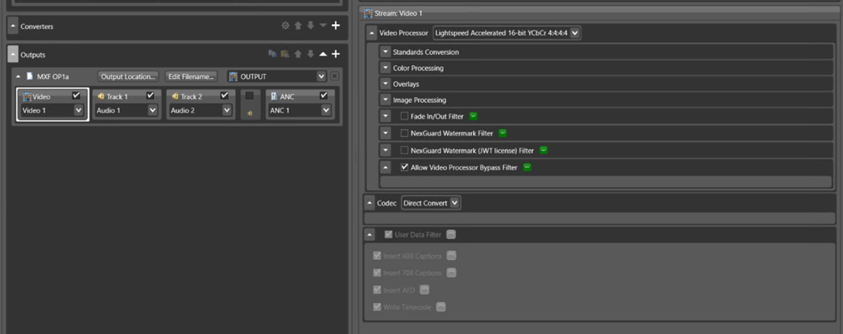
Stream: Video 1
|
Field |
Value |
Comment |
|---|---|---|
|
Codec |
Direct Convert |
No re-encoding; the XDCAM HD50 essence passes through untouched. |
|
Allow Video Processor Bypass Filter |
Ticked |
Required for Direct Convert to take effect. |
|
Video Processor |
Multi-core 16-bit YCbCr 4:4:4:4 |
Software mode. Only select a Lightspeed mode on a Lightspeed server. |
|
Standards Conversion / Color Processing / Overlays |
No active filter |
No format conversion and no colour processing. |
|
Required passes |
1 |
Consistent with a rewrap. |
✋Video Processor✋
The Lightspeed Accelerated modes require a Telestream Lightspeed server fitted with the matching GPU. On a standard server, select the Multi-core software processor. With Direct Convert and the bypass active the processor is never used, but leaving a dependency on absent hardware is an unnecessary risk.
Stream: Audio 1 and Audio 2
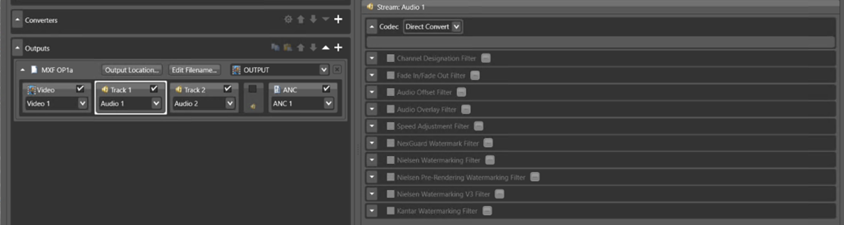
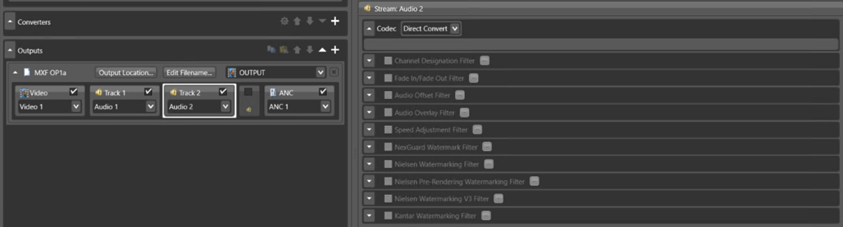
Set the codec to Direct Convert on both audio streams and leave every filter unticked. The original samples are preserved.
✋Consequence of audio Direct Convert✋
Vantage no longer converts the audio to PCM — it passes on whatever the ViBOX wrote. The XDCAM MXF OP1a must therefore already carry PCM 48 kHz, failing which Avid will reject it. Validate this on a real file.
✋ Declare one track per audio channel✋
Declaring the audio channels on separate Tracks is what clears the Multichannel Audio Not Supported error.
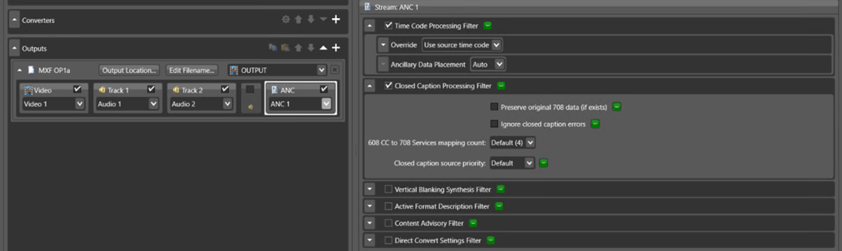
Stream: ANC 1
|
Field |
Value |
Comment |
|---|---|---|
|
Time Code Processing Filter |
Ticked |
Timecode processing enabled. |
|
Override |
Use source time code |
Preserves the ViBOX timecode. Essential for conforming. |
|
Ancillary Data Placement |
Auto |
Automatic placement. |
|
Closed Caption Processing Filter |
Ticked |
Disable it if subtitles are out of scope — see the note below. |
|
Preserve original 708 data (if exists) |
Unticked |
Original 708 data is not preserved as is. |
|
Ignore closed caption errors |
Unticked |
A caption error will fail the job rather than pass silently. |
|
608 CC to 708 Services mapping count |
Default (4) |
Mapping services. |
|
Vertical Blanking Synthesis / AFD / Content Advisory / Direct Convert Settings |
Unticked |
No additional processing. |
✋Closed captions✋
If the ViBOX stream carries no subtitles, this filter serves no purpose and leaving Ignore closed caption errors unticked exposes the job to failure on missing or malformed data.
Media Creation action
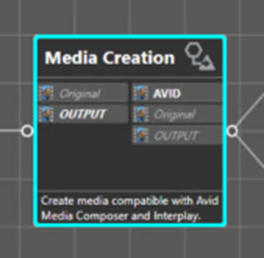
Media Creation is a same-as-source converter: it unwraps the incoming essence, rewraps it as MXF OP-Atom, generates the AAF and performs the Interplay check-in. It re-encodes nothing, so any non-compliance upstream is not corrected here.
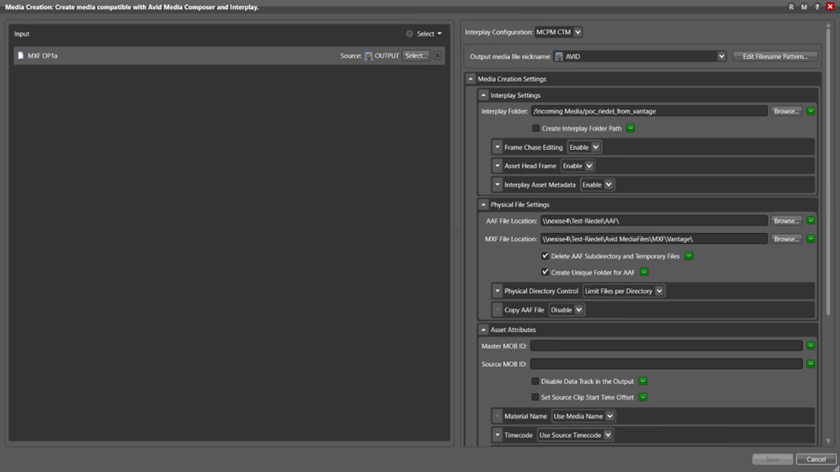
|
Field |
Value |
Comment |
|---|---|---|
|
Input |
MXF OP1a — Source: OUTPUT |
The MXF OP1a produced by Flip64. This format, and not TIFO, is what allows open mode to work. |
|
Interplay Configuration |
MCPM CTM |
Interplay connection profile. |
|
Output media file nickname |
AVID |
Reused by the purge branches. |
|
Interplay Folder |
|
Must exist exactly, including case and spaces. |
|
Create Interplay Folder Path |
Tick if the folder does not exist |
Otherwise the check-in fails. |
|
Frame Chase Editing |
Enable |
Required. Allows the media to be opened before writing is finished. |
|
Asset Head Frame |
Enable |
Generates the asset head thumbnail. |
|
Interplay Asset Metadata |
Disable |
On Enable, an XML sidecar is expected alongside the media — see the note below. |
|
AAF File Location |
|
Requires valid NEXIS credentials. |
|
MXF File Location |
|
Folder structure imposed by Avid; do not change it. |
|
Delete AAF Subdirectory and Temporary Files |
Ticked |
Cleans up intermediate files. |
|
Create Unique Folder for AAF |
Ticked |
Avoids name collisions between concurrent jobs. |
|
Physical Directory Control |
Limit Files per Directory |
Caps the number of files per directory, as recommended by Avid. |
|
Material Name |
Use Media Name |
Asset name follows the media name. |
|
Timecode |
Use Source Timecode |
Preserves the ViBOX timecode. |
✋Interplay Asset Metadata✋
Set to Disable unless a process actually generates an XML sidecar next to the media. On Enable, the action fails with Configuration Failed: Interplay Metadata XML File does not exist and no check-in takes place, so nothing appears in Interplay Access.
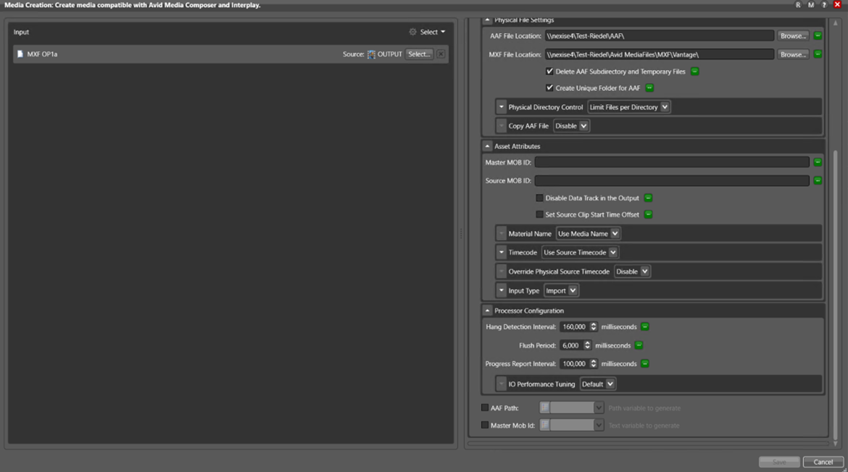
|
Field |
Value |
Comment |
|---|---|---|
|
Master MOB ID / Source MOB ID |
Empty |
Generated automatically when left blank. |
|
Override Physical Source Timecode |
Disable |
The physical source timecode is not overridden. |
|
Input Type |
Import |
How the media enters Interplay. |
|
Hang Detection Interval |
160,000 ms |
Delay before a stalled job is considered hung. |
|
Flush Period |
6,000 ms |
Disk write interval. Governs the frame chase lag — see below. |
|
Progress Report Interval |
100,000 ms |
Progress reporting interval. |
|
IO Performance Tuning |
Default |
Only change on Telestream's recommendation. |
✋Flush Period and frame chase lag✋
The Flush Period determines the granularity of frame chase: it is roughly the lag between what SimplyLive BMR is recording and what editor can open. Reducing it brings editing closer to live, at the cost of more disk activity.
Delay and Delete actions
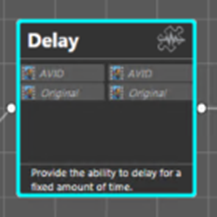
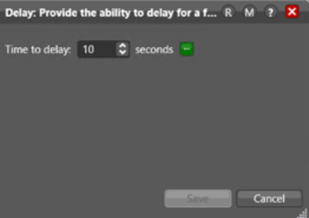
Set Time to delay to a value that comfortably covers the completion of Media Creation. Ten seconds only protects against a momentary lag; in production a wait of several minutes is more prudent.
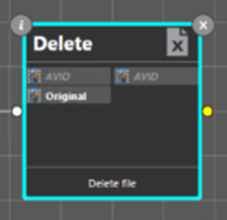
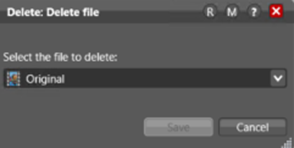
Select the file each branch removes: Original for SimplyLive BMR master, OUTPUT for the Flip64 transit file.
Service sizing
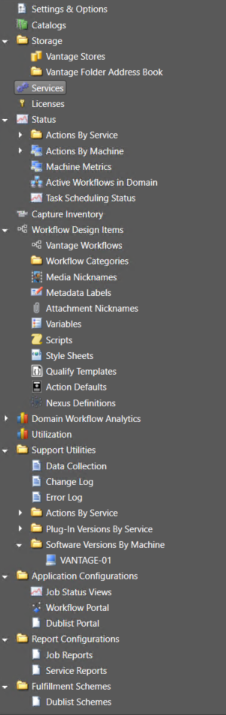
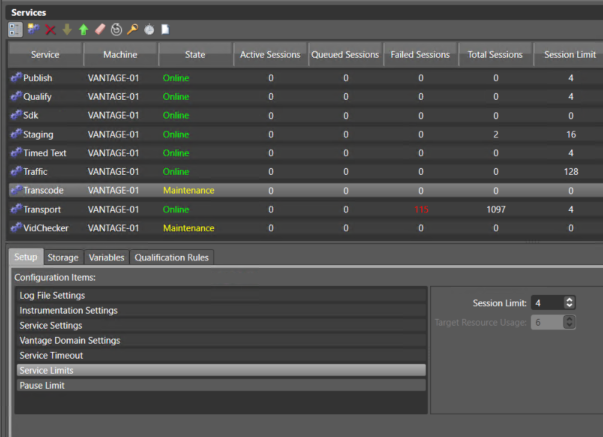
In open mode the actions run concurrently, so each service needs at least as many sessions as there are simultaneous actions.
-
Select Services in the Management Console tree.
-
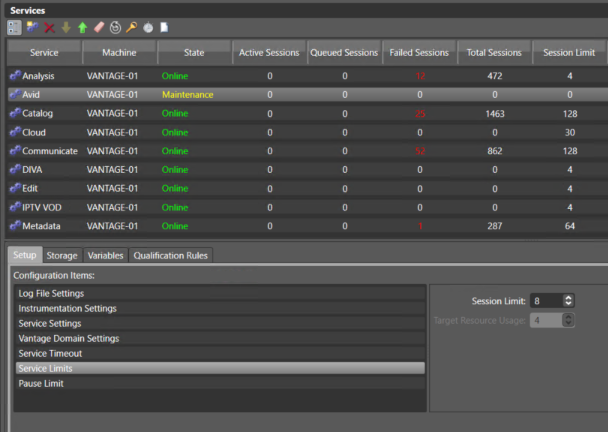
Select the service, then put it into Maintenance Mode — Vantage does not allow a running service to be modified.
-
Open Setup → Service Limits and set Session Limit.
-
Leave Maintenance Mode and confirm the state returns to Online in green.
|
Service |
Action hosted |
Session Limit for four streams |
|---|---|---|
|
Monitor |
Watch |
8 |
|
Transcode |
Flip64 |
8 |
|
Avid |
Media Creation |
8 |
|
Transport |
Delete |
8 |
✋A service left in Maintenance accepts no jobs✋
Actions then remain indefinitely in Waiting for Resource. Always check the State column after making a change.
✋The real constraint is disk throughput✋
None of these actions encodes. In XDCAM HD50 each stream represents about 6.25 MB/s; a complete chain at four streams requires in the order of 100 MB/s aggregate, concurrently. Keep the transit volume off the same spindle as the watch folder.
Avid setup
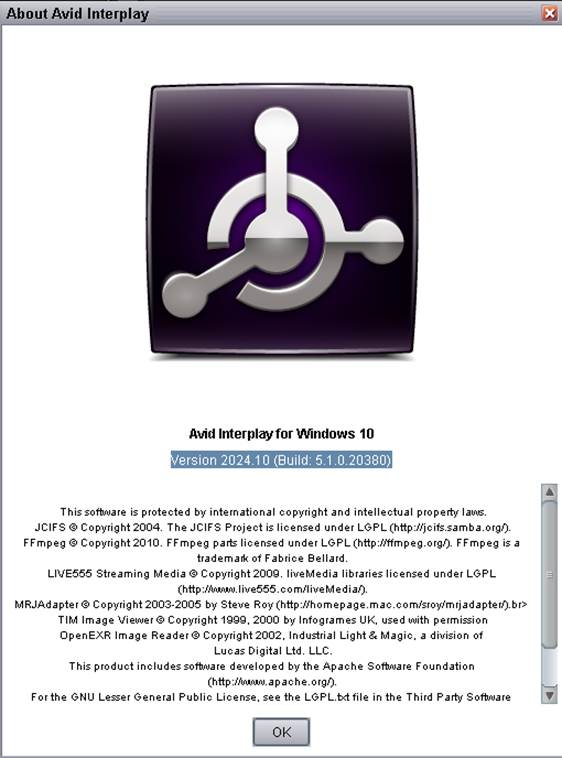
Media Creation writes into the Avid folder structure and checks the asset into Interplay. Both operations require the Vantage service account to hold real credentials.
|
Requirement |
Where it is set |
|---|---|
|
Service account with write access to the NEXIS workspace |
Vantage — Settings & Options |
|
Valid drive mapping entries |
Vantage — Settings & Options |
|
Target Interplay folder exists |
Interplay Access, or tick Create Interplay Folder Path |
|
Media Indexer running and reachable from the Vantage server |
Avid infrastructure |
|
Media placed under |
Media Creation — MXF File Location |
|
Frame chase editing supported by the Media Composer / Interplay pair |
Avid compatibility matrix |
Check the licence type
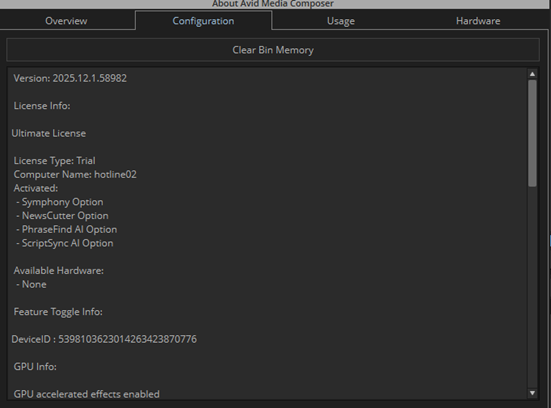
A Media Composer licence of type Trial expires. Its expiry during an event would interrupt editing. Convert it before going live.