

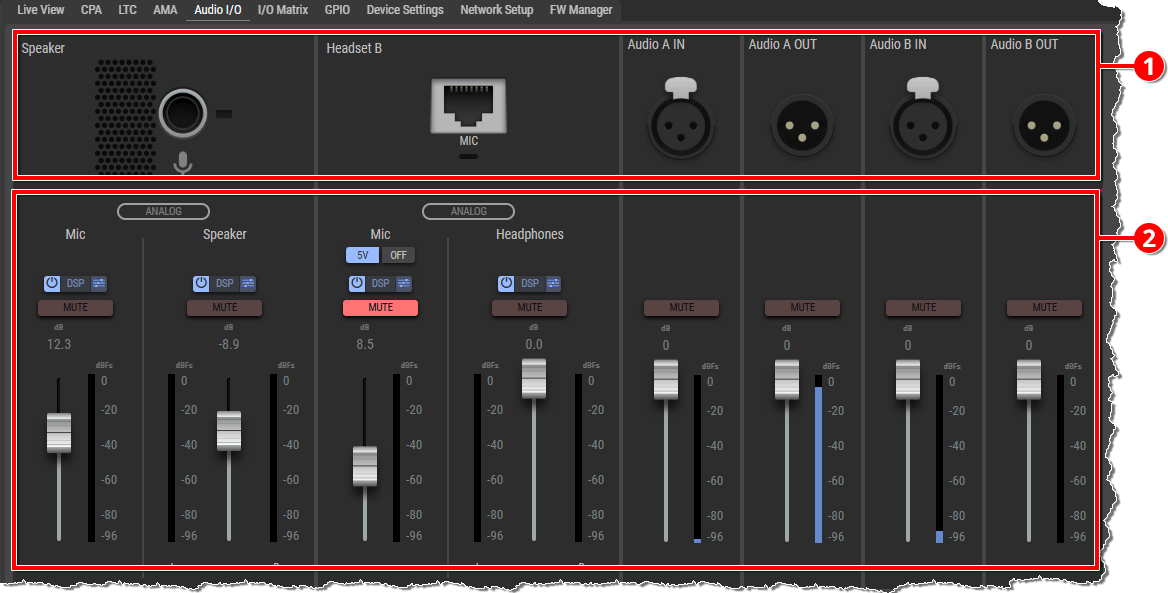
On this tab, the SmartPanel's available audio connectors are displayed, and can be configured and operated here.
Depending on whether Headset mode or Speaker mode is selected on the SmartPanel, the corresponding interfaces are displayed or hidden.
In this example, the SmartPanel is operating in Speaker mode.
|
|
Audio Connector Illustrations In the upper section, the available audio connectors of the SmartPanel are illustrated. In Speaker mode, 'Speaker' is shown instead of 'Headset A'. |
|
|
Audio Settings In the lower section, the current audio levels are displayed and can be adjusted using the faders. Depending on the audio interface and operating mode, audio parameters can be adjusted. In speaker mode, the 'Mic' and 'Speaker' of the SmartPanel are displayed instead of the 'Mic' and 'Headphones' of the Headset A. |


Audio Settings
For available audio interfaces, the levels and functions can be adjusted. Not all interfaces or functions are available for all devices or interfaces.
The illustration on the right shows typical elements and functions using a general example.
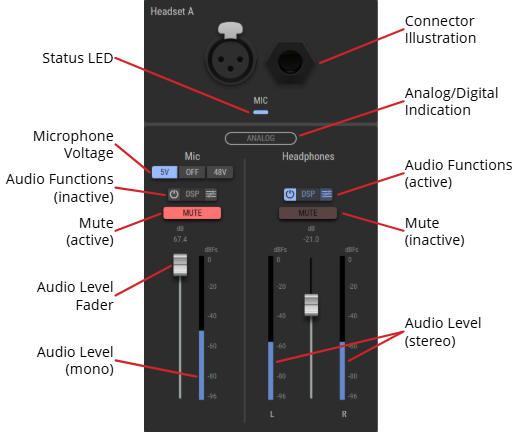
The ‘Microphone/Speaker' and ‘Headset A/B’ parameters can be adjusted if the SmartPanel is not connected to the Artist Matrix; otherwise, the configuration is done via the AudioPatch in the Director.
|
Analog |
The interfaces for microphones, speaker, and headsets are analog only and cannot be changed. |
|
|
Mic |
Switches the microphones power on (5V) or Off.
|
|
|
DSP |
The DSP contains a fully featured Limiter/Compressor/Bandpass and can be used to improve speech quality, for example if the distance between the user and microphone is very far or to cut certain frequencies in noisy environments. |
|
|
Limiter
|
Threshold -6 … +6 dB
|
|
|
Compressor
|
Threshold 12 … -48 dB
|
|
|
Bandpass
|
High-Pass: 40 ... 640 Hz
|
|
|
Mute |
Button to mute the audio signal. |
|
|
Fader |
Slider for setting the audio level. The current level is displayed next to it. |
|
-
The adjustable DSP audio processes (e.g. Limiter) can be activated or deactivated using the


-
The functions without adjustable parameters (e.g. Mute) are activated or deactivated by clicking on them.
-
The audio levels can be adjusted using the faders.
Customize the filter options
-
Click on the

-
Adjust the corresponding filter parameters:
-
via keyboard:
-
Click on the value.
-
Enter a value using your keyboard.
-
Confirm your entry with the Enter key.
-
-
via mouse:
-
Click on a value and hold down the mouse button.
-
Move the mouse to the right/left or up/down to adjust the value.
-
Release the mouse button to accept the value.
-
-
-
Changes are applied to the audio signal in real time.
-
If several filters are combined in an audio filter (e.g. HP / LP filter), you can activate / deactivate individual filters using their

-
Close the audio filter with the
