
On this tab, the Audio Monitoring app can be enabled/disabled.

The entire configuration of the Audio Monitoring App can now be performed via this web interface. Installation and use of the standalone Riedel AMA Config Tool application are not required, but configuration is still possible using this application.
This tab is only available if an AMA license is installed.
|
|
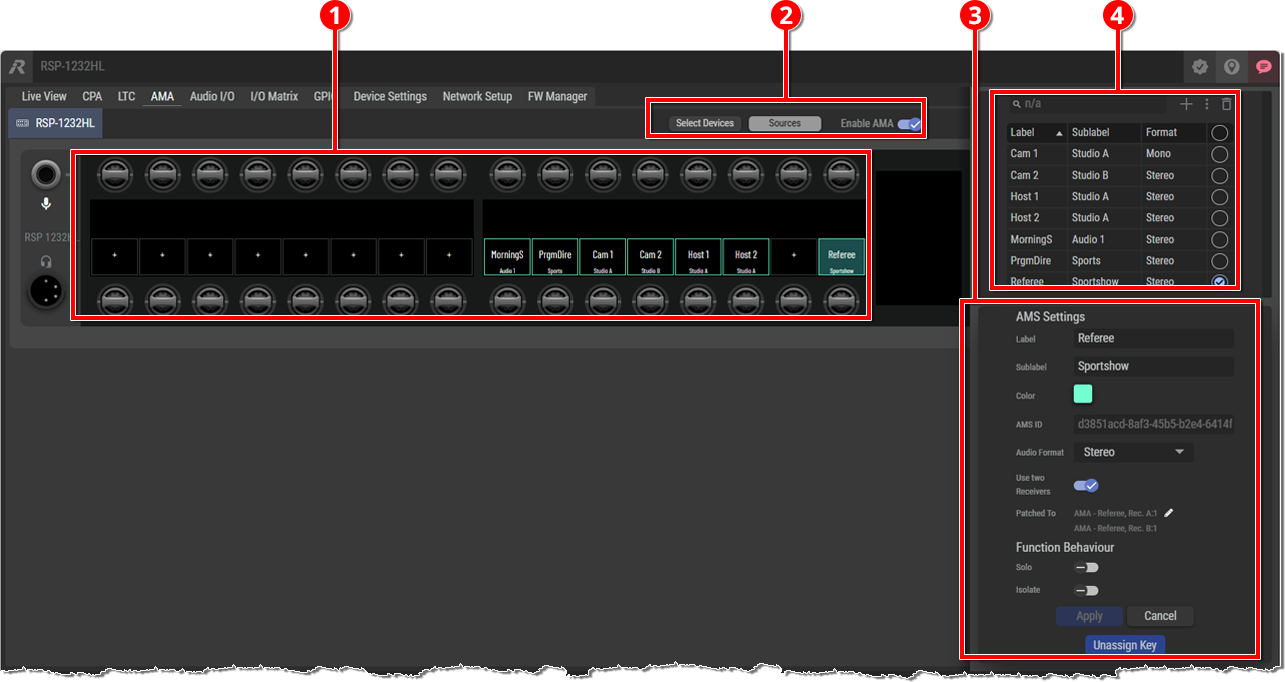
Preview (drop area) The configured key assignments of the SmartPanel are displayed here. An audio source can be configured to a SmartPanel key by dragging it from the list of audio monitoring sources and dropping it on the corresponding key in this preview. |
|
|
|
Select Devices |
Opens a section to the right to:
See chapter Select Devices. |
|
Sources |
Opens a section to the right to:
See chapter Sources. |
|
|
Enable AMA |
The switch is used to activate the app on this SmartPanel. When the app is activated, an additional Key Bank ‘Monitoring’ is available for selection in the Info Display of the SmartPanel. The Audio Monitoring App can be used on this Key Bank while other apps (e.g. Intercom) remain in operation at the same time. |
|
|
|
AMS Settings This section appears when an AMS is selected in the preview or in the list of audio sources. It displays the corresponding AMS settings, which can be viewed and edited. See chapter Sources | AMS Settings. |
|
|
|
List of Audio Monitor Sources (drag area) The created audio sources are displayed here. An audio source can be configured to a SmartPanel button by dragging it from this list and dropping it on the corresponding button in the preview. See chapter Sources. |
|


See also chapter AMA Config Tab.