

On this tab, the Commentry app can be configured and operated.
This tab is only available if an CCA (Commentary Control App) license is installed.
(→SmartPanel Apps/Licenses)
Furthermore, the app needs to be started:
-
If the Desktop SmartPanel is not integrated into an Artist configuration, the app can be enabled…
-
in the SmartPanels Web Interface on the Device Settings tab or
-
in the SmartPanels Settings Menu > Applications.
-
-
If the Desktop SmartPanel is connected to an Artist configuration:
-
If the port type 'Single/Dual Commentator Mode' is selected for the DSP-1216HL in the Director configuration, the app launches automatically.
-
If an incorrect port type is selected in the Director configuration, the app will not start, and the Commentary tab will not be available in the Web Interface.
-
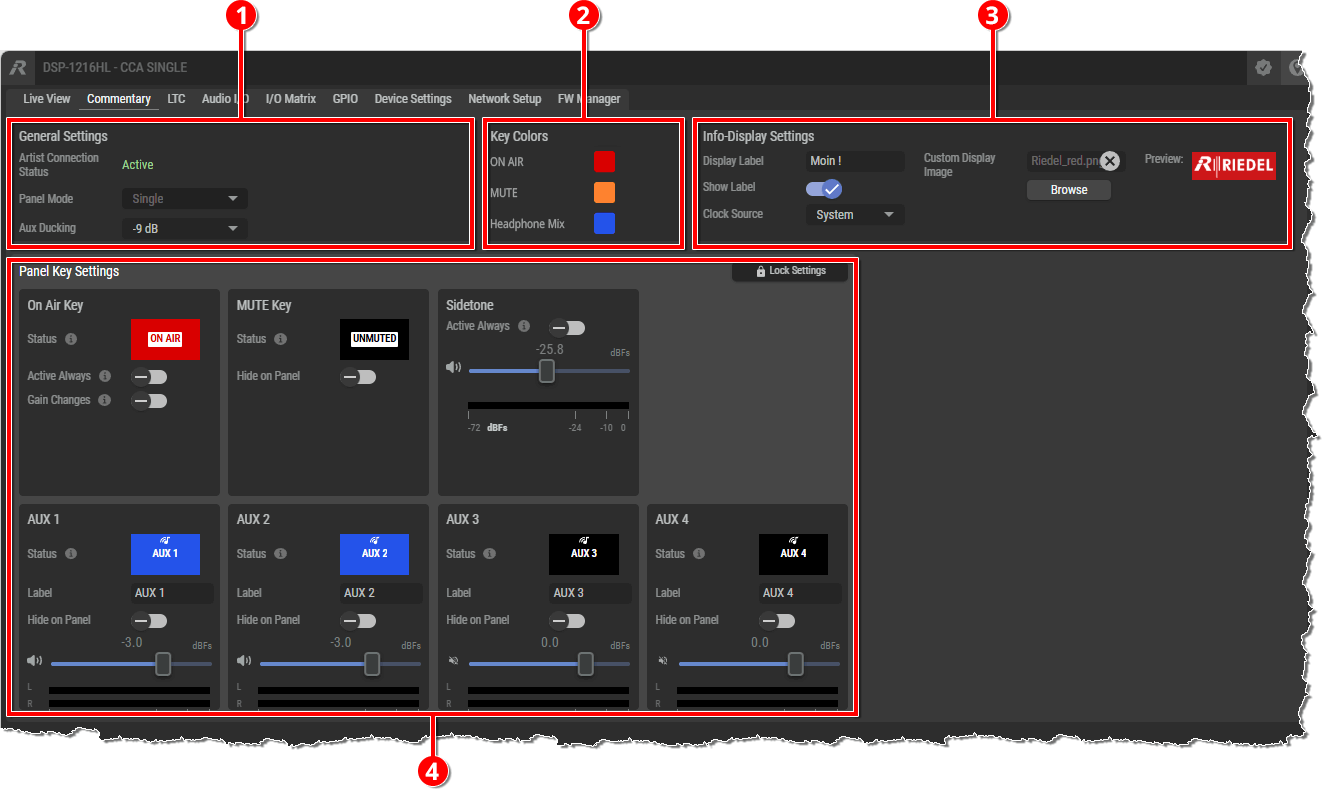
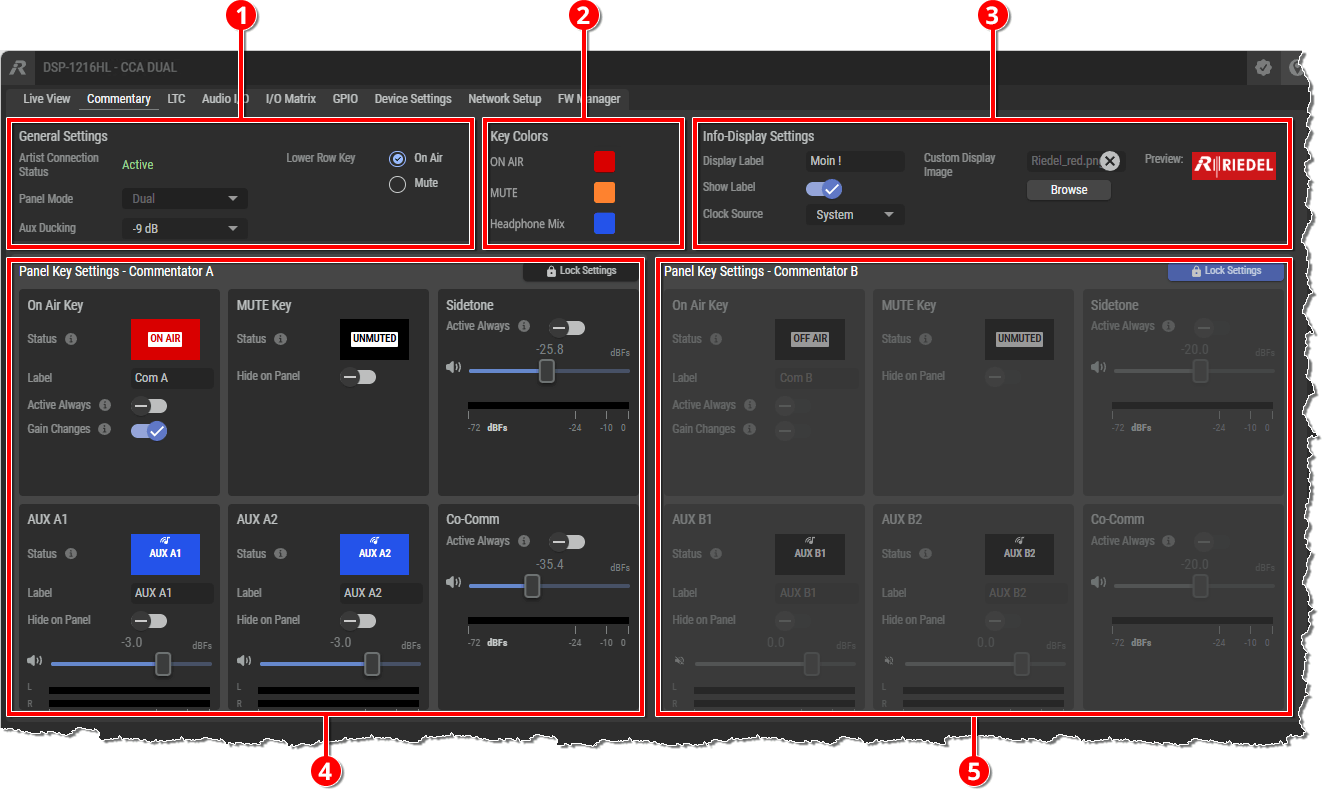
Web Interface - 'Commentary' tab (Dual Commentator Mode)

General Settings
|
Artist Connection Status |
Inactive: There is currently no connection to an Artist configuration. Active: The Desktop SmartPanel is integrated into an Artist configuration. |
|
Panel Mode |
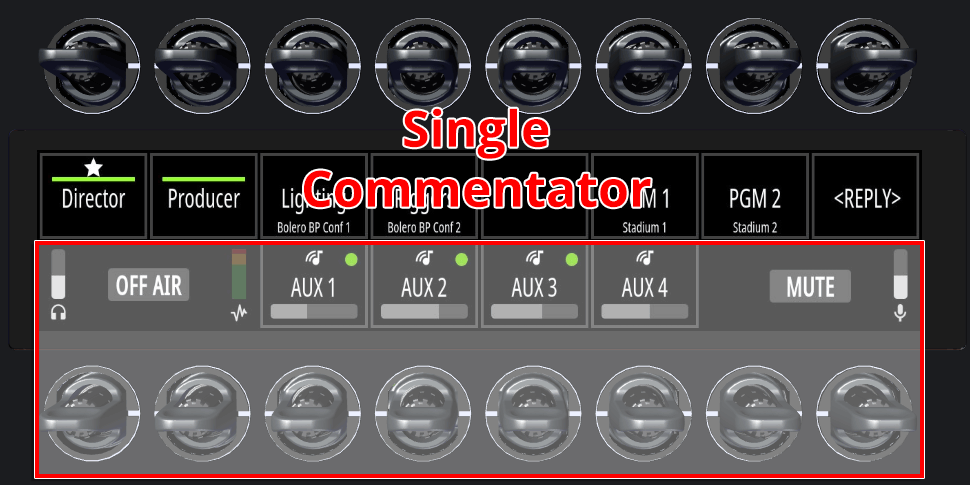
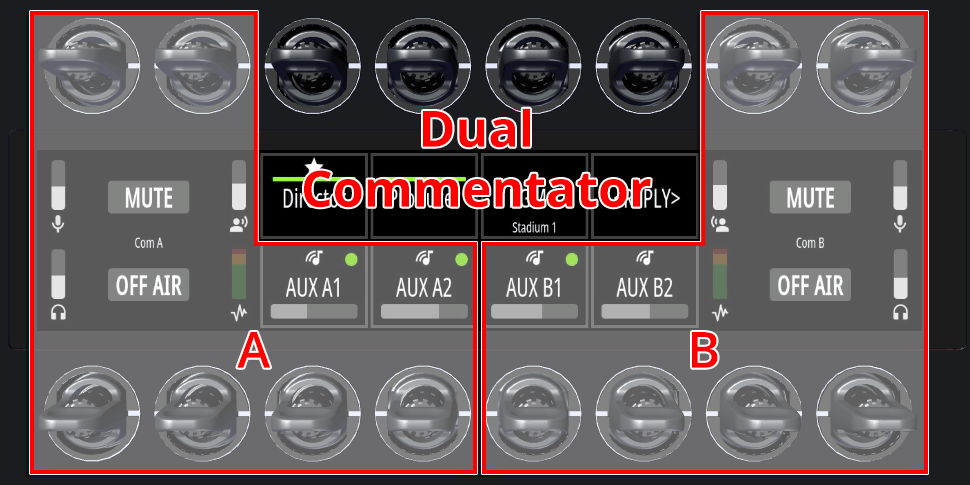
This setting is available only if the Desktop SmartPanel is not integrated into an Artist configuration. If the Desktop SmartPanel is connected to an Artist-1204, this is configured in the Director settings by defining the corresponding port type 'DSP-1216HL (Single or Dual Commentator Mode)'. Single:
|
|
Aux Ducking |
If an
(Default setting: -9 dB) |
|
Lower Row Key |
This setting is available only if the Desktop SmartPanel is configured for two commentators (the Panel Mode is set to 'Dual'). On Air: By default, the Mute: Reversed arrangement, the |

Key Colors
The colors of the keys ON AIR, MUTE, and AUX channels can be customized.
|
ON AIR |
Select whether an active |
|
MUTE |
Select whether an active |
|
Headphone Mix |
Select the color of an active |

Info Display Settings
When the Commentator app is running, the Info Display does not show the usual content, as it does when the SmartPanel is used in Intercom mode running along with other applications. Since the Commentator app cannot run alongside other apps, you cannot switch to other apps or keybanks. Furthermore, the Settings menu is hidden because it is not relevant to the Commentator's operation. However, it can be opened by long-pressing the Info Display for more than 3 seconds. When using the Commentator app, custom content can be displayed on the Info Display.
|
Display Label |
Field for entering up to twelve user-defined characters. |
|
Show Label |
If enabled, the Display Label appears in the center of the Info Display. |
|
Clock Source |
Select a time to be displayed at the bottom of the Info Display. None: No time is shown. System: The system time of the network is shown. LTC1: The timecode set in the LTC tab is shown. |
|
Custom Display Image |
Click Browse to open a dialog allowing to select an image (jpg/png) to display at the top of the Info Display. Click X to remove an uploaded image. A preview of the image is displayed on the right. |

Panel Key Settings (Commentator A)
Here the commentator keys can be customized and also operated.
For operation you don't have to leave this ’Commentary' tab to control the commentator functions using the Remote Control in the 'Live View' tab.
|
Lock Key Settings |
|
|
On Air Key |
Status:
Label:
Active Always:
Gain Changes:
|
|
MUTE Key |
Status:
Hide on Panel:
|
|
Sidetone |
Active Always: If enabled, the Sidetone from Microphone A is always routed to Headset A, not just when Microphone A is set to Gain Changes: The fader is used to adjust the volume of the Sidetone. Levelmeter: Displays the current volume of the Sidetone. |
|
AUX x |
In Panel Mode 'Solo', there are four AUX channels available.
Status:
Label: Field for customizing the Label displayed for the channel. Up to eight characters can be entered. Hide on Panel:
Gain Changes: The fader is used to adjust the volume of the Levelmeter: Displays the current volume of the |



Panel Key Settings – Commentator B
This section is only available if the Panel Mode is set to 'Dual'.
The content is the same like for the Panel Key Settings for the Commentator A.
In Dual Mode, Commentator B has his own set of keys on the right side to operate the commentary functions as part of his workflow.
There are the following differences from single-mode operation:
-
Only four (out of eight) Intercom keys can be configured via Director; these are located in a fixed position in the center of the upper row; they can be used independently of the commentary function and of Commentators A and B.
-
Two AUX channels are available for each commentator; these are located in a fixed position in the center of the lower row; the two
AUX A1/A2channels on the left are reserved exclusively for Commentator A, and the twoAUX B1/B2channels on the right are reserved exclusively for Commentator B. -
By default, the
MUTEkeys are in the upper row and theON AIRkeys are in the lower row; this arrangement can be reversed in the 'General Settings' section. -
There is an additional 'Co-Comm' field for Commentator A and Commentator B, respectively; this allows the volume of the respective co-commentator to be adjusted.