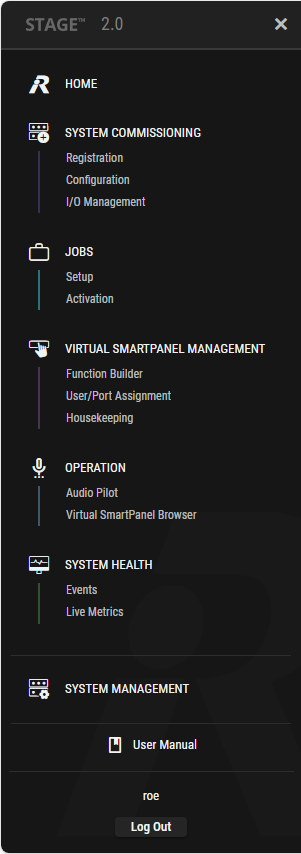
The menu is located on the left-hand side of the window and contains links to all views of the STAGE user interface. Clicking on an icon opens the corresponding view.
Collapsed Menu
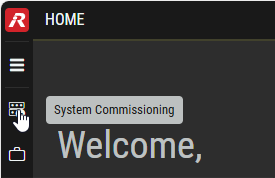
The menu is collapsed by default and only shows the main icons of the user interface.
If the mouse pointer is moved over an icon, the title of the view is displayed as a tooltip.
Expand Menu
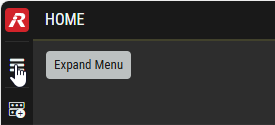
The complete menu is expanded by clicking on the menu icon at the top left.
The expanded menu is automatically collapsed by clicking in another section of the window or by clicking on the 
Expanded Menu
STAGE Version
On top of the expanded menu the STAGE software version is indicated. The version is also displayed in the view Home #STAGE-Version.
Main Icons & Views
The expanded menu also lists the individual views that are available under the main icons and can be accessed directly by clicking on them.
User Manual
By clicking on the 
Logout
By clicking on the