

WebConfig is used as the main configuration for the SimplyLive Backend software where users can read the current configuration, save the configuration, load from saved file, open other servers config and push out.
Opening the WebConfig
There are three main options for opening to the WebConfig:
-
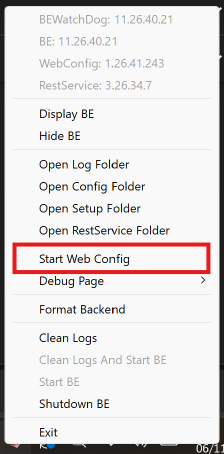
On the Server, Right click the Watchdog, select “Start Web Config”
-
On the ViBox UI, Click “Setup(Exit)” button then select “Config” button.

-
Open Chrome, enter “http://<BACKENDIP>/” (NOTE: The IP must be set correctly in Webconfig. IE: not 172.0.0.1 if you are connecting via NUC)
https//<SERVER IP>/#
Active Configuration
When the WebConfig is opened and loaded the active configuration is read, and any modifications will need to be saved back to the server before they will become active. If the WebConfig is left open in a browser, and another user makes a change on a separate device the WebConfig will need to be reloaded before those changes are seen.
It’s therefore always recommended that the WebConfig when it is not in use.
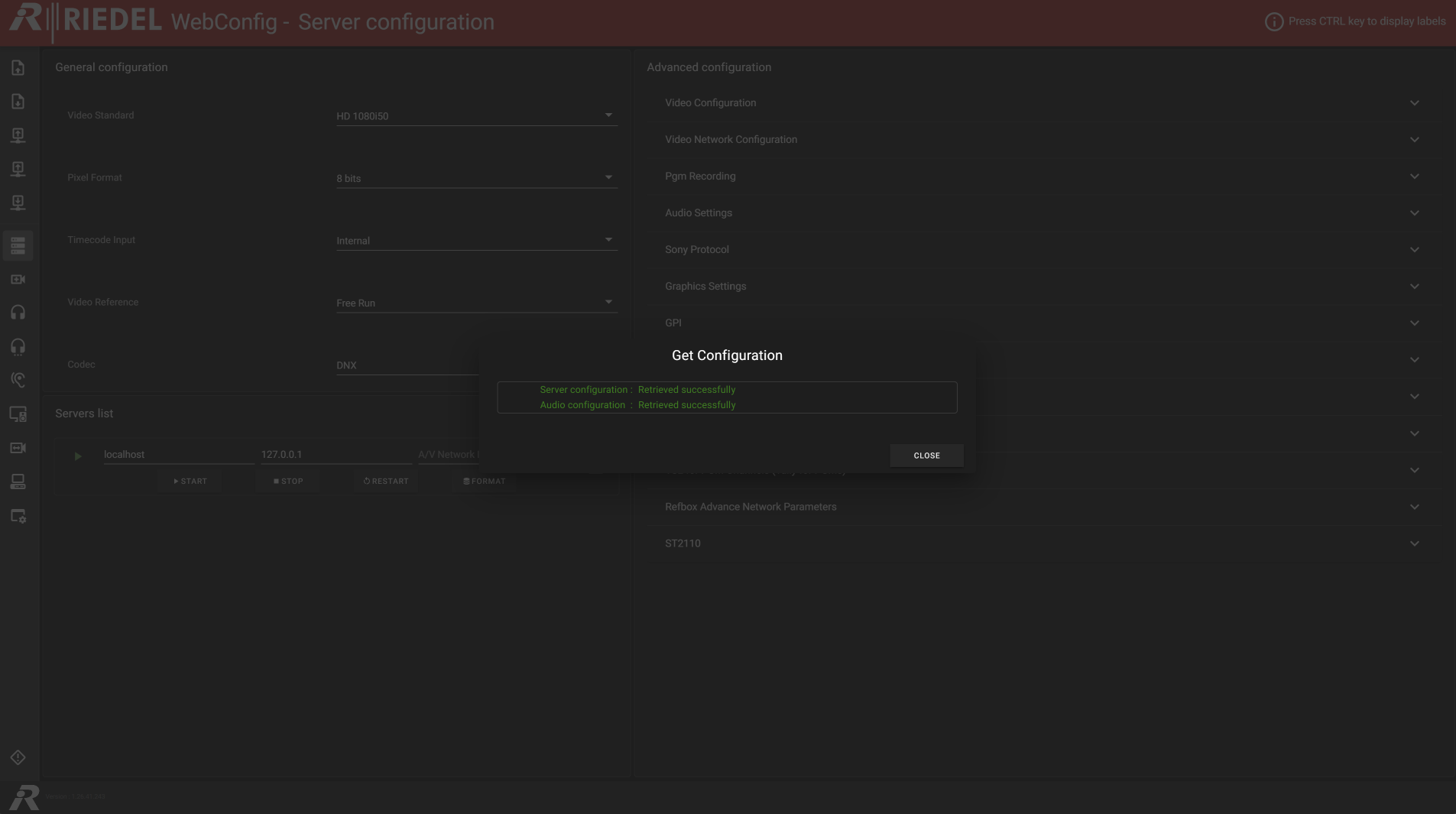
WebConfig Menu Options
-
WebConfig Load File -
WebConfig Save File -
WebConfig Get from Local Server -
WebConfig Get from Remote Server -
WebConfig Apply to Server(s) -
WebConfig Server Configuration -
WebConfig Server Channels -
WebConfig Audio Sources -
WebConfig Audio Delay -
WebConfig Audio Monitoring and Control -
WebConfig Audio Outputs -
WebConfig Audio Presets -
WebConfig Synchronisation Config -
WebConfig BITC customization