This tab allows you to define an audio preset cross point from an incoming video channel to another channel for recording or Live.
-
Video Presets Channels:
This is used to setup the full non simplified view for up to 16 channels of audio. -
Imported Clips Slider:
Show or remove the option to create a audio cross point for imported clips. -
PGM Dirty Slider:
Show or remove Channel to configure audio cross point for PGM dirty -
Audio sources to display
-
Imported Clips Slider:
Shows the imported Clips audio option to create a cross point to a channel(video) -
PGM Dirty clider:
Shows PGM dirty audio option to create a cross point a channel (video) -
Default Preset, Preset 1-32, MUTE:
To select which preset you wish to configure, click the option. -
RIGHT SIDE WINDOW:
-
Preset Name:
Click this option in the top left to be able to name the preset -
Mixer Snapshot:
Disabled - 64 Recall a mixer setting from the Mixer. -
Simplified View Slider:
When enabled, there is only one tickbox per Video/Audio. Selecting a tickbox will enable ALL audio channels. Slide this to off to see all audio channels. -
Clear Cross points:
This will clear all cross points for the current preset -
Drop Down Button:
-
Export as File:
Allows to export the preset as a file for backup. -
Import a File:
Allows to import a previously saved file to load a preset -
Copy from Preset:
Allows you to load an existing preset into the currently selected option.
-
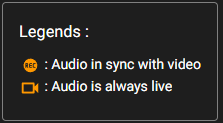
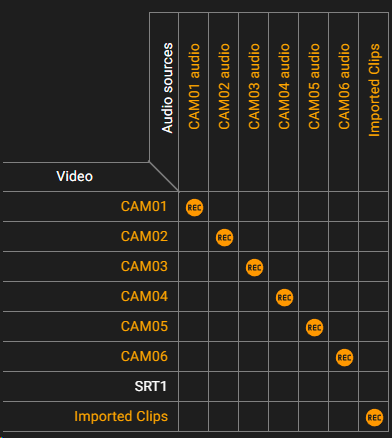
Example Preset audio cross points to their same video channel:
Legend: