Currently SimplyLive only supports ST 2110 in combination with Servers installed with the Blackmagic Decklink IP 100G I/O card. This version of the guide only applies to servers with that card installed.
Setup
Hardware
A prerequisite is that the SimplyLive server must be equipped with Blackmagic Decklink IP 100G card.
Software
Ensure the following software is installed
-
Blackmagic Desktop Video Driver: `Blackmagic_Desktop_Video_Windows_16.4`
-
Vibox Backend: `11.26.43.22`
If a lower version of software is installed, or one of these applications are missing please contact support.
Configuration
WebConfig config page
Launch WebConfig
After the Backend system is installed, right-click the watchdog icon and select the option to open the WebConfig page.
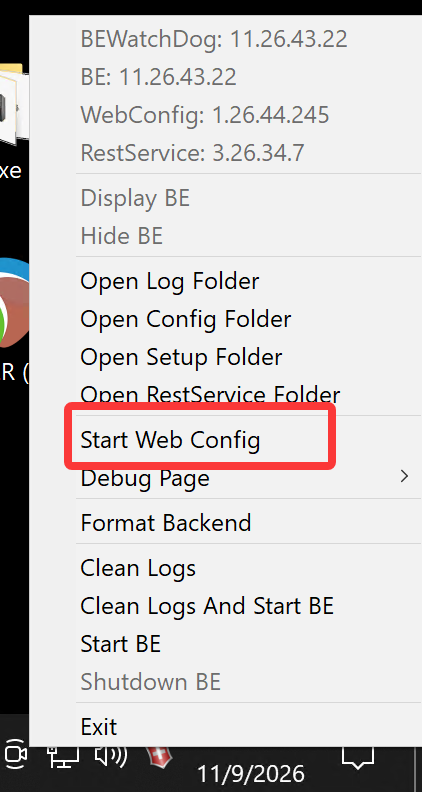
Information on how to access and modify the WebConfig is available in WebConfig Guide.
Server configuration
When opening the WebConfig, be default the current and active configuration will be loaded from the server, and the default page will be Server Configuration. The following image shows the areas that need to be checked and potentially updated and the specified order.
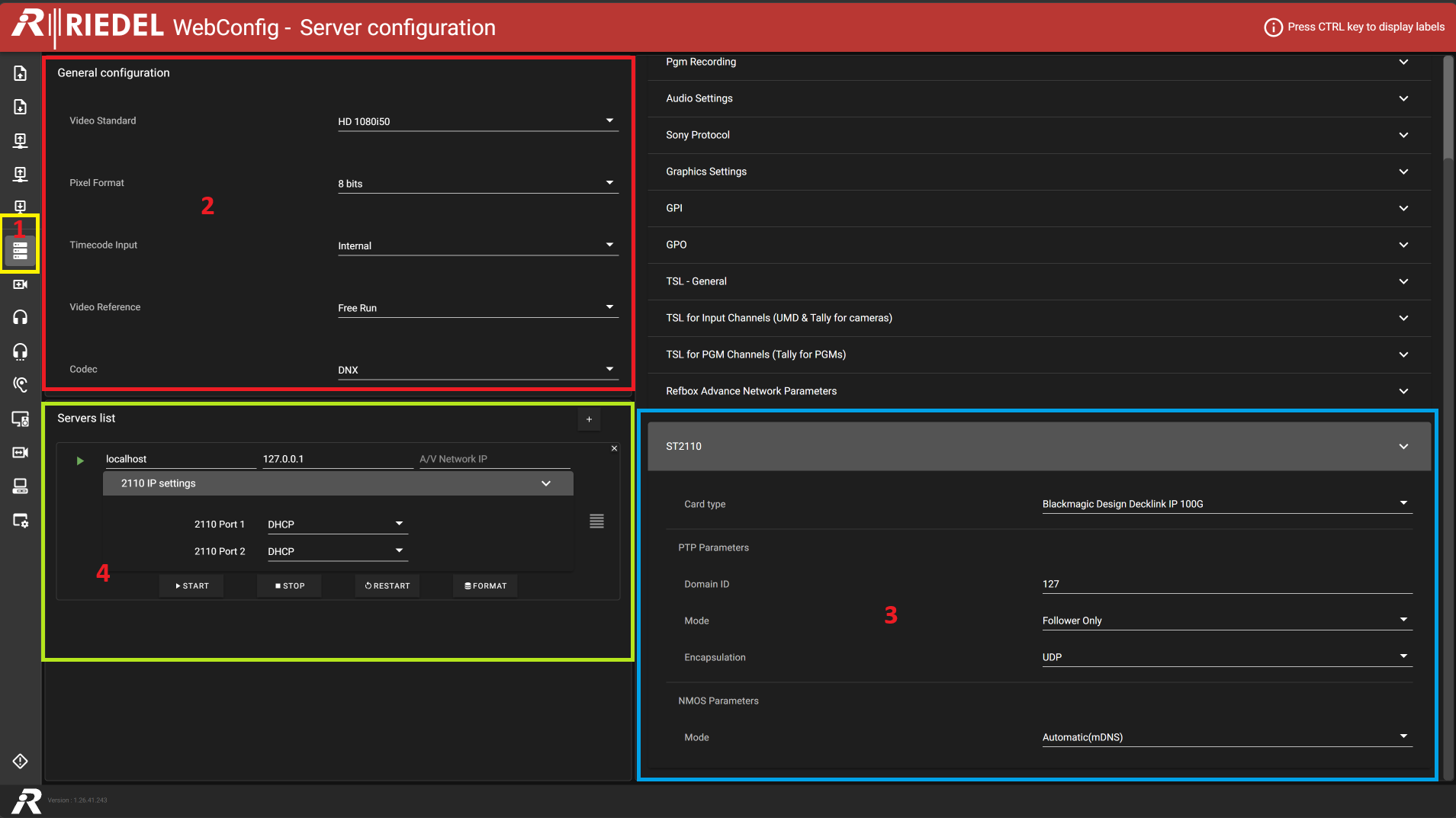
|
STEP |
Section |
Description |
|---|---|---|
|
1 |
Hover-reveal collapsible sidebar |
Select the Server configuration tab |
|
2 |
General configuration |
Configure General configuration according to the reference screenshot |
|
4 |
Advanced Configuration - ST 2110 |
Set Card Type = Blackmagic Design Decklink IP 100G 
|
|
3 |
Server List |
Click the + button to add a new server. Fill in the Server alias, Management IP and A/V Network IP. 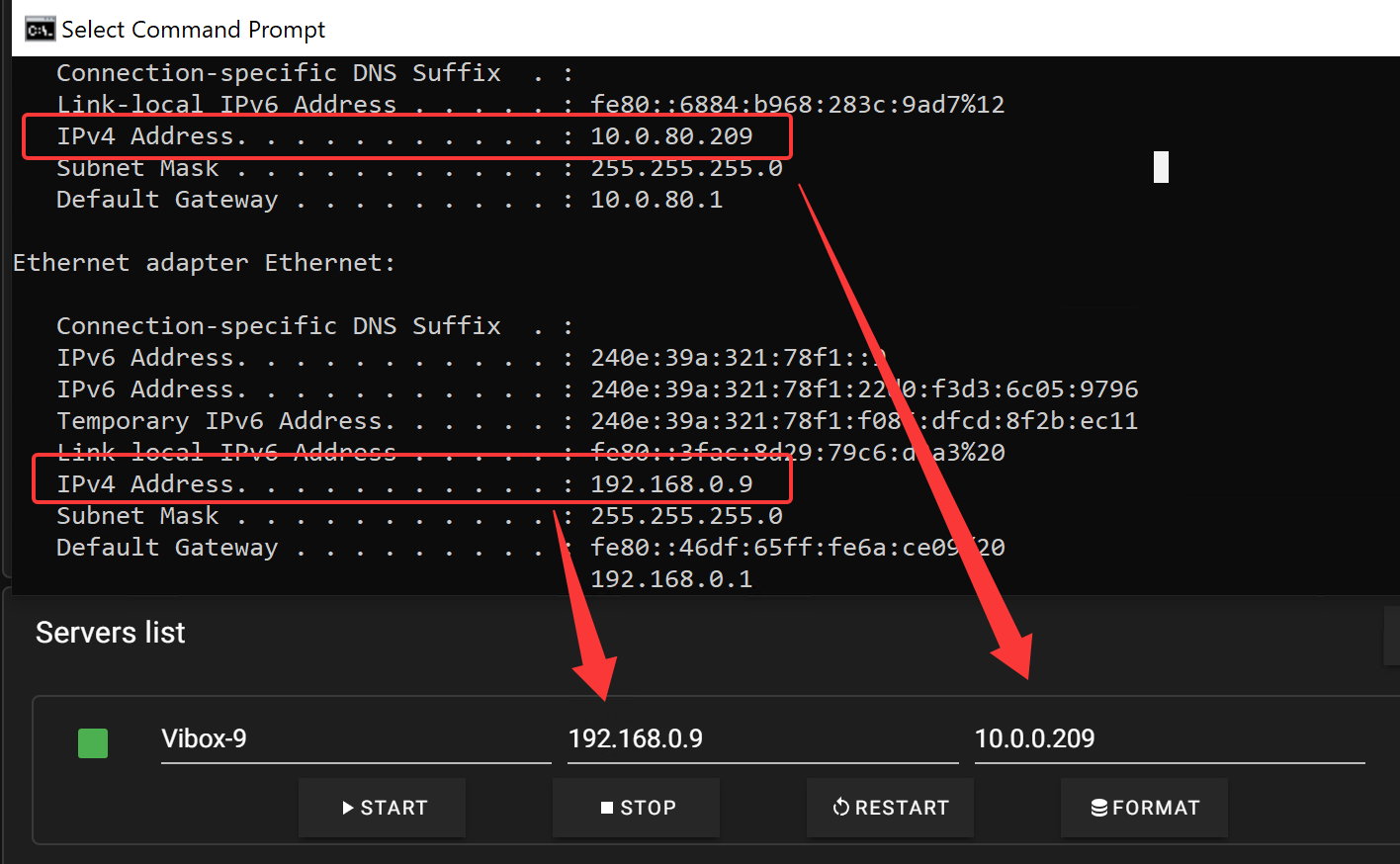
Click the drop-down arrow Set 2110 Port1 and Port2 to Manual IP. 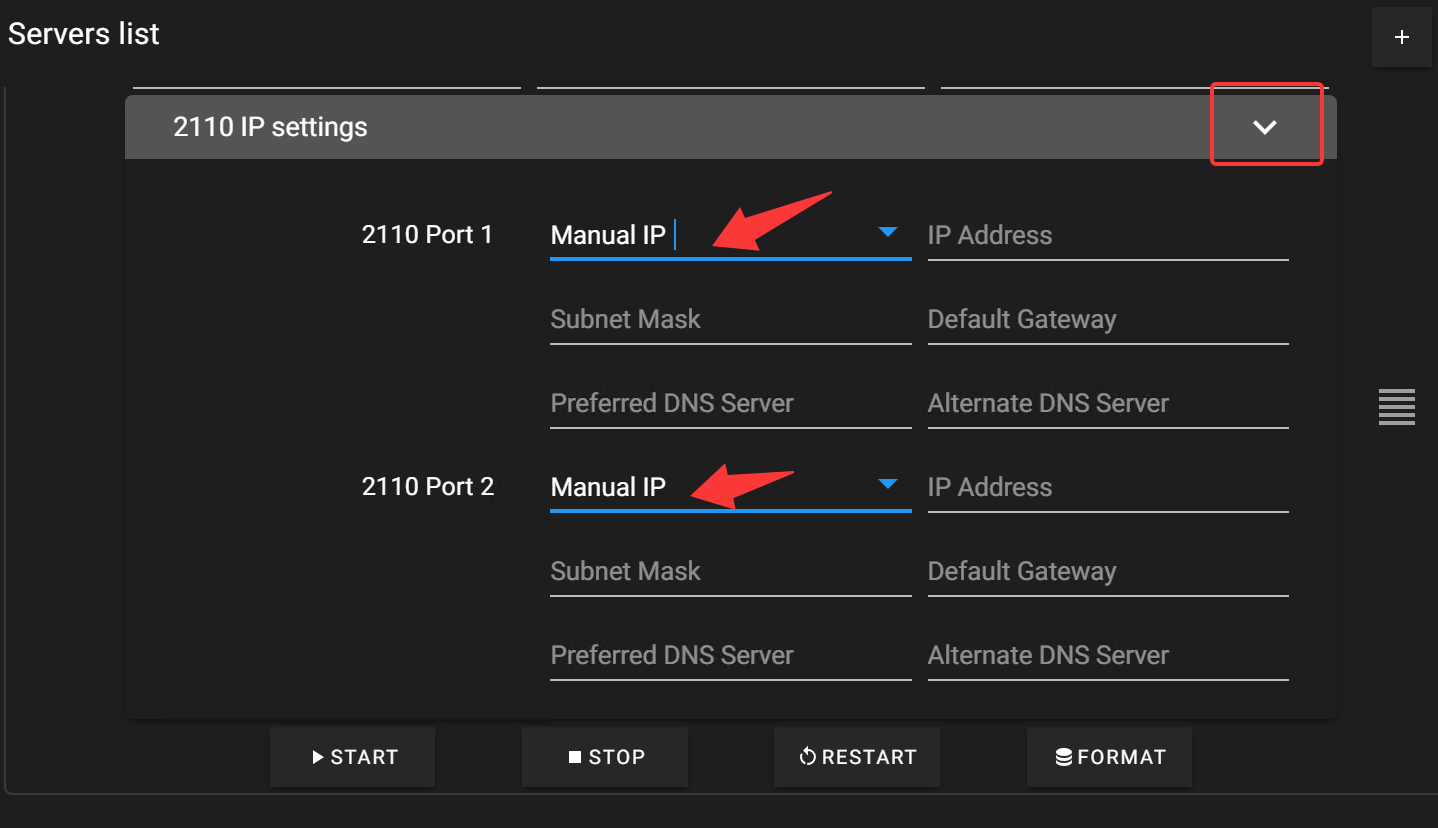
Open Blackmagic Desktop Video Setup to retrieve the required IP addressing information. 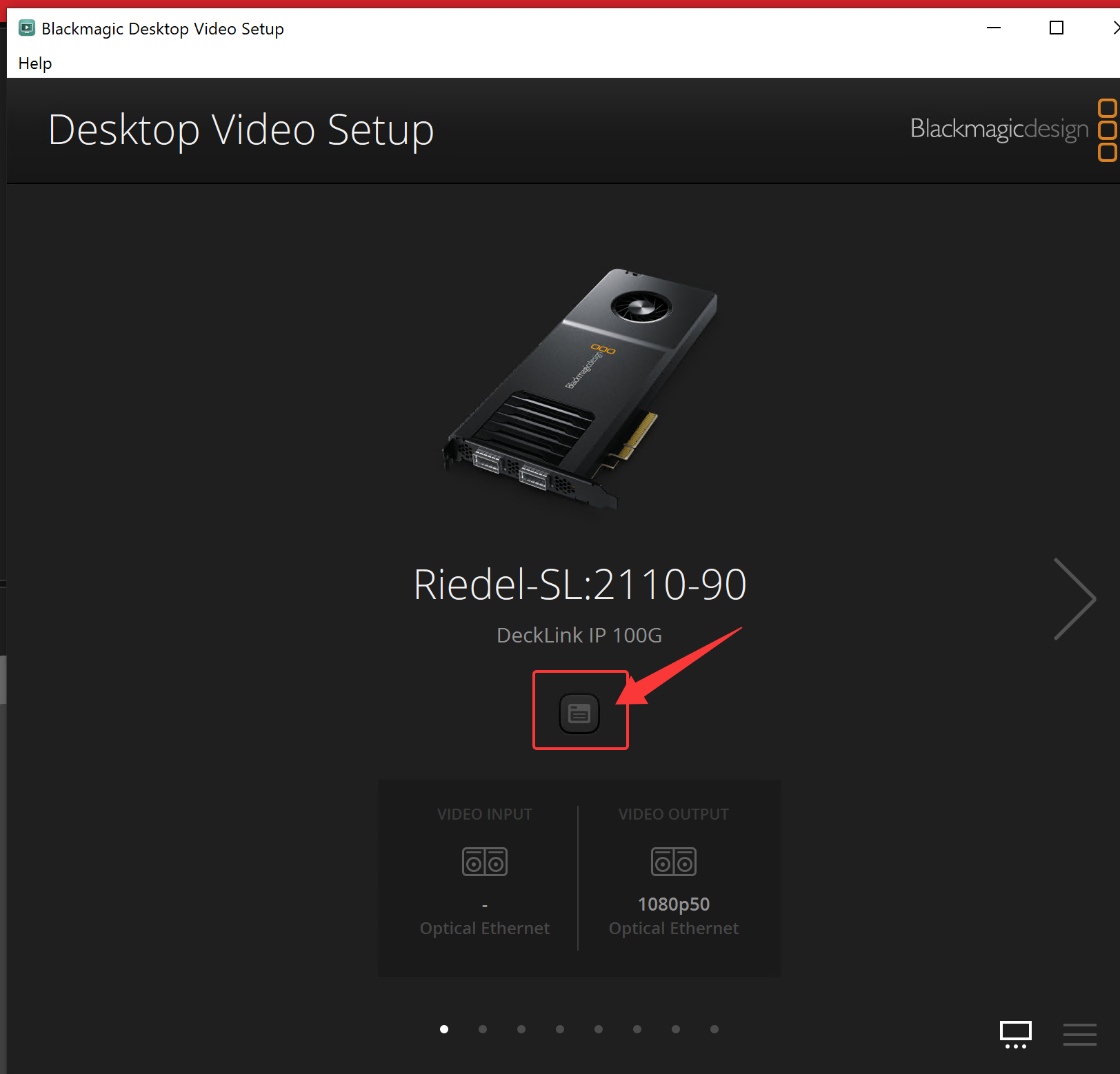
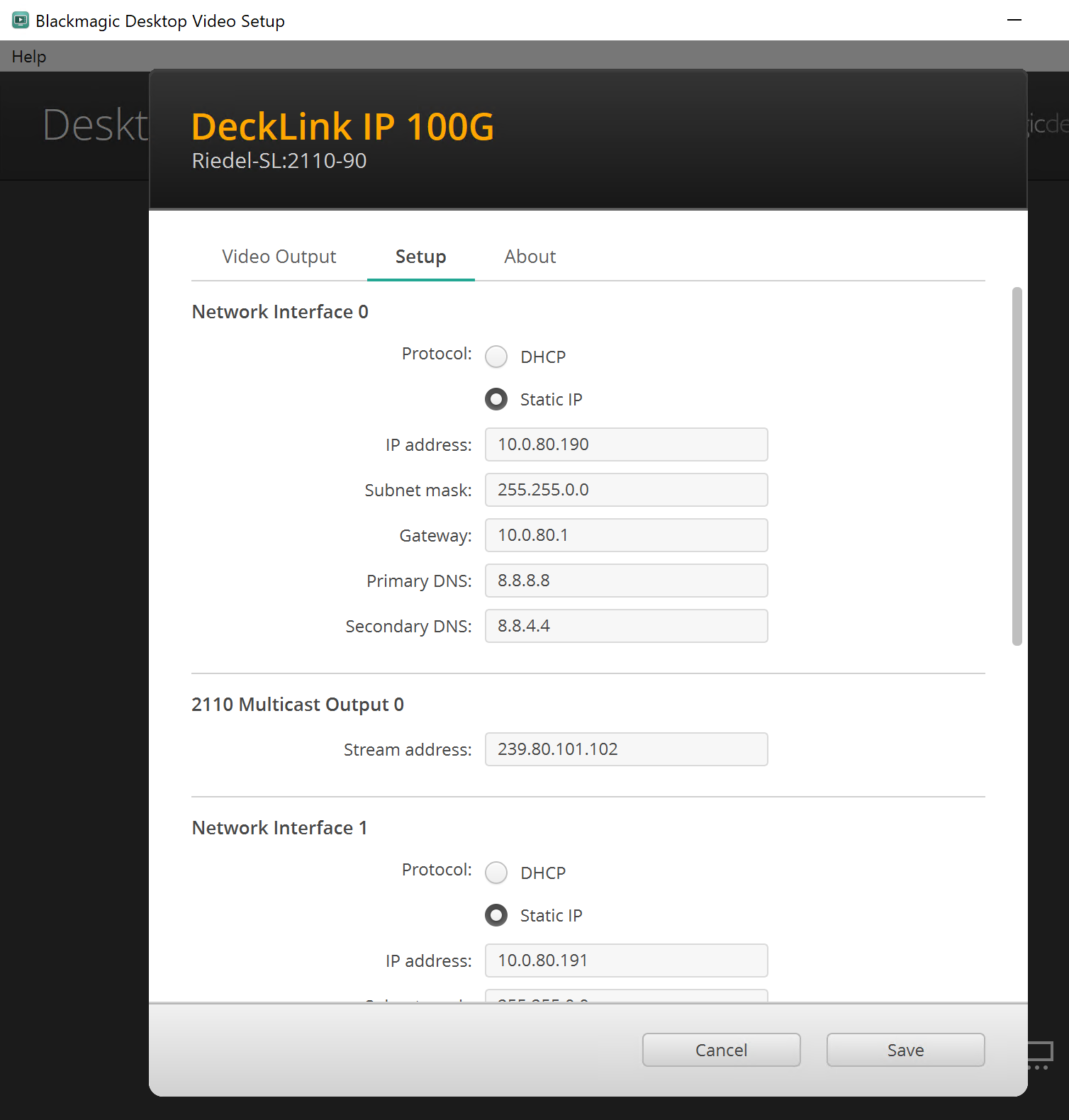
Complete the settings to match the reference screenshot. 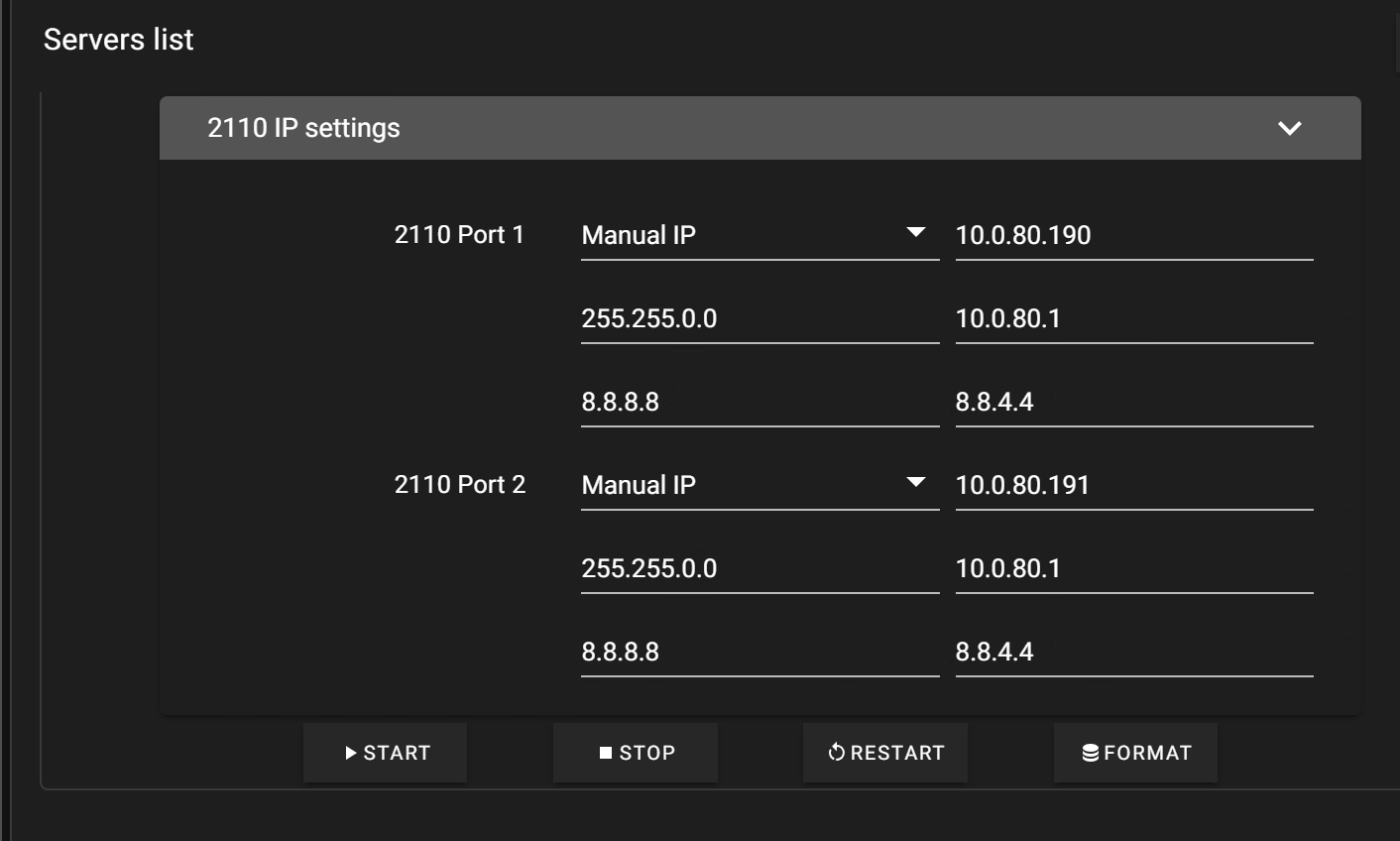
|
Server Channels
Open the hover-reveal collapsible sidebar and navigate to Server Channels.
This page is used to configure input channels and output channels.
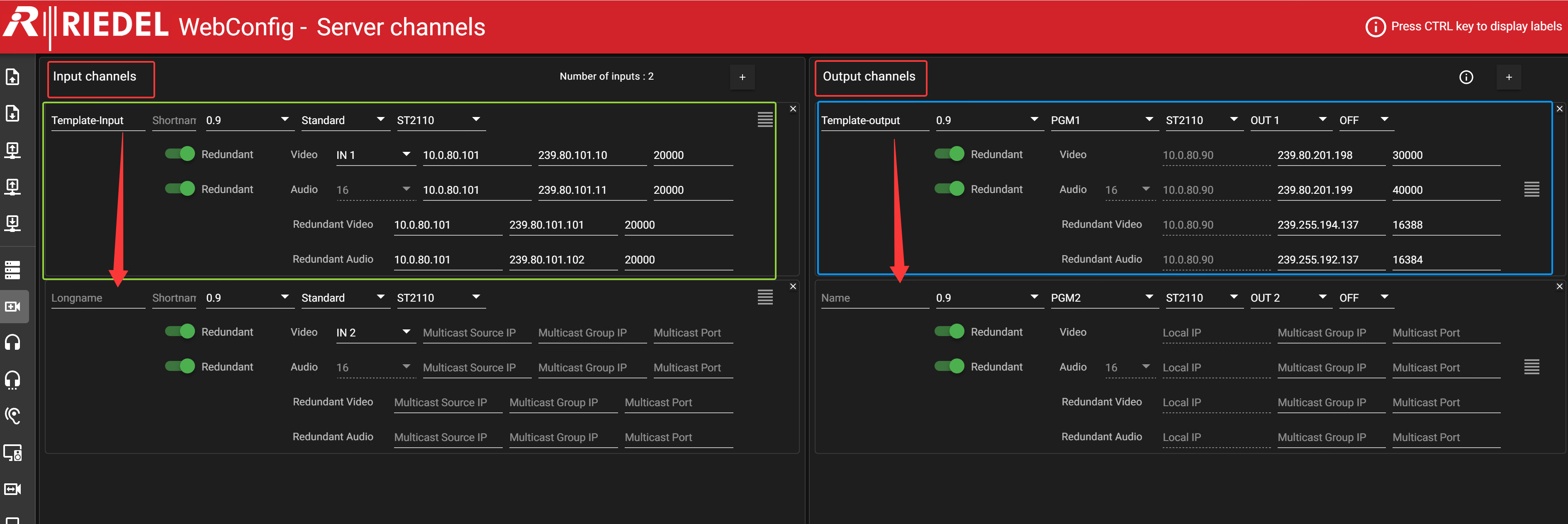
Input channels
Set Channel Type = ST2110.
Select the target video input. As shown in the screenshot:
-
Template input = IN 1 (first channel)
-
Empty channel = IN 2 (second channel)
Then fill in the following parameters for Video and Audio:
-
Multicast Source IP
-
Multicast Group IP
-
Multicast Port
Output channels
Configure output channels following the same procedure as input channels (refer to screenshot).
Apply and Start backend
From the hover-reveal collapsible sidebar, open Apply to server(s).
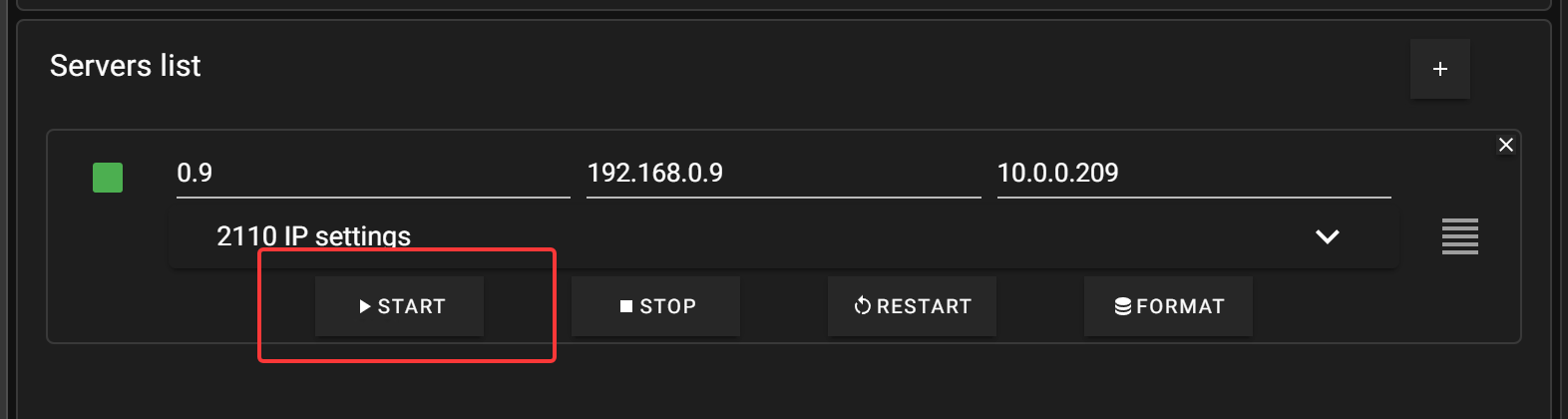
Once the configuration is applied, click START to launch the Backend service.