This chapter describes the general operation of the Audio Monitoring App on the SmartPanel.
For this, the key bank Monitoring must be activated in the info display.
The info display continues to show all relevant signals, even if you are on another key bank. Thus, you will not miss an important intercom call even if you are checking your audio sources.
Lever-Key Functions
Mute
When the app is started, all audio sources are muted. This is indicated by the small crossed-out red speaker.
-
Press the lever upwards.
or -
Press the rotary knob.
Muting is cancelled at the respective audio source or the audio source is muted again.

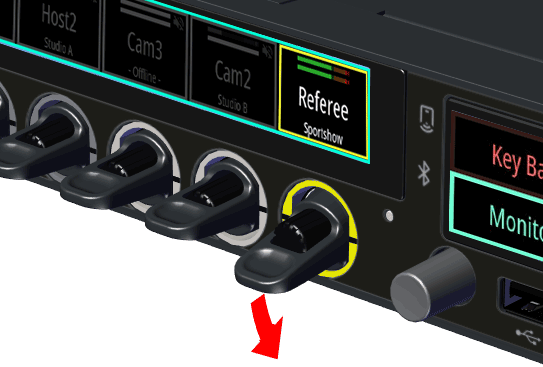
Solo
-
Press the lever downwards.
The solo function of an audio source is activated and all other audio sources are muted. This can be done with several keys at once.
The solo function is only active as long as the lever is held down.
When the lever is released, the audio settings return to the settings before Solo was activated.
Volume
-
Turn the rotary knob.
The individual volume of each audio source can be adjusted.
The volume is temporarily visualized by a horizontal bar.
(The right/red (->RSP-1216HL) or upper/large (->RSP-1232HL)
volume control changes the overall volume of the SmartPanel).

Secondary Function Drawer
Touching the display of a key for half a second opens a Secondary Function Drawer. The dialog will disappear after 3 seconds of inactivity.
Only relevant secondary functions are offered. This means that different secondary functions are available depending on the state of the configured audio source.
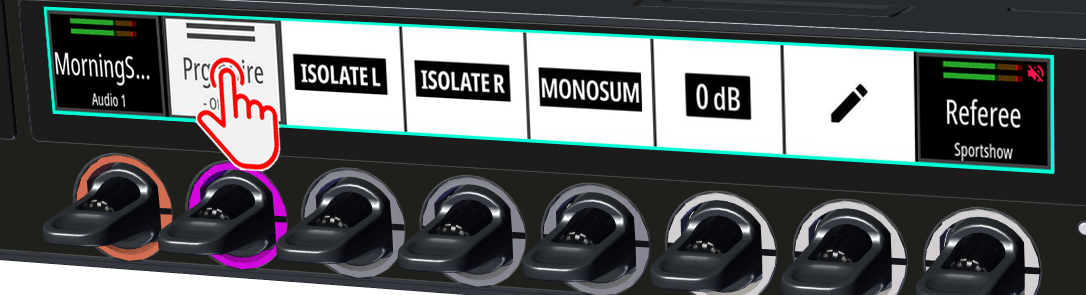
In total, the following secondary functions are available:

|
Isolate left audio channel. (Mute right audio channel.) |

|
Isolate right audio channel. (Mute left audio channel.) |

|
Switches a stereo signal to a mono sum signal. (The left and right audio channels are output summed). |

|
Switches a mono sum signal to a stereo signal. (The left and right audio channels are output individually). |

|
Sets the volume of the corresponding audio source to normal level.
|

|
Function to change the audio source.
|
Change Audio Sources
-
Open the Secondary Functions Drawer of an audio source or an empty key.
-
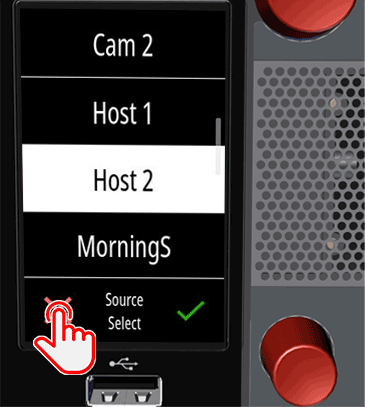
Select the

The info display shows all available audio sources.

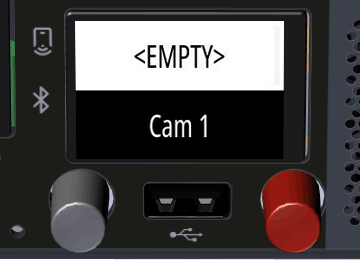
-
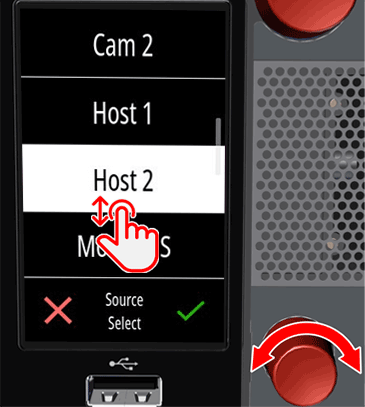
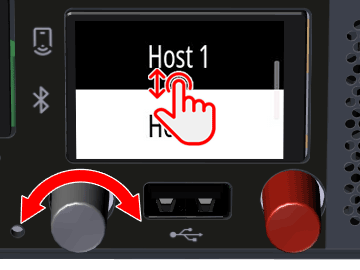
Select a new audio source:
-
RSP-1232HL
-
Vertical swipe and tap on an audio source
or -
Turn the lower rotary knob
-
-
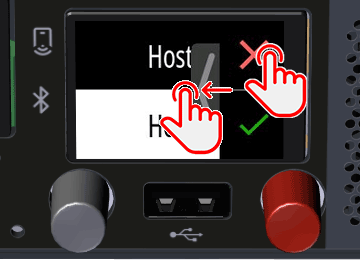
RSP-1216HL
-
Vertical swipe and tap on an audio source
or -
Turn the gray rotary knob
-
-
-
Confirm the entry:
-
RSP-1232HL
-
Tap the green

or -
Press the lower rotary knob
-
-
RSP-1216HL
-
Swipe from right to left to show the menu and tap the green

or -
Press the gray rotary knob
-
-
or


-
Cancel the operation:
-
RSP-1232HL
-
Tap the red

-
-
RSP-1216HL
-
Swipe from right to left to show the menu and tap the red

-
-