
This chapter describes how to install and start the Virtual SmartPanel app on your smartphone or tablet.
The Virtual SmartPanel app runs on iOS and Android devices.
To configure the key configuration of the Virtual SmartPanel in STAGE, see chapter Virtual SmartPanel.
First Time Use
To install the Virtual SmartPanel app on your smartphone or tablet and to connect to STAGE, proceed as follows:
-
In the app store of your smartphone or tablet, search for Riedel Virtual SmartPanel and install it.
-
Open the Virtual SmartPanel app.
-
Tap on Select Login to add a new organization profile.
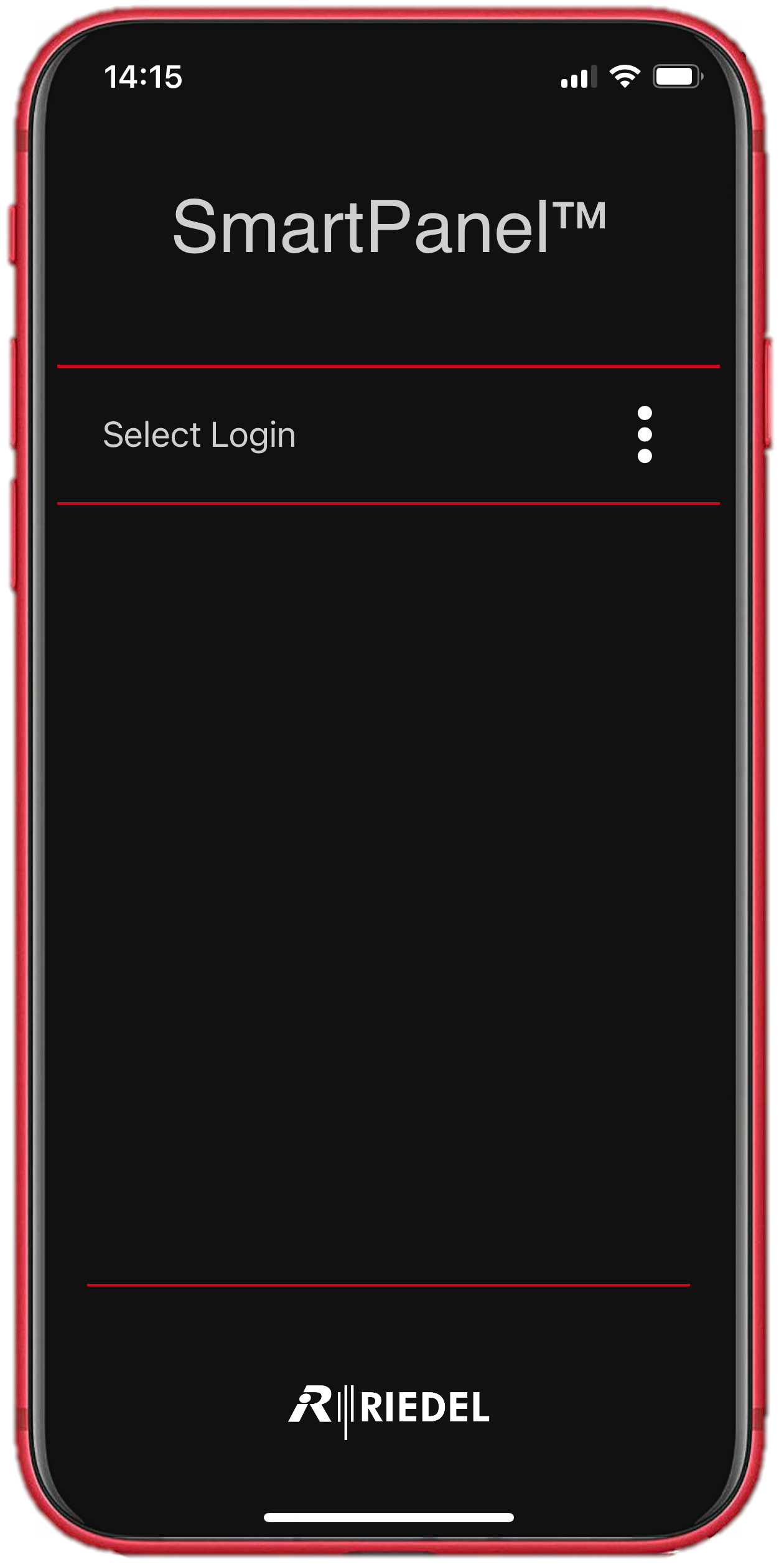
-
Create an organization profile by entering a name and connection URL to STAGE.
|
Name |
Set a name for this connection profile. |
|
URL |
Set the connection URL to STAGE, provided by your intercom administrator. |
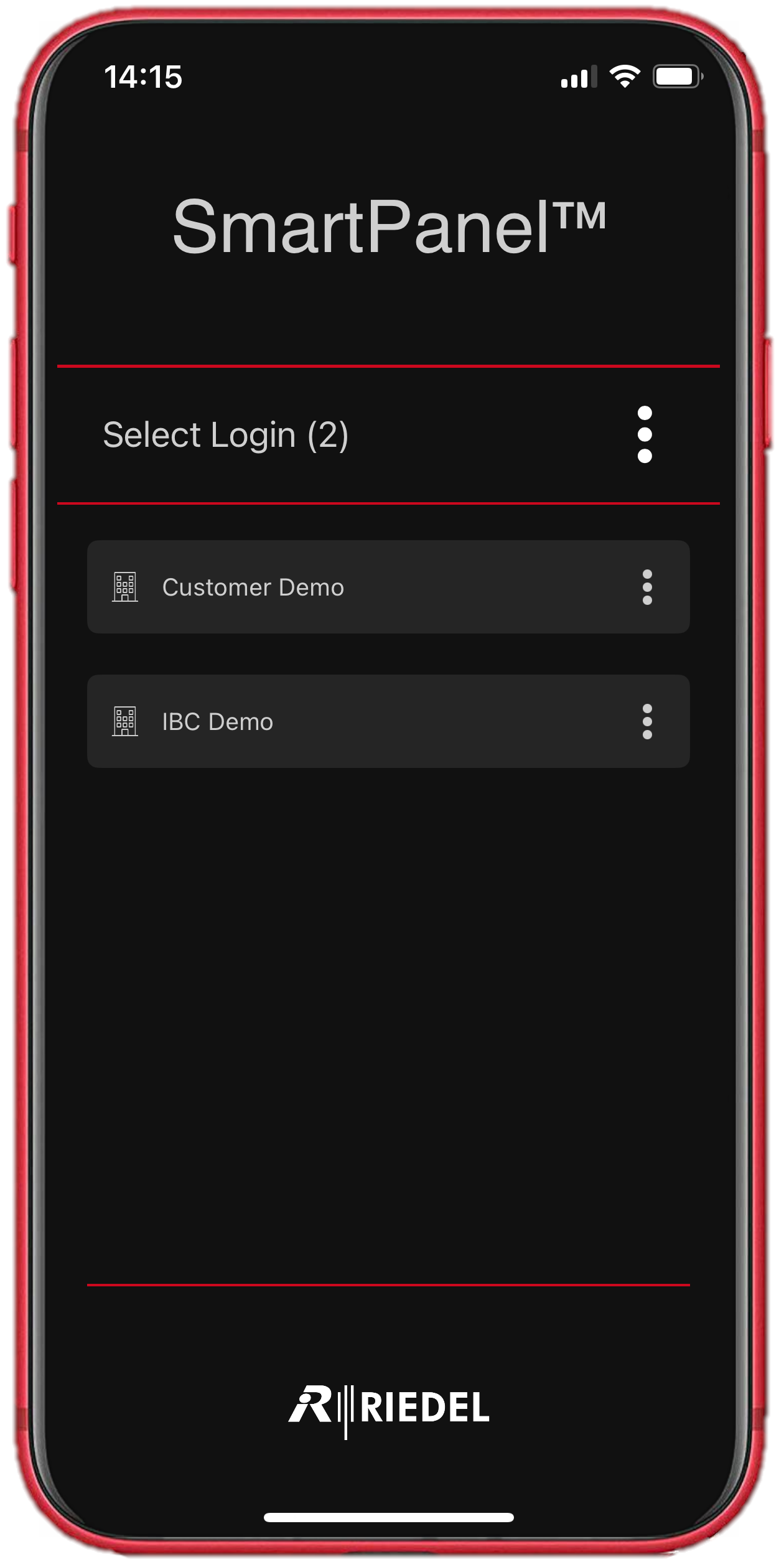
Subsequent Virtual SmartPanel Connections to STAGE
After the first time connection with STAGE, there will be one or more oragnization profiles that you can use to connect to STAGE. Proceed as follows:
-
Open the Virtual SmartPanel app.
-
If several organization profiles are available, tab on the organization profile to which you want to connect. If only one organization profile is available, the selection dialog is skipped.
-
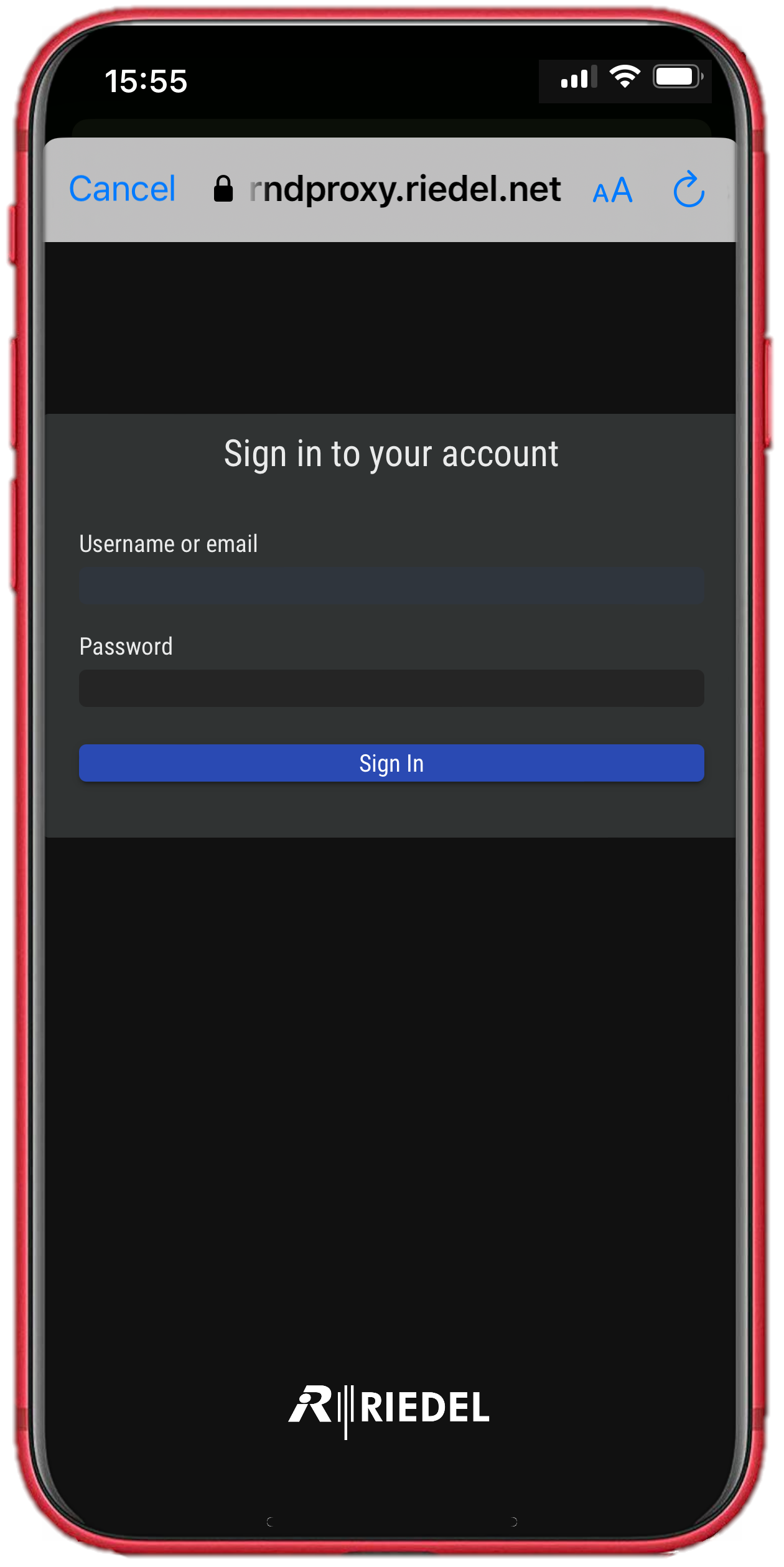
Login with the Username and Password provided by your intercom administrator.
-
If several configurations are assigned to the user, select the configuration to which you want to connect. If only one configuration is assigned to the user, the selection dialog is skipped.
-
The keys that have been previously configured for this configuration in the STAGE Function Builder are displayed in the app.
-
Use the app. The Virtual SmartPanel app works in the same way as the Virtual SmartPanel Browser on your PC, but has a fixed key matrix per keybank of 1×8 keys for smartphones and 3×8 keys for tablets.
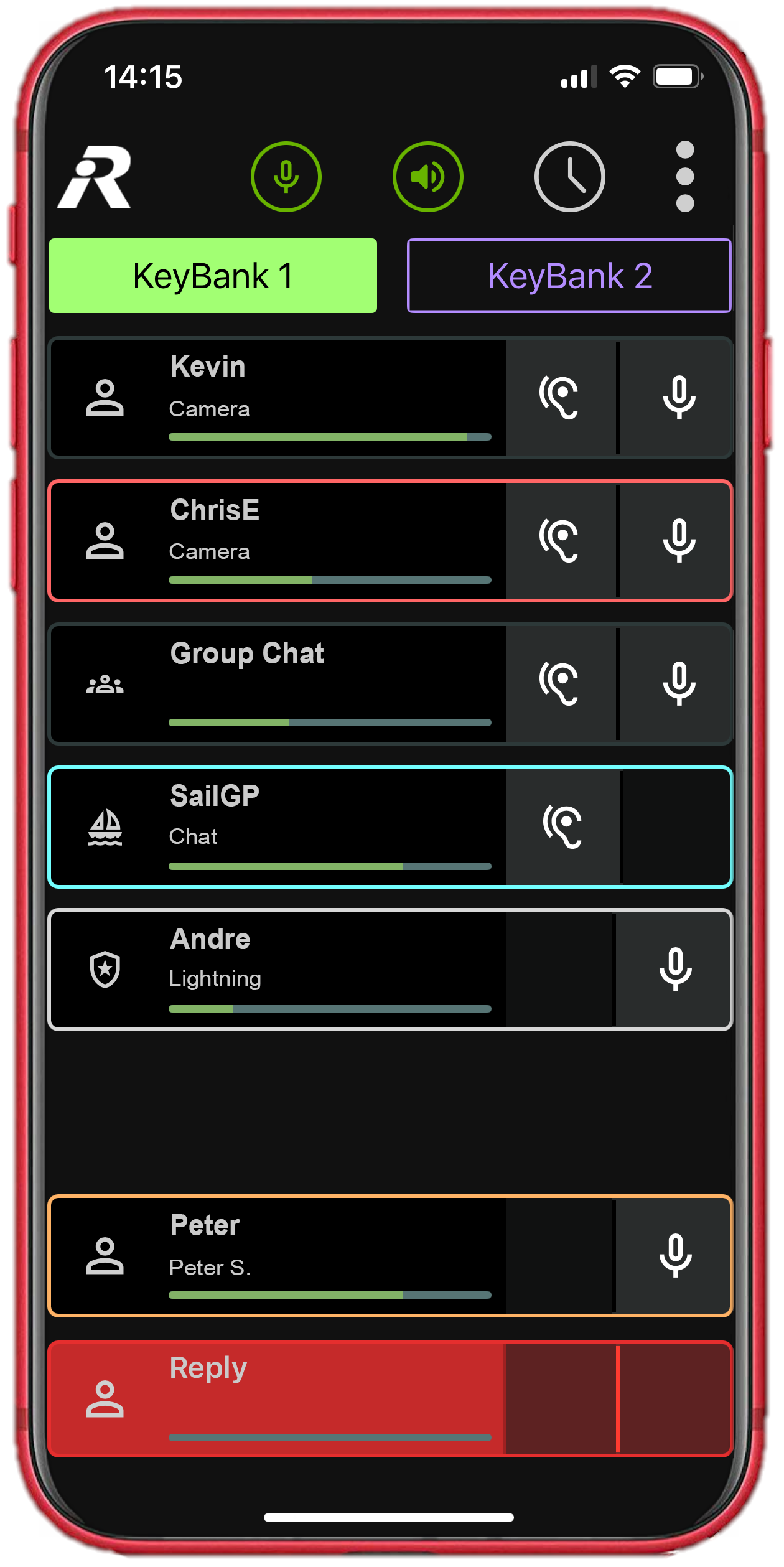
The Virtual SmartPanel uses colors, symbols, and tones to alert you to Intercom activity. See Virtual SmartPanel Browser #Overview for more information.

Overview of the VSP App

Overview of a VSP Key