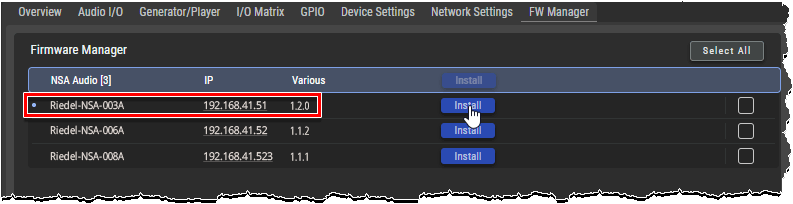
On this tab, the firmware of the StageLink devices can be updated.
Overview
|
|
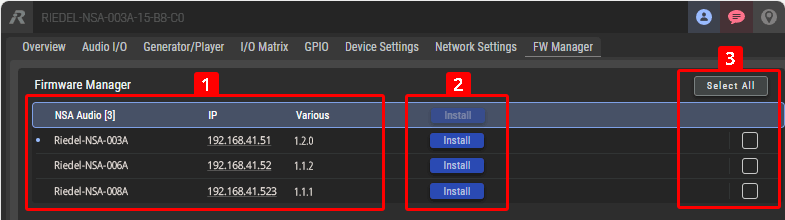
Asset List The asset list displays all StageLink devices with names and IP addresses found on the network. Clicking on a column header sorts the items by that column. |
|---|---|
|
|
Install Buttons Clicking an Install button opens a dialog for selecting the firmware file (.rfp), which can be downloaded in advance from https://my.riedel.net and saved to your local PC.
|
|
|
Device selection Click Select All or Deselect All to check/uncheck all devices, or select individual StageLink devices whose firmware is to be updated. |


Firmware Update
Open the web interface of the StageLink device:
-
Enter the IP address in the web browser (e.g. 192.168.41.51).
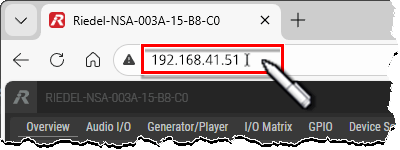
NSAs do not have static IP addresses on delivery. The IP address can be determined by a Zeroconf browser (e.g. Riedel-NMOS-Explorer, see chapter Riedel-NMOS-Explorer in the appendix).
The web interface opens:
-
Navigate to the FW Manager tab.
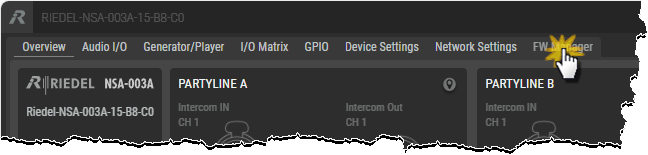
The firmware manager opens:
-
Click on the Install button for the StageLink device you want to update.
-
Alternatively, select individual StageLink devices whose firmware is to be updated and click the Install button in the column header to update all selected devices.
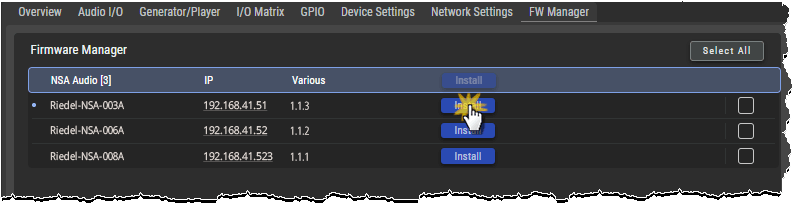
A dialog box will open for selecting the firmware:
-
Navigate to the location where the firmware file (.rfp) is stored and select the desired firmware by clicking the Open button.
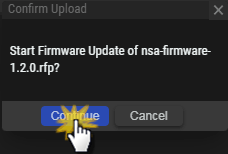
A confirmation dialog box opens:
-
Click on the Install button to start the update.
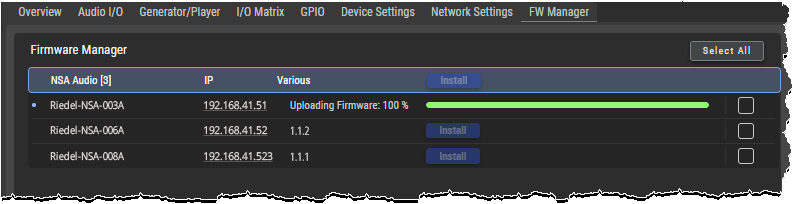
The selected firmware is transferred into the
device(s). A bar graph will show the progress.
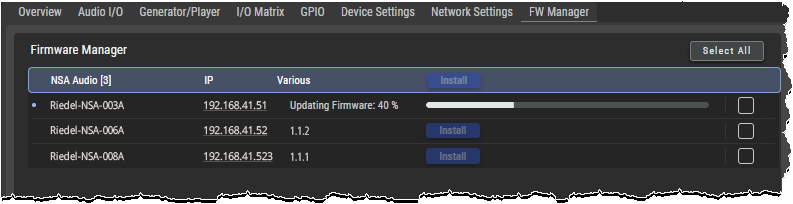
Once the transfer is complete, the firmware update will start. A bar graph will show the progress.
The device(s) will restart to complete the update. The connection will be interrupted during the restart.
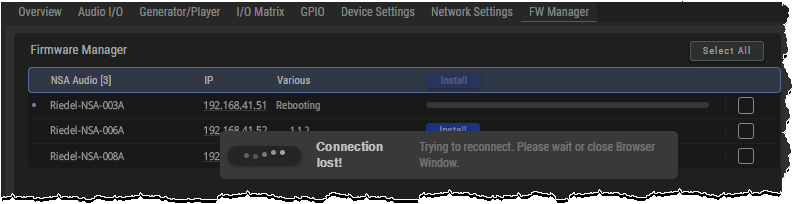
If the connection is re-established after the reboot, the new firmware version is active.