
Audio presets are one of the most powerful audio tools in Production.
They allow you to decide which audio tracks are played with each source and to change that routing instantly during production. For example, you can swap tracks 3-4 to 1-2, route audio from one camera to another source, or apply one audio setup to multiple cameras. Audio presets are used to determine which audio tracks are replayed with each video source, and multiple presets can be configured for different playback situations.
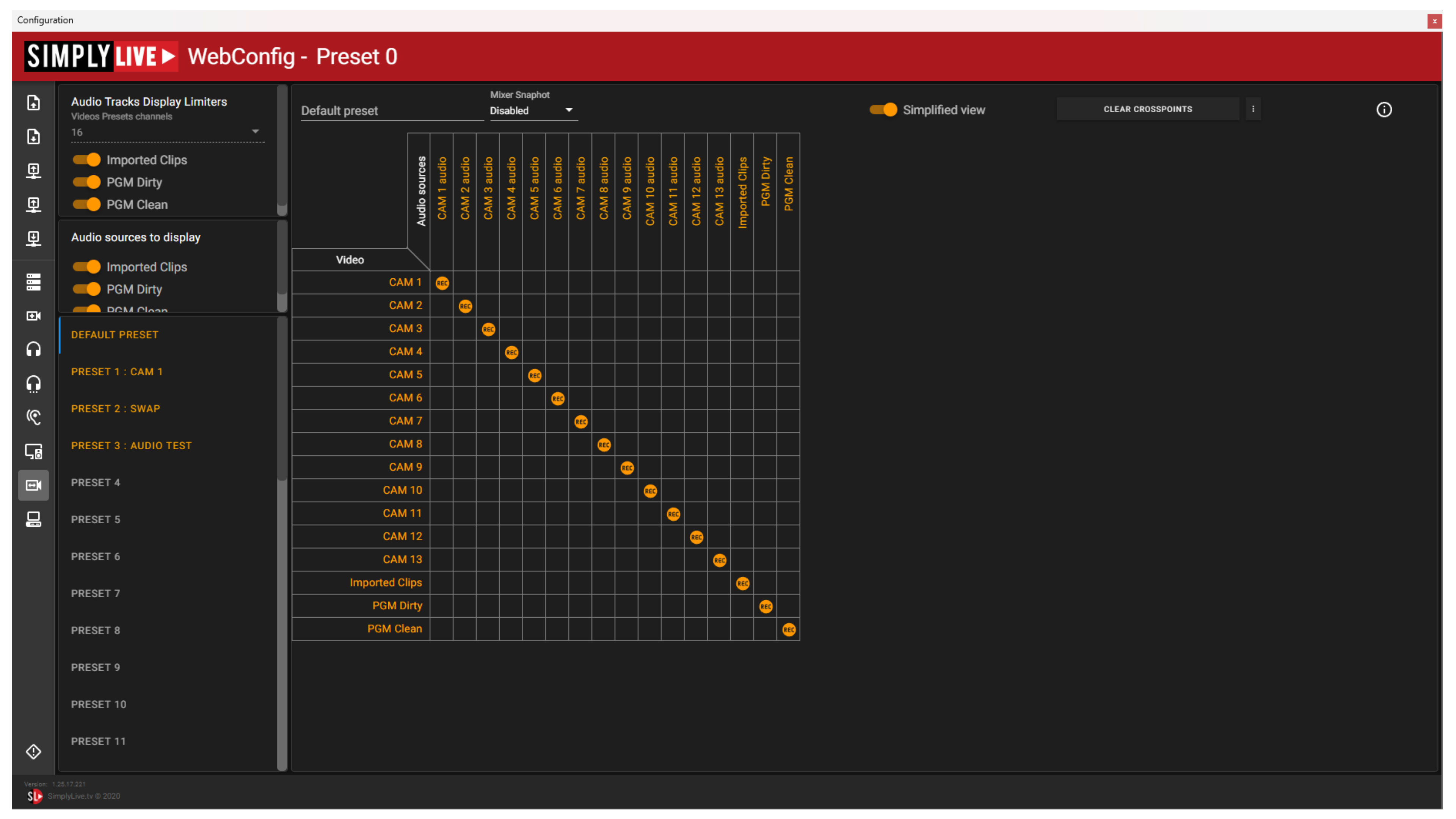
Where to Configure Audio Presets
Configure audio presets in:
Setup → Config → Audio Presets
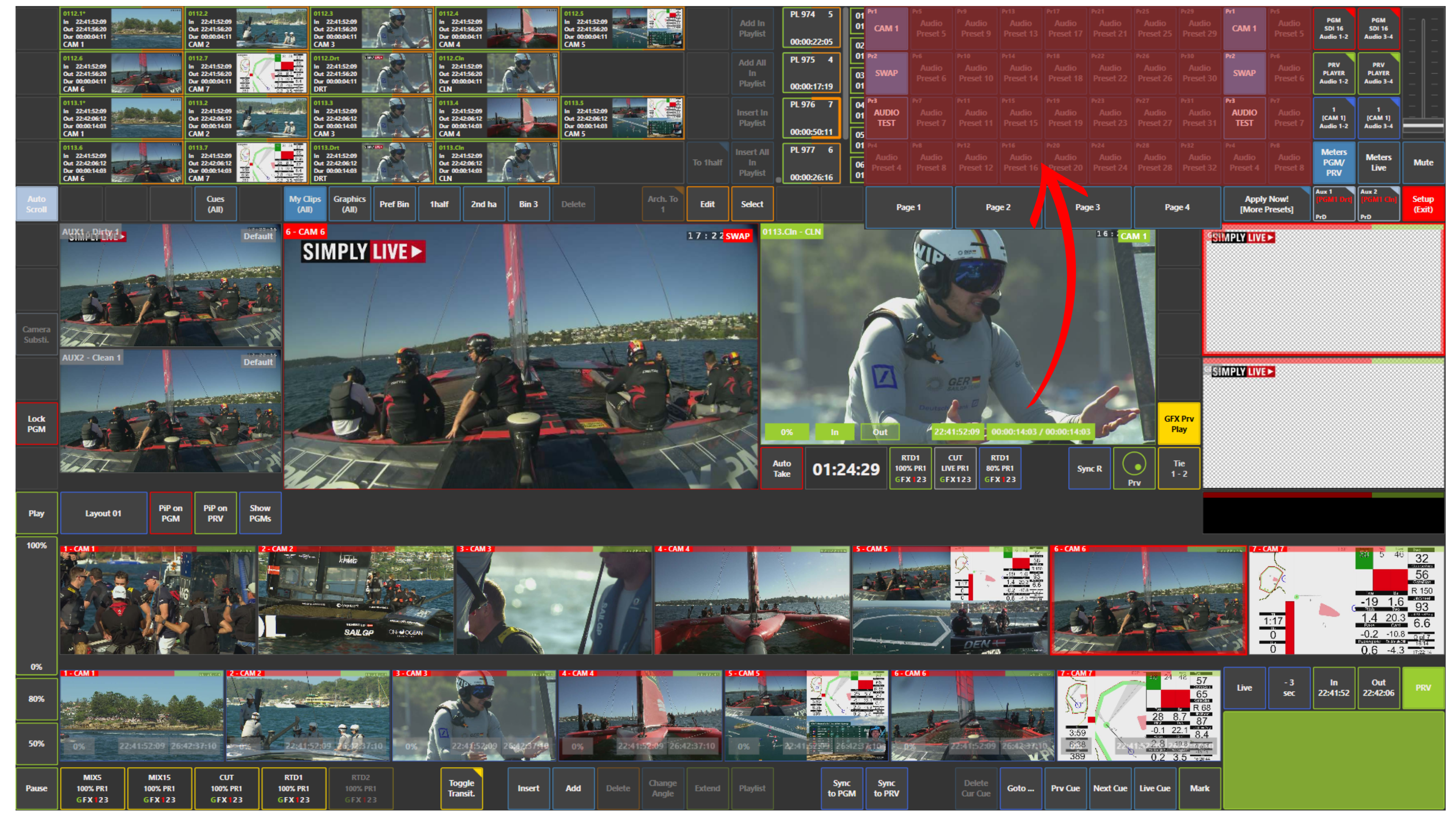
In ViBox UI, when you click Apply Now! [More Presets] in the top right area of the screen, you can see the available presets and switch between them.
How to Use Audio Presets
You can prepare different presets for different situations and apply them when needed.
For example, you can:
-
swap tracks 3-4 to 1-2
-
keep audio live at all times
-
route audio from one camera to another
-
apply one audio setup to multiple cameras
Audio presets can be enabled, pre-selected, and then applied to the current output.
Pre-Selecting Audio Presets
You are able to pre-select the audio preset that you are wanting to go to, before you make the transition.
Simply press the audio preset that you want to transition to and it will start to flash, meaning this audio preset will be enabled on the next transition to PGM.
You have to option to enable this feature in “Setup > Pref > Role/UI > Enable pre-selected audio preset” - and choose between if you want to transition on every transition to PGM or only when transitioning from PRV to PGM or never (disable the action).

You also have the option to choose the behaviour of the audio preset after a transition.
If “Audio Preset follows video” this means the audio preset that it swapped with will stay pre-selected, ready for you to transition back to that preset.
If you want to always manually choose what is pre-selected before a transition, you can selected “Apply Audio Preset to PGM and PRV” and this will remove the pre-selected audio preset after a transition.
Pre-Assigning Audio Presets
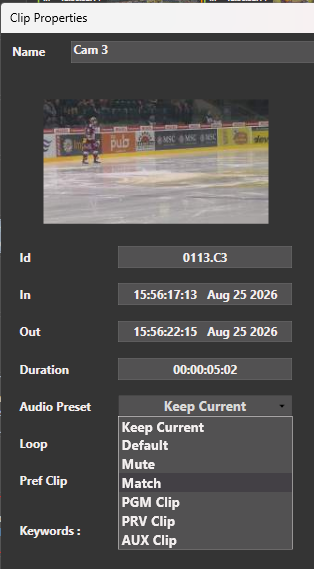
You have the ability to assign audio presets to Clips, Playlists and macros, so that when you load these elements to the PRV or run the specific macro created, the correct audio preset will be pre-selected and ready to transition to.
Info
This is especially useful when the correct audio is present, but not on the tracks you need for air.
Instead of changing the source outside Production, you can correct the routing by applying the required audio preset.
Use Case – Live Production Scenario
You recorded an interview, but the correct audio is on tracks 3-4 instead of 1-2.
Instead of asking for the channels to be changed elsewhere, you apply an audio preset that swaps 3-4 to 1-2.
The audio is corrected immediately and the source is ready for air.
Pro Tip
Prepare several audio presets in advance for common situations, such as:
-
interview audio
-
nat sound
-
swapped track order
-
camera-specific audio routing
This makes fast audio correction much easier during live production.