
Bins are a practical way to organise your clips in Production.
There are 12 bins in total: 11 you can rename, plus one Pref Bin. You can name them to suit your production—for example, “First Half” and “Second Half”.
Pro Tip - Automatically Send Imported Clips to a Bin
In WebConfig > Synchronisation Config > Select Bin, choose any of the 12 available bins. The server will automatically place imported clips in that bin.
They work like folders and help you separate saved moments into clear categories.
In SimplyLive Production Suite Flex, clips can be organised in the standard way using pages and banks, but in Production you can also use bins to organise clips in a more visual and practical way.
For example, you can rename bins such as:
-
first half
-
second half
How to Use Bins
You can rename bins in:
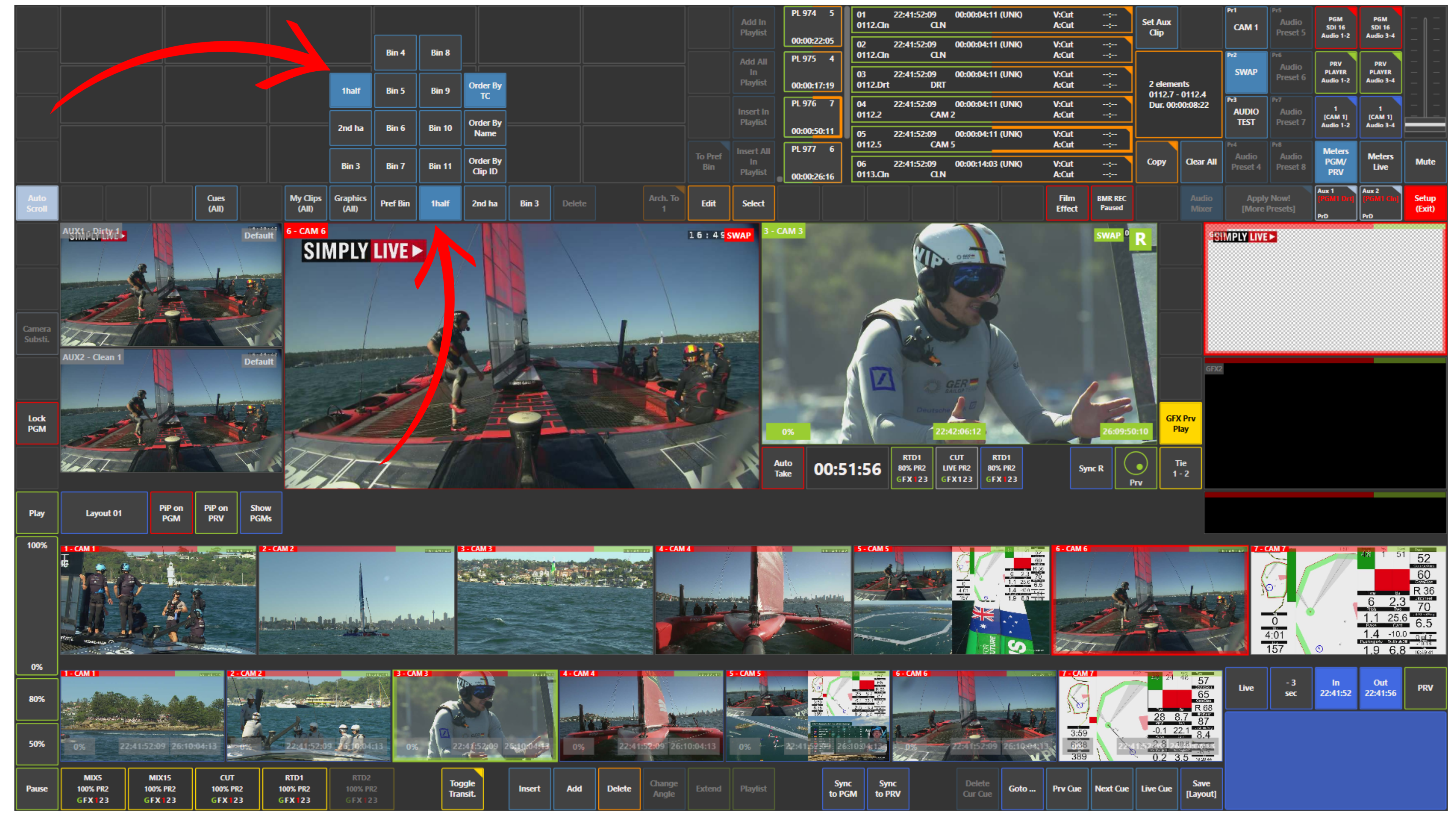
Setup → Prefs
Once your bins are rename, you can send clips to the required bin.
To view the clips inside a bin, simply tap the bin you want to open, for example:
-
1st half
-
2nd half
The clips assigned to that bin then appear in the panel.
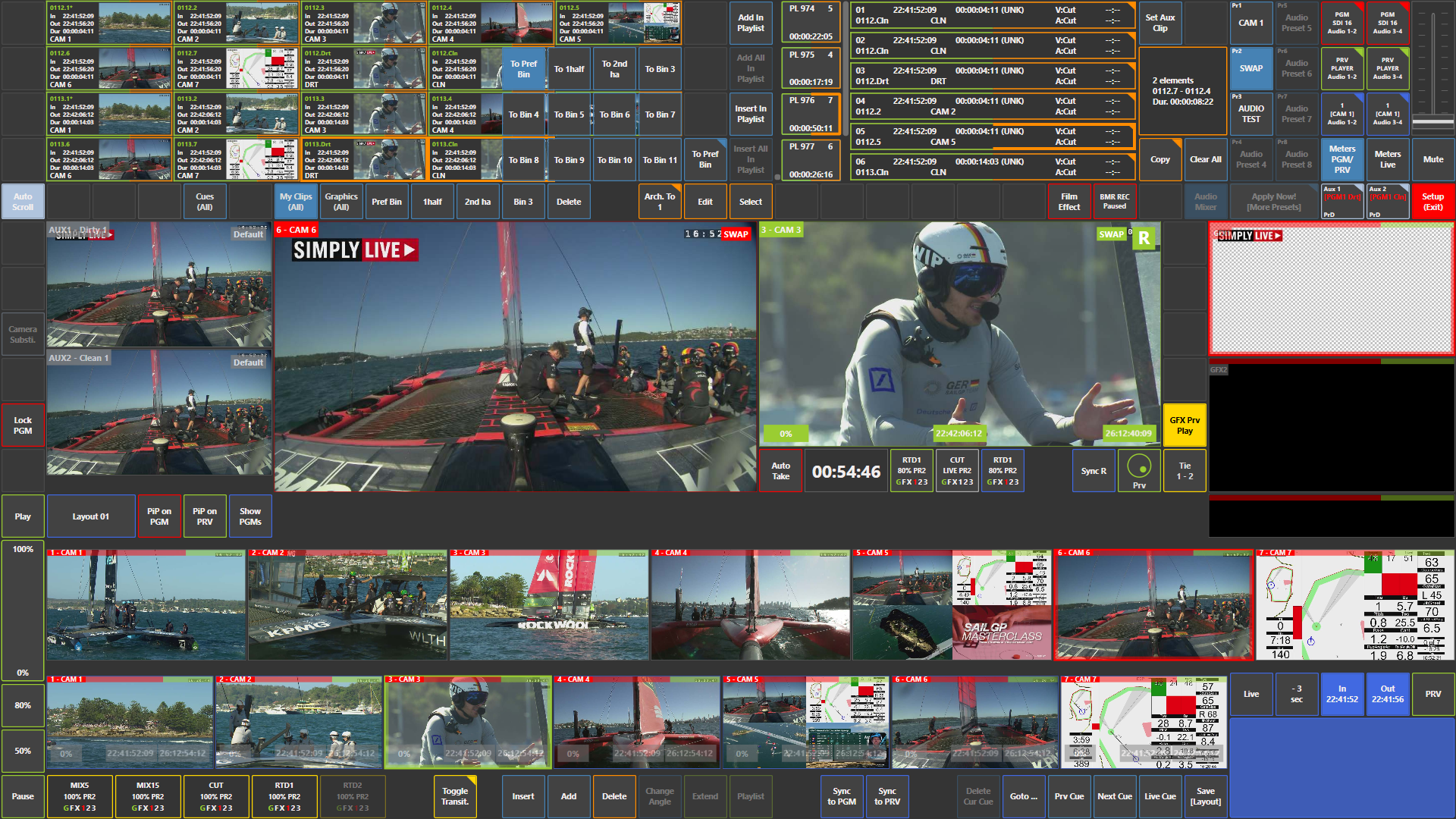
You can also send clips, cues, and graphics to a bin by pressing and holding the bin panel, for example To Pref Bin, to reveal the full bin options, then selecting the required bin.
Pro Tip
Try to use bins as much as possible to keep your workflow organised, especially when you need to separate clips by period, team, or type of action.