
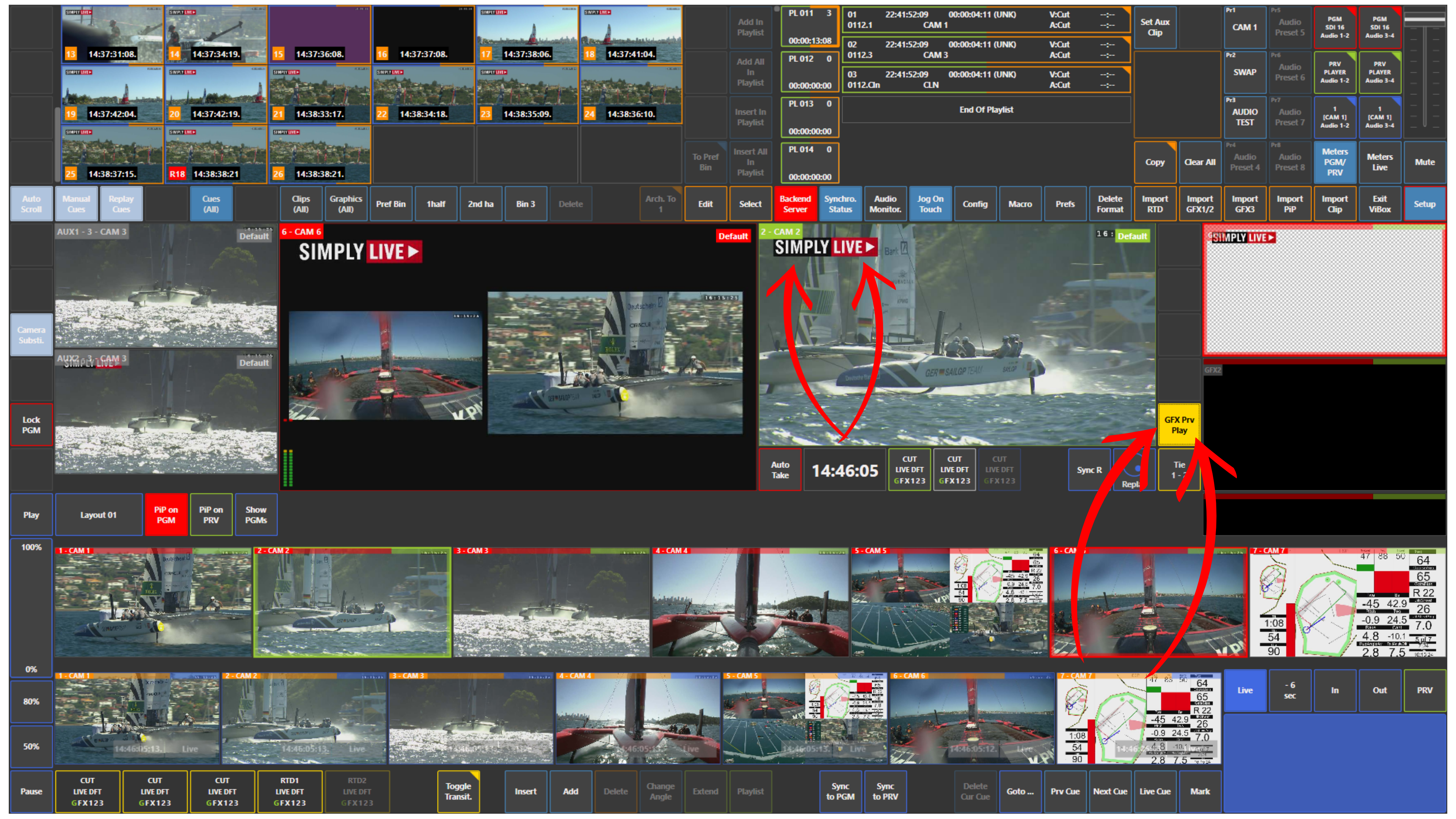
GFX Prv Play lets you preview imported animated graphics on PRV before taking them on air. Activate GFX Prv Play to check the animation on Preview.
If needed, you can define a pause point and its duration. Select the graphic, open Edit, then set the pause point and duration.
You can preview your graphics on PRV before taking them on air.
To do this, activate GFX Prv Play.
This allows you to check the graphic safely on Preview before mixing it to PGM.
How to Use GFX on PRV
-
Load the required source on PRV
-
Activate GFX Prv Play
-
Check the result on Preview
-
If everything looks correct, take it from PRV to PGM
Use Case – Pausing an Animated Graphic
For an imported animated bug, you may want the animation to pause at its midpoint for 10 seconds before continuing. Select the graphic, open Edit, set the pause point at the required moment and set the pause duration to 10 seconds. Use GFX Prv Play to check the animation on PRV before taking it on air.
Use Case – Live Production Scenario
You want to go on air with graphics, but you want to check first how they look on the selected shot.
Activate GFX Prv Play and review the result on Preview.
Once you confirm that the graphic is correct, take PRV to PGM.
Pro Tip
Use GFX Prv Play whenever you want to check graphics safely before they go on air. This gives you more control and helps avoid graphic mistakes on the main output.