
This view allows managing and validating STAGE licensing.
Certain STAGE features require a license in order to use them.
Overview
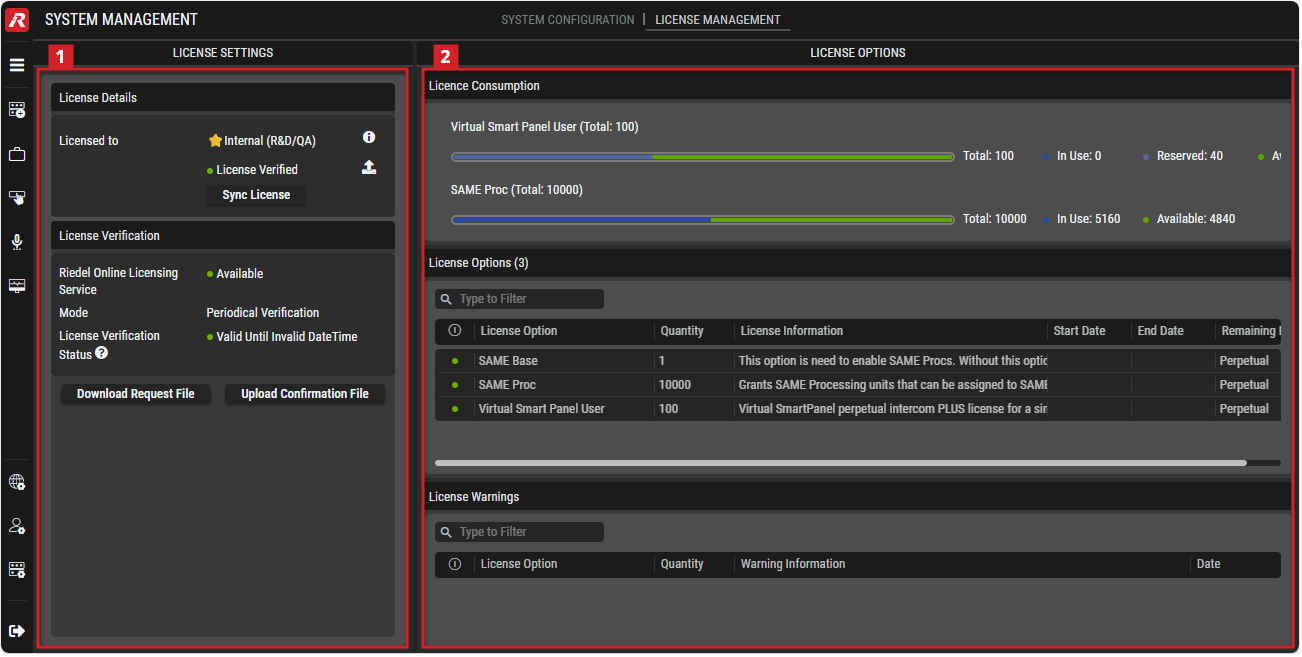
System Management - License Management
License Management has the following sections:
-
License Settings: Manage license import and update. When a license in license options is selected, this shows more information about that license. See section #About-License-Parameters.
-
License Options: shows an overview of the current licenses, their status and details. See section #License-Options.
About Licensing
To assign a user to a port, see chapter User/Port Assignment.
A license (.lic) must have been previously purchased and retrieved from the Riedel Customer License portal before you can apply it to STAGE. Contact your sales representative for more information about licensing options.
Applying a license to STAGE involves the following steps.
First the license (.lic) must be uploaded to STAGE.
Second, the license must be verified.
Only once this second step is done will the license become active.
License verification will need to happen after uploading the License on STAGE. In addition, periodical license verification is also required for a License to remain active over time. Please refer to #License-Verification for more details.
Virtual SmartPanel Licensing
The license defines the maximum number of ports that can be in use by Virtual SmartPanel users on a first come, first served basis as users login to the Virtual SmartPanel. To release a license, a user must log out of their Virtual SmartPanel instance. Licenses can be reserved for one or more users such that these users will have priority access to using their Virtual SmartPanel. A reserved license is permanently blocked by its assigned user and is unavailable for use by any other user.
Managing your STAGE License
Uploading a License
A license is applied to STAGE by uploading a license file from your PC. This must only be carried out during off hours as it will cause a service outage.

License Settings
License Details
|
Licensed to |
Shows the Account name to which the license is linked. No License: No license has been uploaded to STAGE. When STAGE does not hold licenses, then features referred to by those licenses shall be disabled. Contact your sales representative for more information about licensing options. License Verified: A license has been uploaded to STAGE. Please refer to #License-Options for more information about the licensed features and supported capacity. License not Verified: A license has been successfully uploaded to STAGE, however license verification has not been performed. Refer to #License-Verification for more details. |

|
Click for more information about the uploaded license. 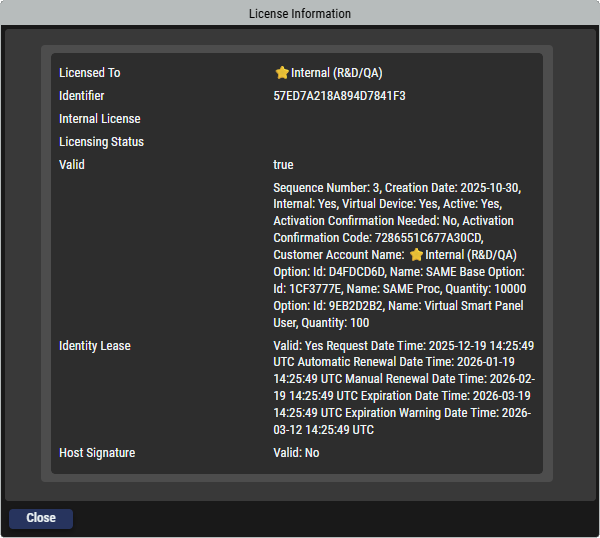
Licensed to: Shows the Account name to which the license is linked. Identifier: The Identifier corresponds to the Serial Number of the STAGE system, which is also visible under System Management > System Configuration > STAGE Settings > General Settings. Valid: Shows the current license status with internal license information. Identity Lease: Shows the current lease status with detailed information about request, renewal and expiration dates and times of the license. Host signature: Shows the status of the host's signature. |

|
Upload License / Replace License: Click to upload a (new) license. When a license is currently active, this will replace the current license with a new license. See section #Uploading-a-License. |

|
Click to force a license verification with the Riedel Licensing service. When successful, this updates STAGE with the latest available licensing, which should be done if the license options part of the license have changed. This could happen if additional license options have been added to the license or if the license option quantities were modified. |
License Verification
|
Riedel Online License Service |
Shows the connection status to the Riedel Licensing service.
|
|
Mode |
Shows the license verification status. Not verified: STAGE failed to verify the system's identity with the Riedel Licensing Service.
|
|
License Verfification Status |
Shows the status of the license verification including the date (mm/dd/yyyy) until when the license is considered verified. Beyond that date, the license will become inactive. |
|
Manual License Verification |
When STAGE does not have internet access to the Riedel Licensing service, you have to manually verify STAGE licenses. 
Download a license request file (.ilr) onto your PC. 
Upload a license file (.ilc) into STAGE. |
-
Contact your sales representative to obtain a license file.
-
If the license is in a .ZIP file, unzip the contents to extract the .lic file.
-
Click Upload License / Replace License.
-
Click Browse to select the license file from Riedel to install your licensed features.
-
Click Upload License to install your new license.
Automatic License Verification
If STAGE has internet connectivity, the uploaded license shall be verified with Riedel Online Licensing Service to ensure that it is only used for a single STAGE instance. A license becomes active only once it has been verified. This process binds the license to the this STAGE instance so that it cannot be activated on another STAGE instance.
Manual License Verification
When STAGE cannot automatically verify an uploaded license (the Riedel Online Licensing Service status is Unavailable), you must manually do this to ensure continued operation.
-
Click Download Request File (.ilr) and save the file to your PC.
-
Go to Riedel Client License Portal to verify the License Request file (.ilr).
-
Retrieve the Confirmation file (.ilc) from Riedel Customer License Portal that has been generated for this specific STAGE installation.
-
Click Upload Confirmation File and select the confirmation file from Riedel to activate your licensed features.
-
Click OK.

License Options
License Consumption
This shows details of the currently active licenses.
A horizontal bar indicates the total number of licenses. The dark blue portion shows the number of licenses currently in use, the light blue portion shows the number of reserved licenses, and the green portion shows the number of available licenses.
License Options
This shows information about licenses that have already been enabled in STAGE and the current license status.

|
Enter keywords or text to filter the table on pertinent content. |

|
Shows the license's status. See chapter Getting familiar with the User Interface #Status Indicators and Icons. |
|
License Option |
Shows the feature being licensed. |
|
Quantity |
Shows the number users or hardware (panels, servers, and so on) that are included in the license. |
|
License Information |
Shows information about the license. |
|
Start Date |
The date from which the license is valid is displayed if the license is only valid for a limited period of time. |
|
End Date |
The date until which the license is valid is displayed if the license is only valid for a limited period of time. |
|
Remaining Days |
Shows the number of days remaining until the license expires if the license is only valid for a limited period of time. Otherwise, this shows Perpetual. |
License Warnings
This section provides information which is especially relevant for license options that are valid for a limited period of time.
The information displayed in this table indicates the total quantity of a given license option available at a specific date. A new row is added each time the total quantity of a given license option changes.
For example, if STAGE initially holds 1000 SAME Proc license options and that an additional 2000 SAME Proc license options become active on 12.1.2026, then the License Warning table will show a first row a quantity of a 1000 SAME Proc license options before 12.1.2026, and then show an additional row indicating 3000 SAME Proc license on 12.1.2026.”
|
|
Enter keywords or text to filter the table on pertinent content. |
|
|
Shows the license's status. See chapter Getting familiar with the User Interface #Status Indicators and Icons. |
|
License Option |
Shows the feature being licensed. |
|
Quantity |
Shows the number users or hardware (panels, servers, and so on) that are included in the license. |
|
Warning Information |
Shows information about the license option at the indicated date. |
|
Date |
Shows the date that corresponds to the mentioned quantity. |