
This view allows configuring basic STAGE system settings and viewing information such as serial number and package versions.
Overview
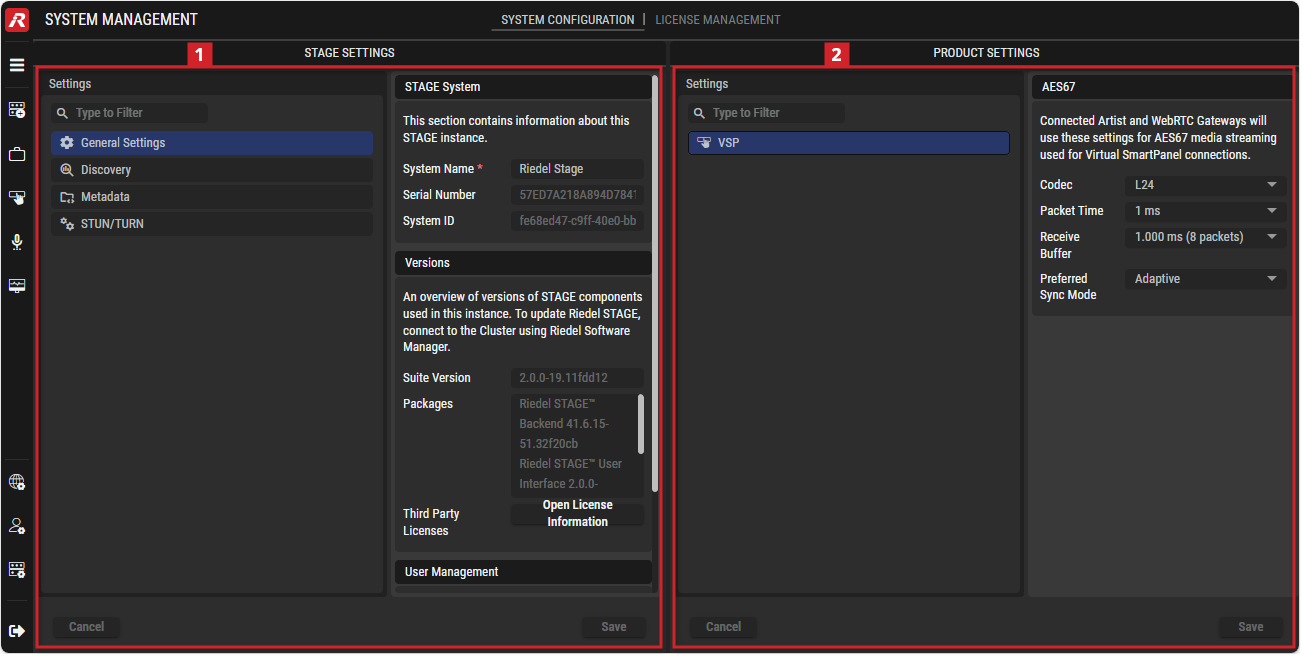
System Management - System Configuration
Using the System Configuration view
How to change this STAGE Instance’s System Name
-
In section #General-Settings, set the new unique name for this STAGE instance in System Name.
-
Click Save.
How to Enable / Disable the Use of STAGE’s Built-in User Management Identity Provider Database
When using an external Identity Provider or User Directory for login, the creation of Local Users can be disabled to prevent the creation of a hybrid login environment for security reasons.
-
In section #User-Management, configure the Disable Local Users parameter.
Set: Disabled to prevent the creation of a hybrid login environment for security reasons. Only disable Local Users if a functioning Identity Provider or User Directory is configured. See chapters Identity Provider and User Directory .
Disable: Use STAGE’s built-in User Management database for User Login. See chapter User Management.
-
Click Save.

STAGE Settings
When you have multiple STAGE instances, each STAGE instance needs a unique name to disambiguate this instance from other instances.
General Settings
STAGE System
This section contains information about this STAGE instance.
|
System Name |
Set the unique name by which this STAGE instance will be known on the network. |
|
Serial Number |
Shows the unique identifier for this STAGE software instance. This identifier is used for licensing purposes to make a one-to-one association between a given license and a specific installation. |
|
System ID |
Shows the unique identifier for the hardware running this STAGE instance. This identifier is used for licensing purposes to make a one-to-one association between a given license and a specific installation. |
Versions
An overview of versions of STAGE components used in this instance. To update Riedel STAGE, connect to the Cluster using Riedel Software Manager.
|
Suite Version |
Shows the version number for the current STAGE software suite installed on the server(s). |
|
Packages |
Shows the list of individual STAGE packages that form the software suite. |
|
Third Party Licenses |
Clicking the “Open License Information” button will open the "Third-party Notice" website with detailed information about:
|
User Management
When using an External User Directory or Identity Provider, local users can be disabled to prevent circumventing centralized login mechanisms.
|
Disable Local Users |
When using an external Identity Provider or User Directory for login, the creation of Local Users can be disabled to prevent the creation of a hybrid login environment for security reasons. Only disable Local Users if a functioning Identity Provider or User Directory is configured. See chapter Identity Provider and User Directory. |
Discovery
Riedel Discovery
Discover Riedel Devices to manage them with STAGE.
|
Enable Riedel Discovery |
Set to discover compatible devices using NMOS IS-04 to manage them with STAGE’s internal NMOS Registry. |
|
Auto-Discover Riedel Registry |
Set to enable the discovery of supported Riedel hardware devices on the network and supported third-party devices. Disabled: Set the NMOS registry connection parameters below. Enabled: When your network has a working mDNS server, this allows devices to automatically discover and register themselves with STAGE’s NMOS registry. |
|
Static Riedel Registry Host |
When Auto-Discover Riedel Registry is disabled, set the IP address of the Director instance to use. If Director is co-located on the STAGE server, use the localhost IP address: |
|
Static Riedel Registry Port |
When Auto-Discover Riedel Registry is disabled, set the port number used by Director. The default port number is: |
|
Status |
Indicates whether the connection between STAGE and the Discovery Registry is connected ( |
NMOS IS-04 / IS-05 Discovery
Discover and control 3rd party Devices via NMOS IS-04 and IS-05 to manage them with STAGE.
|
Enable NMOS Discovery |
Set to enable the discovery of the devices currently available in STAGE by an external NMOS Registry. Disabled: Set the NMOS registry connection parameters below. Enabled: When your network has a working mDNS server, this allows devices to automatically discover and register themselves with the NMOS registry on the network. |
|
Static Registry Protocol |
When Enable NMOS Discovery is enabled, set if the connection is to be encrypted or not. HTTP: The connection to the registry is unencrypted (clear text). HTTPS: The connection to the registry is encrypted to protect against eves-dropping or spoofing. |
|
Static IS-04 Registry Host |
When Enable NMOS Discovery is enabled, set the IP address that STAGE is to use to connect to an NMOS registry instance. |
|
Static IS-04 Registry Port |
When Enable NMOS Discovery is enabled, set the port number that STAGE is to use to connect to an NMOS registry instance (NMOS IS-04 registration API). The default port number is: |
|
Query API Version |
Shows the version of the IS-04 query API that STAGE uses. Devices that use versions of the IS-04 Query API older than the version shown here will not be recognized in STAGE. |
|
Status |
Indicates whether STAGE is registered with the NMOS registry. |
Metadata
Locations
Create, edit or rearrange Locations to organize Hosts and Devices in STAGE.
-
Click
or -
Click

This section corresponds to the Location settings in the System Commissioning | Registration view and is described in detail there.
Global Roles
Roles can hold Members representing persons in a Job. Global Roles defined here will be available in all Jobs.
-
Click
or -
Click

-
The predefined Global Roles are mandatory and cannot be deleted.
Additional, job-scoped Roles can be created in each Job (see chapter System Commissioning | Registration: Jobs).
STUN/TURN
STAGE is typically located behind a firewall (that uses Network Address Translation (NAT)) on your corporate network to protect it from bad-faith actors (hackers) on the public internet who could otherwise interfere with the normal operation of your networked equipment by trying to send commands to your software, with harmful effects.
STAGE communicates with software such as the Virtual SmartPanel (VSP), where it is understood that users will use the public internet in order to interact with STAGE. The following techniques allow STAGE and Virtual SmartPanel to communicate through the NAT to allow Peer-to-Peer (P2P) communication without compromising network security:
-
STUN: Session Traversal Utilities for NAT; a network protocol that allows interactive UDP flows to pass through a NAT.
-
TURN: Traversal Using Relays around NAT; a network protocol that allows STAGE (located behind a firewall) to control the operation of a relay server, that in turn, exchanges packets with Virtual SmartPanel, for example. TURN is used when a P2P connection cannot be established with STUN.
Both STUN and TURN require a server exposed to the internet with the STUN / TURN software running on it. The white paper with more detailed information can be found in the follwing chapter: Riedel STAGE™ & Virtual SmartPanel® – How to Implement STUN and TURN
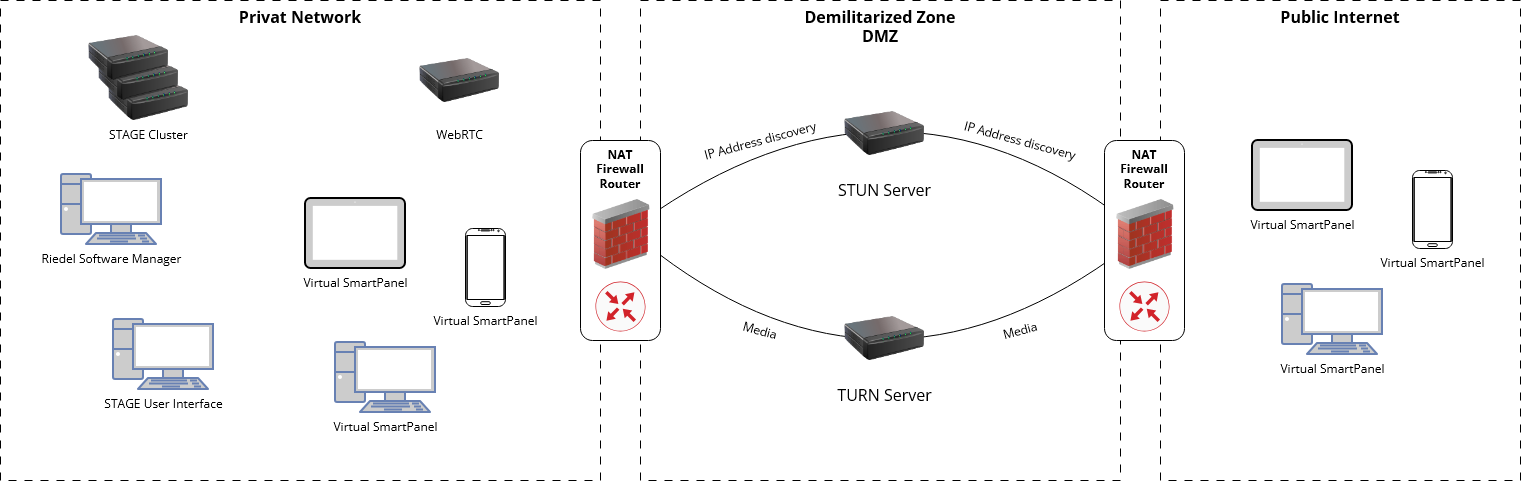
STUN Servers
A STUN (Session Traversal Utilities for NAT) server helps STAGE systems behind firewalls to establish direct connections to external devices (e.g. Virtual SmartPanels) by determining how to route traffic through NATs and firewalls.
Adding a STUN Server
-
Select the STUN tab.
-
Click on the Add button.
-
Set the URL/IP for the STUN service in the following format
stun:[FQDN/IP Address]:[Port]. Ensure to includestun:at the start of the URL/IP. -
Click Save.
The STUN entry has now been added to the Riedel STAGE system and is available for use.
TURN Servers
A TURN (Traversal Using Relays around NAT) server relays media traffic between external devices (e.g. Virtual SmartPanels) and STAGE when a direct peer-to-peer connection can't be established due to strict NATs or firewalls.
Adding a TURN Server
-
Select the STUN tab.
-
Click on the Add button.
-
Set the URL/IP for the TURN service in the following format
turn:[FQDN/IP Address]:[Port]. Ensure to includeturn:at the start of the URL/IP. -
Optional: Set the required username and password for the TURN service.
-
Click Save.
The TURN entry has now been added to the Riedel STAGE system and is available for use.

PRODUCT Settings
VSP
AES67
Connected Artist and WebRTC Gateways will use these settings for AES67 media streaming used for Virtual SmartPanel connections.
|
Codec |
Selection of the Bit resolution. (L16, L24) |
|---|---|
|
Packet Time |
Packet time is the real-time duration of media data in a packet. See https://en.wikipedia.org/wiki/AES67 for more information.
|
|
Receive Buffer |
Selection of the size of the AES67 receive buffer to adapt the expected delay of connected panels. The default buffer is 8 × Packet Time. (3 ... 112 x packets) |
|
Preferred Sync Mode |
In Strict mode audio packets will be discarded if the PTP timestamp is missing or invalid. Hence only audio signals are output if they are transmitted in a PTP synchronized network.
|