
This view allows creating Multicast Network Scopes.
A Network Scope represents a single network. It may span across multiple switches in the actual physical topology, but connectivity between hosts assigned to the same network scope is assumed. While in theory IP routing may be set up between Network Scopes on the switch fabric itself, we assume that high-bandwidth media traffic will not leave the Network Scope it belongs to by default. In a later step network control functionalities might be added which will enable this traffic to flow between Network Scopes in a controlled way (e.g. to create separated islands and granularily control traffic moving between them).
If two network interfaces are on the same network scope, STAGE assumes that the network is capable of routing packets between those interfaces. That is, if you have one sender on a network scope and a receiver on the same network scope, then multicast traffic will flow between them. For routing to work between devices, you must assign the device’s network interfaces to Network Scopes that represents the real world network topography. See chapter Configuration to do this.
Overview
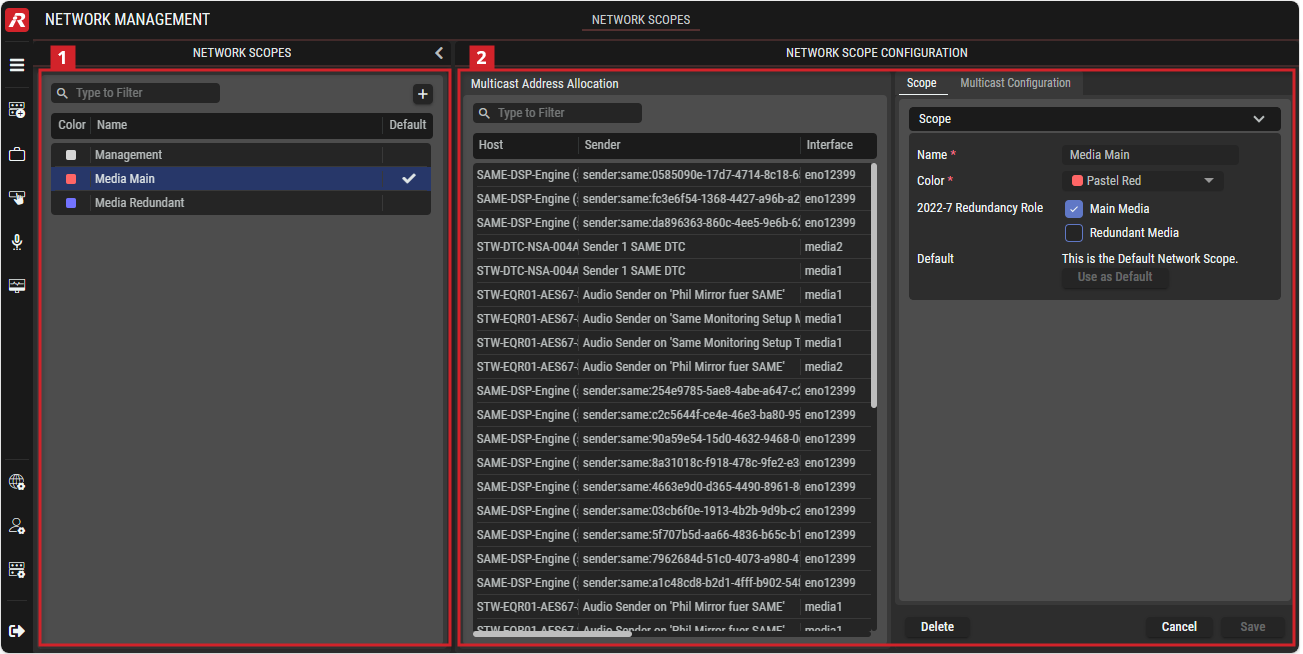
Network Management - Network Scopes

Network Scopes
|
Filter to display only content whose search text is found in the Name. |
|---|---|

|
Button to add a network to the STAGE system. |
|
Color |
Displays the color of this net for easy identification. |
|
Name |
Name of the network. |
|
Default |
Indicates the default network in the STAGE system. |

Network Scope Configuration
Multicast Address Allocation
This section lists the Multicast Senders (column Multicast Group) allocated in the system. It also shows on which Host, on which Ethernet interface, and for which Sender (or Producer) this multicast is used.
The allocation of the multicast address is supposed to follow the multicast configuration.
If a sender uses a multicast address that conflicts with the multicast configuration (e.g., outside the range), this is indicated in the Status column. The Multicast Address Allocation section therefore also serves to indicate problems with multicast allocation.
|
|
Filter to display only content whose search text is found in the Name. |
|---|---|
|
Host |
Shows the host name that comes from the host. This name is configured on the host. |
|
Sender |
Shows the audio stream name. For NMOS devices, this comes from the NMOS registry. |
|
Interface |
Shows the name of the network interface |
|
Multicast Group |
Shows the audio stream’s multicast IP address. For NMOS devices, this comes from the NMOS registry. |
|
Network Scope |
Shows the Network Scope interface that has been configured for these audio streams to use. See Network Scopes. |
|
Status |
Shows the current connection status. |
Scope
|
Name |
Name of the network. |
|---|---|
|
Color |
Color of the network. |
|
2022-7 Redundancy Role |
Checkboxes to set the network as the Main and/or Redundant Media network. |
|
Default |
Button to set this network as the default. |
Multicast Configuration
This section is used to define the ranges of multicast addresses that can be used by Senders (Producers).
In addition, this section allows the identification of reserved multicast addresses that cannot be used.
The Multicast Configuration is used by STAGE when new Senders need to be created. For example, Senders are dynamically created on the SAME DSP engine when they are used in an active Job.
STAGE also uses the Multicast Configuration and compares it to the Senders originating from registered NMOS Hosts and Unmanaged Devices. If the Senders provided by these two host types differ from the multicast configuration, STAGE reports this (but does not change the configuration of these hosts).
|
Multicast Ranges |
Section for managing ranges of multicast addresses that can be used. |
|---|---|
|
Add / Edit / Delete |
Buttons for setting up the Multicast Ranges. |
|
Name |
Name of the user-defined Multicast Range. |
|
Type |
Indicates whether the range is used for Video, Audio or Ancillary data traffic. |
|
Port |
Displays the used UDP port. |
|
Range |
Displays the Start and End IP addresses. |
|
Reserved Addresses |
Section for managing reserved multicast addresses that must not be used. |
|
Add / Delete |
Buttons for setting up the Reserved Addresses. |
|
Address |
Displays the reserved IP address. |
|
Description |
Description of the reserved IP address. |
Using the Network Scopes view
Adding a Network
-
In the NETWORK SCOPES section, click on the
-
In the NETWORK SCOPE CONFIGURATION section, open the Scope tab if not already shown.
-
Enter the Name for the new network.
-
Choose a color for the new network.
-
Define if the network is used to transport Main or Redundant Media data.
-
Optional: Set this network as your default network.
-
Click on the

Changing Network Information
-
In the NETWORK SCOPES section, select the network whose information are to be changed.
-
In the NETWORK SCOPE CONFIGURATION section, open the Scope tab if not already shown.
-
Change the information according your requirements.
-
Click on the
Adding a Multicast Configuration
-
In the NETWORK SCOPES section, select the network whose IP settings are to be set/changed.
-
In the NETWORK SCOPE CONFIGURATION section, open the Multicast Configuration tab if not already shown.
-
To enter information about Multicast Ranges or Reserved Addresses,
click on the
-
In the dialog that opens, enter the information as required.
Changing a Multicast Configuration
-
In the NETWORK SCOPES section, select the network whose IP settings are to be changed.
-
In the NETWORK SCOPE CONFIGURATION section, open the Multicast Configuration tab if not already shown.
-
Select the stream whose multicast configuration is to be changed.
-
Click on the

-
Enter the Name for the stream.
-
Define if the essence type (Video, Audio, Ancillary).
-
Enter the IP range (Start IP and End IP).
-
Enter the port.
-
Click on the Create button.