Hardware Network Configuration
This page describes the process for setting device and server IP addresses for hiPush, hiDot, and hiContact Series hardware.
Every panel ships with a known default network configuration so that it can be reached on a freshly cabled installation and reconfigured for the target network.
|
Setting |
Default |
|---|---|
|
IP address |
|
|
Web interface port |
|
Caution
hiContact Mark 1: This earlier model uses plug-and-play commissioning at 192.168.1.100. To change its address, contact Riedel Customer Success. Do not use the port 5015 procedure below for hiContact Mark 1.
Procedure
Caution
Factory-configured panels can share the default IP address. Commission one unconfigured panel at a time on the configuration network. Assign each panel a unique production address before connecting another panel with the same default address.
-
Connect the device to its supported power source and wait for the boot sequence to finish (~30 seconds).
-
After boot, read the current IP address and port from the device display. hiPush panels show the value across their buttons in the form
192.168.1.100:5015. -
From a workstation on the same network, open that address in a web browser.
-
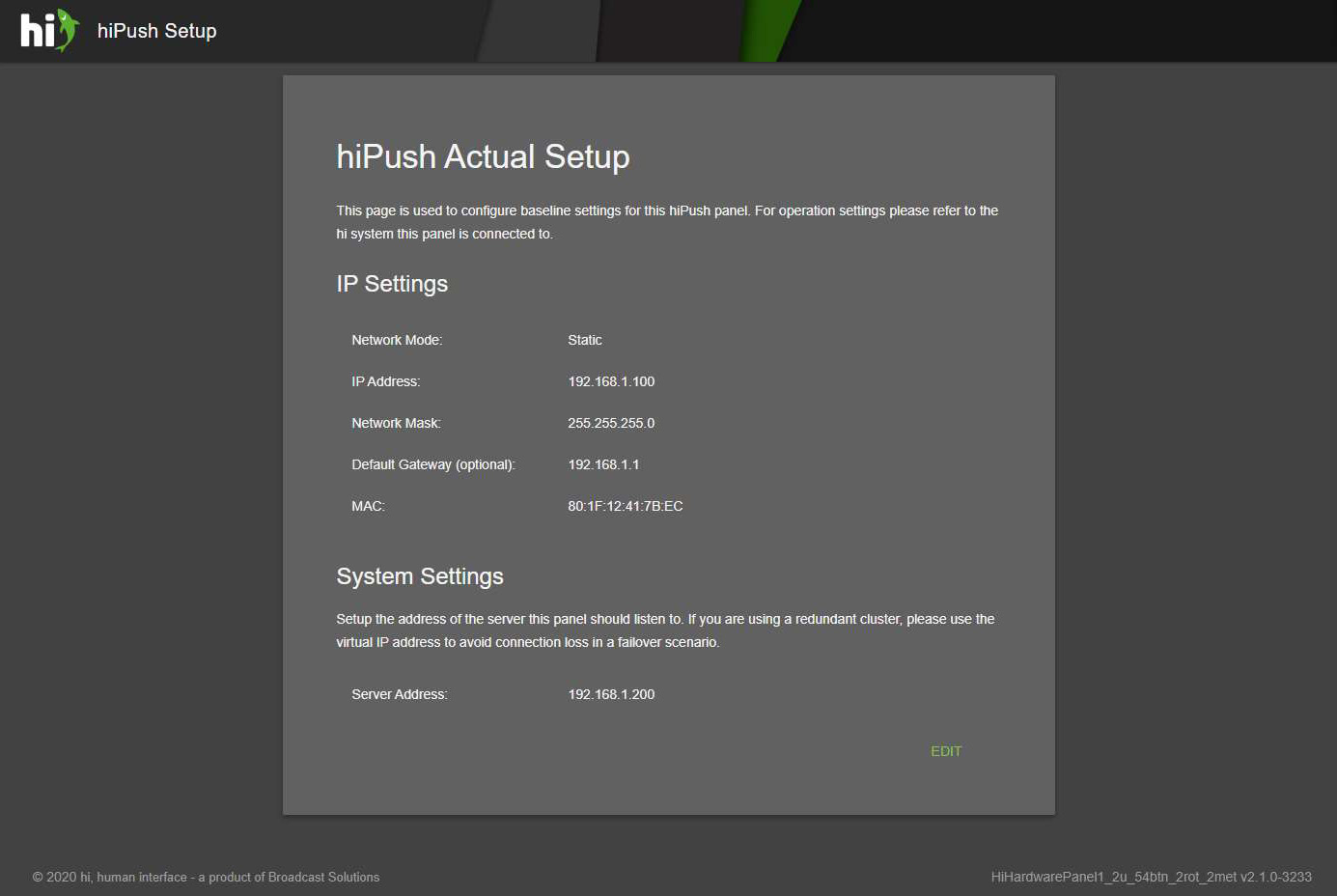
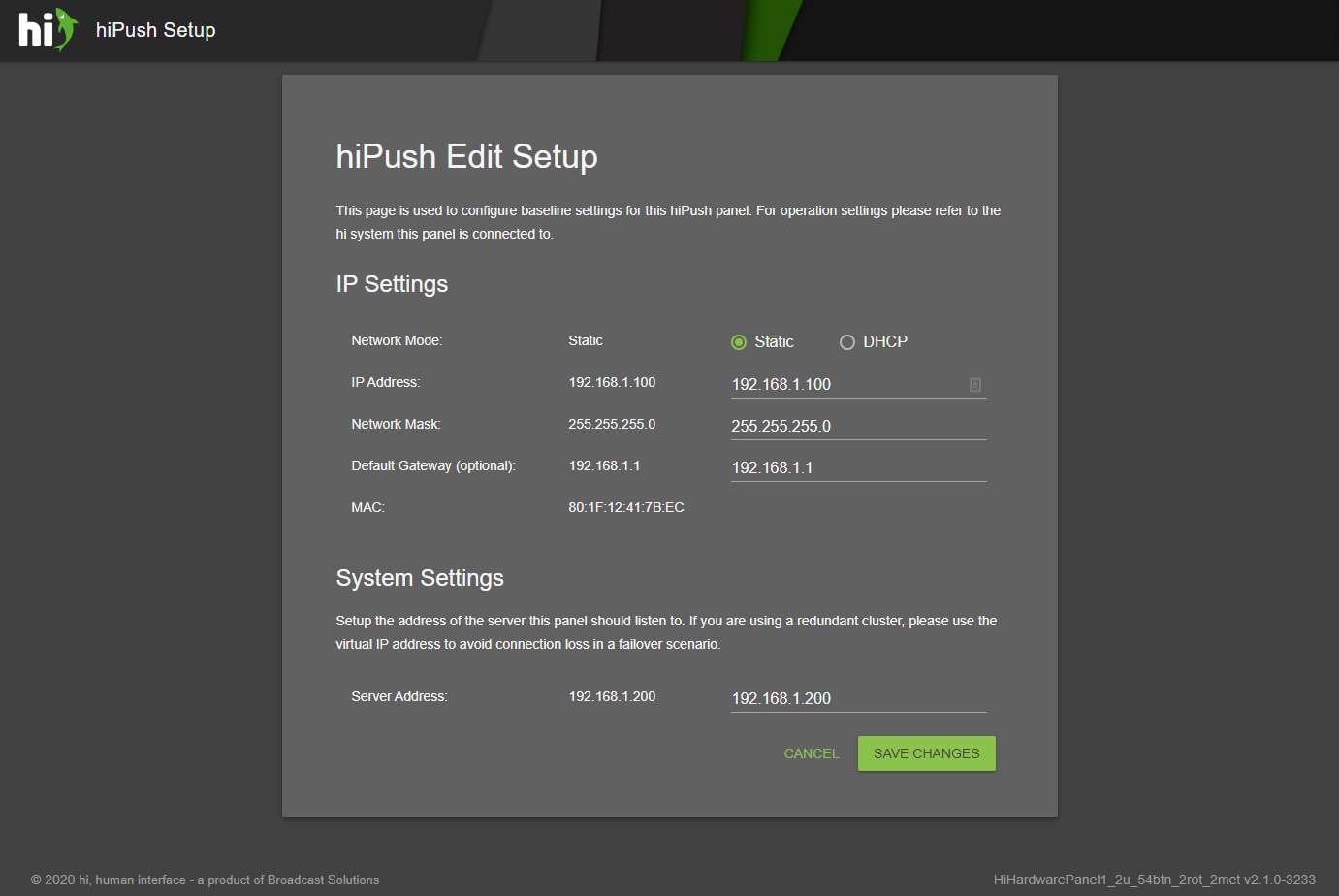
In the device web interface, select EDIT to modify the IP configuration of the panel.
-
Enter the IP address of the target hi server, set the panel's own IP address for the production network, and apply the changes.
-
Open Inventory > Nodes in the hi web interface and add the panel using Add Your First Device. Follow the configuration guide for its integration, and verify that the Node is visible and connected.
The panel is now reachable at its new address and registered with the hi server.
Information
If a panel cannot be located on its default IP, verify that the workstation is on the same subnet and that no firewall is blocking port 5015. Power-cycling the panel re-displays its current IP across the buttons.
Information
The screenshots below show example addresses. A newly reset panel uses the defaults in the table above.