
What Flex Does
Flex reassigns Flex Options entitled to the current Customer Account between supported Devices. Account Users can review the Flex inventory. Changing a Flex assignment requires either Authorize Flex: Yes or Authorize Admin: Yes for the current Customer Account.
Open Flex
-
Confirm the Portal shows the required Customer Account.
-
Select Flex.
-
Review Account Entitled Flex Options.
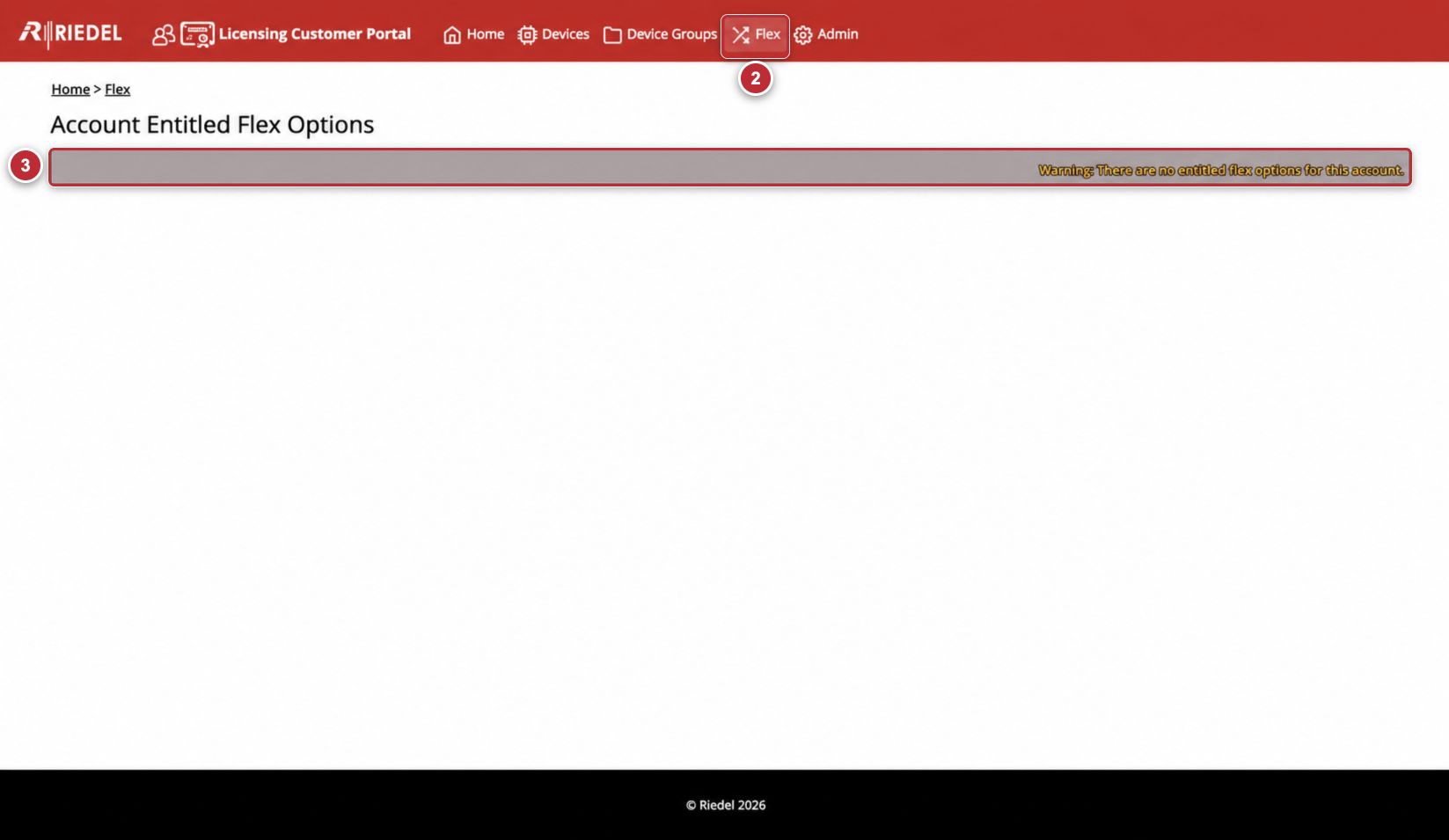
Callouts correspond to Open Flex. Assignment controls appear only when the Customer Account has entitled Flex Options and the Account User has the required permission.
If the current Customer Account has no entitled Flex Options, the Portal displays There are no entitled flex options for this account.
Understand Flex Status
|
Status |
Meaning |
|---|---|
|
Assigned |
The Flex Option is assigned to the displayed Device. |
|
Unassigned |
The Flex Option is available for assignment to a compatible Device in the current Customer Account. |
|
Unassignment Requested |
The Option remains associated with the current Device until the Unassignment License is applied and the unassignment is confirmed. |
Assign a Flex Option
-
Confirm the Portal shows the required Customer Account.
-
Select Flex.
-
Open an assignment with Status: Unassigned.
-
Confirm the displayed Product, Option, and Quantity.
-
Select Assign Flex.
-
In Assigned Device, select the required compatible Device.
-
Select Save.
-
Confirm the assignment displays Status: Assigned and the intended Device.
-
Download and apply the current License File when required by the Licensed Product.
-
Verify the Option in the Licensed Product.
Only Devices for the displayed Product and current Customer Account are offered for assignment. Confirm the destination Device supports the Option before saving.
Unassign a Flex Option
Unassignment is a controlled workflow. Selecting Unassign Flex starts the request; it does not immediately make the Flex Option available elsewhere.
-
Confirm the displayed Product, Option, Quantity, and Assigned Device.
-
Confirm that removing the Option will not interrupt required service.
-
Select Unassign Flex.
-
Confirm the assignment displays Status: Unassignment Requested.
-
Select Download Unassignment License.
-
Apply the downloaded License File to the currently assigned Device.
-
Obtain the License File Activation Confirmation Code from that Device.
-
Return to the same Flex assignment and select Confirm Unassignment.
-
Enter the License File Activation Confirmation Code.
-
Select Save.
-
Confirm the assignment displays Status: Unassigned and no Assigned Device.
The Portal can report No license file activation to confirm. Download the new license file first. or The license file is not up to date. Download the new license file first. Complete the download and Product-Side application before retrying confirmation.
Cancel a Pending Unassignment
Use this procedure only before unassignment has been confirmed.
-
Open the Flex assignment with Status: Unassignment Requested.
-
Confirm that the Option should remain assigned to the current Device.
-
Select Cancel Unassign Flex.
-
Confirm the assignment returns to Status: Assigned.
If Flex Is Unavailable
-
If the Flex page is unavailable, confirm the current Customer Account. For any access issue, contact Riedel Customer Success.
-
If Flex assignments are visible but assignment controls are unavailable, ask an Account Administrator to set Authorize Flex: Yes, or confirm that Authorize Admin: Yes is already assigned. If the control remains unavailable, contact Riedel Customer Success.
-
If the page opens but shows no entitled Options, confirm that the current Customer Account owns Flex entitlements.
-
Do not assume a standard Device Option can be moved through Flex; only Options shown under Account Entitled Flex Options are in scope.
-
If the Customer Account should contain Flex entitlements but none are displayed, contact Riedel Customer Success.
Reassignment Guidance
Before reassigning a Flex Option, confirm:
-
The source and destination Devices belong to the intended Customer Account.
-
The destination Product supports the Option.
-
Removing the Option from the source Device will not interrupt service.
-
Both Devices can receive any required regenerated License Files.
Review all source, destination, Option, and Quantity values shown by the Portal before saving. If the available controls or resulting state are unclear, stop and contact Riedel Customer Success.