
What the Portal Does
The Riedel Licensing Customer Portal provides a Customer Account-level view of Licensed Products and their licensing files, entitlements, and Portal permissions. Depending on the Account User’s permissions and the Customer Account’s entitlements, use the Portal to:
-
Find licensed physical and virtual Devices.
-
Review Device Identity Lease status and expiration.
-
Review Ordered Options and Resolved Options.
-
Download an individual License File or all available License Files.
-
Exchange files for Offline Activation and Renewal.
-
Rename Devices and assign them to Device Groups.
-
Reassign entitled Flex Options.
-
Add Account Users and configure Admin, Flex, and Device Identity Lease expiration-warning settings.
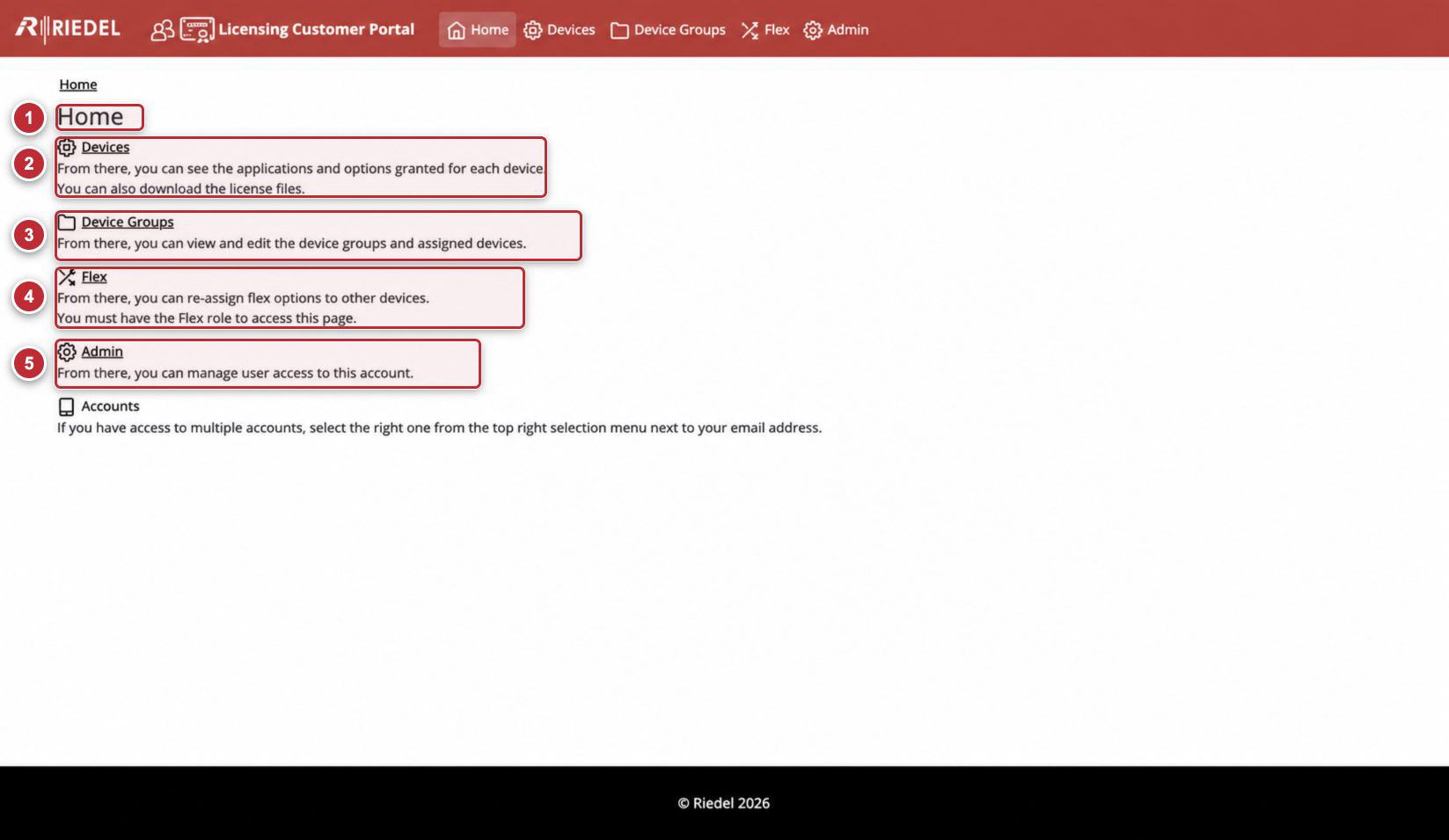
Portal Home Page. Callouts identify the primary Portal areas. Signed-in identity and Customer Account values have been removed.
Confirm Product Support
Before starting a licensing workflow, confirm that the Licensed Product, Model, and installed Product Version are listed as Supported in Supported Products and Licensing Methods. A Product appearing on the Riedel website or in a Customer Account does not by itself confirm Portal support.
Licensing Methods and File Workflows
|
Workflow |
Summary |
Procedure |
|---|---|---|
|
Online Activation and Renewal |
The Licensed Product communicates automatically with the Riedel Online Licensing Service. If Online Licensing does not complete, use Offline Licensing. |
|
|
Offline Activation and Renewal |
Uses the Product-supported Manual Device Identity Lease, Manual Host Signature, or License File method. It is always available as the fallback for Online Licensing. |
|
|
License File Download and Application |
The initial License File normally comes from Riedel Order Management or an Authorised Reseller or Distributor. Configured Account Users can download available License Files from the Portal. |
Portal and Product Boundary
The Portal manages Customer Accounts, Device records, Device Identity Leases, entitlement views, License Files, Device Groups, and Account Users. The Licensed Product controls its Product-Side Licensing Interface, local administrative roles, Request File generation, file import or application, service restarts, backup requirements, and functional verification.
Completing a download or upload in the Portal does not prove that the Licensed Product has applied the result. Complete the Product-Side procedure and verify the expected licensed capability.
Accounts and Data Boundaries
Devices, Device Groups, Flex entitlements, and Account Users are shown in the current Customer Account. Most Account Users have access to one Customer Account, which opens automatically. If more than one Customer Account is available, use the Account Selector to change the current context.
Always confirm the Customer Account shown before working with a Device. Never use a file generated for another Device or Customer Account.
Customer Account Access and Permissions
Portal access and permissions apply only to the current Customer Account. Base Account User Access provides the standard viewing, download, and Device-renaming capabilities. Authorize Admin adds Customer Account User Administration, Device Group changes, and Flex operations. Authorize Flex adds Flex operations without administration. Send Identity Lease Expiration Warning Email is a notification setting, not a permission.
Authorize Admin means Account User Administration for the current Customer Account. It controls Portal access for the current Customer Account only; it does not change permissions or licensing configuration in the Licensed Product.
See Administration for assignment and effective-capability details. For any missing permission, inaccessible Customer Account, or other access issue, contact Riedel Customer Success.
Time and Status Conventions
The Device Page displays Device Identity Lease timestamps in UTC. Common states include:
-
Active — The Option is currently active.
-
Perpetual — The Option has no displayed end date.
-
Identity lease will expire soon — The Device Identity Lease is approaching expiration.
-
Identity lease is expired — The current Device Identity Lease is no longer valid.
-
Activation Confirmed: Yes — The License File record shows confirmed activation.
Use the displayed Expiration Date/Time for renewal planning. Product-Side warnings can use different timing, so also follow the Licensed Product manual.