
Required Permission
Use Admin to manage Account User access for the current Customer Account. Only an Account User with Authorize Admin: Yes should perform this procedure.
For any missing permission, inaccessible Customer Account, or other access issue, contact Riedel Customer Success.
Review Account Users
-
Confirm the Portal shows the required Customer Account.
-
Select Admin.
-
Use the filters to find an Account User.
-
Select the row action labeled View.
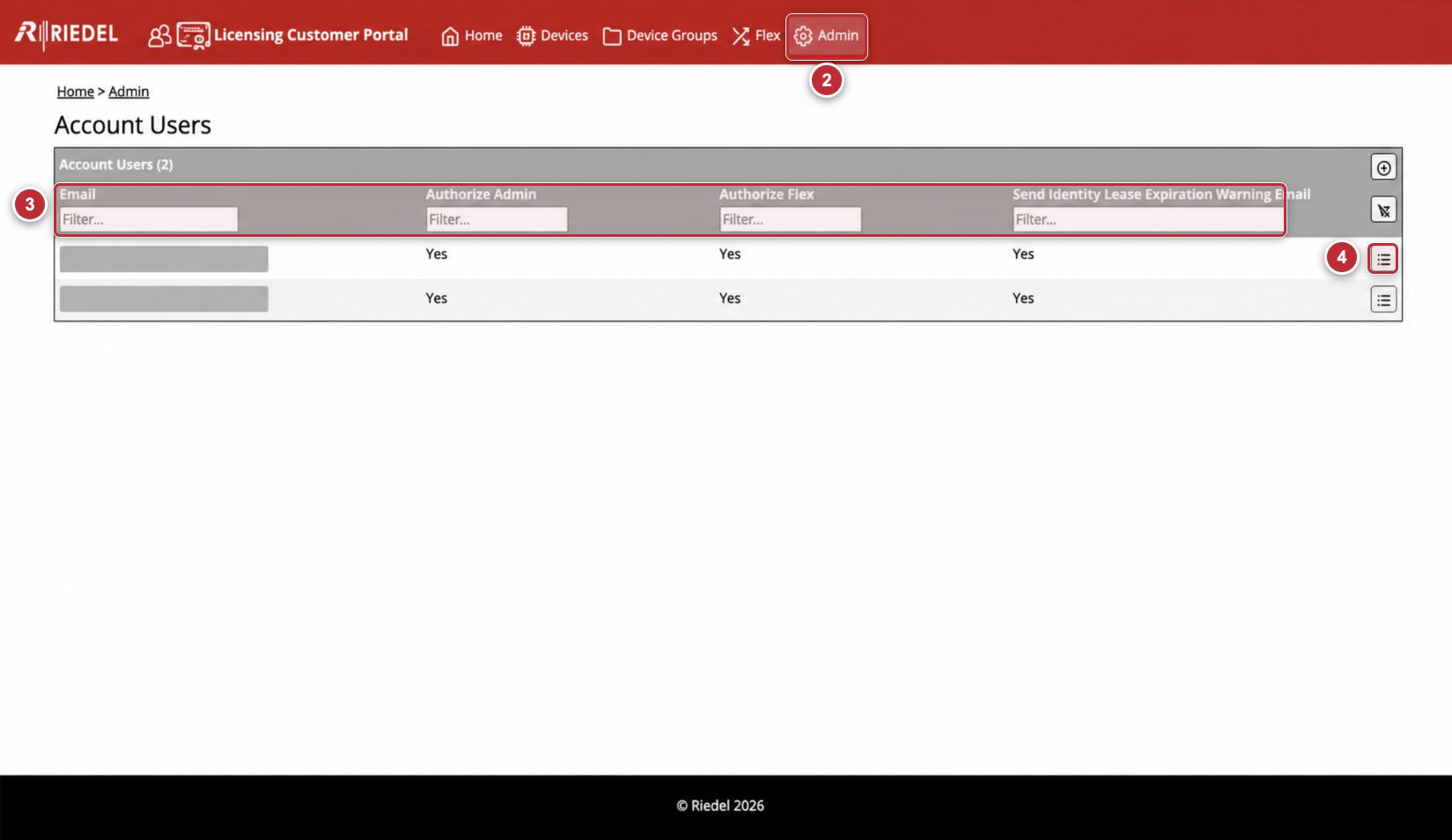
Callouts correspond to Review Account Users. All email addresses are masked.
Add an Account User
-
Confirm the Portal shows the required Customer Account and select Admin.
-
Select Add.
-
Enter the Account User’s Email.
-
Set Authorize Admin to Yes only if the Account User must manage Account Users and Device Groups. This setting also permits Flex operations.
-
Set Authorize Flex to Yes only if the Account User must perform Flex operations without Account User Administration.
-
Set Send Identity Lease Expiration Warning Email as required.
-
Review the email and all three settings, then select Save.
-
Confirm the Account User appears in the list.
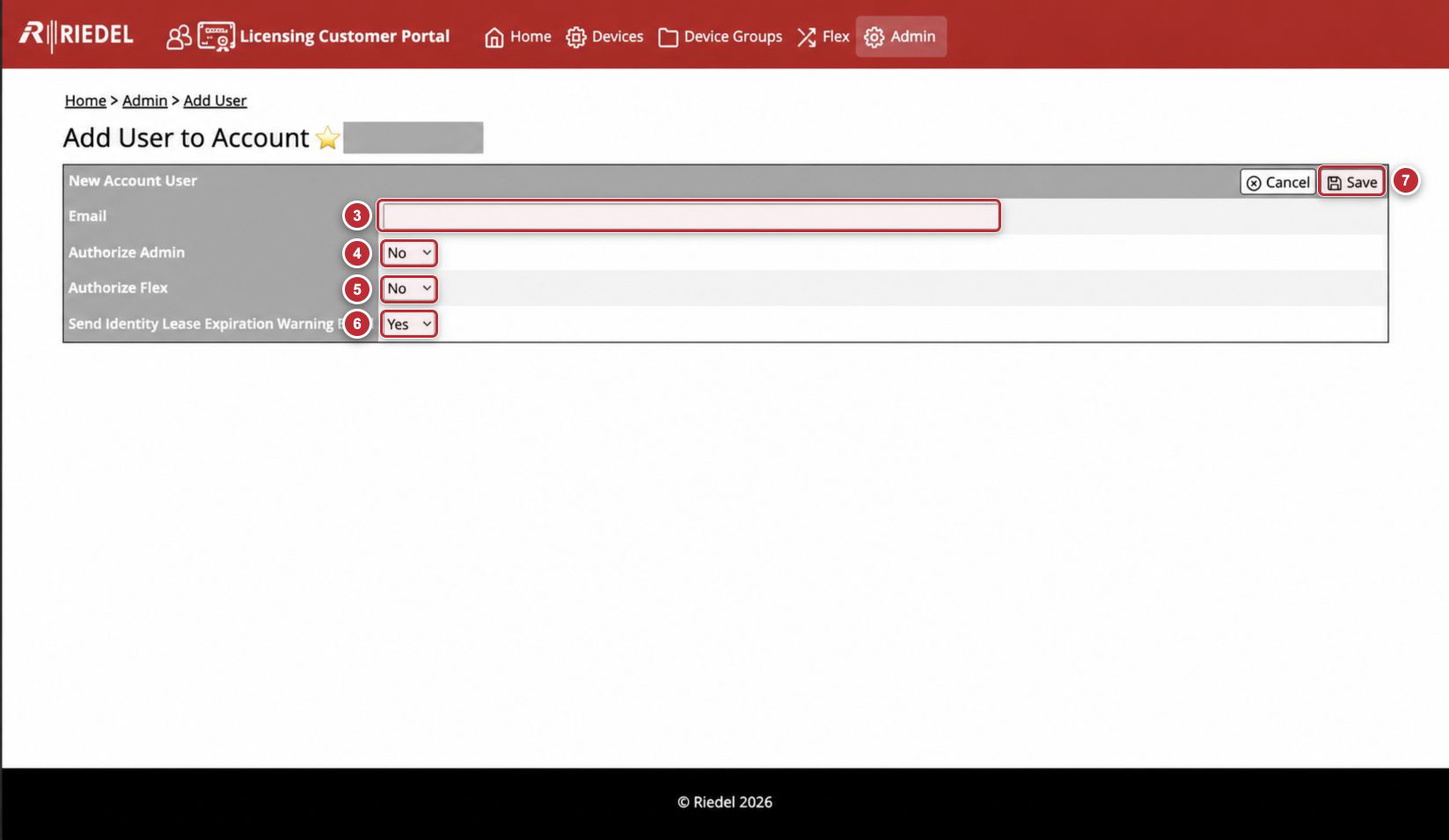
Callouts correspond to the visible steps in Add an Account User. Customer Account values are masked.
View an Account User
The Account User Page shows the Account User’s email address and three Customer Account settings.
-
Confirm the Portal shows the required Customer Account and select Admin.
-
Find the Account User.
-
Select View.
-
Confirm Email, Authorize Admin, Authorize Flex, and Send Identity Lease Expiration Warning Email.
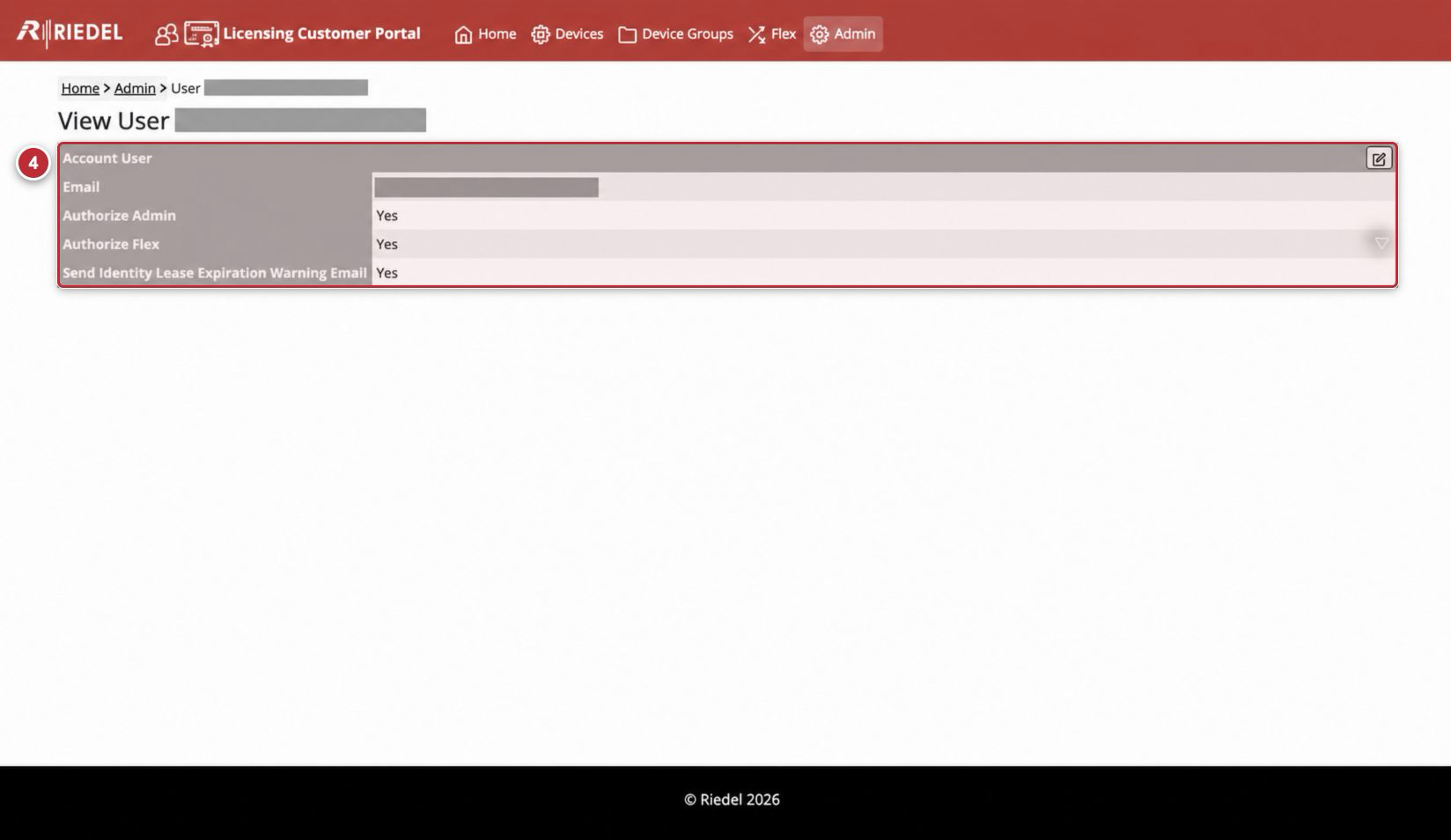
Callout 4 identifies the permission review step. The email address is masked.
Edit an Account User
-
Open the required Account User and select Edit.
-
Change only the required permission or notification value.
-
Review all settings to avoid changing an unrelated permission.
-
Select Save.
-
Confirm the Account User Page displays the intended values.
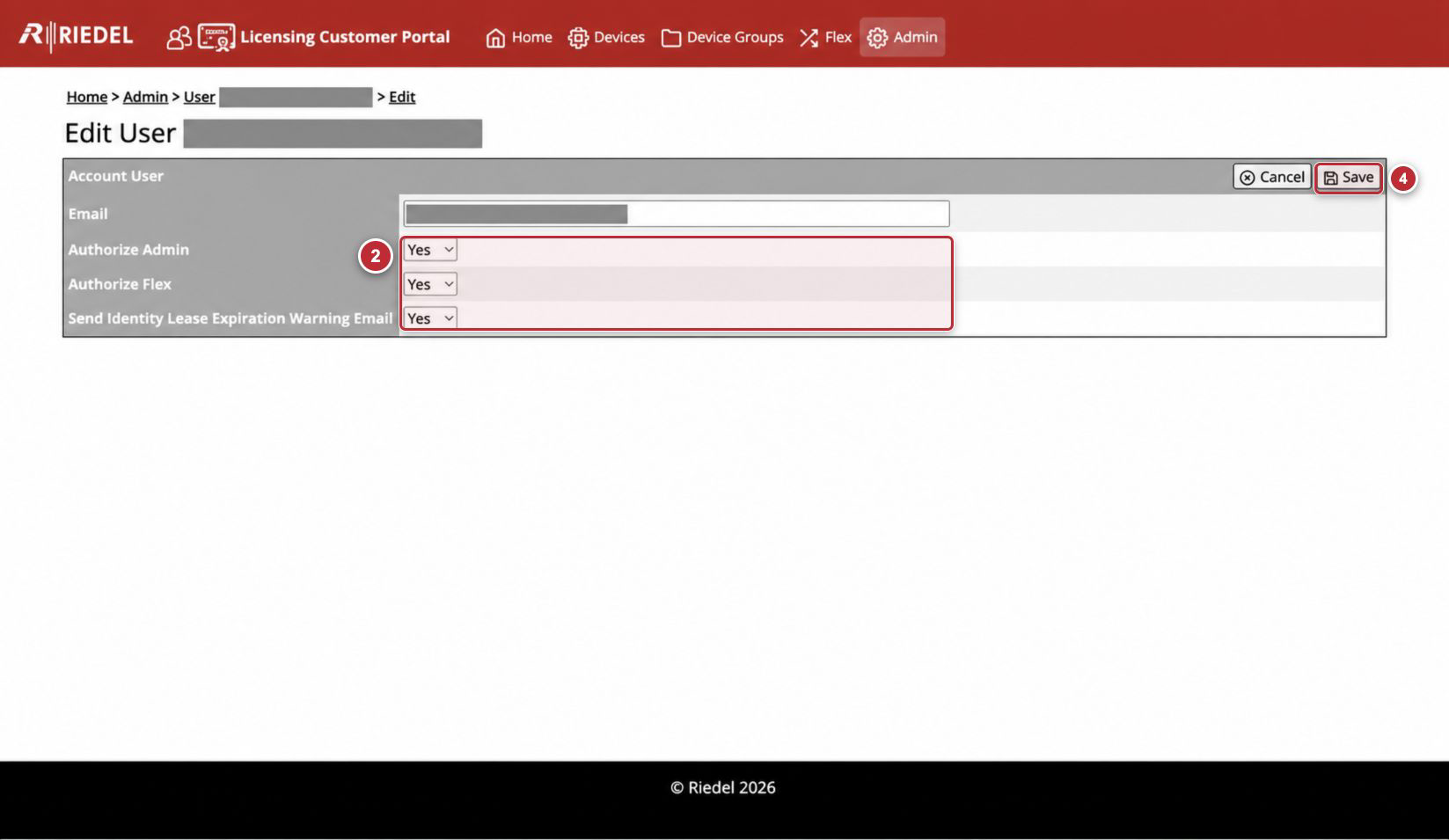
Callouts correspond to the visible steps in Edit an Account User. The email address is masked.
Field and Control Reference
|
Component |
Guidance |
|---|---|
|
|
Enter the Portal identity to add to the current Customer Account. Confirm spelling and ownership. |
|
Authorize Admin |
Grants Customer Account User Administration, Device Group changes, and Flex operations. It controls Portal access for the current Customer Account only; it does not change permissions or licensing configuration in the Licensed Product. Apply least privilege. |
|
Authorize Flex |
Grants Flex assignment operations without Account User or Device Group administration. |
|
Send Identity Lease Expiration Warning Email |
Subscribes the Account User to Device Identity Lease expiration-warning emails for the Customer Account. |
|
Add |
Opens the New Account User form. |
|
View |
Opens the selected Account User record. |
|
Edit |
Opens the permission form for the selected Account User. |
|
Delete |
Removes another Account User from the current Customer Account. An Account Administrator cannot delete their own record. |
|
Clear filters |
Removes all filters from the Account Users table. |
|
Cancel |
Leaves the form without applying changes. |
|
Save |
Applies the Account User record or permission changes. |
After Adding an Account User
Ask the Account User to complete First-Time Registration or sign in with the same email address, then confirm that the expected Customer Account is available. If the Account User cannot access the Customer Account, contact Riedel Customer Success.
Removing Access
-
Sign in as an Account Administrator other than the Account User being removed.
-
Select Admin, find the Account User, and select View.
-
Select Edit.
-
Select Delete.
-
Confirm the deletion.
-
Confirm the Account User no longer appears in the list.
An Account Administrator cannot delete their own Account User record or remove their own Authorize Admin permission. Another Account Administrator must perform that change. For any missing control or other access issue, contact Riedel Customer Success.