
Required Permission
All Account Users can review Device Groups and current assignments. The following actions require Authorize Admin: Yes for the current Customer Account:
-
Creating, editing, or deleting a Device Group.
-
Assigning or unassigning a Device from a Device Page.
-
Updating assignments for multiple Devices.
For any missing permission or other access issue, contact Riedel Customer Success.
Review Device Groups
Device Groups provide a Customer Account-level way to organize Devices. They do not change Device ownership or transfer a License between Customer Accounts.
-
Confirm the Portal shows the required Customer Account.
-
Select Device Groups.
-
Review the Device Groups list.
-
Review or filter the Devices Group Assignment table.
-
Select View for a Device or Device Group when detailed information is required.
The Device Groups page contains:
-
A list of Device Groups for the current Customer Account.
-
A Devices Group Assignment table showing Product, Serial Number, current Device Group, and Device Name.
-
Filters and row actions for locating Devices.
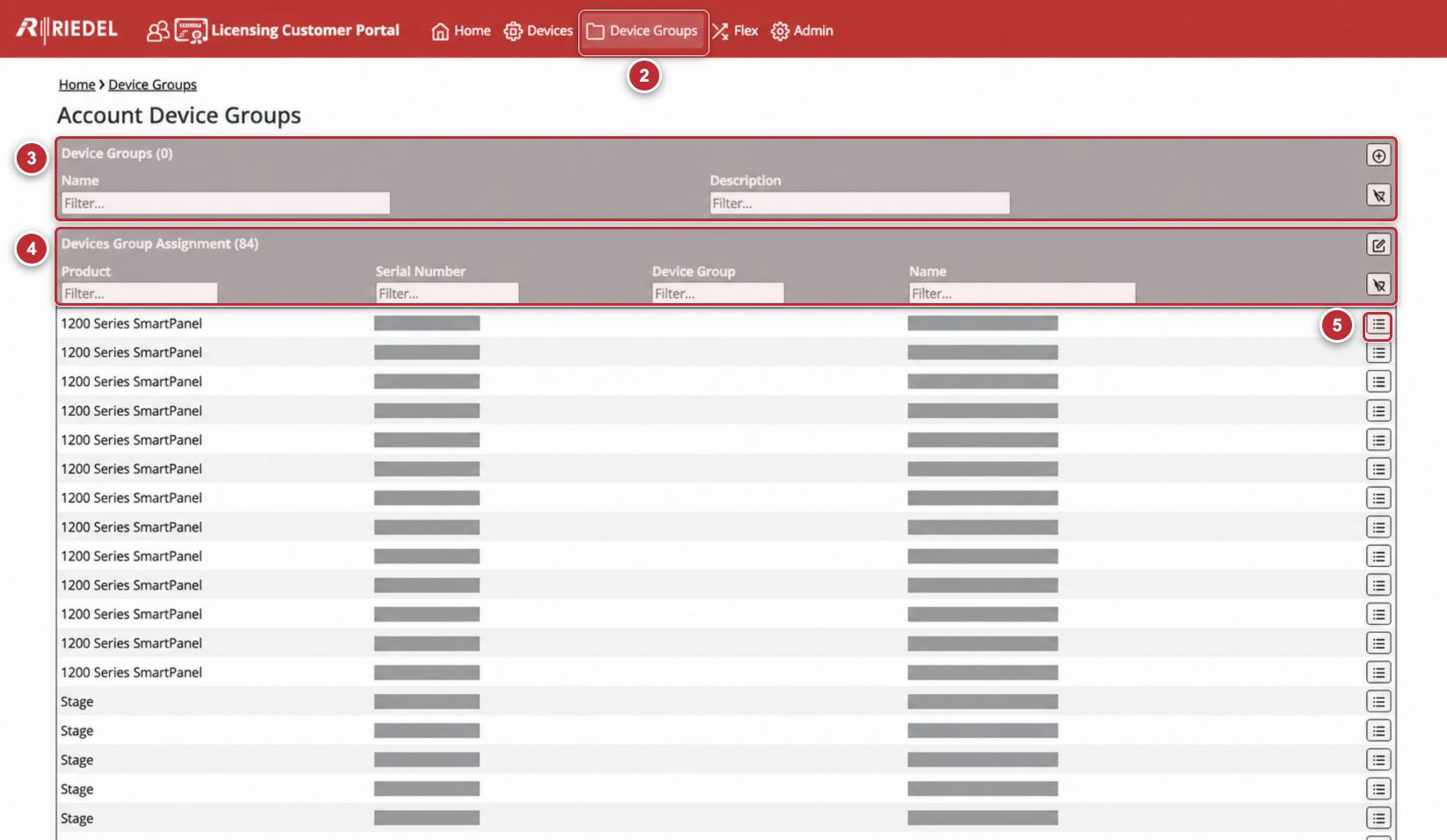
Callouts correspond to Review Device Groups. Serial Numbers and customer-specific Device Names are masked.
Create a Group
-
Confirm the Portal shows the required Customer Account.
-
Select Device Groups.
-
Select Add in the Device Groups section.
-
Enter a Name.
-
Optionally enter a Description.
-
Select Save.
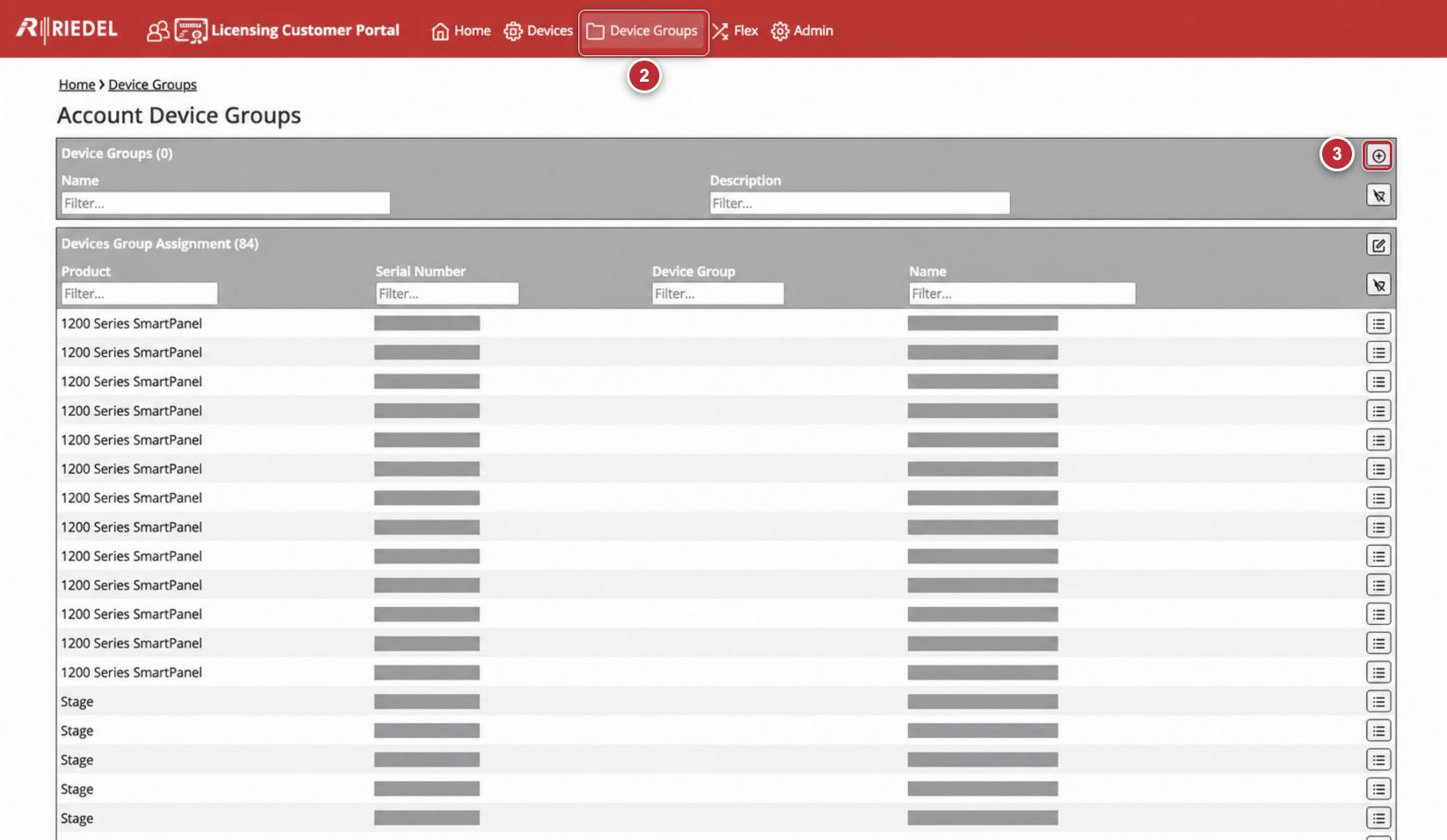
Callouts 2 and 3 identify the navigation and Add actions.
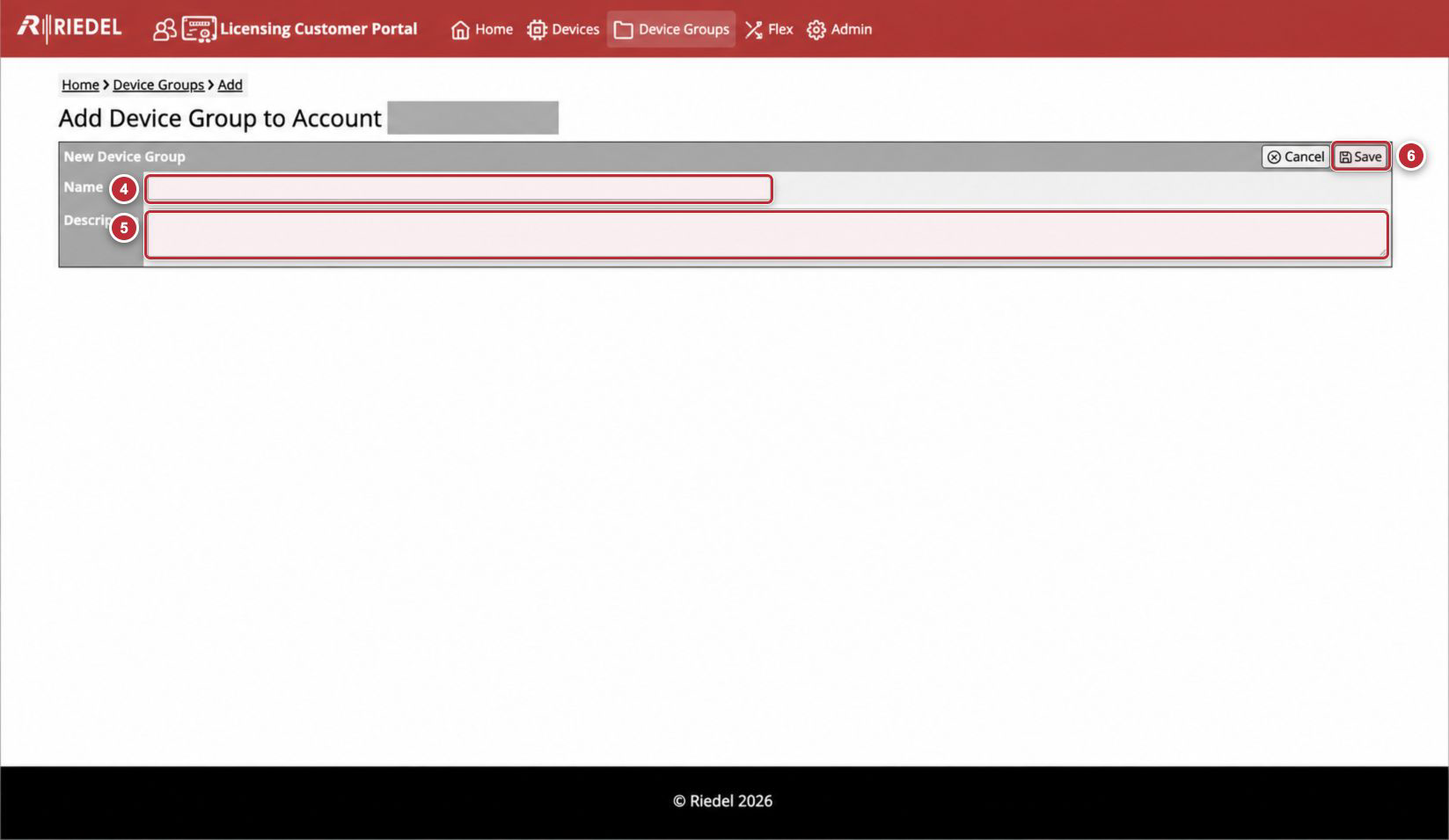
Callouts 4 through 6 correspond to the form steps.
Assign or Unassign One Device
-
Open Devices.
-
Find and open the Device.
-
Select Change Device Group.
-
In New Device Group, select the required Device Group. Select the blank value to unassign the Device.
-
Confirm the Device and selection.
-
Select Save.
-
Confirm the Device Page displays the expected Device Group.
Update Multiple Device Assignments
-
Confirm the Portal shows the required Customer Account.
-
Select Device Groups.
-
Select Edit Group Assignments.
-
Review each Device by Product, Serial Number, and Device Name.
-
Select the required Device Group for each Device that must change. Select the blank value to unassign a Device.
-
Leave Devices that do not need a change on their current values.
-
Select Save.
-
Confirm the Portal reports Group assignments updated.
Edit a Device Group
-
Select Device Groups.
-
Open the required Device Group.
-
Select Edit.
-
Change the Name or Description.
-
Select Save.
-
Confirm the updated values.
Delete a Device Group
-
Reassign or unassign any Devices that still use the Device Group.
-
Open the Device Group and select Edit.
-
Select Delete when the control is available.
-
Confirm the deletion.
-
Confirm the Device Group no longer appears.
The Portal provides Delete only when the Device Group can be deleted. If the expected control is unavailable after all assignments are removed, contact Riedel Customer Success.
Field and Control Reference
|
Component |
Guidance |
|---|---|
|
Add |
Opens the New Device Group form. |
|
Name |
Enter a required Device Group label that is meaningful within the current Customer Account. |
|
Description |
Optionally describe the Device Group’s purpose. |
|
View |
Opens the selected Device. |
|
Edit Group Assignments |
Opens the assignment form for all Devices in the current Customer Account. Requires Authorize Admin. |
|
Edit |
Opens the selected Device Group for changes. Requires Authorize Admin. |
|
Delete |
Deletes the selected Device Group when it has no blocking assignments. Requires Authorize Admin. |
|
Clear filters |
Removes all filters from the table. |
|
Cancel |
Leaves the form without creating the Device Group. |
|
Save |
Applies the reviewed Device Group or assignment changes. |
Naming Guidance
Use operational categories that remain useful over time, such as location, environment, or service role. Do not include credentials, personal data, or temporary incident details.