
In Setup, you create a list of Jobs that are to be made available for STAGE users to use.
Each Job defines the necessary requirements for a production or an event.
-
The people required (e.g. audio engineers, producers, directors): the Members
-
The input and output audio signals (prosumers): the Devices.
-
The audio signal processing such as audio mixers: the Applications.
Once Jobs have been created, they can be activated in the Activation Tab.
Overview
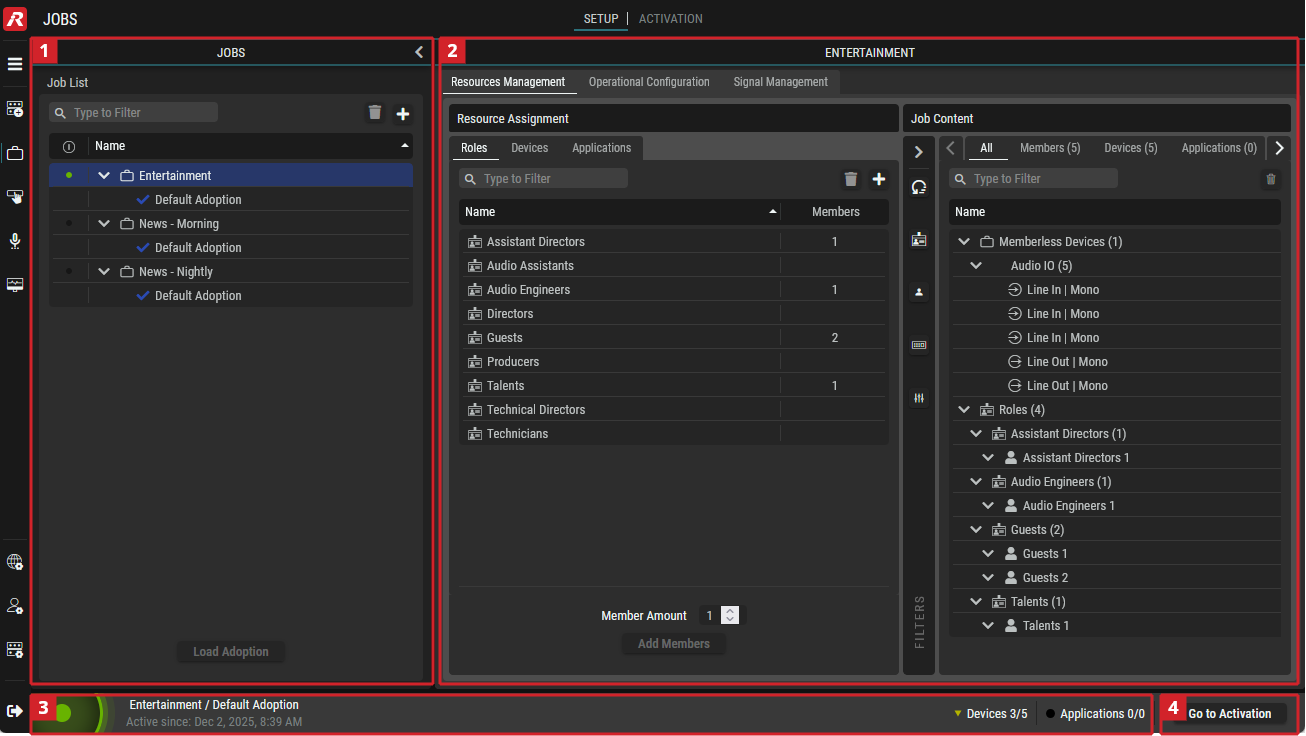

Jobs
Create Jobs and their associated Adoption(s). A Job can have one or more Adoptions.
-
Job: This groups one of more Adoptions which form the Job.
-
Adoption: This defines which system resources STAGE will use when the Job is activated.
Depending on whether a Job or an Adoption is selected in this “Jobs” section, the content in the “Job/Adoption Setup” section changes.
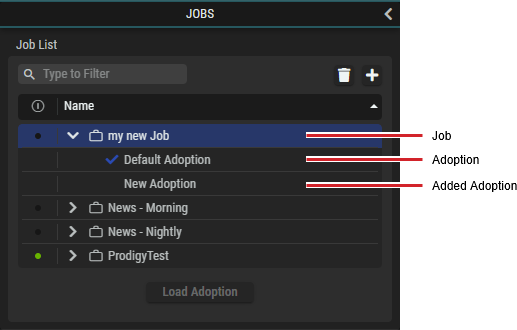
Typical Job List showing Jobs and Adoptions (e.g., with a selected Job)

|
Set a filter to display only content whose search text is found in the name. |

|
Click to delete the selected Job or Adoption.
|

|
Click to add a Job or Adoption.
|

|
Indicates if the Job is active. |
|
Name |
The name of a Job or Adoption. In the tree, double-click the name of a Job or Adoption to rename it. |

|
Click to load the selected unloaded Adoption into the corresponding Job. |

Job Setup / Adoption Setup
Depending on the selection in the Jobs section (a Job or an Adoption), the following configuration tabs will be displayed, which are described in the subchapters.

Information Bar
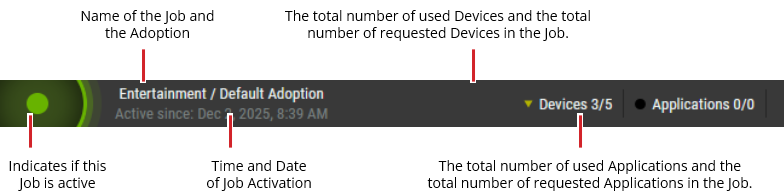

Go to Activation
Once you have configured a Job, you need to activate it to make it run.
This is done in the Activation Tab. Click to go to the Activation tab.