
I/O Management consist in the mapping of Hardware Devices to Virtual Devices.
Hardware Devices represent the I/O Structure of a registered Host.
Virtual Devices are used to represent elements of the real world (e.g. Mono Microphone) that are not directly visible to STAGE.
It is important to devise a naming scheme that allows you to trace a virtual signal back the hardware I/O for troubleshooting purposes. Consider keeping spare inputs and outputs:
-
For future expansion needs.
-
To have extra I/Os should there to be a need for a last second signal swap.
Once an input or output is mapped to a virtual device, the I/O is available to be used by any Job (anywhere in STAGE). Multiple Jobs can use the same I/Os, but not at the same time.
In I/O Management:
-
You create one or more Virtual Devices for each Hardware Device (Registered Hosts discovered in the Registration tab or Unmanaged Hosts created in the Configuration tab).
-
Virtual Devices model and virtually represent the underlying hardware layer within STAGE.
-
When STAGE routes a Virtual Device’s audio signals, all the legs (individual audio channels) are routed together as a package.
-
-
You assign the hardware device’s audio inputs and outputs to Virtual Devices. This requires the linking of the hardware inputs and outputs to the equivalent STAGE Virtual Device inputs and outputs.
For example:
-
This determines that a specific hardware input is used for presenter one’s microphone. Once this input is linked to a virtual device, it can be labelled as Presenter #1 in the Virtual Device.
-
If a Hardware Device has 16 audio inputs, this can be represented as:
-
8 × stereo Virtual Devices.
-
2 × 5.1 Virtual Devices and 3 stereo Virtual Devices.
-
Overview

System Commissioning - I/O Management

Locations
This section lists all locations defined in the STAGE system. To add or edit locations, see chapter Registration #Locations.
|
|
Set a filter to display only content whose search text is found in the name. |
|---|---|
|
Locations |
If one or more locations are selected, only host types that are located at the selected locations are displayed in the Host types section. Other host types are hidden. If no location is selected, all host types available in the STAGE system are displayed. |

Virtual Devices
This section:
-
Allows you to add Virtual Devices as necessary to represent each Registered Host discovered in the Registration tab. A virtual device can group a two or more audio signals together to represent the signal’s application (5.1, stereo, or 16 channels for example) so that STAGE can route the audio signals as a group together. Each individual audio channel is called a Leg.
-
Lists all the Virtual Devices that are available in the STAGE system. The Virtual Devices displayed may be reduced if one or more locations are selected in the Locations section.
|
|
Set a filter to display only content whose search text is found in the name. |
|
|
Click to delete the selected Virtual Device. |
|
|
Click to add a Virtual Device. See below. |
|
Name |
Select a Virtual Device to show its available inputs / outputs in the I/O Mapping section. |
|
Map |
Shows |


Adding a Virtual Device
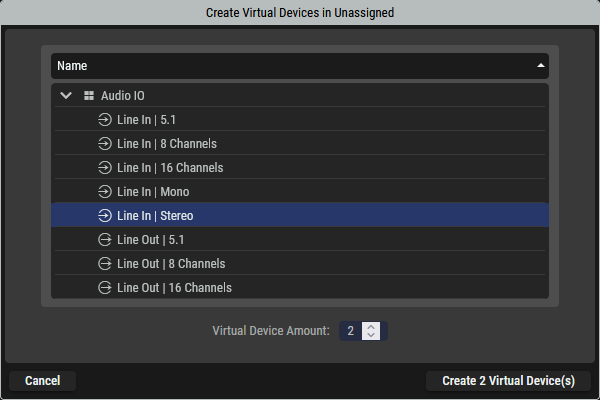
For each Hardware Device, you need to create a Virtual Device.
-
Select the Location in which the Hardware Device is located.
-
Click

-
Select the Hardware Device’s signal application (5.1, stereo, or 16 channels for example), line in, or line out.
-
Set the number of these Virtual Device instances to create.
-
Click Create X Virtual Device(s).
-
Double-click the Virtual Device’s Name to rename it.

I/O Mapping
This section lists the inputs and outputs for the selected Virtual Device and for the selected Hardware Device. Connections are made through:
-
A drag and drop action, where you click on an Virtual Device input / output and drag it to the equivalent Hardware Device input / output leg.
-
By making the connections between multiple Virtual Device inputs / outputs and their equivalent Hardware Device input / output legs in bulk.
When you have the same hardware in two studios (identical Registered Hosts but located in two different studios), map the I/Os in the same way in both studios. This allows Jobs to run in either studio: If one studio is closed for technical reasons, you can continue the production in the other studio using the same Job in the new Location.
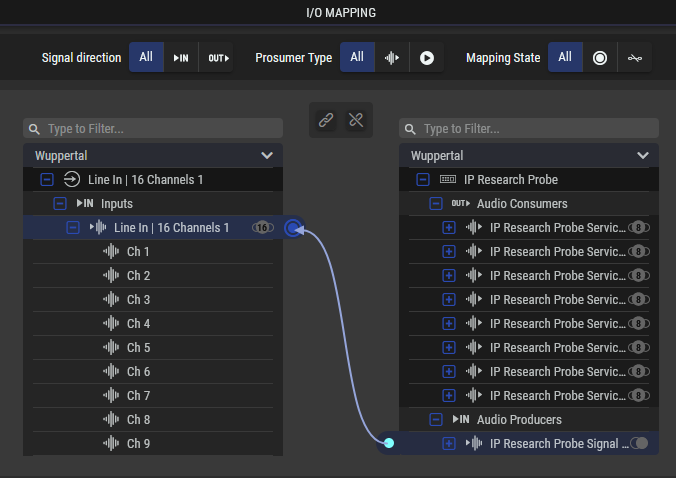
I/O Mapping has the following filters.
|
Signal Direction |
All: Show producers and consumers. :triangle: IN: Show producers (inputs) only. OUT :triangle:: Show consumers (outputs) only. |
|
Prosumer Type |
All: Show all types of producers and consumers. |
|
Mapping State |
All: Show both mapped and unmapped producers and consumers. |


I/O Mapping has the following map and unmap buttons.
|
|
Click to map the selected Virtual Device and Hardware Device leg(s). |
|
|
Click to unmap the selected Virtual Device and Hardware Device leg(s). |

Inspector
This lists the I/O Mappings to and from the selected Virtual device or selected Hardware device.
|
Virtual Device |
Shows the Virtual Device’s name. |
|
Device |
Shows the Hardware Device’s name. |
|
Group |
Shows the signal direction. Inputs / Audio Consumer: This is an audio stream destination. Outputs / Audio Producer: This is an audio stream source. |
|
Prosumer |
Shows the group name for one or more legs. |
|
Leg |
Shows the discrete channel name / identifier. |
Bulk Renaming
A number of bulk actions are available in Inspector by right-clicking a row.

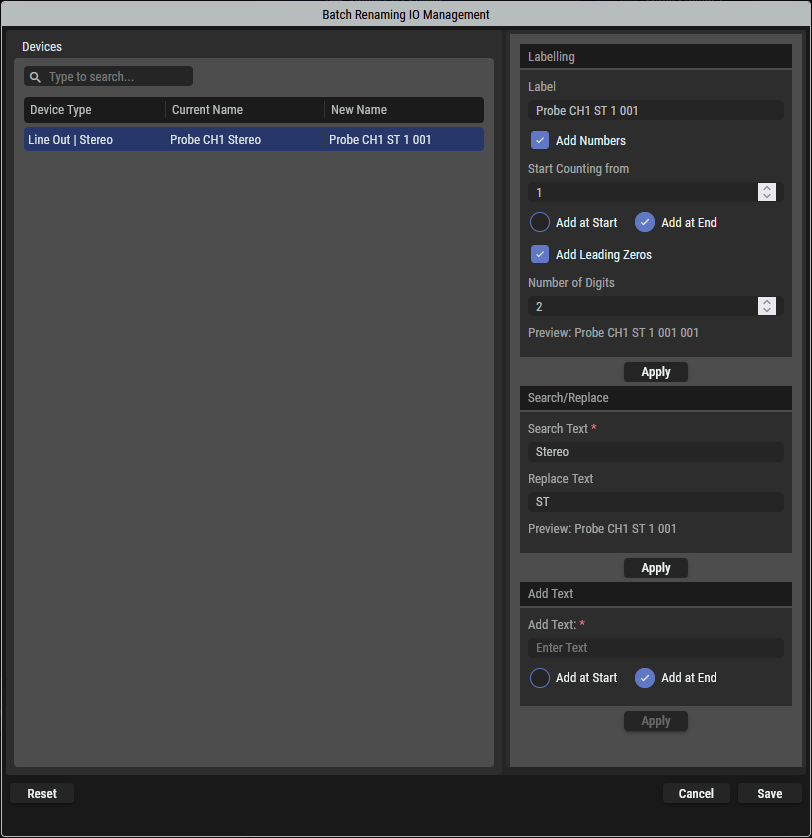
When renaming, the following window opens.
|
Add Numbers Start Counting From |
Set to serialize the names from a starting number. |
|
Add at Start Add at End |
Set where the counter or text is to be added. |
|
Add Leading Zeros Number of Digits |
Set to enable the padding of zeros to the serialization. |
|
Search Text Replace Text |
Set to replace specific text in the name. |
|
Add Text |
Set to add text to the name. |
|
Apply |
Click to apply your change to the New Name column where you can preview your modifications. |
|
Reset |
Click to clear all changes. |
|
Cancel |
Click to cancel your changes and close this window. |
|
Save |
Click to apply your changes and close this window. |

Hardware Devices
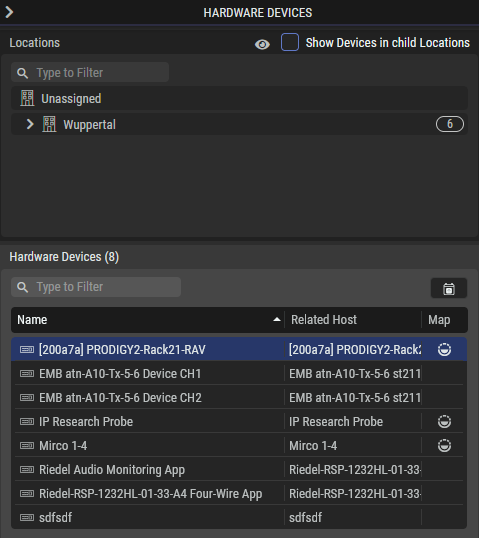
Hardware Devices are:
-
Registered Hosts discovered in the Registration tab and;
-
Unmanaged Hosts created in the Configuration tab.
|
|
Show / hide location without Hardware Devices. |
|
Show Devices in child Locations |
Set to show all Hardware Devices at the selected Location and the subordinate Locations in the Hardware Devices list. Clear to show only the Hardware Devices at the selected Location in the Hardware Devices list. |
|
|
Set a filter to display only content whose search text is found in the name. |
|
|
Click to sort list items by date, to show the most recently created items first. |
|
Name |
Select a Hardware Device to show its available inputs / outputs in the I/O Mapping section. |
|
Related Host |
Shows the registered host’s name which the hardware device comes from. |
|
Map |
Shows the current leg status: |


Mapping Audio Hardware Devices to Virtual Devices
Map audio hardware inputs and outputs to Virtual Devices as follows.
-
Optional: In Hardware Devices, Locations, select a location in which the Hardware Device is located to narrow the list of Hardware Devices being shown.
-
Select a Hardware Device that you want to assign legs to a Virtual Device.
-
In Virtual Devices, click
-
Map the Hardware Device to the Virtual Device. See I/O Mapping.
Batch Mapping
Many Virtual Device and Hardware Device legs can be mapped at once.
-
Select the Virtual Device and Hardware Device legs you want to map.
-
Click Map


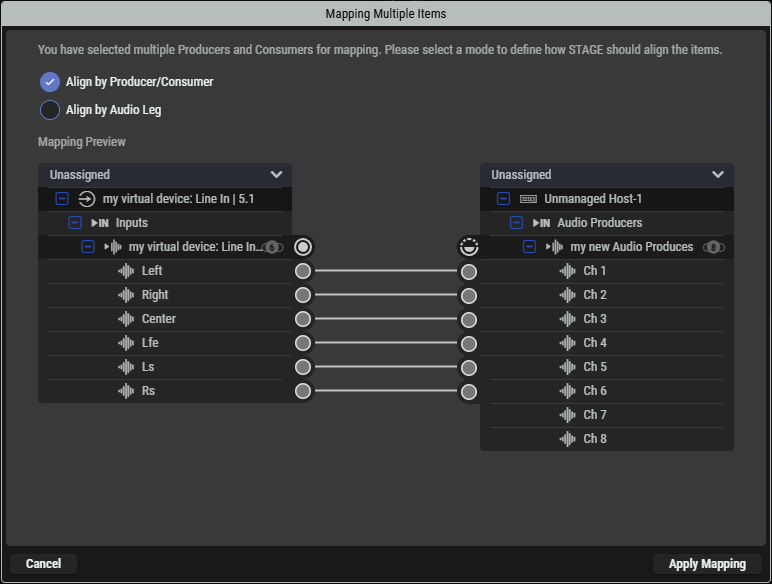
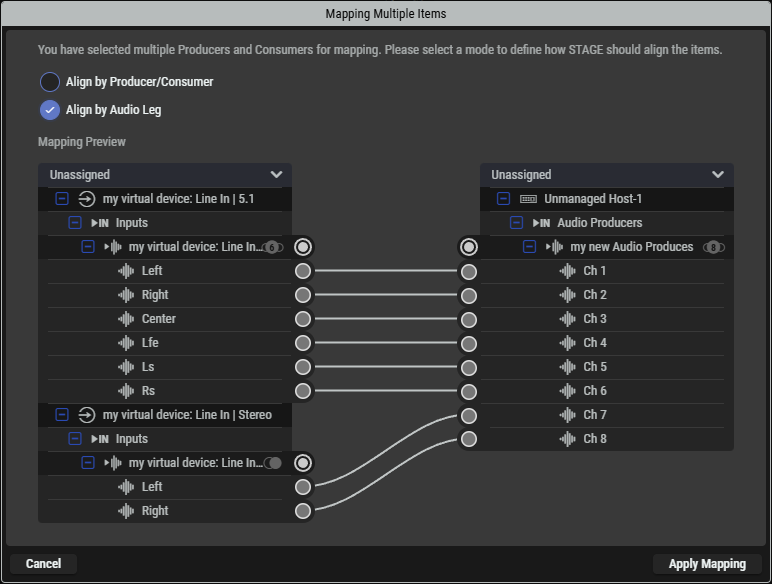
When selecting multiple producers and consumers for mapping, there are two mapping modes:
-
Align by Producer/Consumer
-
Align by Audio Leg
The Mapping Preview window appears to show the change to be made.
If you are satisfied, click Apply Mapping.
Unmapping Audio Hardware Devices from Virtual Devices
The mapping of audio hardware inputs and outputs to Virtual Devices can be broken as follows.
-
Select a Virtual Device or a Hardware Device leg to unmap.
-
To unmap,…
-
click Unmap

-
click on

-
