
When an Adoption is selected in the Job List, the following configuration tabs are shown:
Devices Tab
To be able to activate a Job, at least one Adoption must first be created. It defines which System Devices that are available to STAGE will be used as devices for that Job by adopting the Job Devices to System Devices. By having multiple Adoptions, the user has the option to run the same Job using different hardware. This can be useful when wanting the ability to run a Job from various studios or facilities.
Overview


Jobs
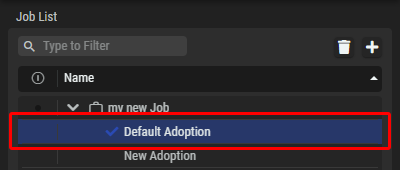
Collapsed Jobs section, where the “Default Adoption” of the Job “my new Job” is selected.
The name of the selected “Job / Adoption” is displayed in the header of this Setup tab.

Job Devices

|
Set a filter to display only content whose search text is found in the name. |
|---|---|

|
Shows/Hides Job Devices that are already adopted to a System Device. |
|
Job Device |
This section lists all Job Devices that are added in the Jobs > Setup: Resource Creation > Devices tab. |
|
Device Type |
Shows the type of the Device. |
|
Adopted System Device |
Shows the System Device that is adopted to the corresponding Job Device. The System Devices are added in the System Commissioning: I/O Management > Virtual Devices |

Filter (Job Devices)
Filter the Job Devices. See Getting Familiar with the User Interface #Filtering.

Adoption Buttons

|
Click to unselect all selected Devices. |
|---|---|

|
Click to adopt the selected Devices.
|

|
Click to remove the adoption of the selected Devices.
|

System Devices
|
|
Set a filter to display only content whose search text is found in the name. |
|---|---|
|
Show Incompatible System Devices |
By default, System Devices that are not compatible with a Job Device selected in the Job Devices section are hidden. When this option is enabled, all available System Devices are listed regardless of the selected Job Device. |
|
|
Shows/Hides System Devices that are already adopted to a Job Device. |
|
System Device |
This section lists all System Devices (Virtual Devices) that are added in the System Commissioning > I/O Management tab. |
|
Device Type |
Shows the type of the Device. |
|
Adopted Job Device |
Shows the Job Device that is adopted to the corresponding System Device. |
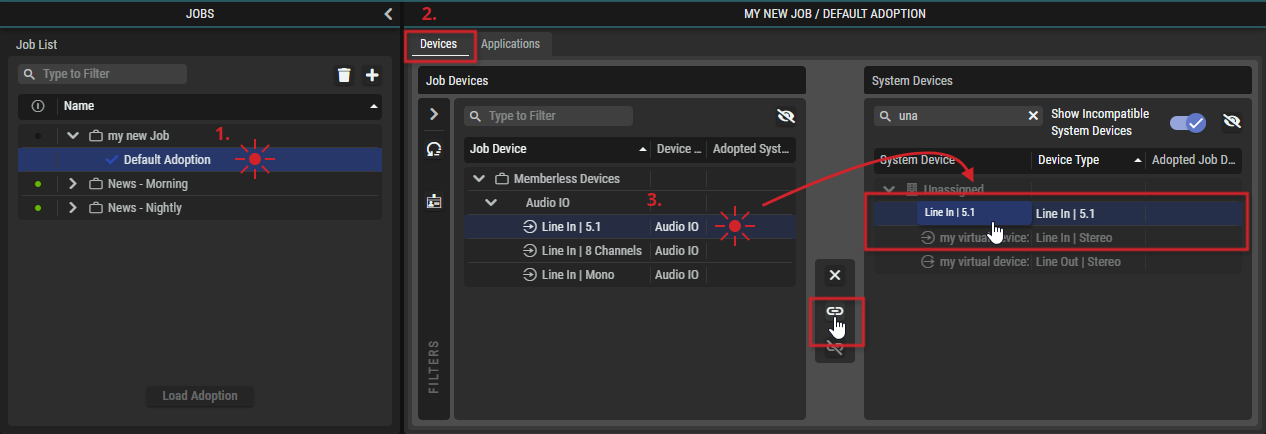
Creating an Adoption between a Job Device and a System Device
-
Select an “Adoption” to configure in the Job List.
-
Select the “Devices” tab.
-
Select a Job Device.
-
To create an Adoption for a Device,…
-
drag a Job Device onto a System Device or
-
select a System Device and click the adopt
-
By doing so, the selected System Device shall be used (if available) when the Job is activated.
Applications Tab
Applications run on hosts (e.g. SAME DSP Engine ). In this tab, you can verify the availability of Applications provided by registered hosts. In doing so, you can compare the applications requested by a Job against what the entire system is able to provide.
In addition, you can add a location constraint and force STAGE to only adopt Applications coming from registered host(s) in that location.
Overview
Jobs
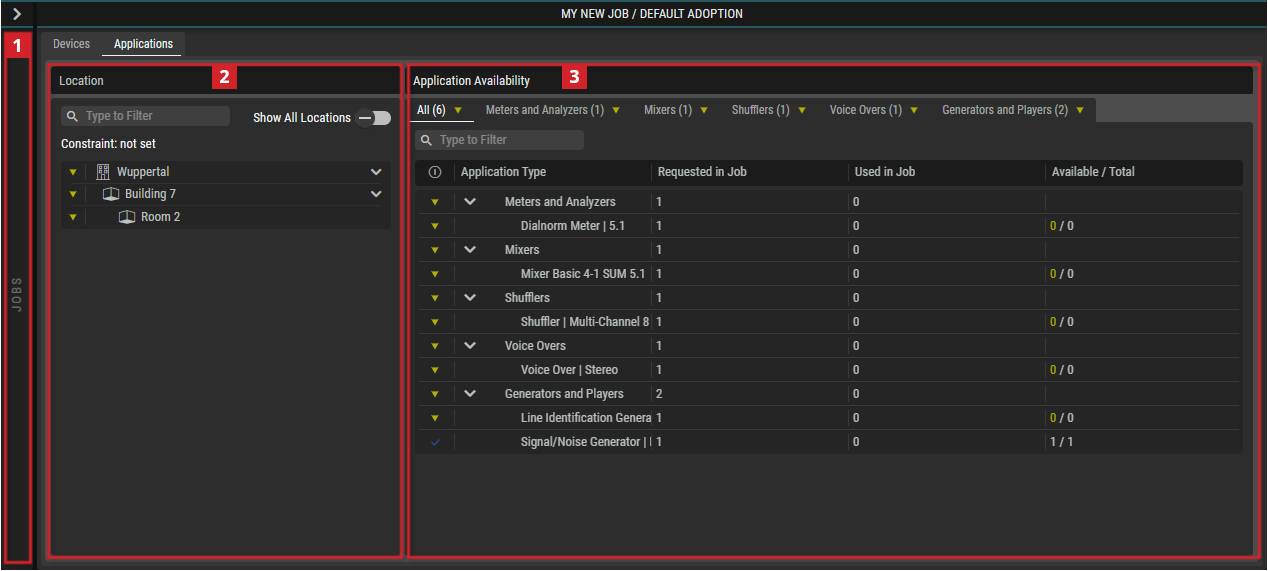
Collapsed Jobs section, where the “Default Adoption” of the Job “my new Job” is selected.
The name of the selected “Job / Adoption” is displayed in the header of this Setup tab.
Location
|
|
Set a filter to display only content whose search text is found in the name. |
|---|---|
|
Show All Locations |
By default, Locations that are not involved in the selected Adoption are hidden. When this option is enabled, all Locations are listed regardless of the selected Adoption. |
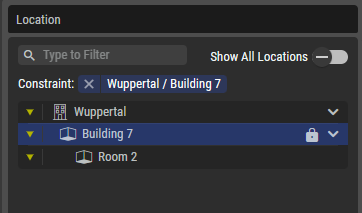
You can add a Location Constraint and force STAGE to only adopt Applications coming from registered host(s) in that location.
Setting and Deleting an Constraint
Click on the 
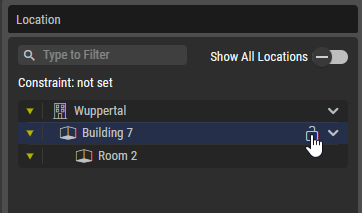
A Constraint is displayed above the Locations and by the 
Click on the 
Application Availability
|
All |
Shows all Application Types. |
|---|---|
|
[Application Groups] |
Shows only Applications of the corresponding Type:
|
|
|
Set a filter to display only content whose search text is found in the name. |

|
Indicates the availability of the Applications: |
|
Application Type |
Shows the Application type. |
|
Requested in Job |
Shows how many Applications of that type are defined in the Job. |
|
Used in Job |
Shows how many Applications of that type are currently in used in that Job.
|
|
Available / Total |
Total: Shows the total number of Applications of that type that are provided by the various registered hosts (e.g. SAME DSP engine). Available: Shows the number of applications of that type that are currently available. This number may be less than the total number if other Jobs are active and are using these Applications. |


-
Select an Adoption to configure in the Job List.
-
Verify Application Availability.
-
Compare the list of Applications requested in the Job against the total number of applications in the system.
-
Compare the list of Application requested in the Job against the currently available quantity.
-
Optionally, add a Location constraint.
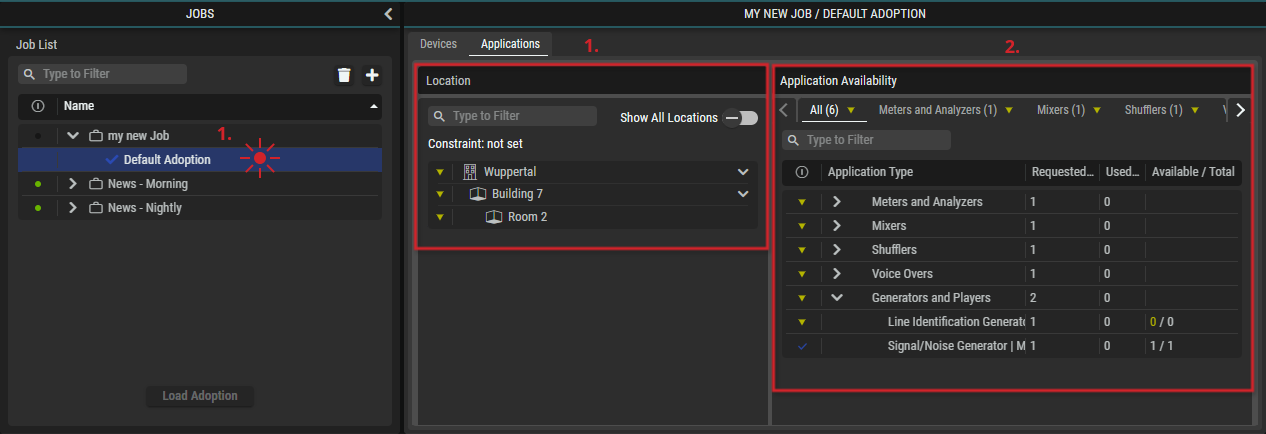
If STAGE does not have the required processing resources to run the suite of Applications necessary for a Job, you have the following options:
-
Modify the Job to use different or fewer number of Applications.
-
Remove location constraint, if present, so that STAGE can adopt Applications from a wider range of hosts.
-
Go back to System Commissioning, and register additional hosts to increase the the total number of Applications that the system can provide.
-
In the case of a SAME DSP Engine, go back to System Commissioning and activate a different volume that provides a different mix of applications.
-
Do nothing, as this can be a transitory situation. For example, the Total number of applications that the STAGE system provides may be enough, but other Job(s) may be active that reduces the Available number of applications.