
To export clips or playlists, first select the content you want to send out.
Then:
-
select the required clips or playlist
-
activate the export profiles you want to use
-
press Export
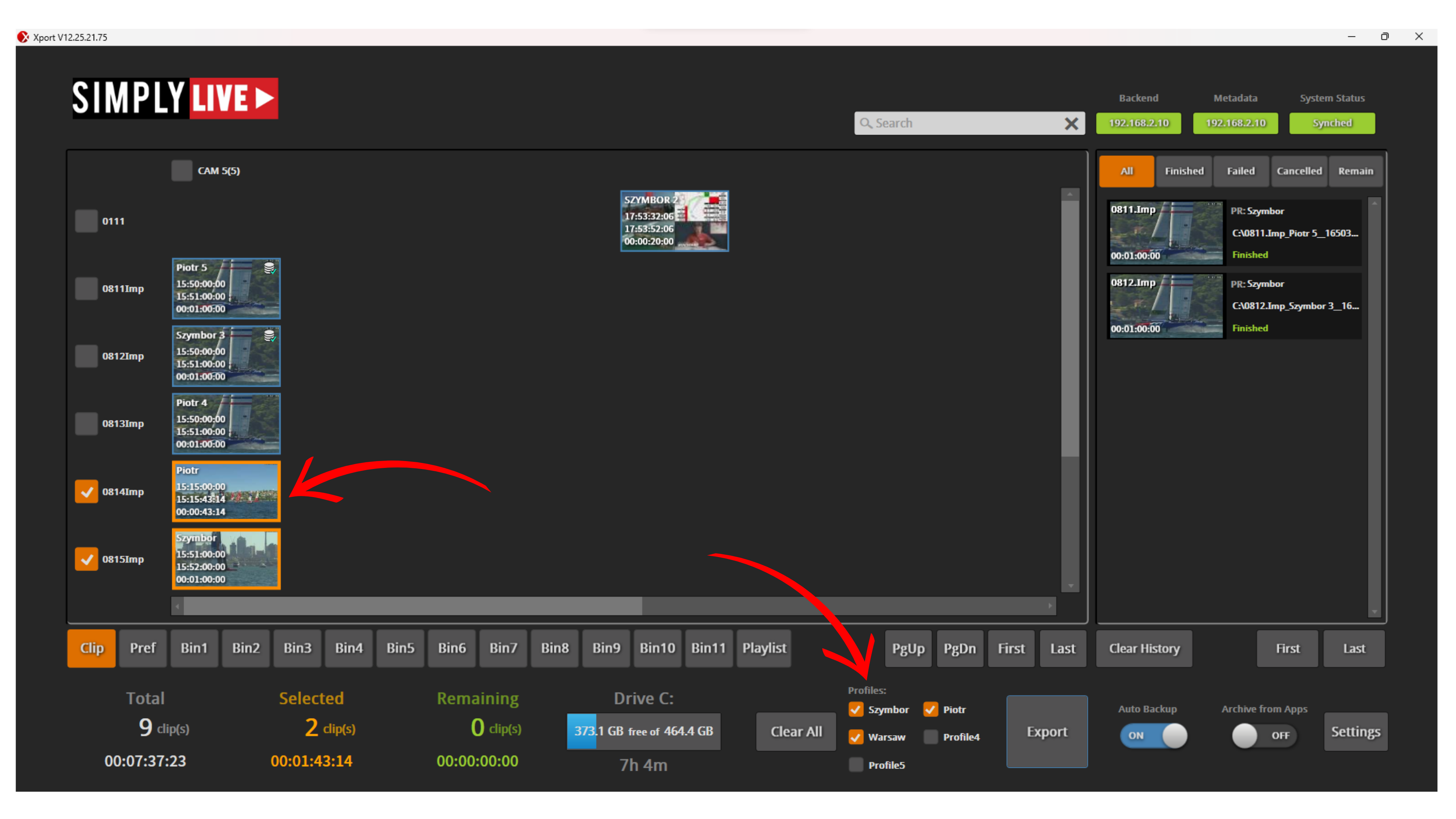
Once the export starts, you can follow its progress in the task area on the right side of the interface.
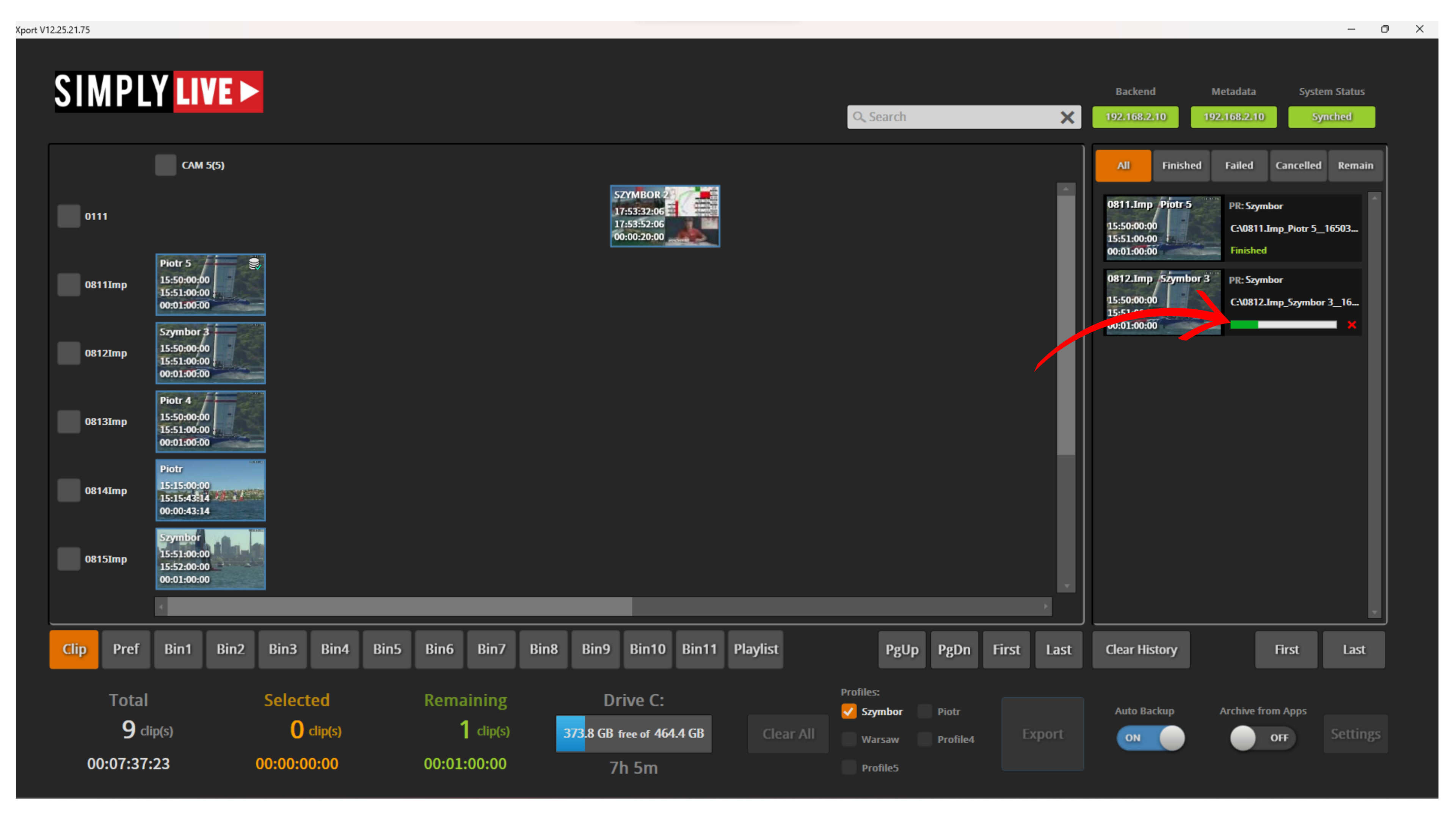
This area shows:
-
which clips are currently being exported
-
which exports are already finished
-
the current progress of active jobs
At the bottom of the screen, the Remaining counter shows how much content is still waiting to be exported.
Pro Tip
You can activate multiple export profiles for the same clips. This allows you to send the same content to different destinations, in different codecs, wrappers, and export settings, at the same time.
Exporting Playlists
Playlists can be exported in the same way.
Open the Playlist tab, select the playlist you want to export, activate the required profile or profiles, then press Export.
The playlist will be exported as a single flattened file.
Exporting from Bins
You can also export clips directly from bins.
Open the required bin, select the clips you want to export, activate the profile or profiles, then press Export.
Pro Tip
Use bins and name them clearly to keep large productions organised. This makes it much easier to group important clips, export them quickly, and manage them later.