
BMR allows you to stream recorded camera feeds or selected sources to a chosen destination by using one of the available destination containers.
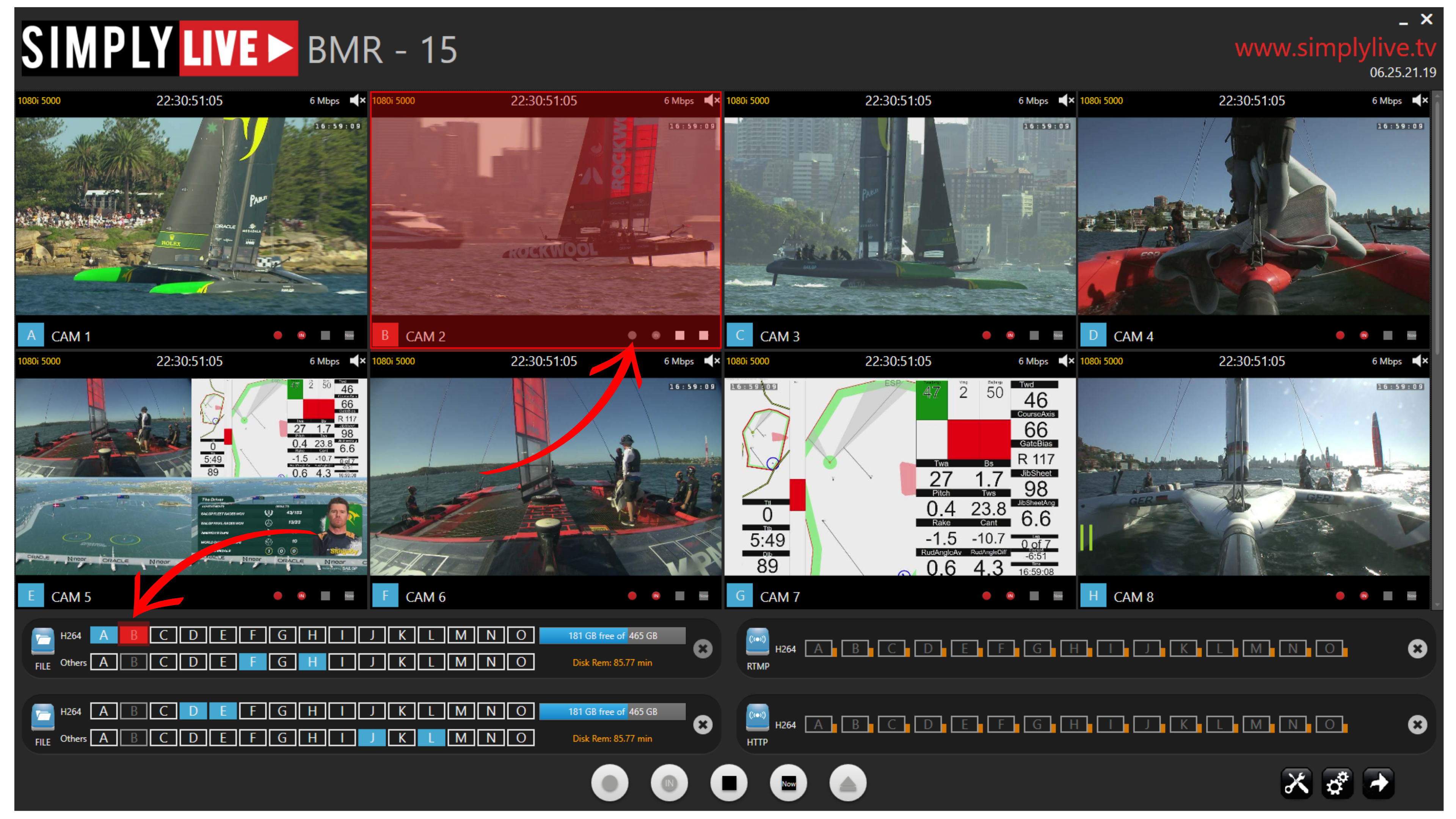
To start, select the destination container you want to use, then choose the cameras or camera angles you want to include in that stream. Once the codec and destination are configured, you can start the recording immediately or start it from a defined timecode point.
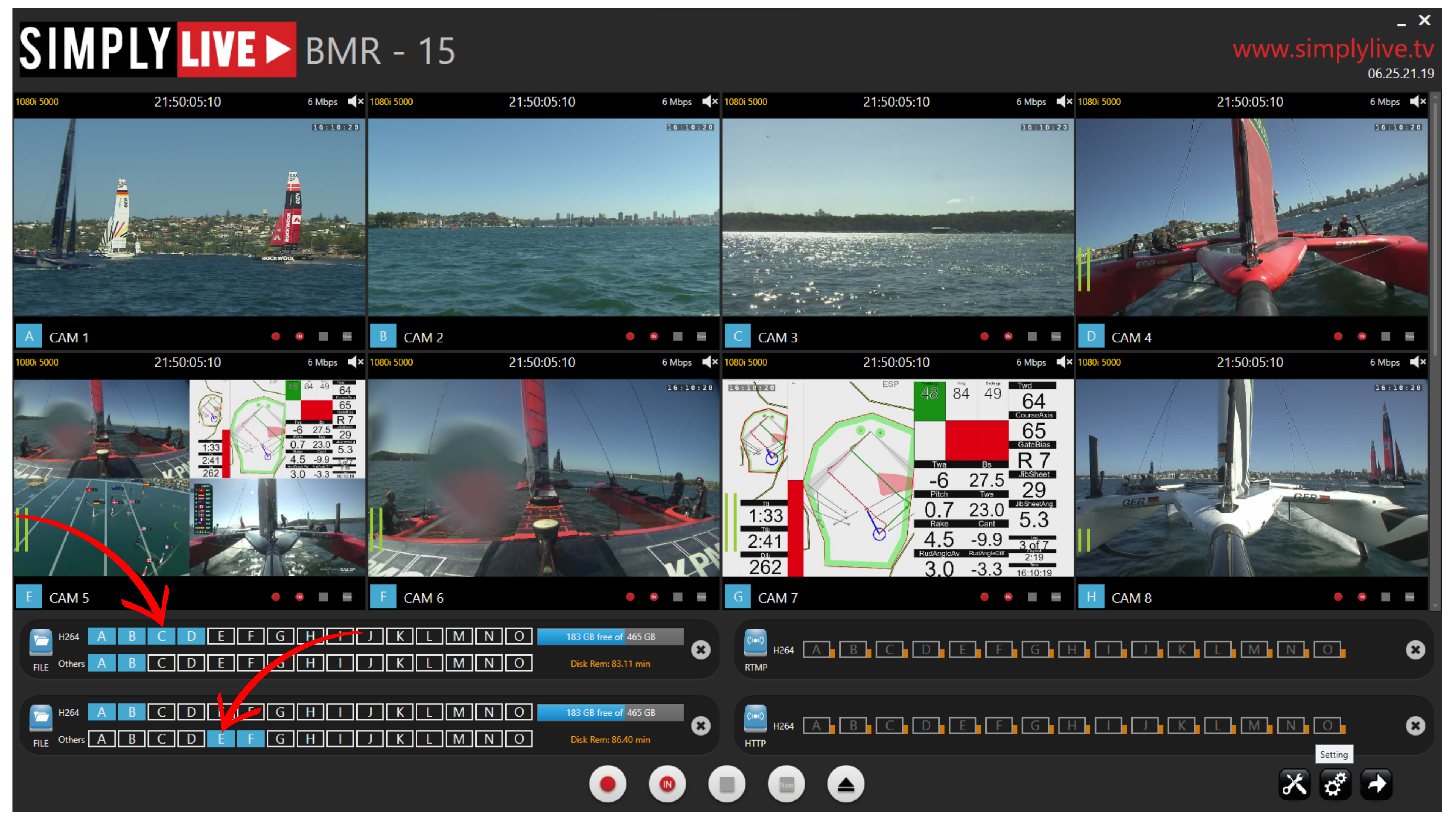
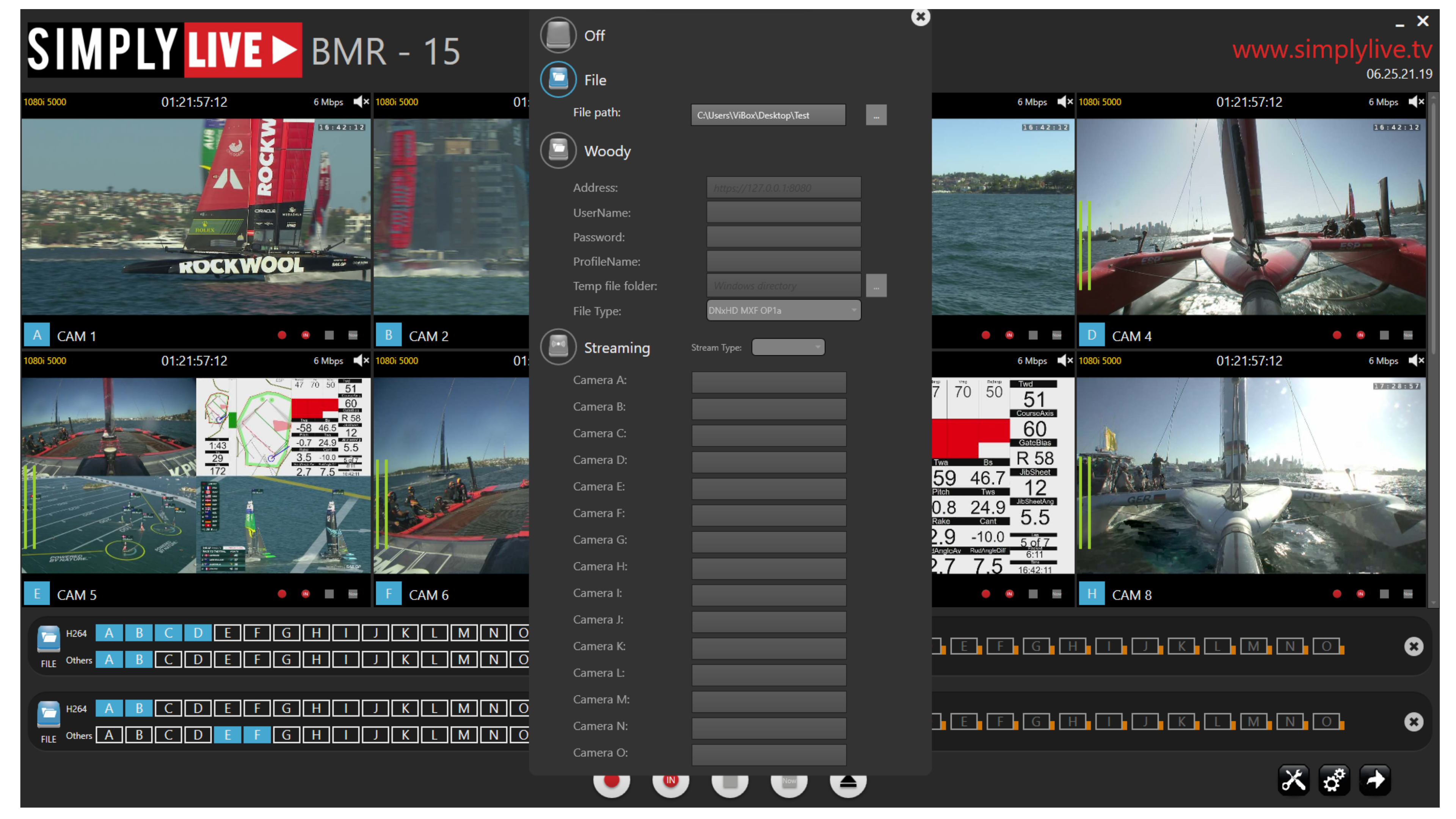
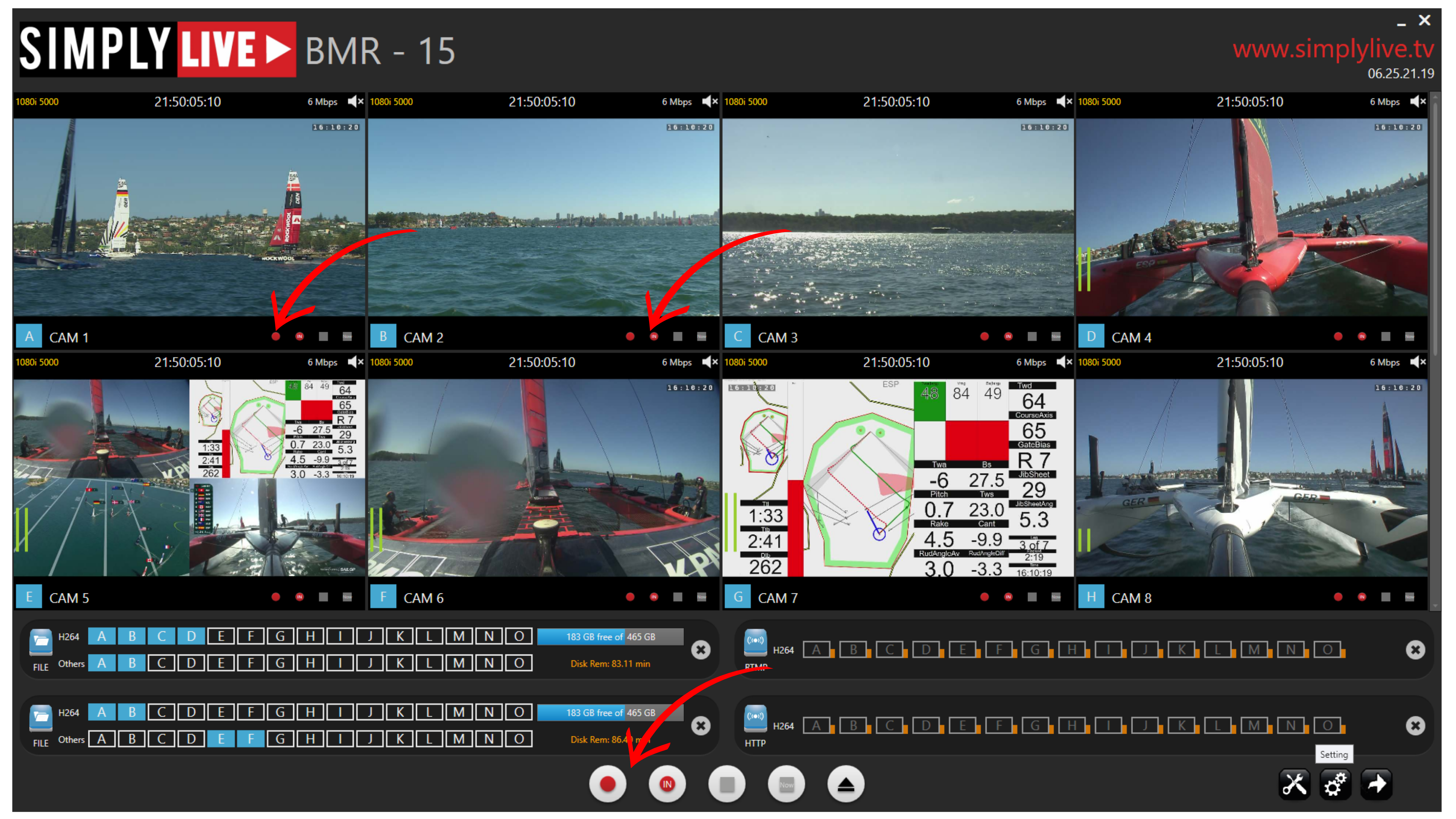
If you press Record, recording starts from the current moment.
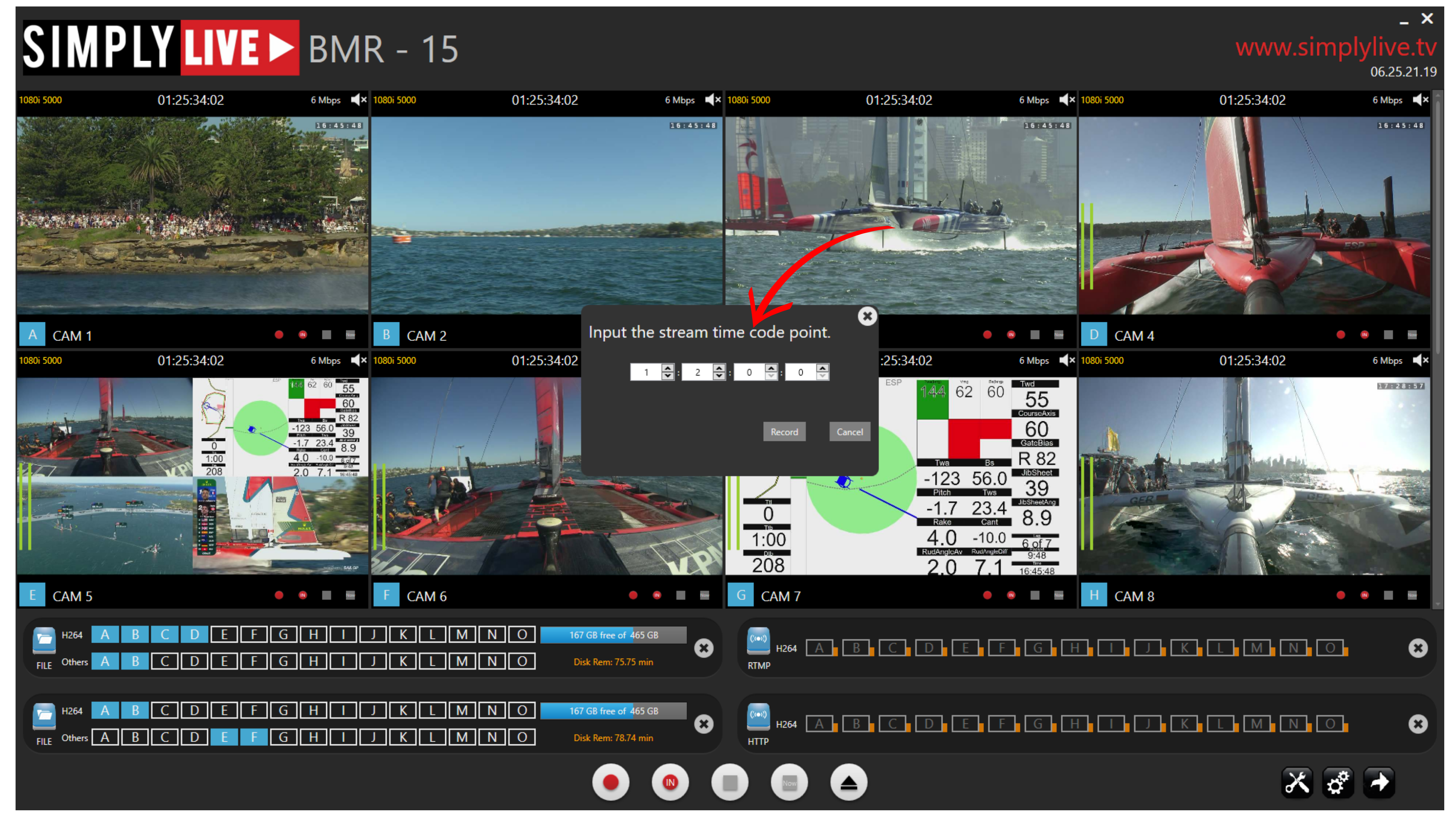
If you press Record from Timecode, BMR opens the timecode entry window, allowing you to begin from a specific point.
You can also build recordings independently by selecting only the required cameras and then starting the record action for those selected sources.
Info
To stream recordings, first assign the required cameras to a destination container, then start the record action either from the current moment or from a chosen timecode point.
Pro Tip
For post-production workflows, use segmented recording with Chunk Mode enabled. Smaller chunked files are easier to access, lighter to handle, and faster for editors to work with than one long continuous file.
Use Case – BMR to Post-Production Scenario
A common workflow is to stream Program and Clean feeds directly to post-production so the editing team can begin working immediately on social clips, highlights, or quick-turnaround edits.
In this scenario, you can enable Chunk Mode with:
-
a chunk duration of 15 minutes
-
a 1-minute overlap between chunks
This helps ensure that no action is lost between the end of one file and the start of the next, while also making the files more manageable for the post-production team.