
Playlist Panel
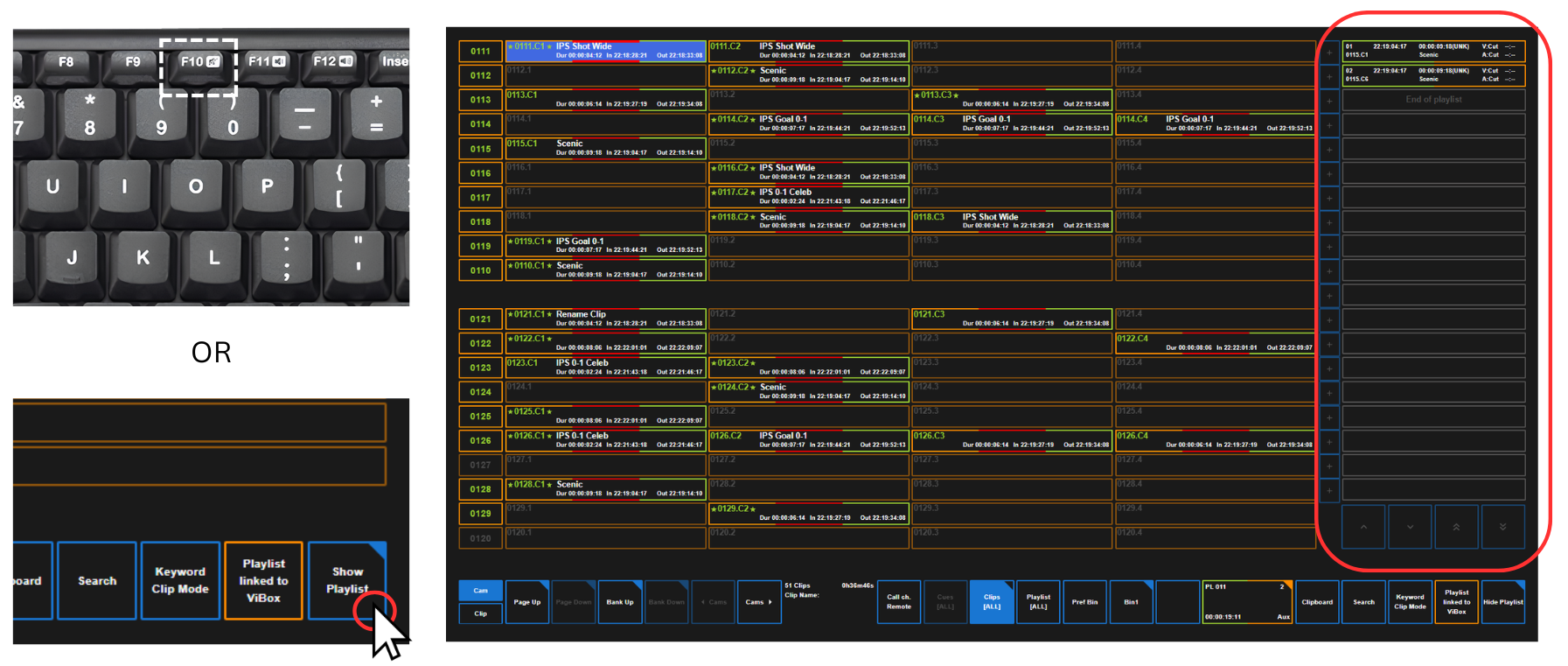
Within Clip Companion you can “Show” or “Hide” the playlist panel by either pressing “F10” or by clicking the button in the bottom right corner.
Loading Playlist
To load a new playlist you can navigate to the very end of the bank, or use the shortcut “ALT > 0” and it will take you straight there.
Using the arrow keys, go to the playlist number that you want to load and press “Enter” on the keyboard.
You can also load an existing playlist by doing the same.

Use the Playlist ID to select the playlist
Touch or Click the left side of the playlist (RED) to load to PGM 1
Touch or Click the right side of the playlist (GREEN) to load to PGM 2
Adding Clips
To add clips to a playlist you need to select the Clip(s) with the ORANGE section and then press the add symbol “+” in the playlist panel.
Depending on where you click the add symbol “+” will determine where you place the clips within the playlist.
-
Clicking “+” at an empty slot > End of the Playlist
-
Clicking “+” where a clip is already placed > Insert Before that element in the Playlist
.png?cb=43dc55582666c1de4b4da6513e788b71)
Pro Tip
You can select multiple clips at the same time by clicking the ORANGE section of the clip.
Depending on what order you selected them in will be the order in which they get added to the playlist.
If you want to put Clip(s) before or after a specific element, you can right click that specific element and choose “Insert Before” or “Insert After” depending on what you want to do.