
Load By Colour Indicator
In order to load a clip to PGM1 or PGM2, the easiest way to do this is by clicking on the coloured indicator of that clip.
This can be done via the touchscreen or by a mouse click.
This can speed up your ability to call a clip as you don’t have to navigate directly to it with the keyboard.
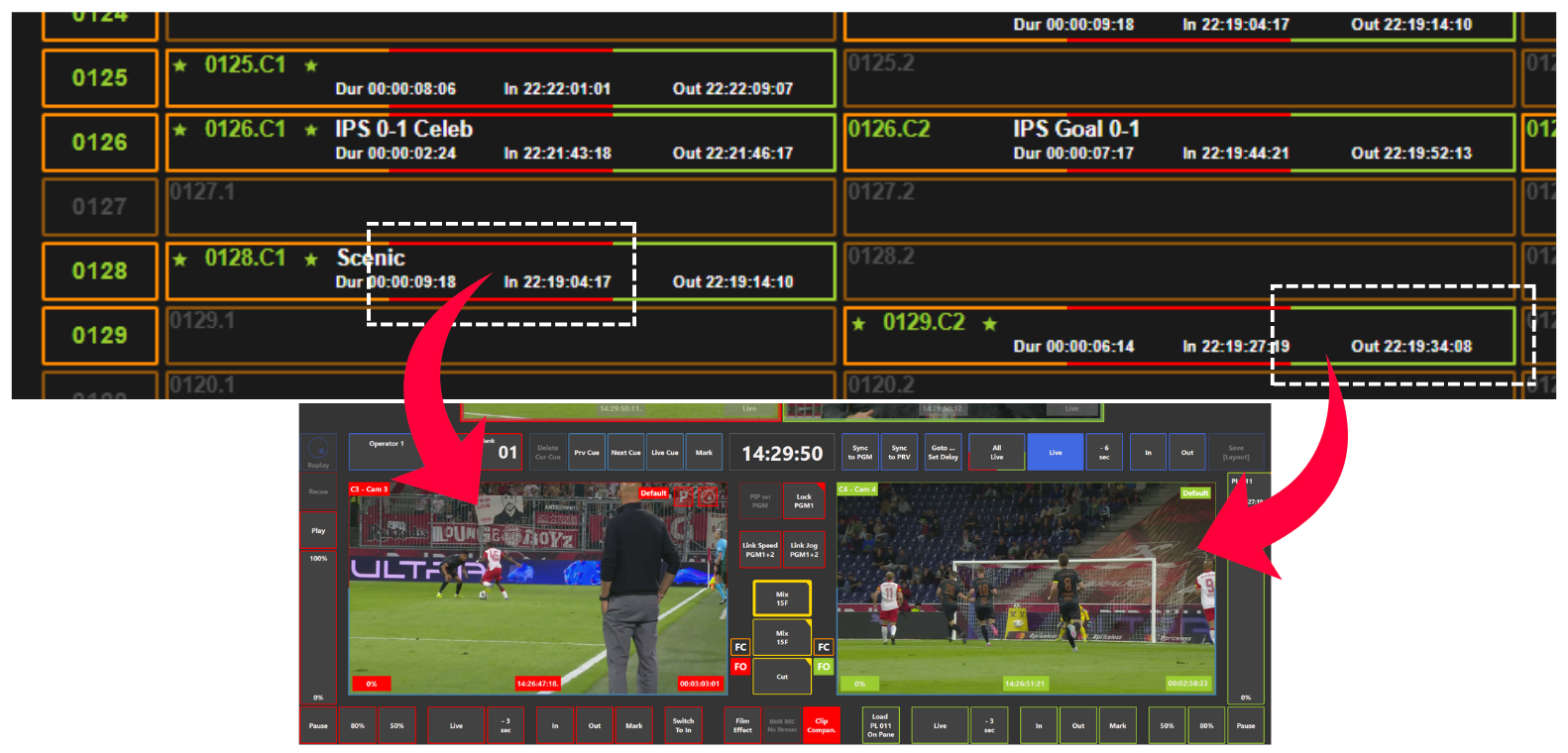
This option can be disabled if you don’t want to use it.
-
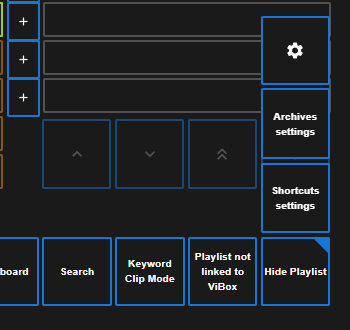
Right click “Show Playlist” or “Hide Playlist” in the bottom right corner
-
Click the Settings Cog (or Gear) icon
-
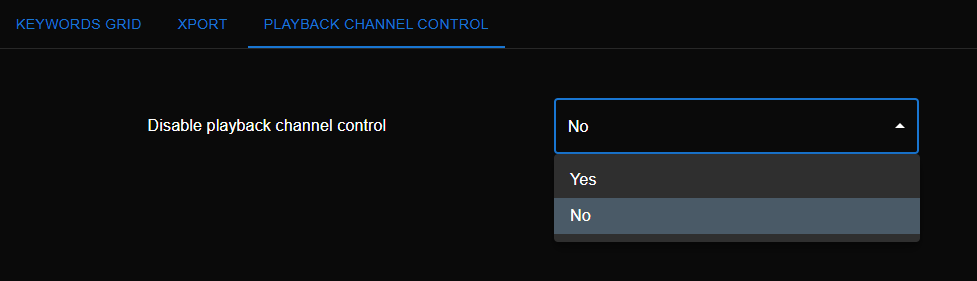
Go to “Playback Channel Control”
-
Turn this to “No”
-
Save the settings
PGM Output / Call Channel
Alternatively, you can use the keyboard to navigate to a clip, and depending on what PGM output is selected along the bottom bar, press ENTER and the clip with load to that PGM.
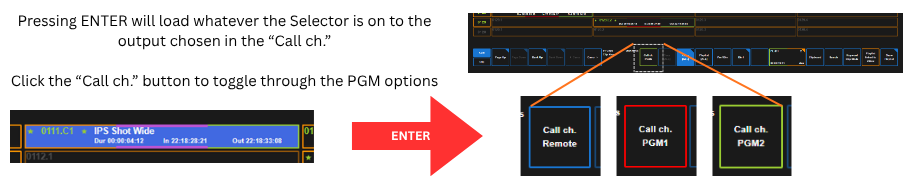
To change the PGM output or “Call channel” you just left click the button to toggle through the options.
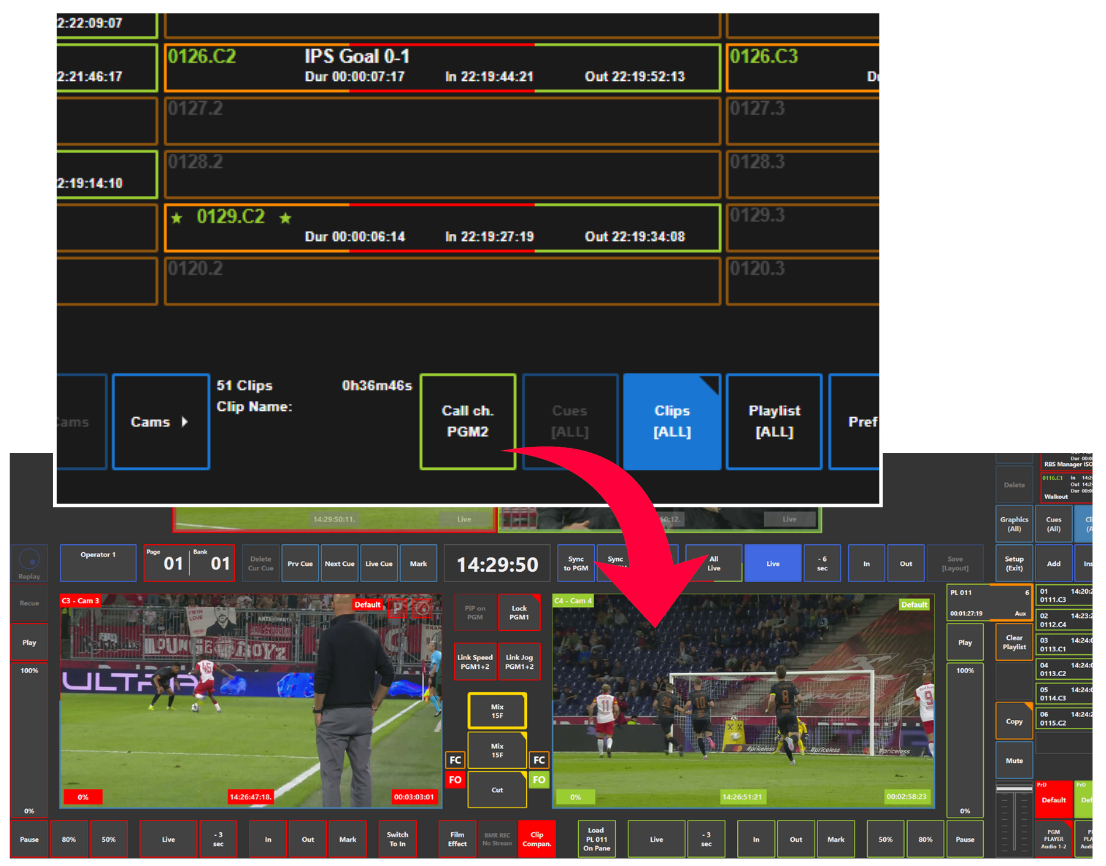
Always make sure you have the correct output selected before pressing ENTER