
Exporting
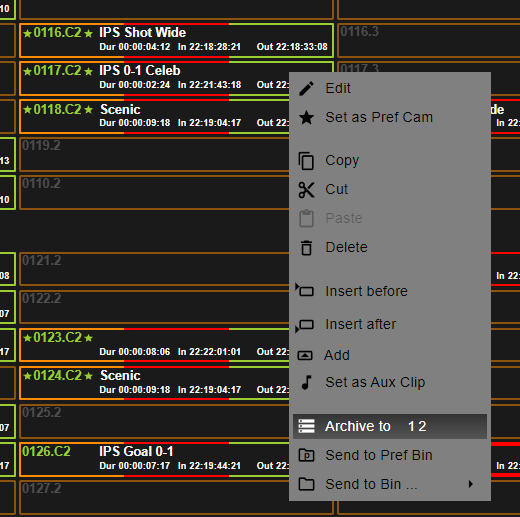
To export a clip or playlist, you can either right click the clip and selected “Archive to #”.
The numbers reference the target numbers which can be selected in “Archive Settings”
If multiple target numbers are present, you will export to all of those targets when you click it.
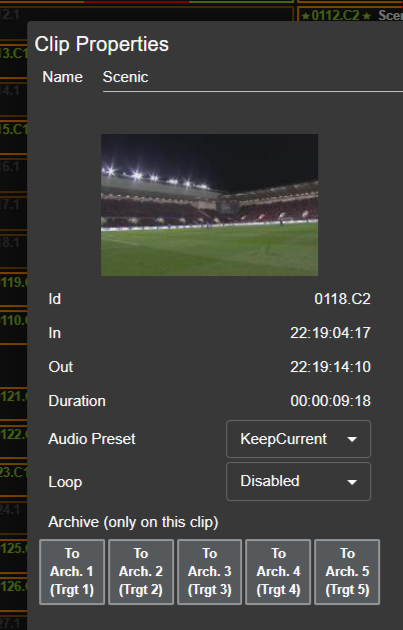
You also have the option to right click and “Edit” the clip and you can export directly to any target without having preselect the options “Archive Settings”.
Archive Settings
You are able to export clips and playlists directly from Clip Companion using the “Archive Targets”.
The targets are predefined within the Xport application, more on that can be found here SL_ Xport Overview and Operation
In order to choose which targets you export to, you select these by right clicking “Show / Hide Playlist” and opening “Archive Settings”.
Select which targets you want to export to.
To see what “Target 1” references you will need to check the settings in Xport.
.png?cb=df1e0a824dd60c602960da4c3cd897ef)